
1. Introduction
The E-Yooso Z-88 is a compact 81-key mechanical gaming keyboard designed for performance and durability. It features Outemu Red Switches, customizable RGB backlighting, and full anti-ghosting technology. This manual provides detailed instructions for setting up, operating, maintaining, and troubleshooting your keyboard.

Image 1.1: E-Yooso Z-88 Mechanical Gaming Keyboard, showcasing its compact design and RGB lighting.
2. Package Contents
Please check the package contents upon unboxing:
- E-Yooso Z-88 Mechanical Gaming Keyboard
- USB Cable (Type-C detachable)
- Keycap Puller
- User Manual (this document)
3. Setup Instructions
3.1 Connecting the Keyboard
- Connect the detachable Type-C USB cable to the port on the back of the keyboard.
- Plug the other end of the USB cable into an available USB port on your computer.
- The keyboard will be automatically recognized by your operating system. No additional drivers are typically required.
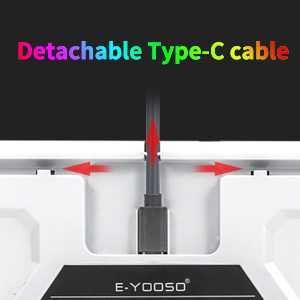
Image 3.1: Illustration of the detachable Type-C USB cable connection to the keyboard.
3.2 System Compatibility
The E-Yooso Z-88 keyboard is compatible with the following operating systems:
- Windows 10, Windows 8, Windows 7, Windows XP
- Mac OS X
- Windows VISTA
4. Operating Instructions
4.1 Mechanical Switches
The keyboard is equipped with Outemu Red Switches, offering a linear feedback with a quiet sound. These switches are designed for responsiveness and durability, with a lifespan of over 50 million keystrokes. The switches are hot-swappable, allowing for easy replacement with other 3-pin Outemu switches (e.g., brown, blue, silver).
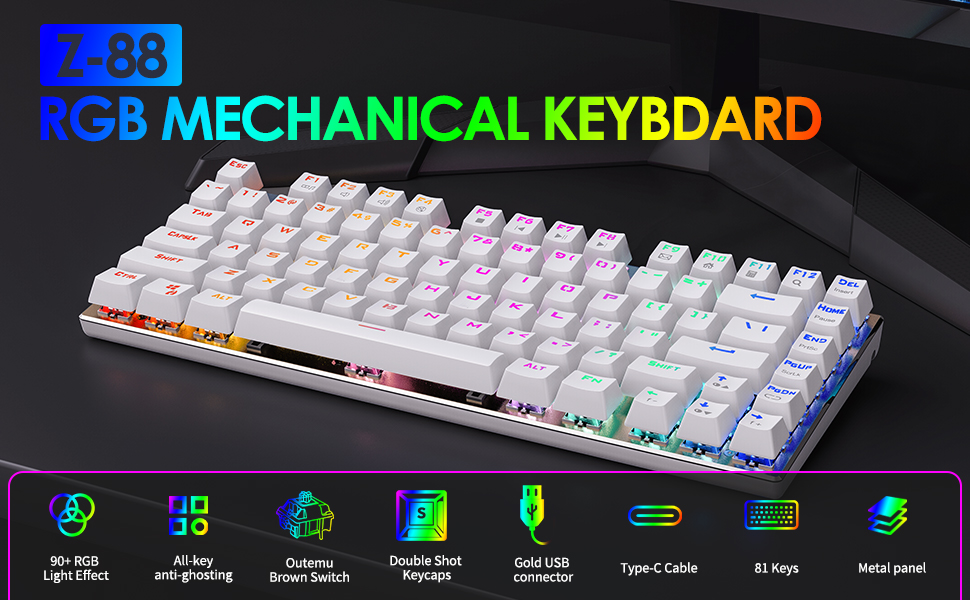
Image 4.1: Detailed view of the Outemu Red Mechanical Switches and keycaps.
4.2 RGB Backlighting Control
The Z-88 keyboard features extensive RGB backlighting with multiple modes and customization options:
- Change RGB Backlight Modes: Press Fn + PgDn to cycle through 14 different RGB backlit modes.
- Change Solid Light Modes: Press Fn + -/= to cycle through 7 solid color lighting modes.
- Adjust Backlight Brightness: Press Fn + ↑ (Up Arrow) to increase brightness, and Fn + ↓ (Down Arrow) to decrease brightness (5 levels).
- Adjust Backlight Speed: Press Fn + ← (Left Arrow) to decrease speed, and Fn + → (Right Arrow) to increase speed.
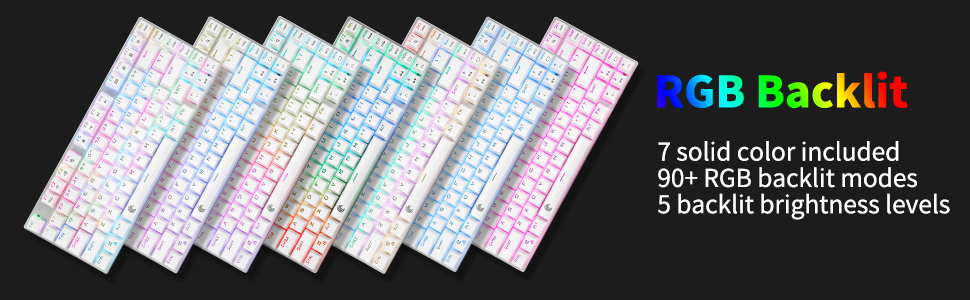
Image 4.2: Various RGB backlighting modes displayed on the keyboard.
4.3 Multimedia and Function Keys
The keyboard includes convenient multimedia function keys accessible via the Fn key:
| Function Key Combination | Action |
|---|---|
| Fn + F1 | Open Media Player |
| Fn + F2 | Volume + |
| Fn + F3 | Volume - |
| Fn + F4 | Mute |
| Fn + F5 | Previous Track |
| Fn + F6 | Next Track |
| Fn + F7 | Play/Pause |
| Fn + F8 | Stop Play |
| Fn + F9 | Open Email |
| Fn + F10 | Open Homepage |
| Fn + F11 | Open Calculator |
| Fn + F12 | Search |
| Fn + ESC | Reset Keyboard Settings |
| Fn + PgDn | Switch Backlight Mode |
| Fn + WIN | Lock/Unlock Windows Key |

Image 4.3: Diagram illustrating the multimedia and function key combinations.
4.4 Anti-Ghosting
The E-Yooso Z-88 features full N-key rollover (NKRO) anti-ghosting technology. This means all 81 mechanical keys are conflict-free, ensuring that every keystroke is registered accurately, even during rapid and simultaneous key presses, which is crucial for gaming performance.

Image 4.4: Visual representation of the anti-ghosting capability, highlighting multiple simultaneous key presses.
5. Maintenance
5.1 Cleaning the Keyboard
To maintain optimal performance and appearance:
- Disconnect the keyboard from your computer before cleaning.
- Use a soft, lint-free cloth slightly dampened with water or a mild cleaning solution to wipe the keycaps and frame.
- For dust and debris between keys, use compressed air or the included keycap puller to remove keycaps and clean thoroughly.
- Avoid using harsh chemicals or abrasive materials.
5.2 Replacing Switches
The Z-88 features hot-swappable Outemu switches. To replace a switch:
- Use the keycap puller to carefully remove the desired keycap.
- Use a switch puller (not included, but often comes with replacement switches) to gently pull the switch out of its socket.
- Align the pins of the new 3-pin Outemu switch with the holes on the PCB and press firmly until it clicks into place.
- Reattach the keycap.
5.3 Splash Resistance
The keyboard is designed with splash resistance. While it can withstand minor spills, it is not waterproof. Avoid submerging the keyboard in liquids or exposing it to excessive moisture.
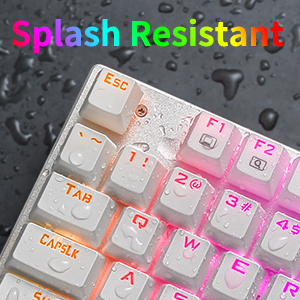
Image 5.1: Illustration of the keyboard's splash-resistant design.
6. Troubleshooting
If you encounter issues with your E-Yooso Z-88 keyboard, please refer to the following common solutions:
- Keyboard not responding: Ensure the USB cable is securely connected to both the keyboard and the computer. Try a different USB port or a different computer to rule out port or system issues.
- Specific keys not working: If only a few keys are unresponsive, try removing and reseating their switches (if you have a switch puller). Ensure no debris is lodged under the keycap or switch.
- Backlight not working or incorrect: Press Fn + PgDn or Fn + -/= to cycle through modes. Adjust brightness with Fn + ↑/↓. If issues persist, try resetting the keyboard with Fn + ESC.
- Windows key locked: Press Fn + WIN to toggle the Windows key lock.
- Intermittent connection: Ensure the detachable Type-C cable is fully inserted and not damaged. Try a different Type-C cable if available.
If these steps do not resolve your issue, please contact customer support.
7. Specifications
| Feature | Detail |
|---|---|
| Brand | E-Yooso |
| Model Number | Z-88 |
| Connectivity Technology | USB (Type-C detachable cable) |
| Switch Type | Outemu Red (Linear, Hot-swappable 3-pin) |
| Number of Keys | 81 |
| Backlighting | RGB (21 modes) |
| Anti-Ghosting | Full N-key Rollover |
| Compatible Operating Systems | Windows 10/8/7/XP, Mac OS X, Windows VISTA |
| Material | ABS Plastic, Aluminum Keyboard Plate |
| Dimensions (L x W x H) | 32 cm x 15 cm x 3.5 cm |
| Weight | 0.75 Kilograms |
| Box Contents | Keyboard, USB Cable, Keycap Puller |
8. Warranty and Support
8.1 Warranty Information
E-Yooso products are covered by a limited warranty against manufacturing defects. Please refer to the warranty card included with your purchase or visit the official E-Yooso website for detailed warranty terms and conditions. Keep your proof of purchase for warranty claims.
8.2 Customer Support
For technical assistance, troubleshooting, or warranty inquiries, please contact E-Yooso customer support through their official website or the contact information provided with your product packaging. When contacting support, please have your product model (Z-88) and purchase details ready.


