
1. Product Overview
The LeadsaiL Wireless Keyboard and Mouse Combo provides a convenient and efficient input solution for your computer. Featuring a compact design, silent operation, and a single 2.4G USB receiver, this combo is designed for ease of use and comfort across various Windows operating systems.

This image shows the LeadsaiL wireless keyboard and mouse combo integrated into a typical office desk environment with a laptop.
This video demonstrates the features and ease of use of the LeadsaiL Wireless Keyboard and Mouse Combo, including its compact design, silent operation, and simple setup.
2. Package Contents
- 1 x LeadsaiL Wireless Keyboard
- 1 x LeadsaiL Wireless Mouse
- 1 x 2-in-1 USB Nano Receiver (stored inside the keyboard)
3. Setup Instructions
- Insert Batteries:
- For the keyboard: Open the battery compartment on the underside and insert two (2) AAA batteries (not included), ensuring correct polarity.
- For the mouse: Open the battery compartment on the underside and insert one (1) AA battery (not included), ensuring correct polarity.
- Locate USB Receiver: The 2-in-1 USB Nano Receiver is conveniently stored inside the battery compartment of the wireless keyboard. Gently remove it.
- Connect to Computer: Plug the USB Nano Receiver into an available USB port on your computer.
- Power On: Turn on the keyboard and mouse using their respective power switches (usually located on the underside). The devices are plug-and-play and should connect automatically.

This image clearly indicates where to find the 2-in-1 USB receiver, stored conveniently within the keyboard's battery compartment.
4. Operating Instructions
4.1 Basic Usage
Once connected, the keyboard and mouse function like standard wired peripherals. The mouse features a silent click design to minimize noise, and the keyboard utilizes a scissors structure for quiet and comfortable typing.
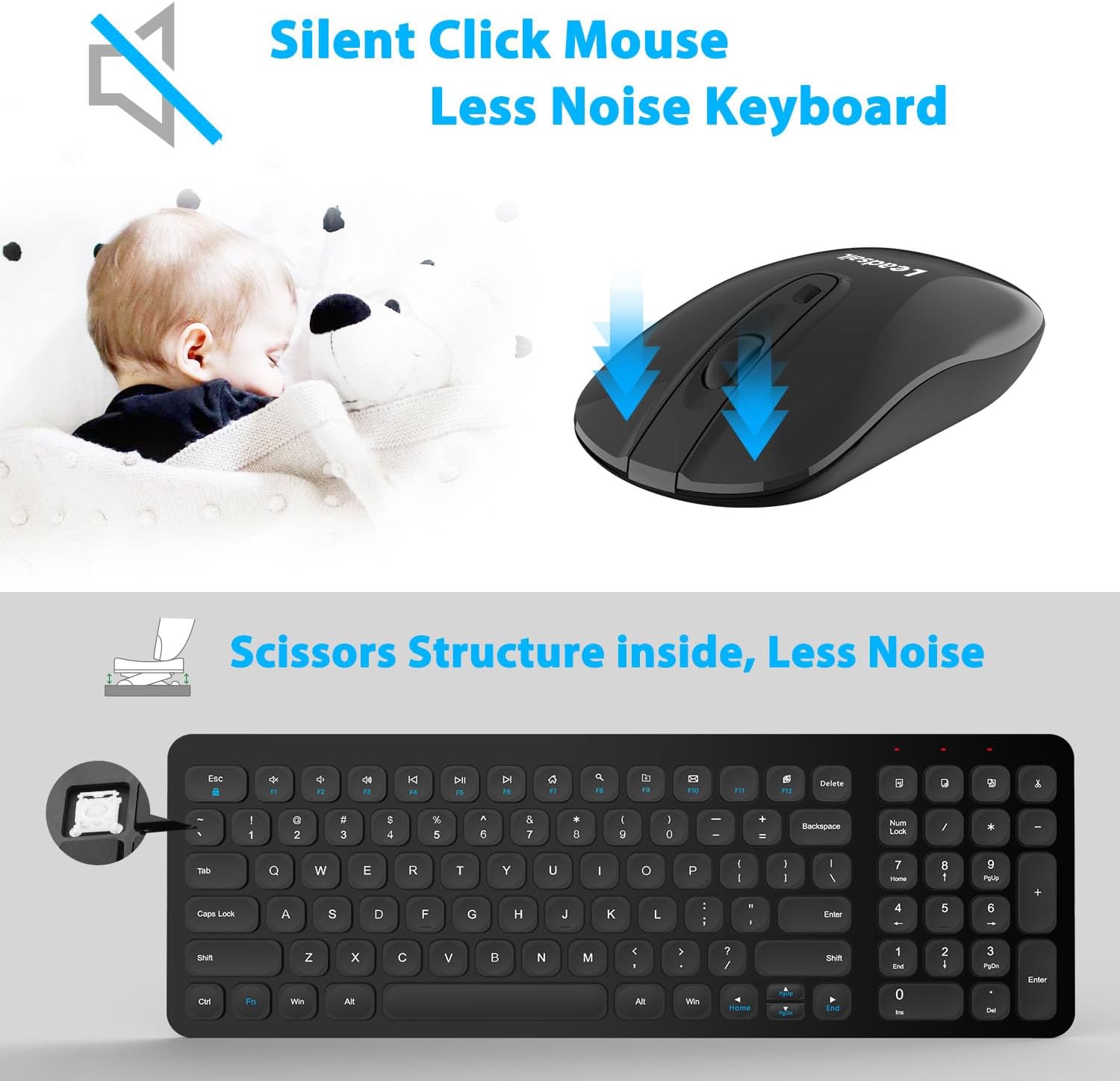
This image illustrates the quiet operation of both the wireless mouse and keyboard, emphasizing reduced clicking and typing noise.
4.2 Multimedia Shortcuts
The keyboard includes 12 multimedia shortcut keys for quick access to common functions. To use these, press the Fn key simultaneously with the desired function key (F1-F12).
- Fn+F1: Media Player
- Fn+F2: Volume Down
- Fn+F3: Volume Up
- Fn+F4: Mute
- Fn+F5: Previous Track
- Fn+F6: Next Track
- Fn+F7: Play/Pause
- Fn+F8: Stop
- Fn+F9: Home Page
- Fn+F10: Email
- Fn+F11: My Computer
- Fn+F12: Calculator
Note: Multimedia shortcut functions are not compatible with Mac OS.

This image details the 12 multimedia shortcut keys available on the keyboard, providing quick access to various functions.
4.3 Energy Saving Mode
To conserve battery life, the keyboard and mouse will automatically enter a sleep mode after 3 minutes of inactivity. To wake them up, simply click any mouse button or press any key on the keyboard.
4.4 Ergonomic Design
The keyboard features an ergonomic sloping angle design to promote a more natural typing posture and reduce wrist fatigue during extended use.

This image highlights the ergonomic sloping angle of the keyboard, designed to reduce wrist fatigue during use.
5. Maintenance
- Cleaning: Use a soft, dry cloth to clean the surfaces of the keyboard and mouse. For stubborn dirt, a slightly damp cloth can be used, but ensure no liquid enters the devices. Avoid harsh chemicals or abrasive cleaners.
- Battery Replacement: Replace batteries promptly when performance degrades. Always use new, high-quality batteries of the specified type (AAA for keyboard, AA for mouse). Dispose of old batteries responsibly according to local regulations.
- Storage: When not in use for extended periods, turn off the devices and store them in a cool, dry place.
6. Troubleshooting
- No Connection/Unresponsive Devices:
- Ensure batteries are correctly inserted and not depleted. Replace if necessary.
- Verify that the USB Nano Receiver is securely plugged into a working USB port on your computer.
- Try plugging the receiver into a different USB port.
- Ensure the keyboard and mouse power switches are in the 'ON' position.
- Restart your computer.
- Lagging Mouse/Unresponsive Keys:
- Check for interference from other wireless devices. Move the receiver closer to the keyboard and mouse, or move other wireless devices away.
- Ensure the optical sensor on the mouse is clean and unobstructed.
- Replace batteries, even if they seem to have some charge left.
- Multimedia Keys Not Working on Mac OS: This is expected behavior as these functions are not compatible with Mac OS.
7. Specifications
| Feature | Detail |
|---|---|
| Brand | LeadsaiL |
| Model | KF002+LX001 |
| Color | Black |
| Connectivity Technology | 2.4G Wireless |
| Special Feature | Ergonomic |
| Compatible Devices | Personal Computer (Windows 10, Windows Server Versions 2000/2003, Windows XP, Linux) |
| Movement Detection | Optical |
| Hand Orientation (Mouse) | Ambidextrous |
| Keyboard Layout | QWERTY |
| Number of Keys (Keyboard) | 99 |
| Power Source | Battery Powered (1 AA for mouse, 2 AAA for keyboard) |
| Item Weight | 0.62 Kilograms |

This image displays the compact and slim profile of the keyboard and mouse, including their dimensions for space-saving benefits.
8. Warranty and Support
8.1 Warranty Information
This LeadsaiL product comes with a Lifetime Warranty Against Manufacturer Defect. Please retain your proof of purchase for warranty claims.
8.2 Customer Support
For further assistance, technical support, or warranty inquiries, please refer to the contact information provided with your purchase or visit the official LeadsaiL website.
