
Introduction
This manual provides comprehensive instructions for the setup, operation, and maintenance of your Motorola FOCUS89-2W Wireless Indoor Camera. Please read this manual thoroughly before using the device to ensure proper functionality and safety.
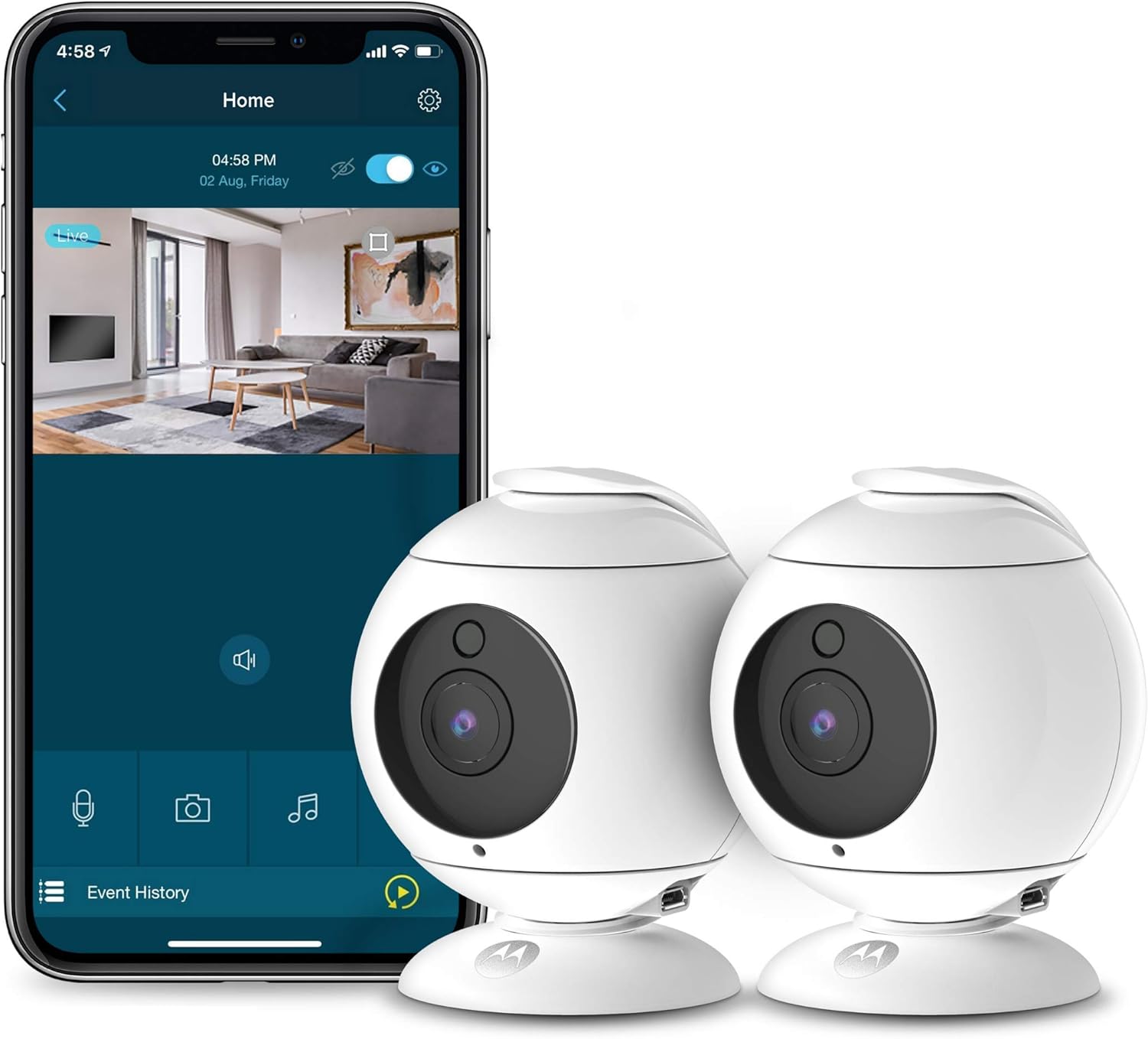
Image: The Motorola FOCUS89-2W camera shown alongside a smartphone displaying its live feed interface.
Package Contents
Verify that all items are present in your package:
- Motorola FOCUS89-2W Wireless Indoor Camera(s)
- Power Adapter(s)
- Quick Start Guide
Setup
1. Powering On the Camera
- Connect the power adapter to the camera's power input port.
- Plug the power adapter into a wall outlet.
- The camera will power on and initiate its startup sequence.
2. App Installation and Account Creation
The Motorola FOCUS89-2W camera operates with the Hubble Connected app. Download the app from your device's app store.
- Search for "Hubble Connected" in the App Store (iOS) or Google Play Store (Android).
- Install the app.
- Open the app and follow the on-screen instructions to create a new account or log in to an existing one.
3. Pairing the Camera with the App
- In the Hubble Connected app, select "Add Device" or the '+' icon.
- Choose your camera model (FOCUS89-2W) from the list.
- Follow the app's instructions to connect the camera to your Wi-Fi network. This typically involves scanning a QR code displayed on your phone with the camera or entering Wi-Fi credentials.
- Ensure your camera is within range of your Wi-Fi router for a stable connection.

Image: An illustration highlighting key features of the Motorola FOCUS89-2W camera, such as remote pan, tilt, zoom, two-way talk, privacy mode, night vision, and 90-degree wide-angle view.
Operating the Camera
Live View
Once connected, you can access the live video feed from your camera through the Hubble Connected app on your smartphone or tablet.
Remote Pan, Tilt, and Zoom
The camera supports remote pan, tilt, and digital zoom functions. Use the controls within the Hubble Connected app to adjust the camera's viewing angle.
- Pan: Rotate the camera horizontally up to 360 degrees.
- Tilt: Adjust the camera's vertical angle.
- Digital Zoom: Enlarge the image digitally for a closer view.

Image: The Motorola FOCUS89-2W camera rotating horizontally, illustrating its remote 360-degree pan scan feature.
Two-Way Talk
Utilize the two-way talk feature to communicate through the camera. Press and hold the microphone icon in the app to speak, and release to listen.

Image: The Motorola FOCUS89-2W camera illustrating its two-way talk function, with a speech bubble indicating communication.
Night Vision
The camera is equipped with infrared night vision, allowing for clear video monitoring in low-light or dark conditions.
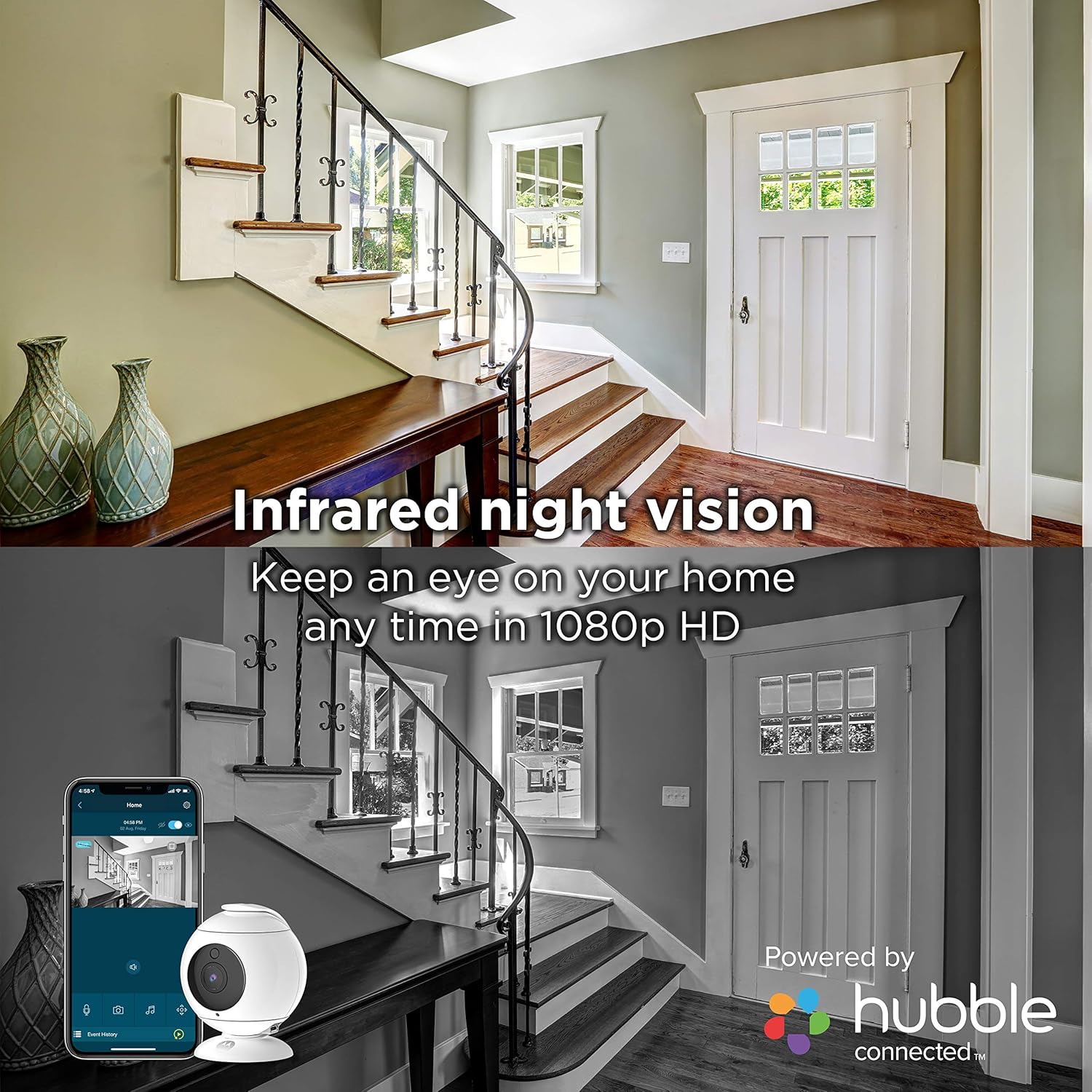
Image: A split image showing a room in daylight and the same room in darkness viewed through the camera's infrared night vision.
Sound and Motion Detection
The camera can detect sound and motion, sending real-time alerts to your connected smart device. Sensitivity settings can be adjusted within the Hubble Connected app.
Privacy Mode
Activate Privacy Mode through the app to temporarily disable video and audio streaming from the camera, ensuring privacy when desired.

Image: The Motorola FOCUS89-2W camera with its lens obscured, indicating Privacy Mode is active, as reflected on the smartphone app.
Hubble Connected App Features
The Hubble Connected app offers additional features:
- Mobile Viewing: Secure and private 1080p HD viewing.
- Video Recording and Storage: Available with a subscription.
- SmartZone Alerts: Set virtual boundaries for targeted alerts (requires subscription).
- Share-ubble: Share access to your camera feed.

Image: A smartphone screen displaying the Hubble Connected app with icons and text describing features such as mobile viewing, video recording, SmartZone alerts, and Share-ubble.
Voice Assistant Integration
The camera is compatible with Amazon Alexa and Google Assistant for hands-free control.

Image: The Motorola FOCUS89-2W camera positioned next to an Amazon Echo device, illustrating its compatibility with Amazon Alexa and Google Assistant.
Maintenance
- Cleaning: Use a soft, dry cloth to clean the camera lens and body. Avoid abrasive cleaners or solvents.
- Firmware Updates: Ensure the Hubble Connected app is up to date to receive the latest firmware for your camera, which may include performance improvements and security enhancements.
- Placement: Position the camera in a location with good Wi-Fi signal strength and away from direct sunlight or heat sources.
Troubleshooting
| Problem | Solution |
|---|---|
| Camera not connecting to Wi-Fi |
|
| No video feed |
|
| Poor video quality |
|
| Audio buzzing or unclear |
|
Specifications
| Feature | Detail |
|---|---|
| Model Number | FOCUS89-2W |
| Connectivity | Wi-Fi (Wireless) |
| Video Resolution | 1080p |
| Viewing Angle | 90 Degrees |
| Pan/Tilt/Zoom | Remote Pan, Tilt, Digital Zoom |
| Two-Way Talk | Yes |
| Night Vision | Infrared |
| Motion/Sound Detection | Yes |
| Compatible Devices | Smartphone, Tablet |
| Voice Assistant | Google Assistant, Amazon Alexa |
| Power Source | Corded Electric |
| Dimensions (L x W x H) | 7.42 x 6.83 x 10.31 cm |
| Weight | 857 g |
| Indoor/Outdoor Usage | Indoor |
Warranty and Support
For warranty information and technical support, please refer to the documentation included with your product or visit the official Motorola support website. Keep your proof of purchase for warranty claims.
Manufacturer: Motorola
Date First Available: January 5, 2020


