
1. Introduction
This manual provides essential instructions for the setup, operation, and maintenance of your Aonerex 7-inch GPS Navigation System. Please read this manual thoroughly to ensure proper use and to maximize the device's features.
2. Package Contents
Verify that all items listed below are included in your package:
- Aonerex 7-inch GPS Navigation Device
- Car Charger
- USB Cable
- Suction Cup Mount
- Clip Holder
- User Manual (this document)
- Sunshade

Figure 2.1: Included accessories with the Aonerex GPS Navigation System.
3. Product Overview
The Aonerex GPS Navigation System features a 7-inch high-brightness touch screen for clear visibility. It is designed for ease of use with intuitive controls and multiple connectivity options.

Figure 3.1: Aonerex 7-inch GPS Navigation System.
3.1 Device Ports and Buttons
The device includes several ports for connectivity and expansion:
- Headphone Jack: For private audio output.
- SD Card Slot: For additional storage or map data.
- USB-C Port: For charging and data transfer.
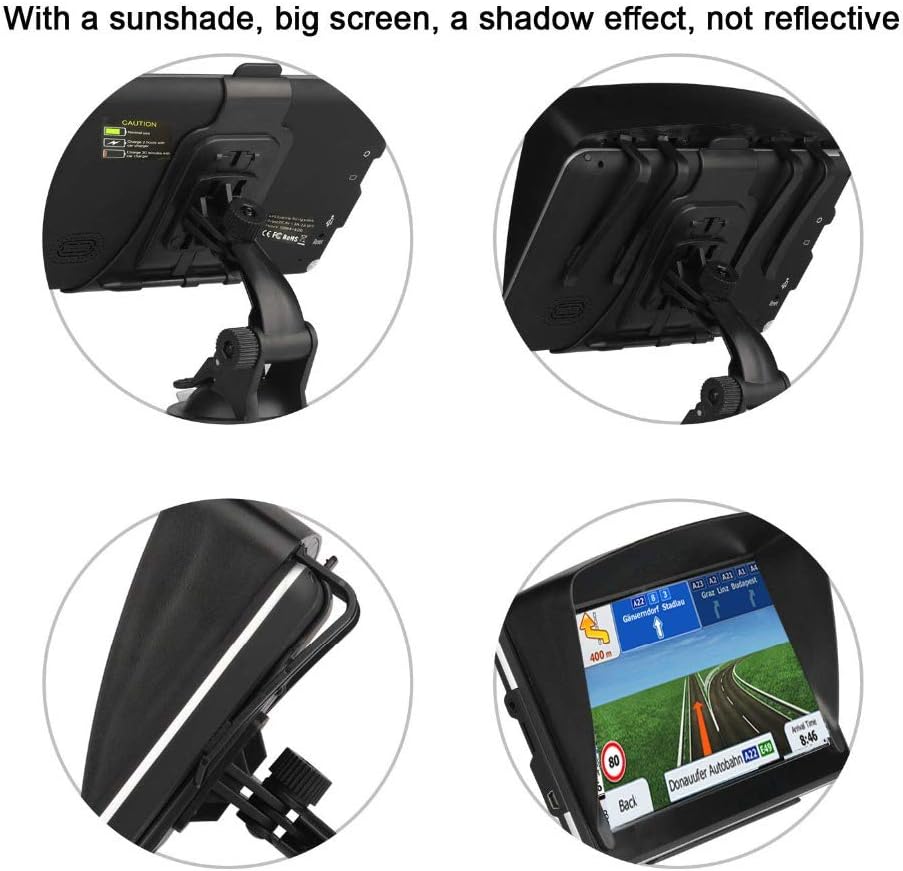
Figure 3.2: Side view of the GPS device highlighting connectivity ports.
4. Setup and Installation
4.1 Attaching the Mount
- Connect the clip holder to the suction cup mount. Ensure it clicks securely into place.
- Attach the GPS device to the clip holder by gently sliding it until it snaps into position.
- Choose a suitable location on your car's windshield or dashboard. Ensure the surface is clean and dry.
- Press the suction cup firmly against the chosen surface and push down the lever on the mount to create a strong vacuum seal.
- Adjust the angle of the device for optimal viewing.

Figure 4.1: GPS device installed in a vehicle.
4.2 Installing the Sunshade
The included sunshade helps reduce glare on the screen, improving visibility in bright conditions.
- Identify the four prongs on the sunshade.
- Align the prongs with the corresponding slots on the back of the GPS device.
- Gently push the prongs into the slots and slide them to lock the sunshade into place.

Figure 4.2: Sunshade attached to the GPS device.
5. Basic Operation
5.1 Powering On/Off
Press and hold the power button located on the side of the device to turn it on or off. The Aonerex logo will appear during startup.
5.2 Main Menu
Upon startup, the main menu will display various options for navigation, settings, and other functions. The touch screen interface allows for easy selection.

Figure 5.1: Main menu interface.
6. Navigation Features
The Aonerex GPS provides comprehensive navigation capabilities with detailed maps and intelligent routing.
6.1 Destination Input
You can search for destinations using various methods:
- Postcode: Enter the postal code of your destination.
- Address: Input the street address.
- Coordinates: Use geographical coordinates for precise locations.
- Favorites: Select from your saved favorite locations.
- Points of Interest (POI): Search for nearby gas stations, restaurants, parking, and accommodation.
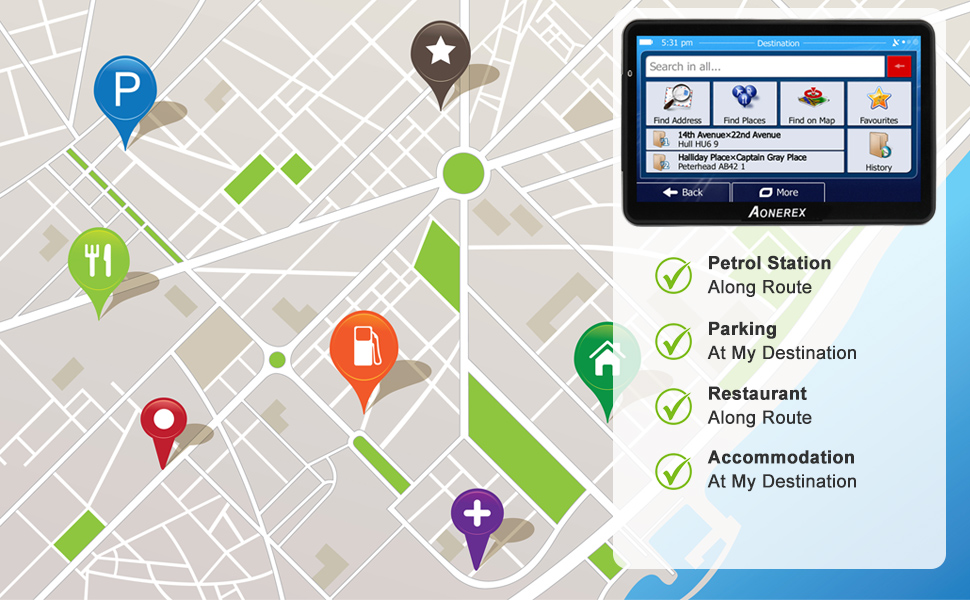
Figure 6.1: Points of Interest (POI) search options.
6.2 Route Planning
The device offers multiple route options to suit your preferences:
- Fast: Prioritizes the quickest route.
- Green: Focuses on fuel efficiency.
- Short: Selects the shortest distance.
- Easy: Avoids complex turns and highways where possible.

Figure 6.2: 3D map view with active navigation.
6.3 Voice Guidance and Warnings
The system provides clear voice instructions and alerts for a safer driving experience.
- Street Names Broadcast: Announces street names for upcoming turns.
- Current Speed and Active Lane Assistant: Displays current speed and guides you to the correct lane.
- Speed Camera Alerts: Provides intelligent warnings for speed cameras.
- Sound Warning: Alerts for speeding and other critical events.
- Traffic Light, Speed Limit, Height Limit Reminders: Visual and audio cues for important road signs.

Figure 6.3: Multilingual Intelligent Voice Assistant.

Figure 6.4: Various safety reminders displayed by the GPS.
6.4 Vehicle Modes and Truck Routing
The Aonerex GPS supports multiple vehicle types, including a professional truck mode that allows for custom vehicle parameters.
- Multiple Vehicle Modes: Select from Car, Truck, Lorry, RV, Hiking, or Bus modes for optimized routing.
- Professional Truck Route Planning: Input specific vehicle dimensions (length, width, height), weight, and number of axles to ensure routes are suitable for your truck, avoiding restricted roads or low bridges.

Figure 6.5: Professional Truck Mode settings.

Figure 6.6: Multiple vehicle modes supported by the GPS.
7. Map Updates
The Aonerex GPS Navigation System comes with pre-installed North American maps and offers free lifetime map updates.
7.1 Updating Maps
Map updates are typically released annually (March-April). Devices purchased after April each year usually have the latest maps pre-installed.
- Refer to page 9 of the user manual (if a physical copy is provided) for detailed instructions on map updates.
- You can update maps for various regions including Europe, Australia, Africa, and South America.

Figure 7.1: Map update process for the GPS device.
8. Settings
Access the 'Settings' menu from the main screen to customize your device.
- Volume: Adjust audio output levels.
- Backlight: Modify screen brightness.
- Language: Select your preferred language for the interface and voice guidance.
- System Info: View device information and software version.
- Date/Time: Set or synchronize date and time.
- USB: Configure USB connection options (e.g., Mass Storage).
- FM Transmitter: Use FM broadcast to transfer GPS audio to your car's radio.
9. Troubleshooting
9.1 Poor or No Satellite Signal
GPS devices rely on a clear line of sight to satellites. Signal reception can be affected by:
- Tunnels: Signal loss inside tunnels.
- Urban Canyons: Tall buildings in cities can obstruct signals.
- Dense Forest Areas: Heavy tree cover can interfere.
- Indoors: GPS signals are typically unavailable inside buildings.
- Bad Weather: Severe weather conditions (snow, rain, heavy clouds) can weaken signals.
- Under Bridges: Obstruction from overhead structures.
If you experience signal issues, move to an open area with a clear view of the sky.

Figure 9.1: Locations that may cause GPS signal interference.
9.2 Device Not Responding
If the device becomes unresponsive, perform a soft reset by pressing the reset button (usually a small pinhole) with a thin object like a paperclip.
10. Specifications
| Feature | Detail |
|---|---|
| Item Weight | 1.61 pounds |
| Product Dimensions | 6.3 x 4.3 x 4.7 inches |
| Item Model Number | New Maps of North America |
| Batteries | 1 Lithium Ion battery required (included) |
| Display Size | 7 Inches |
| Battery Life | 2 Hours (on internal battery) |
| Voice Command | Touchscreen |
| Vehicle Service Type | Truck |
| Special Feature | Latest Maps, Lifetime Maps Update, Touchscreen, Voice Navigation |
| Connectivity Technology | USB |
| Map Type | Australia, Europe, North America |
| Resolution | 800 x 480 |
11. Warranty and Support
The Aonerex GPS Navigation System comes with a 2-Year Warranty. For technical support or warranty claims, please refer to the contact information provided in your purchase documentation or visit the official Aonerex website.