
iSeekerKit SP-QC40W
iSeekerKit Fast Charge 3.0 4-Port USB Wall Charger (Model: SP-QC40W) Instruction Manual
Model: SP-QC40W | Brand: iSeekerKit
1. Introduction
This manual provides essential information for the safe and efficient operation of your iSeekerKit Fast Charge 3.0 4-Port USB Wall Charger. Please read this manual thoroughly before using the product and retain it for future reference.
2. Safety Information
- Do not expose the charger to liquids, moisture, or extreme temperatures.
- Avoid dropping or subjecting the charger to strong impacts.
- Do not disassemble or attempt to repair the charger. This will void the warranty and may cause damage or injury.
- Ensure the wall outlet voltage is compatible with the charger's input specifications (100-240V).
- Unplug the charger from the wall outlet when not in use or during electrical storms.
- Keep out of reach of children.
3. Product Overview
The iSeekerKit Fast Charge 3.0 4-Port USB Wall Charger is designed to provide efficient charging for multiple devices simultaneously. It features one Fast Charge 3.0 port and three standard 5V/3.1A USB ports.

Figure 1: Front view of the iSeekerKit 4-Port USB Wall Charger, showing the Fast Charge 3.0 port and three 3.1A ports.
Key Features:
- Fast Charge 3.0 Technology: Delivers rapid charging for compatible devices, up to 4 times faster than conventional chargers. Charges from 0% to 70% in approximately 35 minutes for supported devices.
- Multi-Port Design: One 18W Fast Charge 3.0 port and three 5V/3.1A ports allow simultaneous charging of up to four devices.
- Universal Compatibility: Works with Fast Charge 3.0/2.0 devices, 7.5W/10W wireless chargers, and non-rapid charge devices like iPhones (note: does not support rapid charge for iPhone series devices, but provides fast speed for non-rapid charge devices), iPads, and various Android smartphones and tablets.
- Safety Protections: Built-in safeguards against over-current, over-heating, over-charging, over-voltage, over-discharge, short circuit, and over-power.
- Compact and Portable: Ideal for home, office, and travel use.
4. Setup and Installation
- Unpack the Charger: Carefully remove the iSeekerKit 4-Port USB Wall Charger from its packaging.
- Connect to Power: Plug the charger directly into a standard wall outlet (AC 100-240V).
- Connect Devices:
- For Fast Charging: Use a compatible USB cable and connect your Fast Charge 3.0 enabled device to the orange-colored Fast Charge 3.0 port.
- For Standard Charging: Use appropriate USB cables to connect your other devices (phones, tablets, smartwatches, etc.) to the green-colored 5V/3.1A ports.
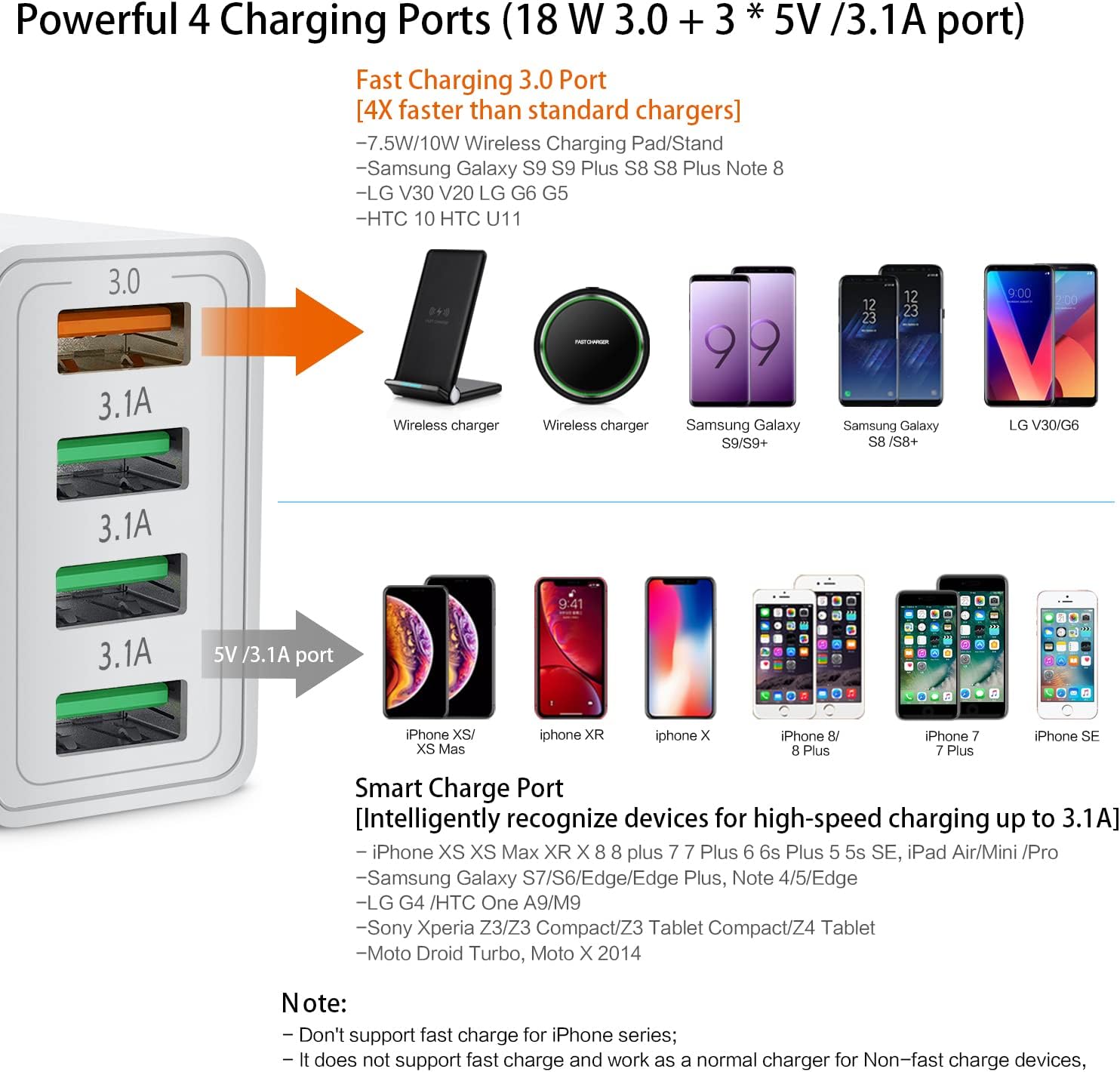
Figure 2: Illustration of the charger's ports and examples of compatible devices for each port type.
Video 1: Demonstrates the iSeekerKit 4-Port Fast USB Wall Charger in use, highlighting its multi-device charging capability.
5. Operating Instructions
Once connected to a power outlet and your devices, the charger will automatically begin charging. The intelligent IC technology will detect the connected device and deliver the optimal charging speed.
- Fast Charge 3.0 Port: Use this port for devices that support Quick Charge 3.0, Quick Charge 2.0, or compatible wireless charging pads (7.5W/10W).
- 5V/3.1A Ports: These ports are suitable for most other USB-powered devices, including iPhones (note: does not support rapid charge for iPhone series devices, but provides fast speed for non-rapid charge devices), iPads, and various Android smartphones and tablets.

Figure 3: A smartphone connected to the Fast Charge 3.0 port, illustrating the rapid charging process.
6. Maintenance
- Cleaning: Disconnect the charger from the power outlet before cleaning. Use a soft, dry cloth to wipe the surface. Do not use liquid cleaners or aerosols.
- Storage: Store the charger in a cool, dry place away from direct sunlight and extreme temperatures.
- Inspection: Periodically inspect the charger and connected cables for any signs of damage. If any damage is found, discontinue use immediately.
7. Troubleshooting
| Problem | Possible Cause | Solution |
|---|---|---|
| Device not charging. | Loose connection, faulty cable, incompatible device, or power outlet issue. |
|
| Slow charging speed. | Device not Fast Charge compatible, using a non-Fast Charge port, or using a low-quality cable. |
|
| Charger feels warm. | Normal operation, or excessive load. |
|
8. Specifications
| Model Number | SP-QC40W |
| Input Voltage | 100-240V |
| Total USB Ports | 4 |
| Fast Charge Port Output | 18W (Quick Charge 3.0) |
| Standard USB Port Output | 3 x 5V/3.1A |
| Item Weight | 1.92 ounces |
| Package Dimensions | 2.13 x 1.97 x 1.06 inches |
| Special Features | Fast Charging, Portable, Travel-friendly |
9. Warranty and Support
iSeekerKit products are designed for reliability and performance. For warranty information or technical support, please refer to the contact details provided with your purchase or visit the official iSeekerKit website. If you have any questions regarding this product, please contact customer service.
Manufacturer: Guangzhou Senpai Network Technology Co.,Ltd
Ask a question about this manual
Ask about setup, troubleshooting, compatibility, parts, safety, or missing instructions. Manuals+ will review the question and use this page’s manual context to help answer it.