
1. Introduction
This manual provides comprehensive instructions for the setup, operation, and maintenance of your Lorex N841A81 Series 8 Channel 4K Ultra HD Network Video Recorder (NVR). This NVR is designed to record and manage video surveillance from compatible cameras, offering advanced features for enhanced security monitoring.
2. Package Contents
Ensure all items listed below are present in your package:
- Lorex N841A81 NVR Unit
- AC Power Adapter
- USB Mouse
- Ethernet Cable
- HDMI Cable
- Quick Start Guide / Instruction Manual (this document)
3. Setup
3.1 NVR Overview
Familiarize yourself with the front and rear panels of your NVR unit.

Figure 1: Front panel of the Lorex N841A81 NVR, showing the 4K Ultra HD NVR label and a front USB port.
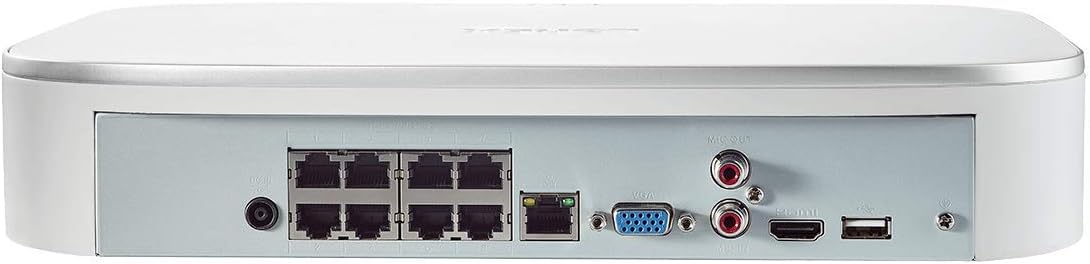
Figure 2: Rear panel of the Lorex N841A81 NVR, displaying multiple PoE ports, HDMI, VGA, USB, LAN, and audio output connections.
3.2 Initial Connection
- Connect to a Display: Connect the NVR to a monitor or TV using the provided HDMI cable. Alternatively, use a VGA cable (not included).
- Connect USB Mouse: Plug the USB mouse into one of the NVR's USB ports (front or rear).
- Connect to Network: Connect the NVR to your router using the provided Ethernet cable. This enables remote viewing and network features.
- Connect Cameras: Connect your compatible IP cameras to the PoE ports on the rear of the NVR. The NVR provides power and data connection through these ports.
- Power On: Connect the AC power adapter to the NVR's power input and then plug it into a power outlet. The NVR will power on automatically.
3.3 First-Time Setup Wizard
Upon initial power-on, the NVR will guide you through a setup wizard to configure basic settings such as language, time zone, and password creation. Follow the on-screen prompts to complete the setup.
4. Operating Instructions
4.1 Lorex Home Mobile App
The Lorex Home app allows you to remotely view your security system from your smartphone or tablet. It also provides control over active deterrence features and allows you to receive motion-activated push notifications and email alerts.
- Download the App: Download the free Lorex Home app from your device's app store.
- Add Device: Scan the QR code located on your NVR to add it to your account.
- Remote Viewing: Once added, you can view live or recorded video streams from your cameras.
- Notifications: Configure push notifications and email alerts for motion detection events.
4.2 Smart Motion Detection
The NVR features advanced smart motion detection to reduce false alarms. It can differentiate between motion caused by people or vehicles, sending only the most relevant alerts.
- Configuration: Access the NVR's menu via a connected display to configure motion detection zones and sensitivity for each camera.
- Alerts: Receive push notifications or email alerts when people or vehicles are detected in configured zones.
4.3 Smart Search
Use the Smart Search feature to quickly review footage by filtering motion events based on area, time/date, and the type of detection (person or vehicle).
- Access: Navigate to the playback or search menu on your NVR.
- Filter: Apply filters for specific events to efficiently locate relevant recordings.
4.4 Voice Control & Smart Home Compatibility
The NVR is compatible with Amazon Alexa, Google Assistant, Apple TV, and Chromecast, allowing for hands-free control and viewing.
- Integration: Follow the instructions provided by your smart home assistant or streaming device to link your Lorex account.
- Voice Commands: Use simple voice commands to activate camera features or view live/recorded footage on your smart TV.
5. Maintenance
5.1 Hard Drive Management
The NVR includes a local built-in security-grade 1TB hard drive, expandable up to 10TB. Regular maintenance ensures optimal recording performance.
- Storage Capacity: Monitor the remaining storage space through the NVR's system settings.
- Overwriting: The NVR is configured to overwrite the oldest footage when the hard drive is full, ensuring continuous recording.
- Backup: Regularly back up important footage to an external USB drive or network storage.
5.2 General Care
- Keep the NVR in a well-ventilated area to prevent overheating.
- Clean the exterior of the NVR with a soft, dry cloth. Avoid using harsh chemicals.
- Ensure all cable connections are secure.
6. Troubleshooting
If you encounter issues with your Lorex NVR, consider the following:
- No Video Display: Check HDMI/VGA cable connections and ensure the display is set to the correct input source.
- No Network Connection: Verify the Ethernet cable is securely connected to both the NVR and your router. Check your router's internet connection.
- No Camera Footage: Ensure cameras are properly connected to the PoE ports and powered on. Check camera compatibility with the NVR.
- Motion Detection Issues: Review motion detection zone settings and sensitivity levels in the NVR menu or Lorex Home app.
- System Freezing/Unresponsive: Try rebooting the NVR. If the issue persists, consult the Lorex support website for firmware updates or further assistance.
7. Specifications
| Feature | Specification |
|---|---|
| Model Number | N841A81 |
| Video Resolution | Up to 4K (8MP) Ultra HD |
| Channels | 8 IP Channels with built-in PoE ports |
| Hard Disk Size | 1 TB (Preinstalled) |
| Memory Storage Capacity (Max) | 10 TB |
| Connectivity Technology | Wired |
| Compatible Devices | Smartphone, Tablet, Television, Smart Home Assistants |
| Package Dimensions | 15.7 x 13.1 x 5.5 inches |
| Item Weight | 6.93 pounds |
8. Warranty and Support
For warranty information, technical support, or to access the latest firmware and documentation, please visit the official Lorex website or contact Lorex customer service. Keep your product's model number and serial number handy when seeking support.


