
RCA RS32H2
RCA RS32H2 32-inch Android Smart TV User Manual
Model: RS32H2
1. Introduction
Thank you for choosing the RCA RS32H2 Android Smart TV. This television combines advanced display technology with the versatility of the Android operating system, offering a seamless entertainment experience. This manual will guide you through the setup, operation, and maintenance of your new TV.

Image: The RCA RS32H2 Android Smart TV, showcasing its sleek design and the intuitive Android TV home screen with various streaming app icons.
2. Safety Information
Please read all safety instructions carefully before using your TV. Keep this manual for future reference.
- Do not expose the TV to rain or moisture.
- Ensure proper ventilation around the TV.
- Do not block ventilation openings with items such as newspapers, table-cloths, curtains, etc.
- Protect the power cord from being walked on or pinched.
- Only use attachments/accessories specified by the manufacturer.
3. Package Contents
Before setup, please check that all items are included in the package:
- RCA RS32H2 Android Smart TV
- Remote Control (requires 2 AAA batteries, not included)
- TV Stand (2 pieces)
- Screws for TV Stand
- Power Cord
- User Manual (this document)
4. Setup
4.1 Attaching the TV Stand
- Carefully place the TV face-down on a soft, flat surface to prevent screen damage.
- Align each stand piece with the corresponding slots on the bottom of the TV.
- Secure the stands using the provided screws. Ensure they are tightened firmly.
4.2 Connecting Power
Plug the power cord into the TV's power input, then plug the other end into a wall outlet. The TV will enter standby mode.
4.3 Initial Setup Wizard
Upon first power-on, the TV will guide you through the initial setup process. This includes:
- Language selection.
- Network connection (Wi-Fi or Ethernet).
- Google account sign-in (optional, but recommended for full Android TV features).
- Channel scanning (for DVB C/T2/S2 tuners).
5. Operating Your TV
5.1 Remote Control Functions
The included Bluetooth remote control allows for easy navigation and voice commands.

Image: The RCA remote control, featuring dedicated buttons for popular streaming services and a prominent Google Assistant button for voice commands.
- Power Button: Turns the TV on/off or to standby.
- Google Assistant Button: Activates voice control.
- Navigation Pad (OK): Navigates menus and confirms selections.
- Back: Returns to the previous screen.
- Home: Accesses the Android TV home screen.
- Volume +/-: Adjusts volume.
- Channel +/-: Changes channels.
- Netflix, Prime Video, YouTube, Google Play: Direct access buttons to these applications.
5.2 Android TV Interface
The Android TV home screen provides quick access to your favorite apps, movies, shows, and settings. Content is organized into rows for easy browsing.
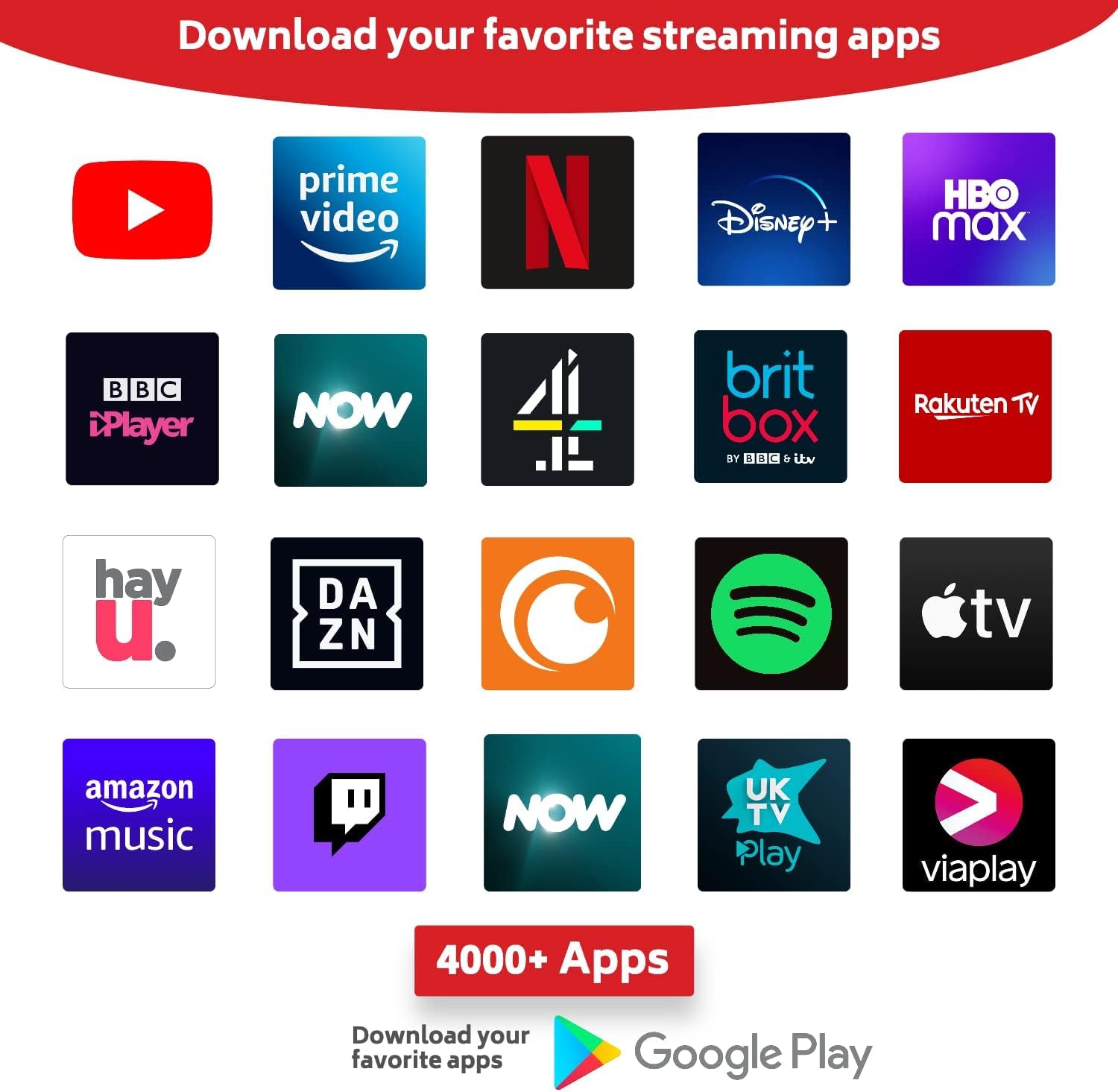
Image: A collection of popular streaming application logos, including YouTube, Prime Video, Netflix, Disney+, and HBO Max, demonstrating the wide range of content available on Android TV.
5.3 Google Assistant
Use your voice to quickly find content, control smart home devices, and get information. Simply press the Google Assistant button on your remote and speak your command.
Related documentsRS32H2


Ask a question about this manual
Ask about setup, troubleshooting, compatibility, parts, safety, or missing instructions. Manuals+ will review the question and use this page’s manual context to help answer it.