
XElectron M2
XElectron Techno Plus M2 Grand FHD Miracast Projector User Manual
Model: M2
1. Introduction
Thank you for choosing the XElectron Techno Plus M2 Grand FHD Miracast Projector. This manual provides essential information for the safe and efficient operation of your device. Please read it thoroughly before use and retain it for future reference.
This projector features a native 1080P resolution with 4K support, Android 13 operating system, auto-focus, auto-keystone correction, dual-band WiFi 6, and Bluetooth 5.0 connectivity, offering a versatile and immersive viewing experience.
2. Safety Information
- Do not look directly into the projector lens when the lamp is on.
- Ensure proper ventilation around the projector to prevent overheating.
- Use only the power adapter supplied with the device.
- Keep the projector away from water or other liquids.
- Avoid placing the projector on unstable surfaces.
- Do not attempt to disassemble or repair the projector yourself. Contact customer support for assistance.
3. Package Contents
Verify that all items are present in your package:
- Projector
- Power Cord
- Remote Control
- User Manual (this document)
- Warranty Card
4. Product Overview
Familiarize yourself with the projector's components and features.

Figure 4.1: Front view of the XElectron Techno Plus M2 Projector, showcasing its compact design and lens.
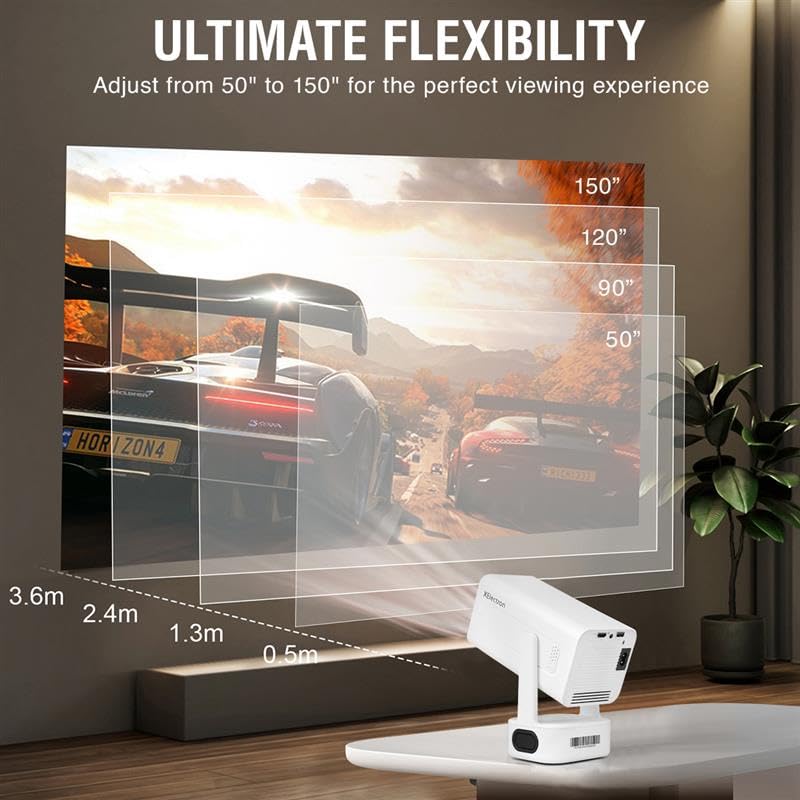
Figure 4.2: Rear view of the projector, illustrating the various input and output ports for connectivity.

Figure 4.3: Overview of the projector highlighting features such as Android 13, 1080P Native resolution, 210° rotation, automatic keystone, 50,000 hours lamp life, built-in speaker, 4D+4P correction, and various connectivity options (HDMI, USB, AUX).
5. Setup
5.1 Initial Placement
Place the projector on a stable, flat surface. The rotatable design allows for flexible positioning, including ceiling projection. Ensure there is adequate space for ventilation around the device.
5.2 Power Connection
- Connect the power cord to the projector's power input.
- Plug the other end of the power cord into a suitable electrical outlet.
- Press the power button on the projector or remote control to turn on the device.
5.3 Adjusting Projection
The projector features auto-focus and auto-keystone correction for a clear and rectangular image. Minor adjustments can be made manually if needed.

Figure 5.1: The projector offers ultimate flexibility, allowing adjustment of projection size from 50 to 150 inches for an optimal viewing experience.

Figure 5.2: The projector automatically corrects image distortion (keystone) and focuses for a sharp, straight, and seamless picture from various angles.
6. Operating Instructions
6.1 Android 13 Operating System
The projector runs on Android 13, providing access to various streaming applications and content directly. Navigate the interface using the remote control.
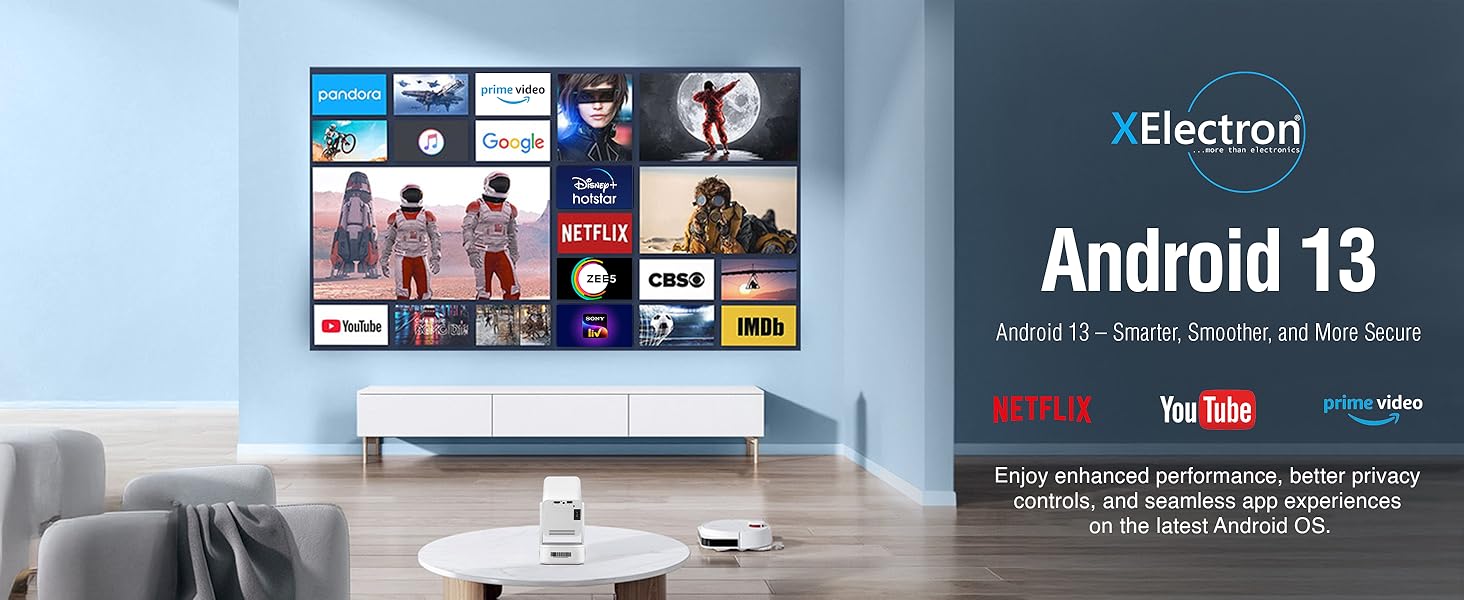
Figure 6.1: The Android 13 interface offers a smart, smooth, and secure experience with pre-installed apps like Netflix, YouTube, and Prime Video.
6.2 Network Connectivity (WiFi 6)
To connect to a wireless network:
- Go to Settings on the projector's home screen.
- Select Network & Internet.
- Turn on Wi-Fi and select your desired network from the list.
- Enter the password if prompted and connect.
The dual-band 2.4/5G WiFi 6 ensures reduced latency and enhanced responsiveness for streaming and online applications.
6.3 Bluetooth 5.0 Audio
The projector supports two-way Bluetooth 5.0, allowing connection to external speakers, headphones, or soundbars for enhanced audio. It can also function as a standalone Bluetooth speaker.

Figure 6.2: Two-way Bluetooth 5.0 allows seamless connection to various audio devices, enhancing the sound experience.
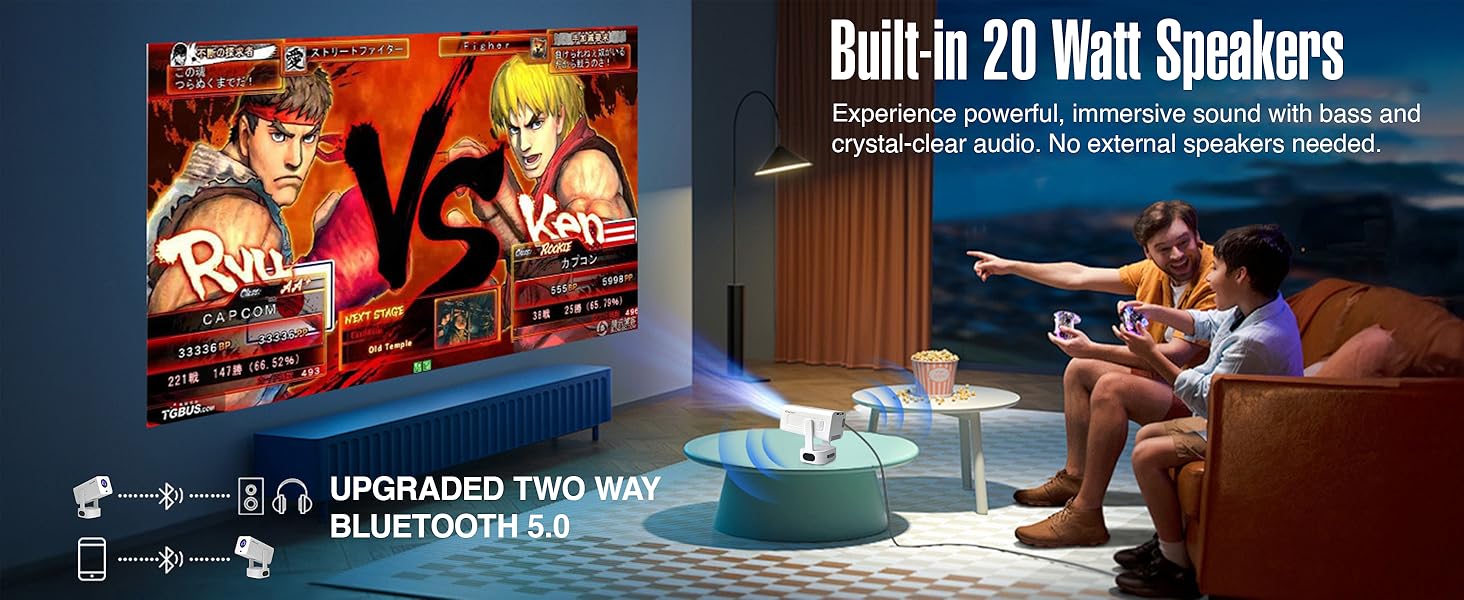
Figure 6.3: The projector features built-in 20-watt speakers for powerful, immersive sound, and supports upgraded two-way Bluetooth 5.0 for external audio.
6.4 Screen Mirroring (Miracast)
The projector supports Miracast for wireless screen mirroring from compatible devices. Refer to your device's instructions for initiating screen mirroring and select the projector from the available devices.
6.5 Connecting External Devices
Use the HDMI and USB ports to connect external devices such as laptops, gaming consoles, USB drives, or other media players.
- HDMI: Connect an HDMI cable from your device to the projector's HDMI port. Select the HDMI input source from the projector's menu.
- USB: Insert a USB drive into the USB port. The projector's media player will typically detect the drive, allowing you to browse and play media files.
6.6 Picture Quality
The projector delivers native 1080P resolution with 4K support, 3X brightness, and a 5000:1 contrast ratio for vivid and detailed projections.
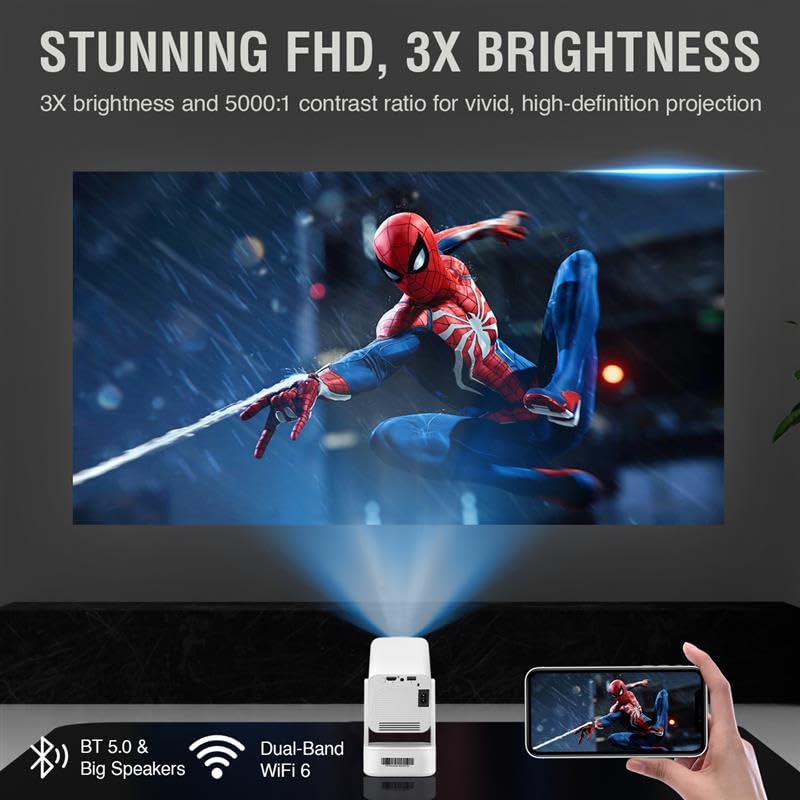
Figure 6.4: The projector provides stunning Full HD visuals with 3X brightness and a 5000:1 contrast ratio for a high-definition projection.
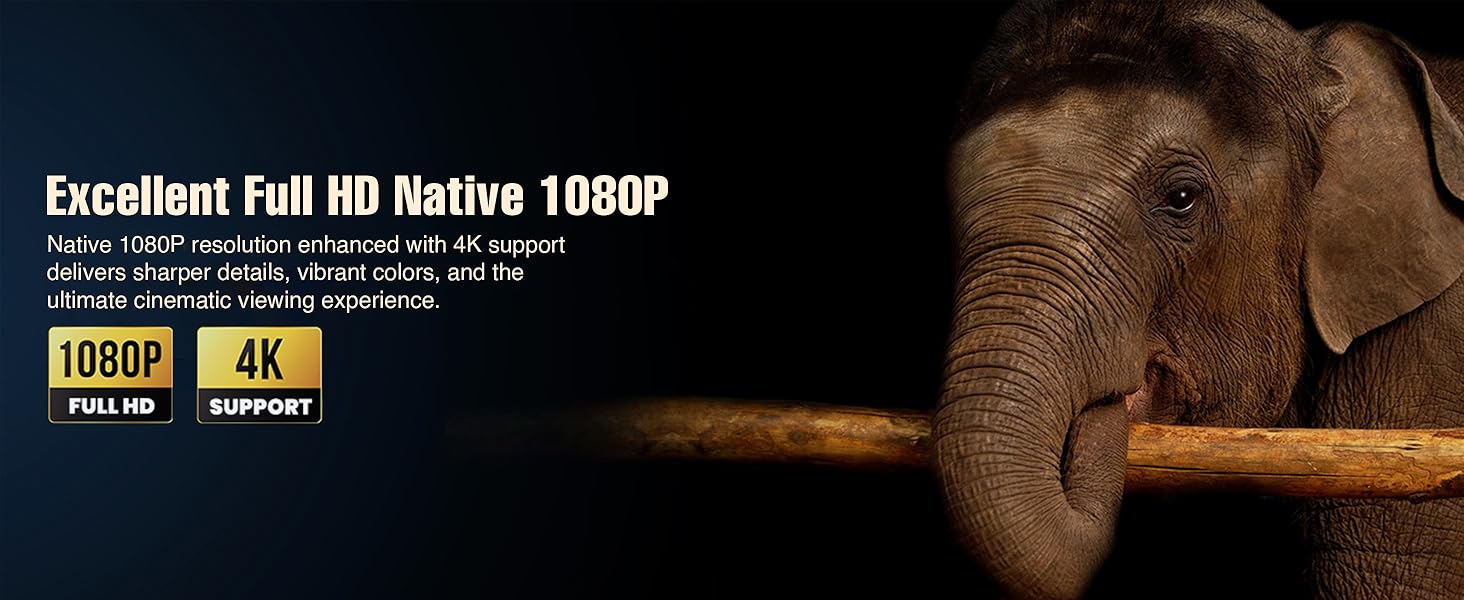
Figure 6.5: Experience excellent Full HD Native 1080P resolution, enhanced with 4K support, for sharper details, vibrant colors, and an ultimate cinematic viewing experience.
7. Maintenance
7.1 Cleaning the Projector
The XElectron Techno Plus M2 features advanced dust-resistant technology to minimize dust accumulation and extend lamp life. However, regular cleaning is recommended.

Figure 7.1: The advanced dust-resistant technology helps prevent black spots and extends the projector's lifespan by 60% compared to non-dust-resistant models.
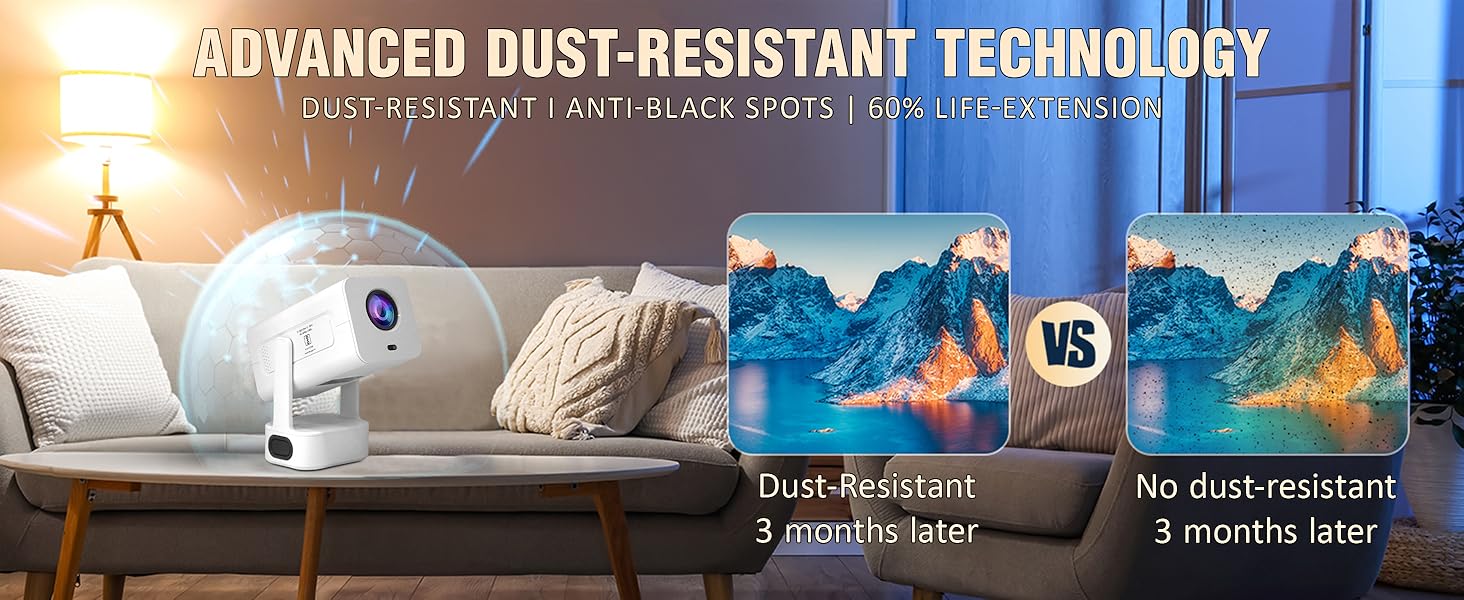
Figure 7.2: The advanced dust-resistant technology ensures a clearer image and longer product life by preventing dust accumulation on internal components.
- Lens: Use a soft, lint-free cloth specifically designed for optical lenses. Do not use abrasive cleaners.
- Casing: Wipe the exterior with a soft, dry cloth. For stubborn marks, a slightly damp cloth can be used, followed by a dry one.
- Ventilation Ports: Periodically check and gently clean the ventilation ports to ensure unobstructed airflow.
7.2 Lamp Life
The LED lamp has a lifespan of up to 50,000 hours, providing long-term usage without frequent lamp replacement.
8. Troubleshooting
If you encounter issues with your projector, refer to the following common problems and solutions:
| Problem | Possible Cause | Solution |
|---|---|---|
| No image on screen | Power not connected, input source incorrect, lens cap on. | Check power connection, select correct input source (HDMI/USB), remove lens cap. |
| Image blurry or distorted | Focus or keystone not adjusted. | Allow auto-focus/auto-keystone to complete. Manually adjust if needed via settings. |
| No sound | Volume too low, external audio device not connected/paired, incorrect audio output selected. | Increase volume. Check Bluetooth connection for external speakers. Ensure internal speakers are selected or external device is properly connected. |
| Projector unresponsive/freezes | Software issue, unsupported media file. | Restart the projector. If playing media from USB, ensure file format is supported. Wait for a few moments if it's processing an unsupported file. |
| Remote control not working | Batteries low/dead, obstruction, remote not paired. | Replace batteries. Ensure no obstruction between remote and projector. Re-pair if necessary. |
9. Specifications
Detailed technical specifications for the XElectron Techno Plus M2 Projector:
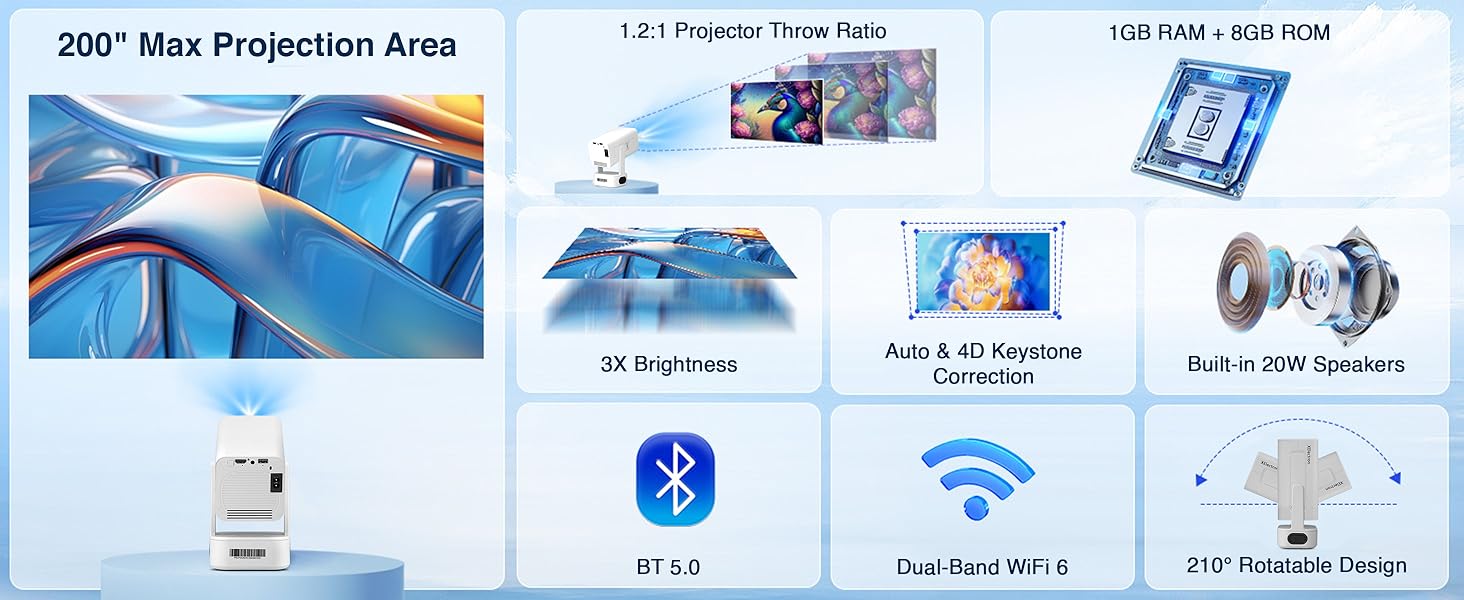
Figure 9.1: Key specifications of the XElectron Techno Plus M2 Projector, including 200" max projection, 1GB RAM + 8GB ROM, 3X brightness, auto & 4D keystone, 20W speakers, BT 5.0, WiFi 6, and 210° rotatable design.
| Feature | Specification |
|---|---|
| Brand | XElectron |
| Model | M2 (Techno Plus Series) |
| Native Resolution | 1920 x 1080 (Full HD) |
| Supported Resolution | Up to 3840 x 2160 (4K) |
| Contrast Ratio | 5000:1 |
| Operating System | Android 13 |
| Connectivity | Bluetooth 5.0 (Two-way), Miracast, Wi-Fi 6 (Dual-Band 2.4/5G), HDMI, USB, 3.5mm Jack |
| Special Features | Auto Focus, Auto Keystone Correction (4D), Built-In Speaker, Dust-Proof, 210° Rotatable Design |
| Lamp Life | Up to 50,000 hours |
| Built-in Speaker | Yes (20 Watts) |
| Dimensions (LxWxH) | 22 x 19.4 x 11.6 cm |
| Item Weight | 720 g |
| Power Source | AC |
| Wattage | 60 Watts |
10. Warranty and Support
10.1 Warranty Information
The XElectron Techno Plus M2 Projector comes with a 1-Year Manufacturer Warranty. Please retain your purchase receipt and warranty card for any claims.
10.2 Customer Support
For technical assistance, warranty claims, or any other inquiries, please contact XElectron customer support:
- Phone: 0120-4134583, 8527312304
- Operating Hours: Monday to Saturday, 10:30 AM to 6:00 PM
Ask a question about this manual
Ask about setup, troubleshooting, compatibility, parts, safety, or missing instructions. Manuals+ will review the question and use this page’s manual context to help answer it.