
1. Introduction
The Hom-Io HOM-Mod-Switch2 is an in-wall smart Wi-Fi switch module designed to convert traditional lights and devices into smart, wirelessly controllable units. This module allows for remote control via a smartphone application or a compatible physical switch, and integrates seamlessly with Amazon Alexa and Google Home for voice control. It supports advanced features such as timer programming and custom scenario creation.
2. Safety Information
WARNING: Risk of Electric Shock. Installation should only be performed by a qualified electrician or service personnel.
- Ensure power is disconnected at the circuit breaker before installation, maintenance, or removal.
- This device is designed for indoor use in dry locations only (IP20 rating). Do not expose to moisture or extreme temperatures.
- Do not exceed the maximum load ratings specified in the product specifications.
- Verify all wiring connections are secure and correct to prevent short circuits or electrical hazards.
- Keep out of reach of children.
3. Package Contents
- 1 x Hom-Io HOM-Mod-Switch2 Module
- 1 x Instruction Manual
4. Product Overview
The Hom-Io HOM-Mod-Switch2 is a compact in-wall module designed for smart control of two independent electrical circuits. It features Wi-Fi connectivity for remote operation and integration with smart home ecosystems.
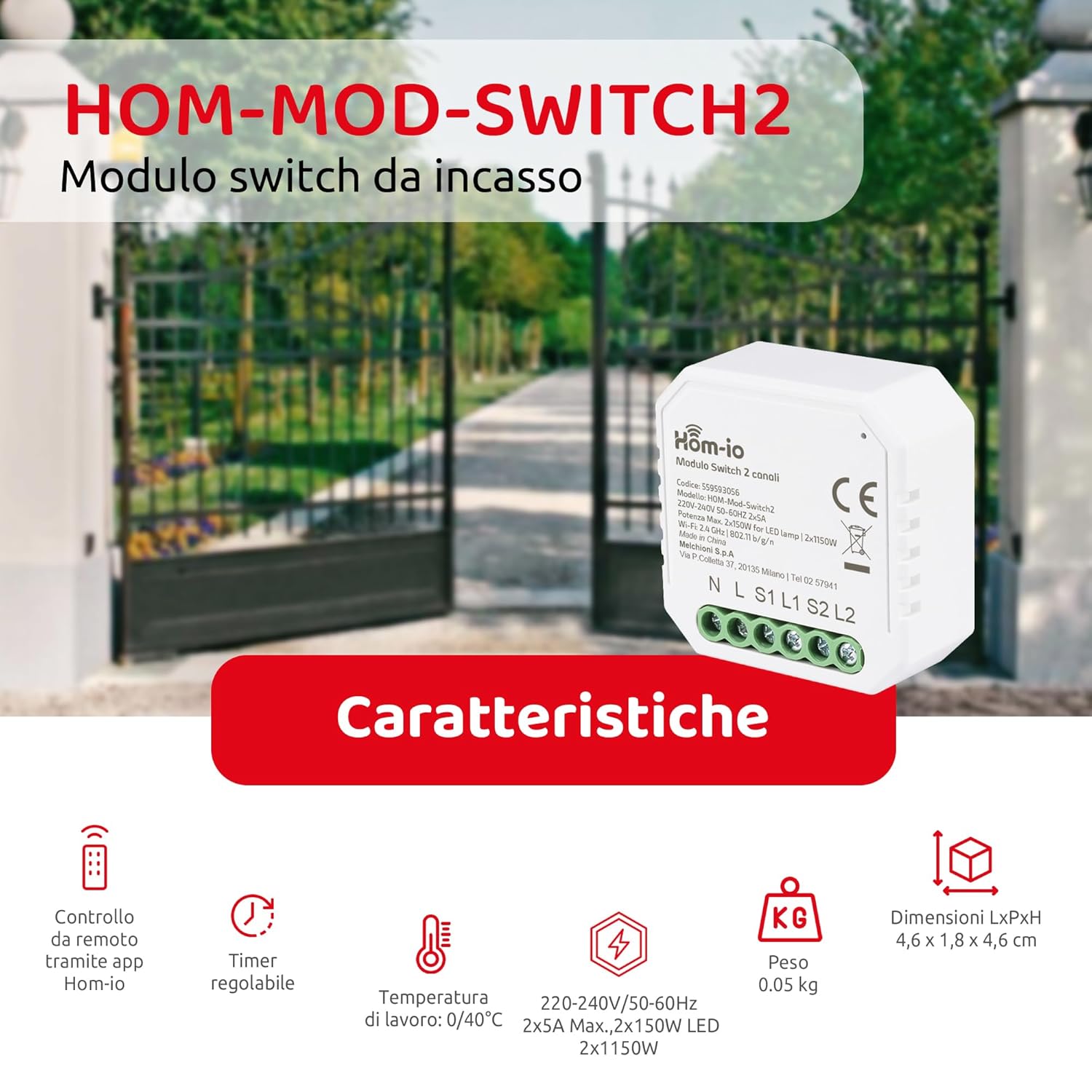
Image 1: Hom-Io HOM-Mod-Switch2 module with its technical specifications and features such as remote app control, adjustable timer, operating temperature, voltage, weight, and dimensions.
Key features include:
- Smart Control: Remote operation of lights and devices via smartphone or traditional wall switch.
- Dual Channel: Controls two separate circuits (2x5A).
- Wi-Fi Connectivity: 2.4 GHz 802.11 b/g/n for seamless integration into your home network.
- Voice Assistant Compatibility: Works with Amazon Alexa and Google Home.
- Advanced Functions: Timer programming and custom scenario creation for automated control.
- Compact Design: Suitable for installation in standard junction boxes (ø60mm).
5. Specifications
| Model | HOM-Mod-Switch2 |
| Brand | Hom-io |
| Operating Voltage | 220-240V / 50-60Hz |
| Rated Current | 10 Amperes (2x5A) |
| Max Load (Resistive) | 2300 Watts |
| Max Load (LED) | 2x150W |
| Wi-Fi Standard | 2.4 GHz 802.11 b/g/n |
| International Protection Rating | IP20 (Indoor use in dry locations) |
| Operating Temperature | 0°C to 40°C |
| Operating Humidity | ≤80% |
| Dimensions (LxWxH) | 4.6 x 1.8 x 4.6 cm (18 x 45 x 45 mm) |
| Junction Box Compatibility | Ø60mm |
| Housing Material | Plastic (ABS) |
| Contact Material | Copper |
| Control Method | Remote (App, Voice), Manual Switch |
| Voice Control Compatibility | Amazon Alexa, Google Home |
6. Setup and Installation
6.1 Wiring Diagram
The Hom-Io HOM-Mod-Switch2 module is designed for in-wall installation within a standard Ø60mm junction box. Refer to the diagram below for proper wiring connections. Always ensure the main power supply is OFF before proceeding with any wiring.

Image 2: Detailed view of the Hom-Io HOM-Mod-Switch2 module, illustrating its compact size and terminal connections for Line (L), Neutral (N), Load 1 (L1), Load 2 (L2), Switch 1 (S1), and Switch 2 (S2).
- Disconnect Power: Turn off the main power supply at the circuit breaker before starting installation.
- Connect Neutral (N): Connect the neutral wire from your electrical system to the 'N' terminal on the module.
- Connect Live (L): Connect the live wire from your electrical system to the 'L' terminal on the module.
- Connect Load 1 (L1): Connect the live wire of the first light/device to be controlled to the 'L1' terminal.
- Connect Load 2 (L2): Connect the live wire of the second light/device to be controlled to the 'L2' terminal.
- Connect Switches (S1, S2): Connect your traditional wall switches to the 'S1' and 'S2' terminals for manual control. These are typically connected to the live wire (L) and then to S1/S2. Consult a qualified electrician if unsure.
- Mount Module: Carefully place the module into the junction box.
- Restore Power: Turn the main power supply back on.
6.2 App Installation and Pairing
To utilize the smart features of your Hom-Io switch, you need to install the Hom-io application on your smartphone or tablet.

Image 3: Hom-Io app interface on a smartphone, showing download options for App Store and Google Play, and indicating compatibility with Amazon Alexa and Hey Google.
- Download App: Download the "Hom-io" app from the App Store (iOS) or Google Play Store (Android).
- Register/Login: Open the app and register for a new account or log in with an existing one.
- Add Device: Follow the in-app instructions to add a new device. Typically, this involves selecting "Electrical Switch" or "Smart Switch" and then following the pairing mode instructions.
- Enter Pairing Mode: The module usually enters pairing mode automatically when first powered on, indicated by a blinking LED. If not, you may need to press and hold the physical switch connected to S1 for 5-10 seconds until the LED blinks rapidly.
- Connect to Wi-Fi: Ensure your smartphone is connected to a 2.4 GHz Wi-Fi network. The app will guide you through connecting the switch to your home Wi-Fi.
- Name Device: Once paired, assign a name to your switch (e.g., "Living Room Light 1", "Kitchen Device").
7. Operating Instructions
7.1 App Control
After successful pairing, you can control your devices using the Hom-io app from anywhere with an internet connection.

Image 4: Smartphone screen displaying the Hom-Io app with a large "ON" button for controlling a smart switch, along with options for Timer and Settings.
- On/Off Control: Tap the device icon in the app to toggle connected lights or devices on/off.
- Timer Functions: Set schedules for automatic on/off times. Access this feature through the device settings in the app.
- Scenario Creation: Create custom scenarios to control multiple devices simultaneously or based on specific conditions (e.g., "Good Morning" scene to turn on lights and coffee maker).

Image 5: An example of precise control, showing a smart sprinkler system being activated, illustrating the ability to accurately set the on and off times for connected devices.
7.2 Voice Control (Amazon Alexa / Google Home)
Integrate your Hom-Io switch with Amazon Alexa or Google Home for convenient voice control.
- Link Account: In the Alexa or Google Home app, search for the "Hom-io" skill/service and link your Hom-io account.
- Discover Devices: Once linked, ask your voice assistant to "Discover devices" or manually add them through the app.
- Voice Commands: Use commands such as:
- "Alexa, turn on [Device Name]"
- "Hey Google, turn off [Device Name]"
- "Alexa, set [Device Name] to 50%" (if dimmable, though this switch is on/off)
7.3 Manual Switch Control
The Hom-Io HOM-Mod-Switch2 retains compatibility with traditional wall switches. You can still manually turn your lights or devices on/off using the connected physical switch, even if the Wi-Fi connection is unavailable.
8. Maintenance
- Cleaning: Wipe the device with a soft, dry cloth. Do not use liquid cleaners or aerosols.
- Firmware Updates: Periodically check the Hom-io app for available firmware updates to ensure optimal performance and security.
- Environmental Conditions: Ensure the device remains within its specified operating temperature (0-40°C) and humidity (≤80%) ranges.
9. Troubleshooting
| Problem | Possible Cause | Solution |
|---|---|---|
| Device not responding to app/voice commands. | No Wi-Fi connection, incorrect pairing, power issue. |
|
| Physical switch not working. | Incorrect wiring, faulty switch. |
|
| Module gets warm. | Normal operation, or overloaded circuit. |
|
10. Warranty Information
The Hom-Io HOM-Mod-Switch2 comes with a 2-year manufacturer warranty from the date of purchase. This warranty covers defects in materials and workmanship under normal use. It does not cover damage caused by misuse, unauthorized modifications, improper installation, or external factors such as power surges.
For warranty claims, please retain your proof of purchase and contact your retailer or Hom-io customer support.
11. Support
For further assistance, technical support, or to explore other Hom-io smart home products, please visit the official Hom-io website or contact customer service.
- Hom-io Brand Store: Visit Hom-io on Amazon
- Hom-io App Download: Download the Hom-io App


