
OPPO CPH2477
OPPO A17 Smartphone User Manual
Model: CPH2477
1. Introduction
Welcome to the user manual for your new OPPO A17 smartphone. This guide provides essential information to help you set up, operate, and maintain your device. The OPPO A17 is designed for efficient performance and reliable connectivity, featuring a powerful 2.3 GHz Octa-core processor, 64GB of internal storage (expandable via microSDXC), and a long-lasting 5000 mAh battery. It supports dual SIM functionality for flexible network usage.
2. What's in the Box
Upon unboxing your OPPO A17, please verify that all the following items are included:
- OPPO A17 Smartphone
- Protective Case
- SIM Ejector Tool
- Charger
- USB Data Cable
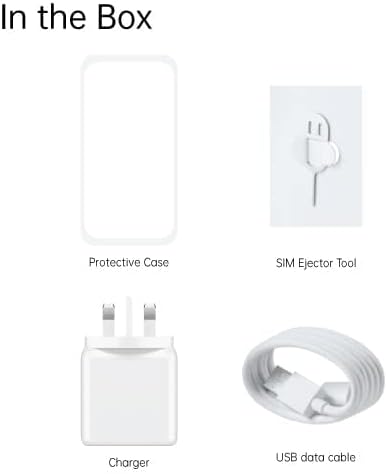
Image: Contents of the OPPO A17 retail box.
3. Setup
3.1. Inserting SIM Cards and MicroSD Card
The OPPO A17 supports dual SIM cards and a microSDXC card for expanded storage. The microSDXC card uses a shared SIM slot.
- Locate the SIM card tray on the side of your device.
- Insert the SIM ejector tool into the small hole next to the tray and gently push until the tray pops out.
- Place your Nano-SIM cards and/or microSDXC card into the designated slots on the tray. Ensure the gold contacts are facing down.
- Carefully push the tray back into the phone until it clicks into place.

Image: Front view of the OPPO A17, indicating the general location of the SIM tray on the side.
3.2. Initial Power On and Setup Wizard
Press and hold the Power button on the side of the phone until the OPPO logo appears. Follow the on-screen instructions to complete the initial setup, including language selection, Wi-Fi connection, Google account setup, and security settings.
3.3. Network Compatibility
The OPPO A17 is compatible with GSM networks. Before purchasing, it is crucial to verify network compatibility with your service provider. The device supports various 2G, 3G, and 4G LTE bands as detailed in the product description.
4. Operating Instructions
4.1. Basic Navigation
The OPPO A17 features an intuitive touchscreen interface. Use gestures such as tap, swipe, pinch-to-zoom, and long-press to navigate the Android 12 operating system. The power button controls screen on/off and device power, while volume buttons adjust audio levels.
4.2. Calls and Messaging
To make a call, open the Phone app and dial the number or select a contact. For messaging, use the pre-installed messaging application to send and receive SMS/MMS messages.
4.3. Connectivity
The device supports Wi-Fi (802.11ac) for internet access and Bluetooth for connecting to wireless accessories. Access these settings via the Quick Settings panel (swipe down from the top of the screen) or through the main Settings app.
5. Camera System
Capture stunning photos with the OPPO A17's advanced camera system, featuring a 50 MP rear camera. The AI Camera enhances image quality and offers various modes for different shooting scenarios.

Image: Close-up of the OPPO A17's rear camera module.

Image: Visual representation of the 50MP AI Camera feature.
6. Battery Management
The OPPO A17 is equipped with a powerful 5000 mAh non-removable Li-Po battery, providing long-lasting usage.
6.1. Charging Your Device
Connect the provided USB data cable to the phone's charging port and the charger. Plug the charger into a power outlet. The battery indicator on the screen will show charging progress. For optimal battery health, use only OPPO-approved chargers and cables.

Image: Battery charging indicator on the OPPO A17 display.
6.2. Battery Saving Tips
- Reduce screen brightness.
- Enable power-saving mode.
- Turn off Wi-Fi, Bluetooth, and GPS when not in use.
- Close background applications.
7. Dual SIM Usage
The OPPO A17's dual SIM capability allows you to use two different phone numbers or network providers simultaneously. You can manage your preferred SIM for calls, messages, and mobile data through the 'SIM card & mobile data' settings in the Settings app.
8. Maintenance
8.1. Cleaning Your Device
Use a soft, lint-free cloth to clean the screen and body of your phone. Avoid using harsh chemicals or abrasive materials. Keep the charging port and speaker grilles free of dust and debris.
8.2. Software Updates
Regularly check for and install software updates to ensure your device has the latest features, security patches, and performance improvements. You can find update options in the Settings app under 'About phone' or 'Software update'.
8.3. Storage Management
With 64GB of internal storage, you can store many apps and files. If you need more space, utilize the microSDXC card slot. Regularly clear cache, delete unnecessary files, and uninstall unused apps to maintain optimal performance.
9. Troubleshooting
If you encounter issues with your OPPO A17, try the following common troubleshooting steps:
- Device Not Turning On: Ensure the battery is charged. Connect the charger and wait a few minutes before attempting to power on.
- Network Issues: Check if SIM cards are properly inserted. Restart the phone. Verify network settings and contact your service provider if problems persist.
- Apps Crashing/Freezing: Close and reopen the app. Clear the app's cache and data in Settings. If the issue continues, uninstall and reinstall the app.
- Slow Performance: Free up storage space, close background apps, and restart your device.
- Factory Reset: As a last resort, you can perform a factory reset. This will erase all data on your phone, so back up important information first. Navigate to Settings > System > Reset options > Erase all data (factory reset).
10. Specifications
Key technical specifications for the OPPO A17 (Model: CPH2477):
| Feature | Specification |
|---|---|
| Model Number | CPH2477 |
| Operating System | Android 12 |
| Processor | 2.3 GHz Octa-core (MediaTek Helio G35) |
| RAM | 4GB |
| Internal Storage | 64GB (expandable via microSDXC) |
| Display Size | 6.56 Inches |
| Screen Resolution | 720 x 1612 |
| Rear Camera | 50 MP |
| Battery | 5000 mAh Li-Po (non-removable) |
| Dimensions (LxWxH) | 19.69 x 19.69 x 11.02 inches |
| Item Weight | 1.01 pounds |
| Wireless Type | 802.11ac |
11. Warranty and Support
For information regarding warranty coverage and customer support, please refer to the official OPPO website or the warranty card included with your product. You can also contact OPPO customer service directly for assistance with technical issues or service inquiries.
Related documentsCPH2477


Ask a question about this manual
Ask about setup, troubleshooting, compatibility, parts, safety, or missing instructions. Manuals+ will review the question and use this page’s manual context to help answer it.