
1. Introduction
The NETGEAR GS308PP is an 8-Port Gigabit Ethernet Unmanaged PoE+ Switch designed for reliable network connectivity and power delivery. It features 8 PoE+ ports with an 83W total power budget, supporting various power-hungry devices. This switch utilizes NETGEAR FlexPoE integrated technology, allowing for future PoE budget expansion. Its plug-and-play design requires no software installation or configuration, making it easy to set up for desktop or wall-mount installations.
2. Product Overview
The GS308PP switch features eight Gigabit Ethernet ports on the front panel, each supporting Power-over-Ethernet Plus (PoE+). Each port has corresponding LED indicators for Link/ACT status and PoE mode. The rear panel includes the power input and a Kensington lock slot.
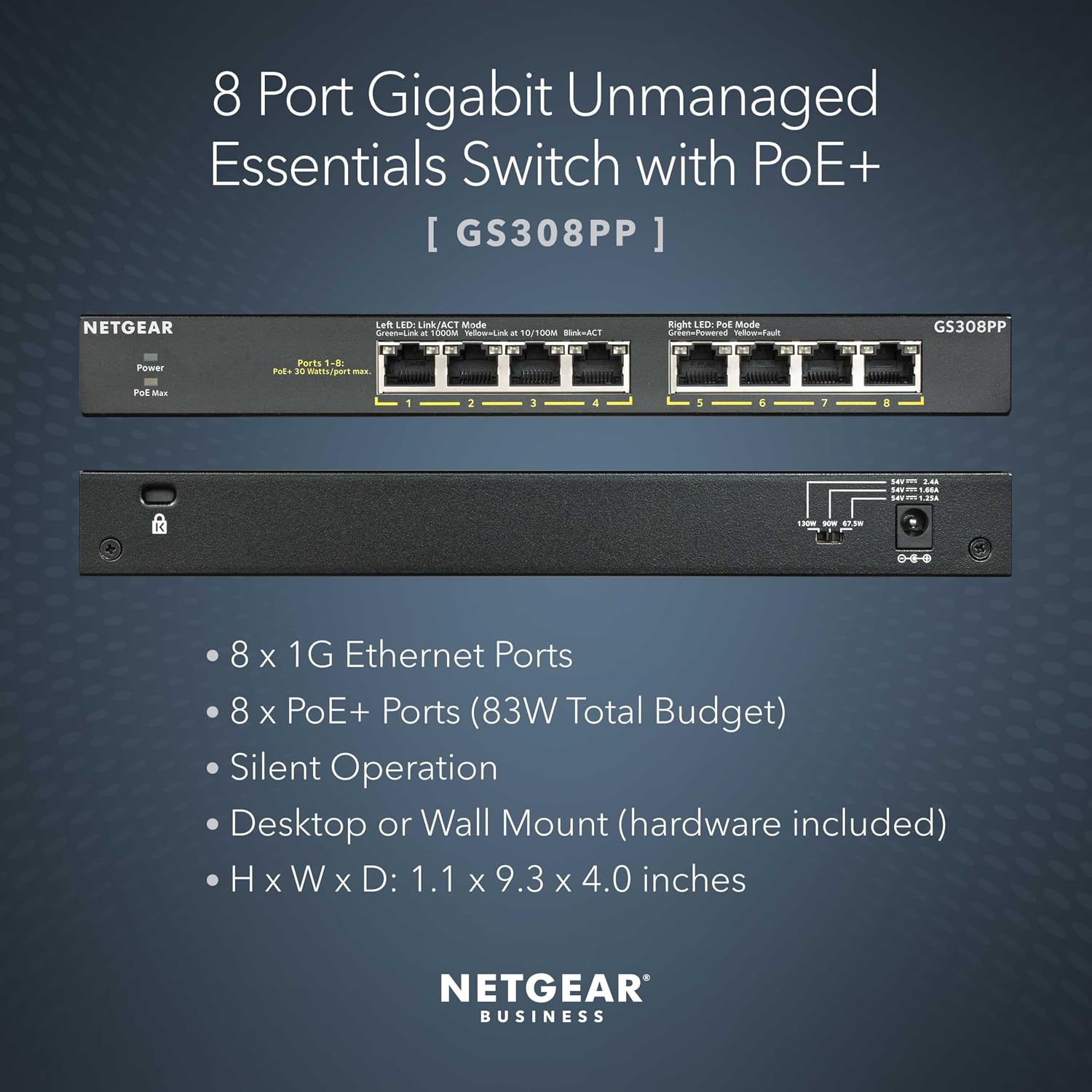
Image: Front and rear view of the NETGEAR GS308PP switch, highlighting 8 Gigabit Ethernet ports, PoE+ capabilities, and physical dimensions.
Package Contents
- NETGEAR GS308PP 8-Port Gigabit Ethernet Unmanaged PoE+ Switch
- Power Adapter
- Wall-mount kit (screws and anchors)
- Installation Guide
3. Setup Instructions
The NETGEAR GS308PP switch is designed for simple plug-and-play installation, requiring no software configuration.
Step-by-Step Installation:
- Unpack the Switch: Carefully remove the switch and all accessories from the packaging.
- Choose a Location: Select a suitable location for the switch. It can be placed on a desktop or mounted on a wall using the included hardware. Ensure adequate ventilation around the device.
- Connect Network Devices: Connect your network devices (e.g., computers, access points, IP cameras, NAS) to the Gigabit Ethernet ports (1-8) on the front panel using standard Ethernet cables (Cat5e or Cat6 recommended).
- Connect Power: Connect the provided power adapter to the power input on the rear panel of the switch, then plug the adapter into a power outlet.
- Verify Operation: Once powered on, observe the LED indicators. The Link/ACT LEDs should illuminate for active connections, and the PoE LEDs should light up for devices receiving power.

Image: Diagram illustrating the plug-and-play setup of the GS308PP switch, connecting various devices like WiFi Access Points, IP Cameras, Computers, and NAS.
4. Operating Instructions
The NETGEAR GS308PP is an unmanaged switch, meaning it operates automatically without requiring user configuration. Once connected and powered, it will facilitate network communication and power delivery.
LED Indicators:
- Power LED: Illuminates when the switch is powered on.
- Link/ACT LEDs (per port):
- Solid Green: A valid network link is established.
- Flashing Green: Data activity is occurring on the port.
- Off: No link or connection issue.
- PoE LEDs (per port):
- Solid Green: Power is being supplied to a PoE-compatible device.
- Flashing Green: PoE fault detected (e.g., overcurrent, short circuit).
- Off: No PoE device connected or no power being supplied.
Power-over-Ethernet (PoE+) Functionality:
The switch provides 8 PoE+ ports with a total power budget of 83W. It supports dynamic PoE allocation, which redistributes unused power to support power-hungry devices more efficiently. Ensure that connected devices requiring power are PoE+ compatible.

Image: Table illustrating power requirements for various powered devices (WiFi Access Points, Cameras, VoIP Phones) across PoE, PoE+, and PoE++ standards.
5. Maintenance
The NETGEAR GS308PP switch is designed for minimal maintenance. Its fanless design ensures silent operation and reduces the accumulation of dust. The switch also incorporates IEEE 802.3az Energy Efficient Ethernet technology to optimize power consumption.
General Care:
- Keep the switch in a clean, dry environment.
- Ensure proper ventilation by not obstructing the air vents.
- Avoid exposing the switch to extreme temperatures or humidity.
- Do not attempt to open the casing; there are no user-serviceable parts inside.
6. Troubleshooting
If you encounter issues with your NETGEAR GS308PP switch, refer to the following common troubleshooting steps:
Common Issues and Solutions:
- No Power:
- Ensure the power adapter is securely connected to the switch and a working power outlet.
- Check if the Power LED on the switch is illuminated.
- No Link/Activity on a Port:
- Verify that the Ethernet cable is securely connected to both the switch port and the connected device.
- Try using a different Ethernet cable.
- Ensure the connected device is powered on and functioning correctly.
- Check the Link/ACT LED for the specific port.
- PoE Device Not Receiving Power:
- Confirm that the connected device is PoE+ (802.3at) compatible.
- Check the PoE LED for the specific port. If flashing, a PoE fault may be present.
- Ensure the total power budget of 83W is not exceeded by all connected PoE devices.
- Try connecting the PoE device to a different port.
- Slow Network Speed:
- Ensure all connected devices and cables support Gigabit Ethernet for optimal performance.
- Check for excessive network traffic or faulty cables.
If these steps do not resolve the issue, please contact NETGEAR technical support for further assistance.
7. Specifications
| Feature | Specification |
|---|---|
| Brand | Netgear |
| Model Number | GS308PP-100NAS |
| Number of Ports | 8 Gigabit Ethernet |
| PoE Ports | 8 PoE+ (802.3at) |
| Total PoE Power Budget | 83W |
| Data Transfer Rate | 1000 Megabits Per Second (Mbps) |
| Switch Type | Unmanaged |
| Enclosure Material | Metal |
| Dimensions (L x W x H) | 23.6L x 10.2W x 2.8H Centimeters |
| Item Weight | 1.32 Pounds |
| Voltage | 110 Volts (AC) |
| Features | Fanless Design, IEEE 802.3az Energy Efficient Ethernet |
| Regional Compatibility | U.S. & CA only |
8. Warranty and Support
For detailed warranty information, product registration, and technical support, please visit the official NETGEAR website or contact NETGEAR customer service directly. Support resources typically include FAQs, troubleshooting guides, and software/firmware downloads.
NETGEAR Support Website: www.netgear.com/support


