
1. Introduction
This manual provides essential information for setting up, operating, maintaining, and troubleshooting your OPPO A17 smartphone. Please read this guide thoroughly to ensure proper use and to maximize the device's performance and longevity. Keep this manual for future reference.
2. Product Overview
Familiarize yourself with the physical components of your OPPO A17 smartphone.
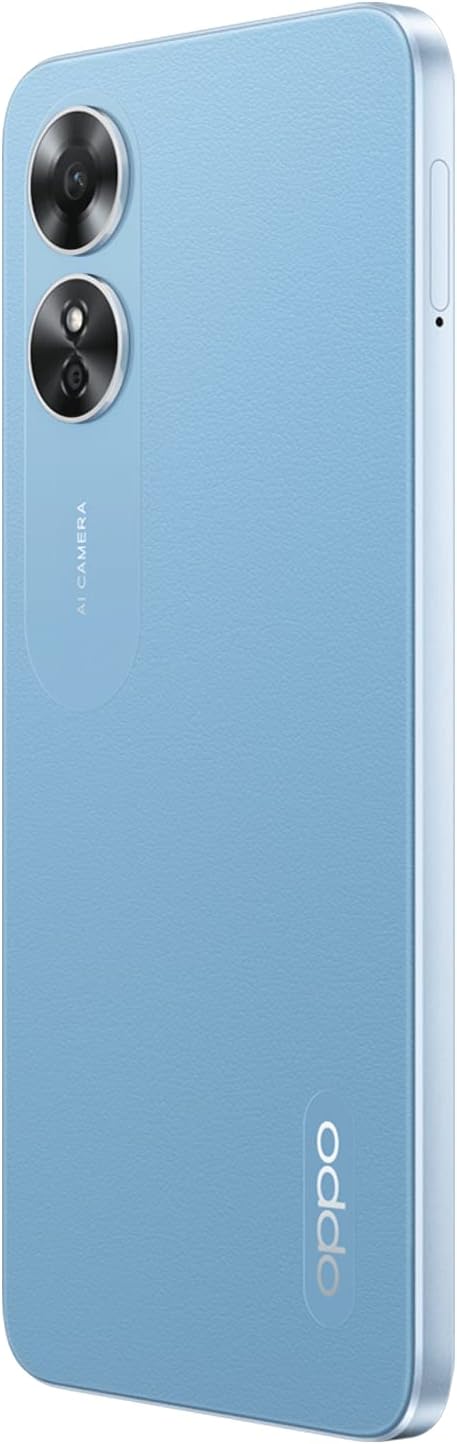
Figure 2.1: Front View
This image displays the front of the OPPO A17, featuring the display screen and the front camera notch at the top center.

Figure 2.2: Back View
This image shows the rear of the OPPO A17, highlighting the dual camera module and the OPPO branding at the bottom right.

Figure 2.3: Side View
This image illustrates the side profile of the OPPO A17, showing the power button (which may include a fingerprint sensor) and volume rocker.
3. Setup
3.1. Inserting SIM Cards and SD Card
- Locate the SIM card tray on the side of your phone.
- Use the SIM ejector tool (if provided) to open the tray.
- Place your Nano-SIM cards into the designated slots. Ensure the gold contacts face downwards.
- If you wish to expand storage, insert a microSD card into the dedicated slot on the same tray.
- Carefully push the tray back into the phone until it is flush with the device body.
3.2. Initial Power On and Setup
- Press and hold the Power button (usually on the right side) until the OPPO logo appears.
- Follow the on-screen instructions to select your language, region, connect to Wi-Fi, and set up your Google account.
- You will be prompted to set up security features such as a PIN, pattern, password, or fingerprint.
3.3. Charging the Device
Before first use, it is recommended to fully charge your OPPO A17.
- Connect the USB cable to the power adapter.
- Plug the power adapter into a wall outlet.
- Connect the other end of the USB cable to the charging port on your phone.
- The charging indicator will appear on the screen.
4. Operating Instructions
4.1. Basic Navigation
- Touchscreen: Interact with the device by tapping, swiping, pinching, and spreading on the display.
- Home Screen: Access your apps, widgets, and notifications.
- Notifications Panel: Swipe down from the top of the screen to view notifications and quick settings.
4.2. Making Calls and Sending Messages
- Calls: Open the Phone app, enter the number, and tap the call icon.
- Messages: Open the Messages app, tap the new message icon, enter the recipient and your message.
4.3. Camera Usage
Your OPPO A17 is equipped with front and rear cameras for photography and video recording.
- Open the Camera app.
- Select between photo, video, and other modes.
- Tap the shutter button to capture an image or start/stop video recording.
- Tap the camera switch icon to toggle between front and rear cameras.
4.4. Connectivity
- Wi-Fi: Go to Settings > Wi-Fi to connect to available networks.
- Bluetooth: Go to Settings > Bluetooth to pair with other Bluetooth devices.
- Mobile Data (LTE): Ensure your SIM card is active and mobile data is enabled in Settings > Mobile Network.
5. Maintenance
5.1. Cleaning Your Device
- Use a soft, lint-free cloth to gently wipe the screen and body of the phone.
- Avoid using harsh chemicals, abrasive materials, or aerosol sprays.
- Do not expose the phone to excessive moisture.
5.2. Battery Care
- Avoid extreme temperatures, as they can degrade battery performance.
- Use only the original or certified charging accessories.
- Do not leave the phone charging for extended periods after it reaches 100%.
5.3. Software Updates
Regularly check for and install software updates to ensure your device has the latest features, security patches, and performance improvements. Go to Settings > About device > Up to date to check for updates.
6. Troubleshooting
This section addresses common issues you might encounter with your OPPO A17.
6.1. Phone Not Turning On
- Ensure the battery is charged. Connect the phone to the charger and wait a few minutes before attempting to power it on again.
- Press and hold the Power button for at least 10-15 seconds to perform a forced restart.
6.2. Device Freezing or Unresponsive
- Force restart the device by pressing and holding the Power button for 10-15 seconds.
- If the issue persists, try clearing the cache of problematic apps or performing a factory reset (Note: A factory reset will erase all data on your phone. Back up important data before proceeding).
6.3. Connectivity Issues (Wi-Fi/Bluetooth/Mobile Data)
- Toggle the respective connectivity option (Wi-Fi, Bluetooth, Mobile Data) off and on again.
- Restart your phone.
- For Wi-Fi, try forgetting the network and reconnecting. For mobile data, ensure your SIM card is properly inserted and active.
6.4. Poor Camera Performance
- Ensure the camera lenses are clean and free from smudges.
- Check if there are any software updates available for your device.
- Clear the cache and data of the Camera app in Settings > Apps.
7. Specifications
Detailed technical specifications for the OPPO A17 (Model CPH2477).
| Feature | Specification |
|---|---|
| Operating System | Android 12.0 |
| RAM | 4GB |
| Storage | 64GB |
| Product Dimensions | 16.42 x 7.56 x 0.83 cm |
| Item Weight | 187 grams |
| Battery | 1 Lithium Ion (included), 5000 mAh |
| Model Number | CPH2477 |
| Wireless Technologies | 4G LTE |
| Connectivity Technologies | Bluetooth, Wi-Fi |
| GPS | GLONASS |
| Special Features | Expandable memory, Dual SIM |
| Display Interface | Touchscreen |
| Display Resolution | 720 x 1600 pixels |
| Camera Features | Front, Rear |
| Audio Jack | 3.5 mm |
| Form Factor | Bar |
| Color | Blue |
| Included Components | Phone case, USB cable, Power adapter |
8. Warranty and Support
For warranty information, please refer to the warranty card included with your product or visit the official OPPO website. For further assistance, technical support, or service inquiries, please contact OPPO customer service through their official channels.
You can find more information and support resources on the official OPPO website: www.oppo.com


