
WeChip W2Pro
WeChip W2Pro Air Mouse User Manual
Model: W2Pro
Introduction
The WeChip W2Pro is a versatile 2.4G wireless air mouse remote control designed for various devices including Android TV boxes, PCs, HTPCs, IPTVs, Windows, MAC OS, and Projectors. It features a backlit mini keyboard, voice control, and an anti-lost function, providing a comprehensive solution for navigation and input.

Image: The WeChip W2Pro Air Mouse, showcasing its dual-sided design with a remote control on one side and a full QWERTY keyboard with a touchpad on the other. The compact USB receiver is also visible.
Setup
To begin using your WeChip W2Pro Air Mouse, follow these simple setup steps:
- Charging: Before first use, ensure the remote is fully charged using the provided USB cable. Connect the small end of the cable to the remote's charging port and the other end to a standard USB power source (e.g., computer USB port, USB wall adapter).
- Insert USB Receiver: Locate the USB receiver (often stored within the remote's battery compartment or packaging). Plug this receiver into an available USB port on your target device (e.g., Android TV Box, PC, Projector).
- Automatic Connection: The remote should automatically connect to the receiver. If it does not, or if you experience connection issues, proceed to the pairing instructions below.
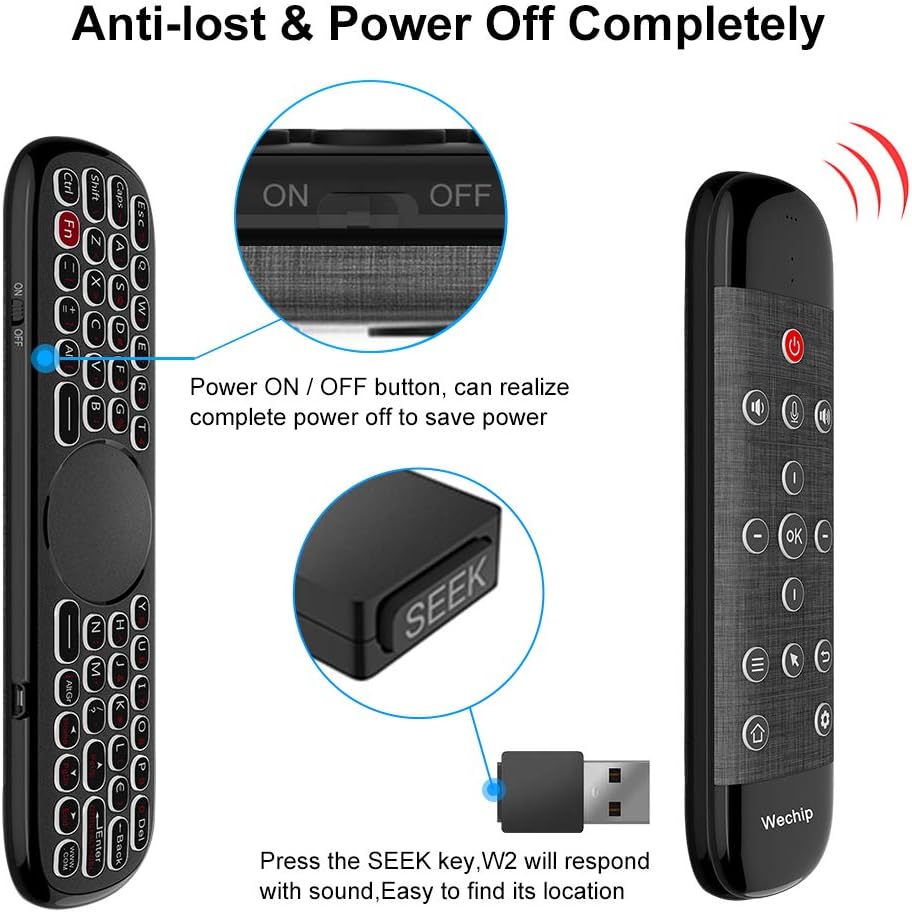
Image: This image highlights the power ON/OFF switch on the side of the remote and the USB receiver. The USB receiver features a 'SEEK' button, which is part of the anti-lost function to help locate the remote by making it emit a sound.
Pairing Instructions (if needed)
If the remote does not connect automatically, or if you need to re-pair it:
- Ensure the USB receiver is plugged into your device.
- Press and hold the 'OK' button and the 'Return' button simultaneously on the remote for a few seconds until the indicator light starts blinking rapidly.
- Release the buttons. The indicator light should stop blinking and remain solid, indicating successful pairing.
Operating the WeChip W2Pro
The W2Pro offers multiple modes of operation for seamless interaction with your devices.
Front Side Controls (Remote Mode)
The front side of the remote features standard media and navigation buttons:
- Power Button: Turns the connected device on or off.
- Voice Function Button: Activates voice search or voice commands on compatible devices.
- Volume Controls: Adjusts the audio volume.
- Navigation Pad (Up/Down/Left/Right/OK): For menu navigation and selection.
- Home Button: Returns to the device's home screen.
- Return/Back Button: Goes back to the previous screen or menu.
- Menu Button: Opens context-sensitive menus.
- Air Mouse Mode Button: Toggles the air mouse function on/off.

Image: A user holding the WeChip W2Pro Air Mouse and speaking into it, demonstrating the fidelity voice input feature. The screen shows a voice assistant interface, indicating successful voice recognition.
Air Mouse Function
When Air Mouse mode is activated, a cursor will appear on your screen. You can control the cursor by moving the remote in the air. This allows for precise navigation, similar to a traditional mouse.
- Press the Air Mouse button to activate or deactivate the cursor.
- Move the remote to move the cursor.
- Press the 'OK' button to click.
Back Side Controls (Keyboard & Touchpad)
Flip the remote over to access the full QWERTY keyboard and touchpad. The remote intelligently disables the buttons on the side facing down to prevent accidental presses.
- QWERTY Keyboard: Type text, search queries, and navigate forms efficiently.
- Touchpad: Use your finger to control the mouse cursor on the screen. Supports multi-gesture operations for scrolling and zooming (device dependent).
- 'Fn' Key: Press the 'Fn' key to access secondary functions (red symbols) on certain keys, such as numbers or special characters.
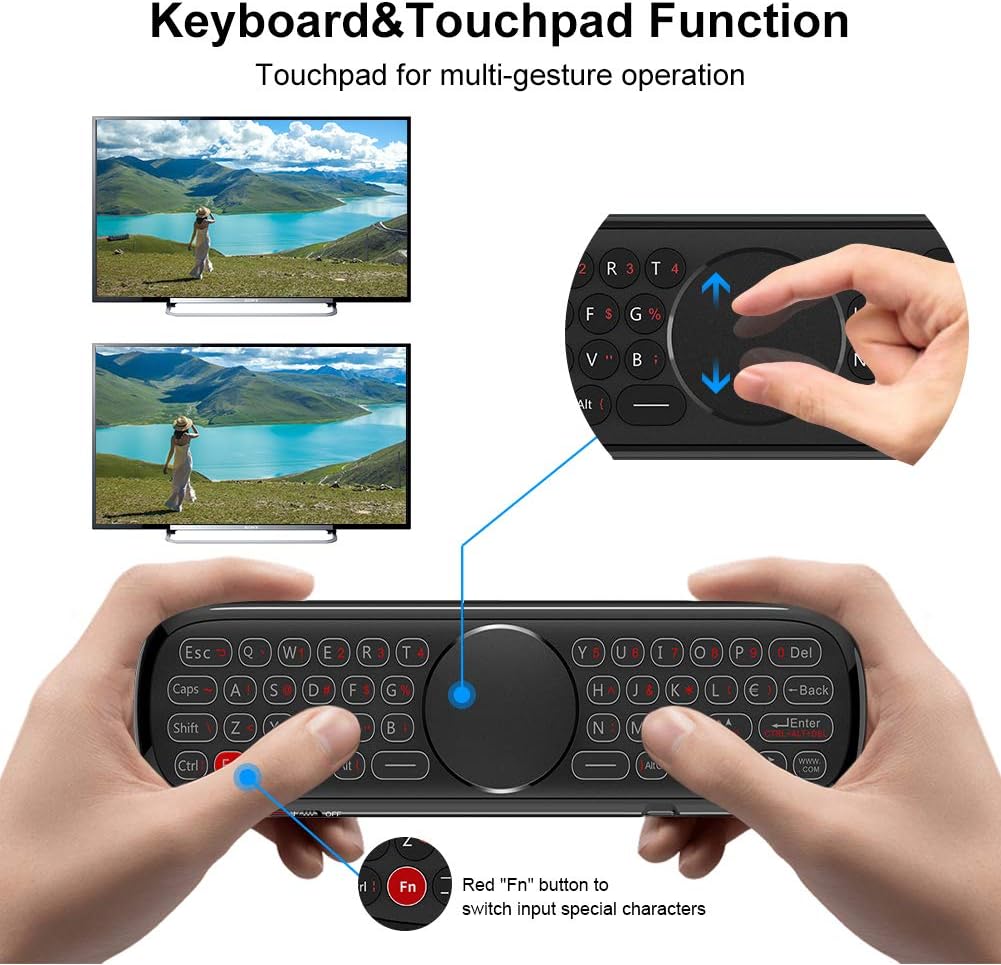
Image: This image illustrates the keyboard and touchpad functionality of the WeChip W2Pro Air Mouse. It shows hands holding the remote in landscape orientation, with fingers positioned to type on the QWERTY keyboard and interact with the central touchpad for multi-gesture operations.
Backlight Function
The keyboard features a backlight for use in low-light conditions.
- Press the dedicated backlight button (often indicated by a light bulb icon) to turn the backlight on or off.
Anti-Lost Function (Seek Button)
If you misplace your remote, the 'Seek' button on the USB receiver can help you locate it.
- Press the 'Seek' button on the USB receiver.
- The remote will emit a sound, making it easier to find.
Maintenance
To ensure the longevity and optimal performance of your WeChip W2Pro Air Mouse, follow these maintenance guidelines:
- Charging: Recharge the remote when the battery indicator is low. Avoid completely draining the battery frequently to prolong its lifespan.
- Cleaning: Use a soft, dry cloth to clean the surface of the remote. For stubborn dirt, a slightly damp cloth can be used, but ensure no moisture enters the device. Do not use harsh chemicals or abrasive cleaners.
- Storage: Store the remote in a cool, dry place away from direct sunlight and extreme temperatures.
- USB Receiver: When not in use, you may store the USB receiver inside the remote's designated slot (if available) to prevent loss.
Troubleshooting
If you encounter issues with your WeChip W2Pro, refer to the following common troubleshooting steps:
| Problem | Possible Cause | Solution |
|---|---|---|
| Remote not responding | Low battery; USB receiver disconnected; Not paired. | Charge the remote; Re-insert USB receiver; Re-pair the remote (see Setup section). |
| Air mouse cursor erratic or not moving | Interference; Remote needs calibration. | Ensure no obstructions; Place remote on a flat surface for a few seconds to re-calibrate. |
| Voice control not working | Device not compatible; Microphone blocked; Software issue. | Verify device compatibility; Ensure microphone is clear; Restart device. |
| Keyboard input incorrect | Language settings; Accidental 'Fn' key press. | Check device language settings; Press 'Fn' key again to toggle secondary functions. |
| Anti-lost function not working | Remote out of range; Remote powered off. | Ensure remote is within range; Check if remote is powered on. |
Specifications
Detailed specifications for the WeChip W2Pro Air Mouse:
- Model: W2Pro
- Dimensions: 7.59 x 2.2 x 0.65 inches
- Item Weight: 5 ounces
- Connectivity Technology: 2.4G Wireless (via USB receiver), Infrared (for power button learning)
- Special Features: Backlit Keyboard, Voice Control, Air Mouse Function, Touchpad, Anti-Lost Function
- Compatible Devices: Android TV Box, PC, HTPC, IPTV, Windows, MAC OS, Projector, Television (limited IR learning)
- Max Number of Supported Devices: 1 (via 2.4G USB receiver)

Image: This image provides a detailed view of the WeChip W2Pro Air Mouse, highlighting its dimensions (7.59 inches length, 2.2 inches width, 0.65 inches thickness) and key features such as the backlit keyboard, anti-slip rubberized grip, and special surface texture for comfortable handling.
Official Product Video
Watch the official product video from WeChip for a visual guide on the W2Pro Air Mouse's features and functionality.
Video: An official product video from WeChip showcasing the W2 Pro Air Mouse Remote. It demonstrates the unboxing, physical features, voice control, keyboard, and touchpad functionalities of the device.
Warranty and Support
WeChip products are designed for reliability and performance. For warranty information, technical support, or service inquiries, please refer to the contact details provided with your product packaging or visit the official WeChip website. Keep your purchase receipt as proof of purchase for warranty claims.
Related documentsW2Pro


Ask a question about this manual
Ask about setup, troubleshooting, compatibility, parts, safety, or missing instructions. Manuals+ will review the question and use this page’s manual context to help answer it.