
1. Introduction
This manual provides detailed instructions for the installation, operation, and maintenance of the Caredy ZMAi-90 WIFI Single-Phase Electric Energy Meter. This device is designed for accurate measurement of single-phase electrical energy and features remote control capabilities via a mobile application.
2. Safety Information
WARNING: Electrical shock hazard. Installation and servicing should only be performed by qualified personnel.
- Always disconnect power before installing or servicing the meter.
- Ensure all wiring connections are secure and correct according to the wiring diagram.
- Do not operate the device if it appears damaged.
- Keep the device away from water and excessive humidity.
- The device is designed for indoor use only.
3. Product Overview
The Caredy ZMAi-90 is a compact single-phase electric energy meter with integrated WIFI connectivity. It features an LCD display for real-time data and buttons for pairing and status indication.

Figure 1: Front view of the ZMAi-90 meter, showing the LCD display, Impulse indicator, Tripped off indicator, WIFI indicator, and Pair button.
Key Features:
- Remote Control: Turn devices on/off via a mobile application.
- Current Measurement: Accurate current monitoring.
- Timing Function: Schedule power on/off times.
- Delay Function: Set a delay for power on/off.
- High-Quality Core: Utilizes large-scale integrated circuits and SMT technology for precise measurements.
- Durable Material: Made from flame-retardant material with good impact, heat, cold resistance, and insulation properties.
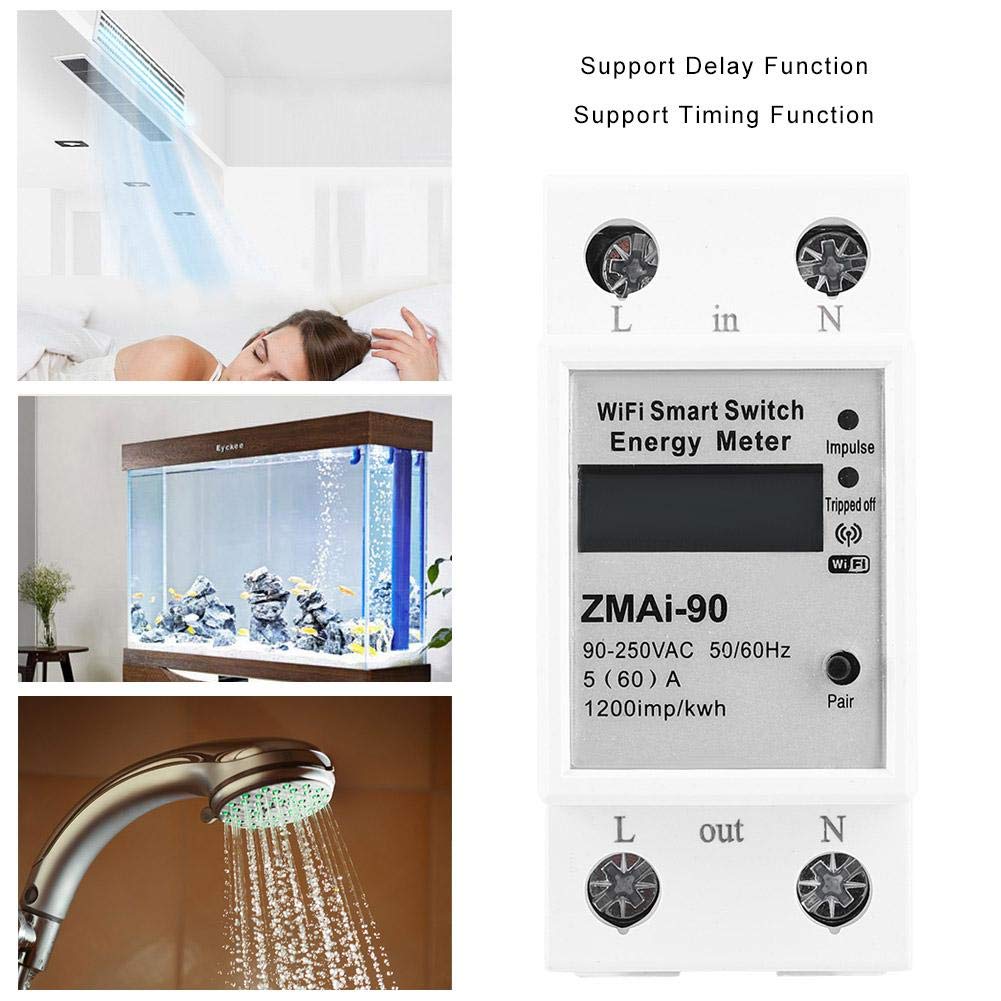
Figure 2: The ZMAi-90 meter supporting delay and timing functions, illustrated with applications for home appliances.
4. Specifications
| Specification | Value |
|---|---|
| Model | ZMAI-90 |
| Accuracy | Level 1 |
| Rated Current | 60A (Optional: 80A) |
| Voltage | AC 90V-250V |
| Ambient Temperature | -45 ℃ ~ 75 ℃ |
| Pulse Frequency | 1200imp/kwh |
| Installation | 35mm DIN Rail |
| Power Consumption | 1W/6VA |
| Product Size | Approx. 8 x 6.6 x 3.6 cm (3.1 x 2.6 x 1.4 inches) |
| Weight | Approx. 172g (6.1oz) |
5. Installation
The ZMAi-90 meter is designed for easy installation on a standard 35mm DIN rail.
5.1 Mounting
- Ensure all power to the circuit is disconnected at the main breaker.
- Locate a suitable position on a 35mm DIN rail within your electrical panel.
- Attach the meter to the DIN rail by aligning the clips and pressing firmly until it clicks into place.
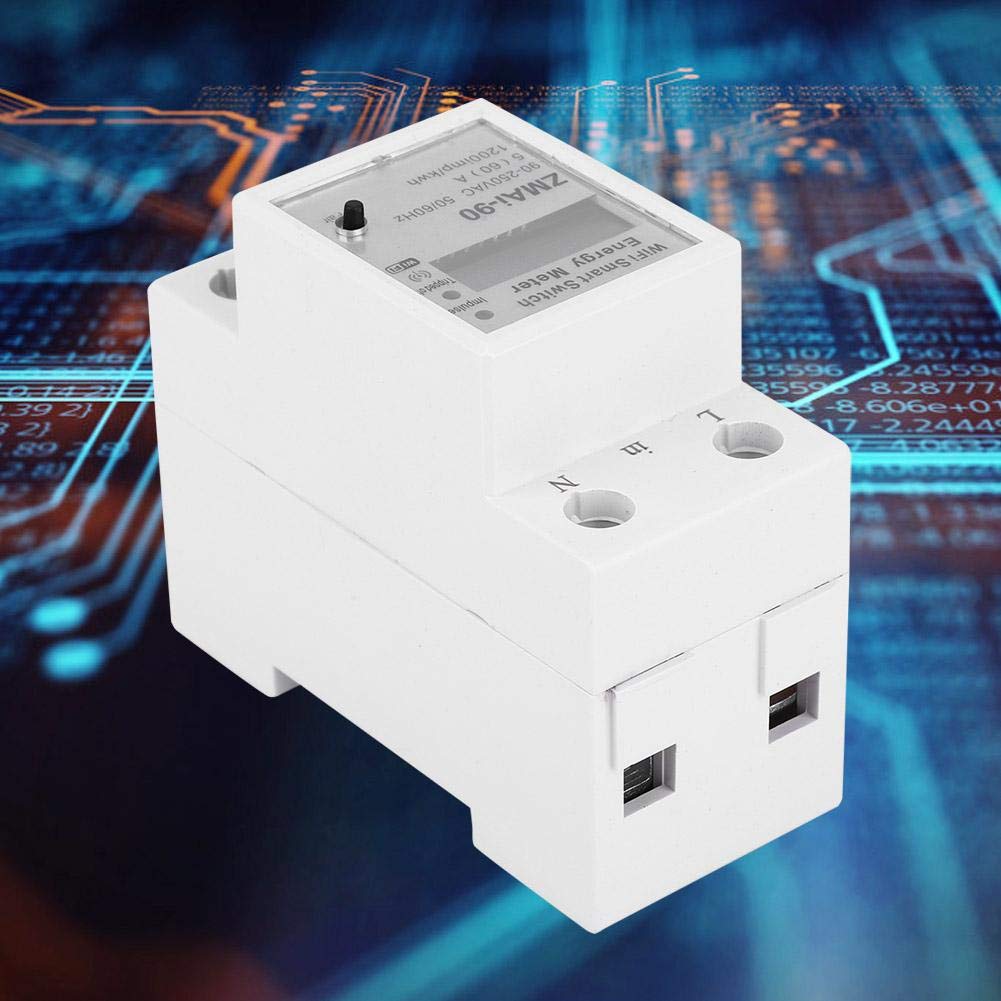
Figure 3: Side view illustrating the DIN rail mounting mechanism of the ZMAi-90 meter.
5.2 Wiring
Connect the electrical wires to the terminals as indicated on the meter. The meter has clearly labeled 'L in', 'N in', 'L out', and 'N out' terminals for live and neutral connections.
- Connect the incoming Live wire to the 'L in' terminal.
- Connect the incoming Neutral wire to the 'N in' terminal.
- Connect the outgoing Live wire (to the load) to the 'L out' terminal.
- Connect the outgoing Neutral wire (to the load) to the 'N out' terminal.
- Ensure all connections are tight and secure to prevent loose contacts and overheating.

Figure 4: The ZMAi-90 meter in an operational setup, demonstrating its WiFi remote control capability.
6. Operation
Once installed and powered, the ZMAi-90 meter can be operated via its LCD display and a dedicated mobile application.
6.1 Initial Power-Up
After restoring power, the LCD display will illuminate, showing current energy consumption data. The WIFI indicator will flash, indicating it is ready for pairing.
6.2 WIFI Pairing
- Download the official mobile application (refer to the packaging or product page for app name/QR code).
- Open the application and create an account or log in.
- Follow the in-app instructions to add a new device. This typically involves pressing and holding the 'Pair' button on the meter until the WIFI indicator changes its flashing pattern, then connecting your smartphone to the meter's temporary WIFI hotspot or scanning for the device.
- Once paired, the WIFI indicator will remain solid, and the meter will be accessible via the app.
6.3 Using the Mobile Application
The mobile application provides comprehensive control and monitoring features:
- Remote ON/OFF: Toggle power to the connected load with a single tap.
- Real-time Monitoring: View current, voltage, power, and energy consumption data.
- Timing Schedules: Set specific times for the meter to turn on or off automatically.
- Delay Function: Configure a countdown timer for power switching.
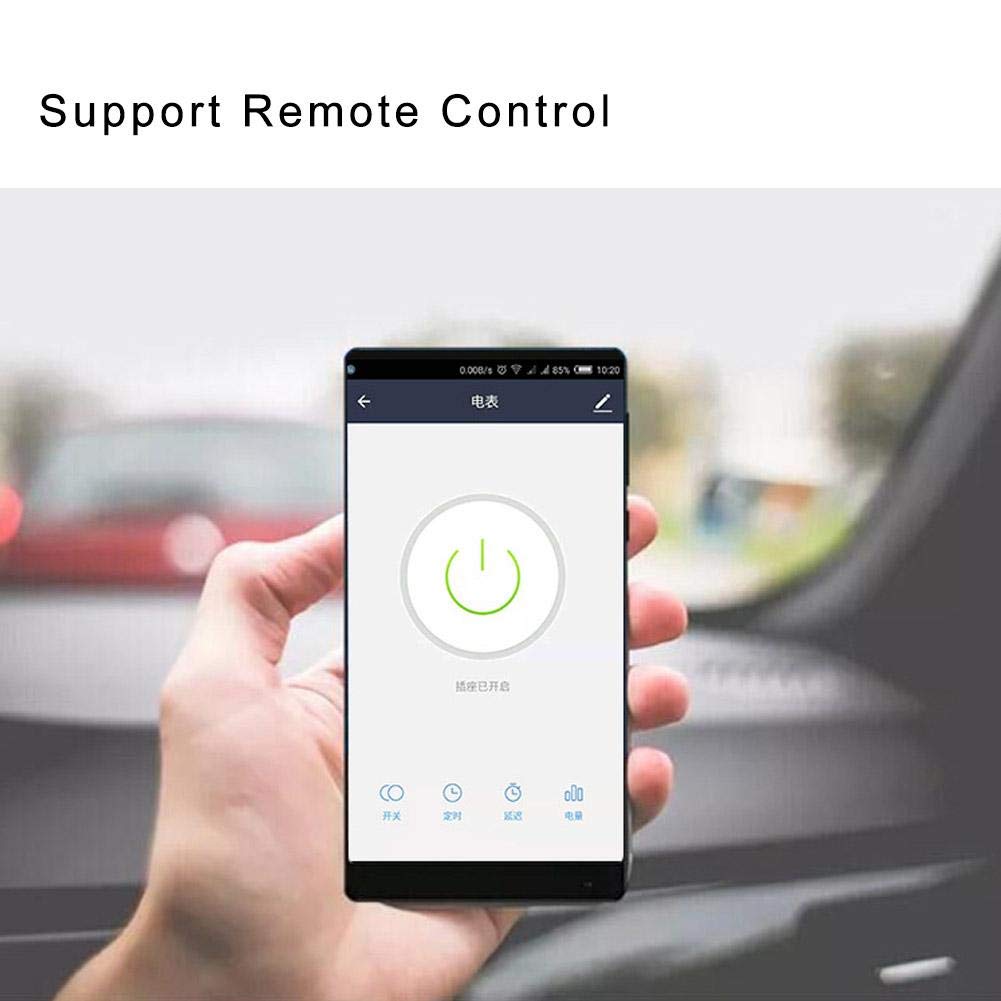
Figure 5: The mobile application interface for remote control of the ZMAi-90 meter.
7. Maintenance
The Caredy ZMAi-90 meter requires minimal maintenance to ensure optimal performance and longevity.
- Cleaning: Use a soft, dry cloth to clean the exterior of the meter. Do not use abrasive cleaners or solvents.
- Connection Checks: Periodically inspect wiring connections to ensure they remain tight and free from corrosion.
- Firmware Updates: Check the mobile application for any available firmware updates for the device to ensure you have the latest features and security patches.
8. Troubleshooting
If you encounter issues with your ZMAi-90 meter, refer to the following common problems and solutions:
- No Power to Meter:
Solution: Check the main circuit breaker and ensure all wiring connections to the 'L in' and 'N in' terminals are secure. - WIFI Indicator Not Flashing/Solid:
Solution: If not flashing, ensure power is supplied. If solid but not connected, try resetting the WIFI pairing by pressing the 'Pair' button for several seconds, then re-attempt pairing via the app. Ensure your router's WIFI is 2.4GHz. - Inaccurate Readings:
Solution: Verify that the wiring is correct and that the meter is rated for the connected load. Contact support if the issue persists. - Remote Control Not Responding:
Solution: Check your internet connection and ensure the meter is connected to WIFI (solid WIFI indicator). Restart the mobile application.
9. Warranty and Support
For warranty information and technical support, please refer to the documentation provided with your purchase or contact Caredy customer service through their official channels. Keep your purchase receipt as proof of purchase.