
PAX A80
PAX A80 Countertop Smart Card Terminal User Manual
Model: A80
1. Introduction
This user manual provides detailed instructions for the setup, operation, maintenance, and troubleshooting of your PAX A80 Countertop Smart Card Terminal. Please read this manual thoroughly before using the device to ensure proper functionality and safety.
2. Product Overview
2.1 Key Features
- Versatile countertop or indoor portable device (with optional backup battery)
- WiFi + Bluetooth + Ethernet + Dial connectivity
- PCI PTS 5.x & Full Contactless compliance
- Cortex A53 Processor for efficient performance
- 4-inch HD Touch Screen for intuitive operation
2.2 Components
Familiarize yourself with the main components of your PAX A80 terminal:

Figure 2.2.1: Front view of the PAX A80 terminal, showing the 4-inch HD touchscreen displaying a transaction amount and the integrated keypad below it. The keypad includes numerical keys, function keys, and navigation buttons.
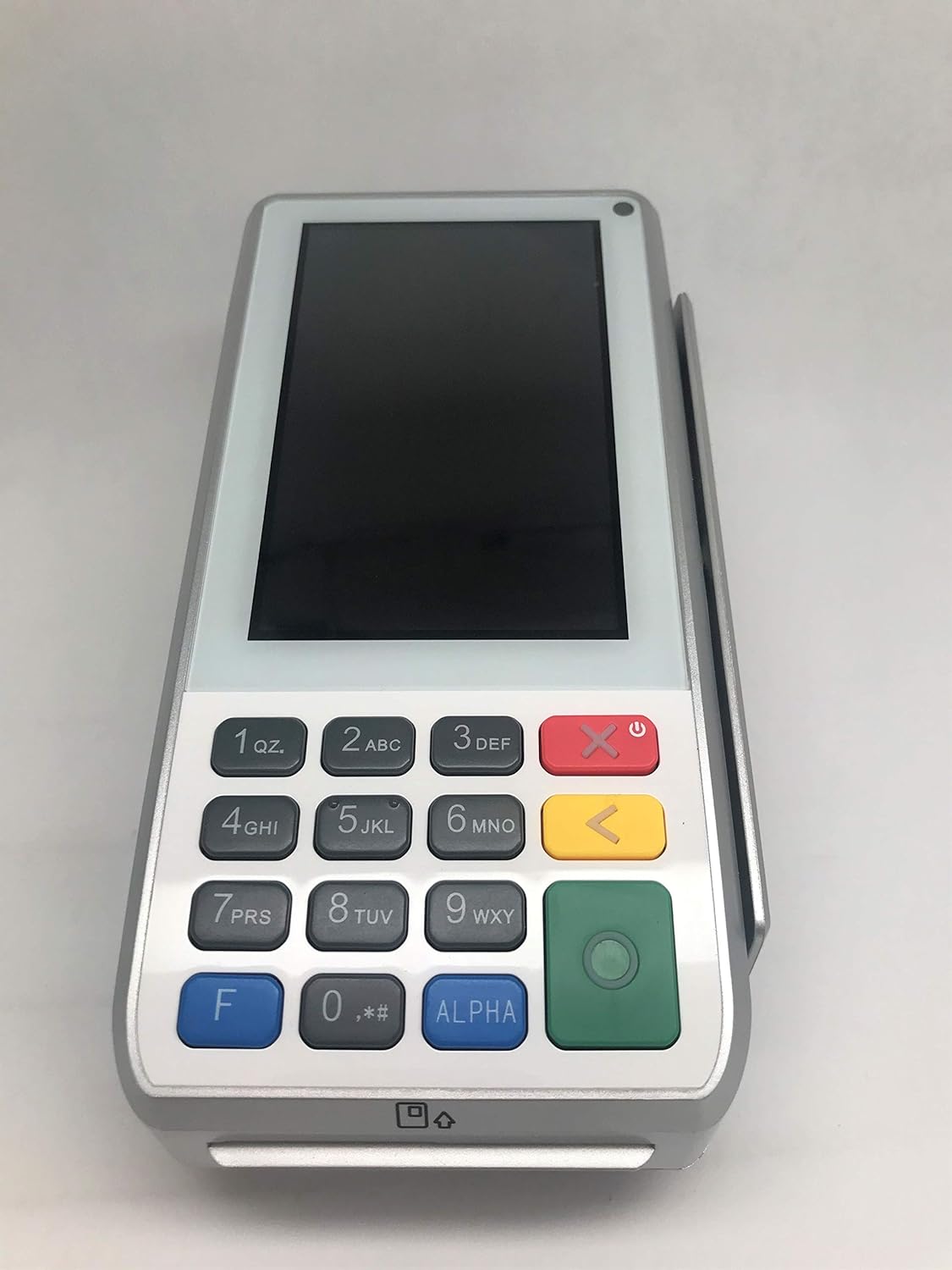
Figure 2.2.2: Angled front view of the PAX A80 terminal, providing a clear perspective of the device's overall design, the blank touchscreen, and the full keypad layout.

Figure 2.2.3: Side view of the PAX A80 terminal, highlighting the integrated magnetic stripe card reader slot on the right side of the device.

Figure 2.2.4: Opposite side view of the PAX A80 terminal, showing the smooth profile of the device without any visible ports or slots on this particular side.
3. Setup
3.1 Unboxing and Initial Inspection
- Carefully remove the terminal and all accessories from the packaging.
- Inspect the device for any signs of damage. If damaged, contact your vendor immediately.
- Verify that all components listed in the packing list are present.
3.2 Power Connection
- Connect the power adapter to the power port on the terminal.
- Plug the power adapter into a standard electrical outlet.
- The terminal will automatically power on or can be powered on by pressing the power button.
3.3 Network Connection
The A80 supports multiple connectivity options:
- Ethernet: Connect an Ethernet cable from your router/modem to the LAN port on the terminal.
- Wi-Fi: Navigate to the settings menu on the terminal, select Wi-Fi, choose your network, and enter the password.
- Dial-up: Connect a telephone line to the modem port (if available) on the terminal.
4. Operating Instructions
4.1 Basic Payment Processing
The PAX A80 supports various payment methods:
- Contactless (NFC): Tap the card or mobile device near the contactless symbol on the terminal's screen.
- EMV Chip Card: Insert the chip card into the EMV slot at the bottom of the terminal with the chip facing up. Leave the card in until the transaction is complete.
- Magnetic Stripe Card: Swipe the card through the magnetic stripe reader slot on the side of the terminal.
4.2 Using the Touch Screen and Keypad
- The 4-inch HD touch screen allows for intuitive navigation through menus and input of information.
- The physical keypad is used for entering PINs, amounts, and navigating when touch input is not preferred or available.
- The green button typically confirms actions, while the red button cancels or goes back.
5. Maintenance
5.1 Cleaning the Terminal
- Always power off and unplug the terminal before cleaning.
- Use a soft, lint-free cloth slightly dampened with water or a mild, non-abrasive cleaner.
- Do not use harsh chemicals, solvents, or abrasive materials.
- Avoid spraying liquids directly onto the terminal.
5.2 Software Updates
Regular software updates are crucial for security and performance. Your service provider will typically manage these updates remotely. Do not attempt to update the software yourself unless instructed by your provider.
6. Troubleshooting
This section addresses common issues you might encounter with your PAX A80 terminal.
| Problem | Possible Cause | Solution |
|---|---|---|
| Terminal does not power on | No power, faulty adapter, or battery (if applicable) is drained. | Check power cable connection. Ensure outlet is working. Charge battery if using portable. |
| Transaction declined | Insufficient funds, incorrect PIN, card error, or network issue. | Verify card details. Try another card. Check network connection. Contact your payment processor. |
| No network connection | Loose cable, incorrect Wi-Fi password, router issue. | Check Ethernet cable. Re-enter Wi-Fi password. Restart router/modem. |
If the problem persists after attempting these solutions, please contact your service provider for further assistance.
7. Specifications
| Feature | Detail |
|---|---|
| Model | A80 |
| Processor | Cortex A53 |
| Display | 4-inch HD Touch Screen |
| Connectivity | WiFi, Bluetooth, Ethernet, Dial |
| Security | PCI PTS 5.x & Full Contactless |
| Manufacturer | PAX |
| First Available | December 3, 2019 |
8. Warranty and Support
For information regarding warranty coverage, technical support, or service, please refer to the documentation provided by your vendor or contact PAX customer support directly. Specific warranty terms and support procedures may vary based on your region and purchase agreement.
Related documentsA80


Ask a question about this manual
Ask about setup, troubleshooting, compatibility, parts, safety, or missing instructions. Manuals+ will review the question and use this page’s manual context to help answer it.