Introduction
This manual provides detailed instructions for the setup, operation, and maintenance of your MSI Optix G27C4 27-inch Gaming Monitor. Please read this manual thoroughly before using the product to ensure proper functionality and to prevent damage.
The MSI Optix G27C4 is a 27-inch curved gaming monitor designed for an immersive visual experience. Key features include a 1500R curved VA panel, 165Hz refresh rate, 1ms response time, wide color gamut, and AMD FreeSync Premium technology for smooth, tear-free gaming.

Front view of the MSI Optix G27C4 gaming monitor, showcasing its curved screen with a red dragon graphic display.
Setup Instructions
1. Unpacking the Monitor
- Carefully open the packaging and remove all components.
- Ensure all accessories are present: monitor panel, stand base, stand neck, power adapter, power cord, HDMI cable, DisplayPort cable, and user manual.
- Place the monitor panel face down on a soft, clean surface to prevent scratches.
2. Assembling the Stand
- Attach the stand neck to the stand base. Secure it with the provided screw.
- Align the assembled stand with the mounting holes on the back of the monitor panel.
- Gently push the stand into place until it clicks or secure it with the provided screws, depending on the model's design.

Rear view of the MSI Optix G27C4 monitor, showing the stand attachment point and various input ports.
3. Connecting Cables
- Power Connection: Connect the power adapter to the monitor's power input, then plug the power cord into the adapter and a power outlet.
- Video Connection:
- For optimal performance (165Hz refresh rate), use the provided DisplayPort cable to connect the monitor to your computer's graphics card.
- Alternatively, use an HDMI cable to connect the monitor to your computer or other video sources. Note that HDMI may limit the maximum refresh rate depending on the version.
- Ensure all connections are secure.
4. Initial Power-On
- Press the power button on the monitor.
- Turn on your computer. The monitor should automatically detect the input signal.
- If no image appears, verify all cable connections and ensure the correct input source is selected on the monitor.
Operating Instructions
1. Power On/Off
Press the power button, typically located on the bottom right or rear of the monitor, to turn the monitor on or off. The power LED will indicate the monitor's status.
2. On-Screen Display (OSD) Menu Navigation
The OSD menu allows you to adjust various monitor settings. Access the OSD menu by pressing the OSD joystick or button, usually located on the back or bottom of the monitor. Use the joystick/buttons to navigate through the menu options and confirm selections.
3. Adjusting Display Settings
- Brightness/Contrast: Adjust these settings in the OSD menu to suit your viewing environment.
- Color Settings: Modify color temperature, gamma, and color saturation for desired visual output.
- Refresh Rate: Ensure your operating system and graphics card settings are configured to utilize the monitor's 165Hz refresh rate. This is typically done through your graphics card control panel (NVIDIA Control Panel or AMD Radeon Software).
- AMD FreeSync Premium: Enable FreeSync in the OSD menu and in your AMD Radeon Software for tear-free gaming.
- Response Time: Adjust the response time setting (e.g., Normal, Fast, Fastest) in the OSD menu to minimize ghosting.
4. Input Source Selection
If you have multiple devices connected, use the OSD menu or a dedicated input selection button to switch between HDMI and DisplayPort inputs.

Angled view of the MSI Optix G27C4 monitor, showing the curved screen and slim bezels.
Maintenance
1. Cleaning the Monitor
- Always power off the monitor and unplug the power cord before cleaning.
- Use a soft, lint-free cloth lightly dampened with water or a specialized screen cleaner.
- Do not spray cleaner directly onto the screen. Apply it to the cloth first.
- Avoid using abrasive cleaners, alcohol, or ammonia-based solutions, as these can damage the screen surface.
2. General Care
- Avoid placing heavy objects on the monitor or its cables.
- Do not expose the monitor to direct sunlight, high humidity, or extreme temperatures.
- Ensure adequate ventilation around the monitor to prevent overheating.
Troubleshooting
| Problem | Possible Solution |
|---|---|
| No image on screen |
|
| Image flickering or unstable |
|
| Incorrect resolution or refresh rate |
|
| Colors appear distorted |
|
For further assistance, please refer to the MSI support website or contact customer service.
Product Specifications
| Feature | Detail |
|---|---|
| Brand | MSI |
| Model Name | Optix G27C4 |
| Screen Size | 27 inches |
| Screen Resolution | 1920 x 1080 (FHD) |
| Max Screen Resolution | 1920 x 1080 |
| Panel Type | VA |
| Curvature | 1500R |
| Refresh Rate | 165Hz |
| Response Time | 1ms |
| Adaptive Sync Technology | AMD FreeSync Premium |
| Video Inputs | HDMI, DisplayPort |
| Aspect Ratio | 16:9 |
| Screen Surface Description | Glossy |
| Item Weight | 11.88 pounds |
| Product Dimensions (LxWxH) | 30.5 x 10.3 x 19.3 inches |
| Color | Black |
| Manufacturer | MSI |
| Date First Available | December 3, 2019 |
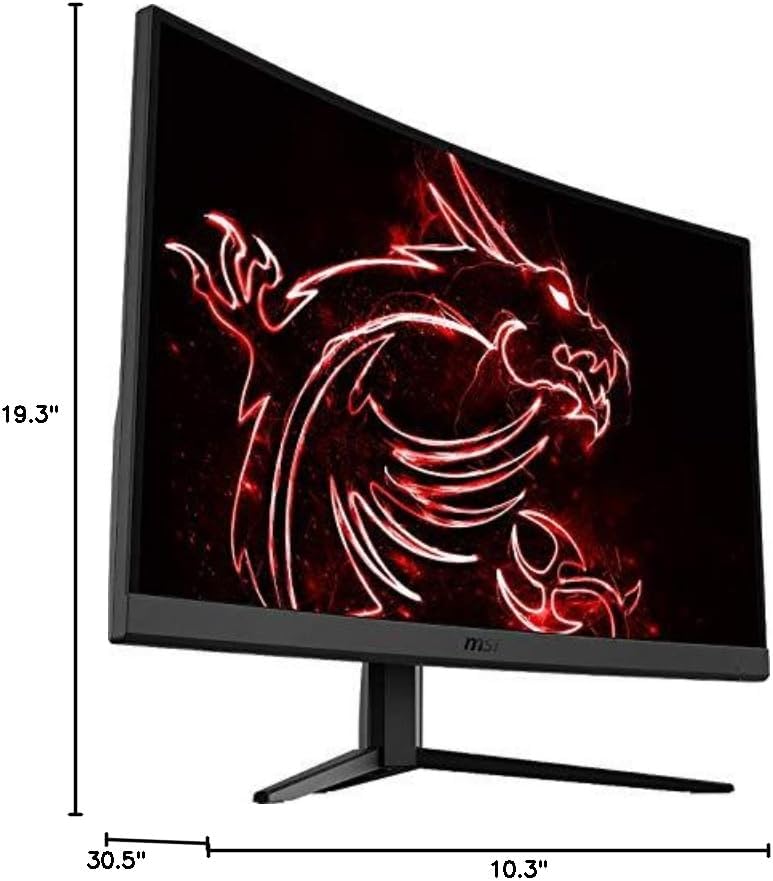
Diagram showing the dimensions of the MSI Optix G27C4 monitor.
Warranty Information
MSI products are covered by a limited warranty. The specific terms and duration of the warranty may vary by region and product type. Please retain your proof of purchase for warranty claims.
For detailed warranty information, including coverage, exclusions, and the claims process, please visit the official MSI website or contact your local MSI authorized dealer.
Important: Any unauthorized modifications or repairs to the product may void the warranty.
Customer Support
If you encounter any issues that cannot be resolved using the troubleshooting guide, or if you require further technical assistance, please contact MSI Customer Support.
- MSI Official Website: Visit www.msi.com for product information, drivers, FAQs, and support contact details.
- Online Support: Many common questions are answered in the support section of the MSI website.
- Contact Information: Refer to the MSI website for regional phone numbers and email support options.


