
Homcloud TY-WCS4S
Homcloud Wi-Fi Speed 4S Pan&Tilt Camera User Manual
Model: TY-WCS4S
Introduction
Thank you for choosing the Homcloud Wi-Fi Speed 4S Pan&Tilt Camera. This manual provides detailed instructions for the installation, operation, and maintenance of your new smart home security device. Please read this manual thoroughly before use to ensure proper functionality and safety.

Image: Front view of the Homcloud Wi-Fi Speed 4S Pan&Tilt Camera, showcasing its compact design.
Package Contents
Please verify that all components are present in the package:
- Homcloud Wi-Fi PTZ Camera (Model TY-WCS4S)
- Power Adapter (5V)
- Mounting Accessories (screws, wall plugs)
- User Manual
Setup Guide
1. Powering On
- Connect the power adapter to the camera's power input port.
- Plug the power adapter into a standard electrical outlet. The camera will power on and initiate its self-check sequence.
- Wait for the indicator light to flash, indicating it's ready for network configuration.
2. App Installation and Account Creation
The Homcloud camera operates with the Homcloud App. Download the app from your smartphone's app store:

- Open the Homcloud App and register a new account if you don't have one, or log in with an existing account.
3. Adding the Camera to the App
- In the Homcloud App, tap the "+" icon (usually in the top right corner) to add a new device.
- Select "Security & Video Surveillance" or search for "Camera (Wi-Fi)".
- Follow the on-screen instructions to connect the camera to your Wi-Fi network. Ensure your Wi-Fi network is 2.4GHz, as 5GHz networks are not supported.
- You may be prompted to scan a QR code displayed on your phone screen with the camera lens. Hold the phone approximately 15-20 cm (6-8 inches) in front of the camera until you hear a confirmation sound.
- Once connected, you can name your camera and assign it to a specific room.
4. Mounting the Camera (Optional)
The camera can be placed on a flat surface or mounted on a wall.
- Wall Mount: Use the provided mounting bracket, screws, and wall plugs to secure the camera to a desired wall location. Ensure the camera is positioned to cover the desired surveillance area.
Operating Instructions
Live View and Control
Once connected, open the Homcloud App and select your camera to access the live video feed.
- Pan & Tilt: Use the directional controls within the app to remotely rotate the camera horizontally (355°) and vertically (90°) to adjust the viewing angle.
- Two-Way Audio: Tap the microphone icon to speak through the camera's speaker, and listen to audio from the camera's microphone.
- Snapshot & Record: Capture still images or record video clips directly from the live view.
- Night Vision: The camera automatically switches to night vision mode in low-light conditions, providing clear black and white video using its LED illuminators.
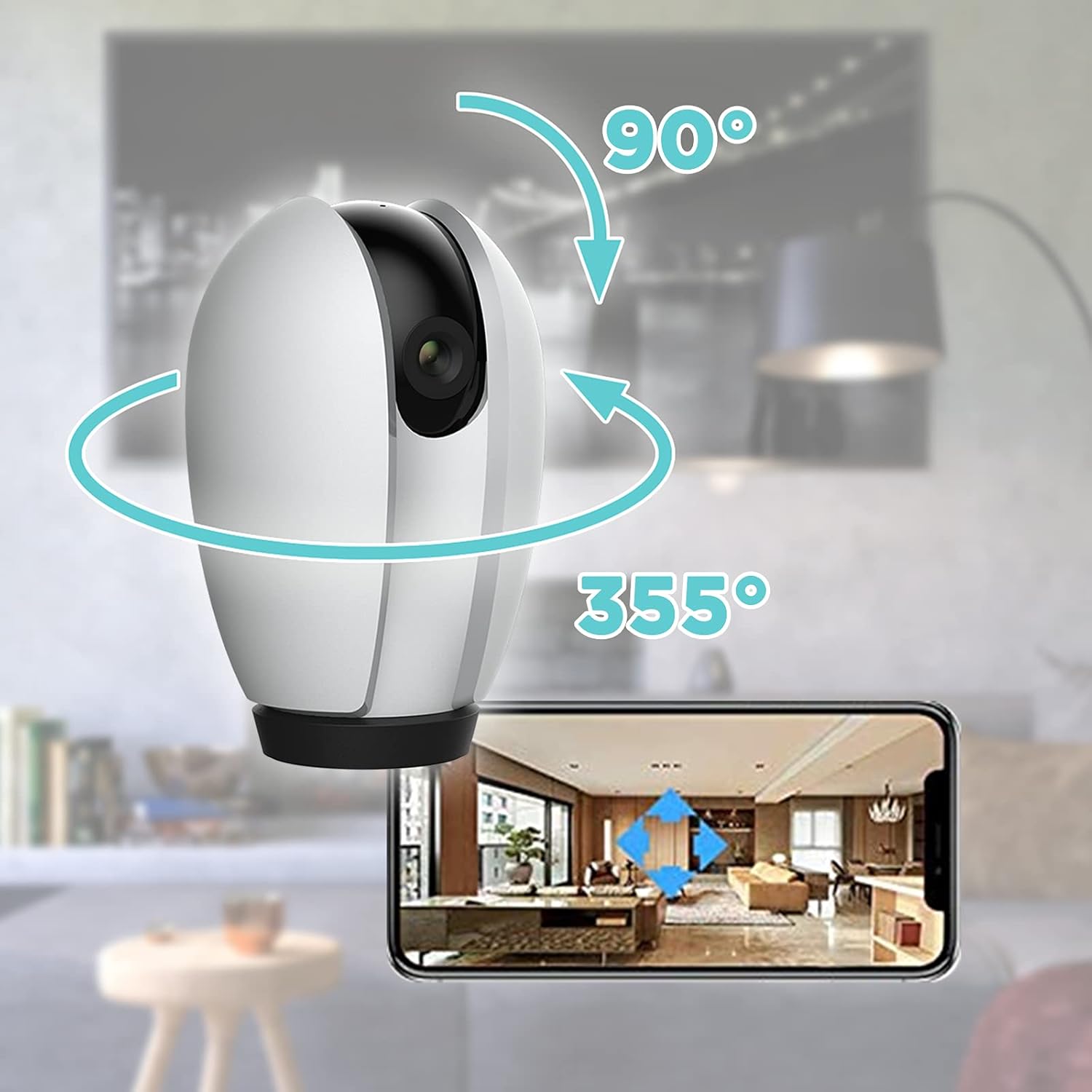
Image: Illustration of the camera's 355-degree horizontal pan and 90-degree vertical tilt capabilities, controlled via the smartphone app.
Motion Detection and Alerts
Configure motion detection settings in the app to receive alerts when movement is detected.
- Sensitivity: Adjust the motion detection sensitivity to minimize false alarms.
- Activity Zones: Define specific areas within the camera's view for motion detection.
- Alert Notifications: Enable push notifications to receive instant alerts on your smartphone.
Storage Options
The camera supports local storage and cloud storage (subscription may be required).
- MicroSD Card: Insert a MicroSD card (not included) into the camera's slot for continuous recording or event-triggered recording. The camera supports up to 128GB.
- Cloud Storage: Check the Homcloud App for available cloud storage plans to securely store your video recordings online.
Smart Home Integration
The Homcloud Wi-Fi Speed 4S Pan&Tilt Camera is compatible with popular smart home platforms:
- Works with Alexa: Integrate with Amazon Alexa for voice control.
- Works with Google Assistant: Integrate with Google Assistant for voice control.

Image: The Homcloud camera highlighting its compatibility with Wi-Fi, Amazon Alexa, and Google Assistant for seamless smart home integration.
Maintenance
- Cleaning: Use a soft, dry cloth to clean the camera lens and body. Do not use liquid cleaners or abrasive materials.
- Firmware Updates: Regularly check the Homcloud App for firmware updates to ensure optimal performance and security.
- Power Cycle: If the camera becomes unresponsive, unplug it from the power source for 10 seconds and then plug it back in.
Troubleshooting
| Problem | Possible Cause | Solution |
|---|---|---|
| Camera offline in app | No power; Wi-Fi disconnected; Router issue. | Check power connection. Verify Wi-Fi signal strength. Restart router and camera. Re-add camera if necessary. |
| Cannot connect to Wi-Fi | Incorrect Wi-Fi password; 5GHz network; Weak signal. | Ensure correct 2.4GHz Wi-Fi password. Move camera closer to router. Reset camera and try again. |
| Motion alerts not received | App notifications disabled; Motion detection off; Sensitivity too low. | Enable app notifications. Turn on motion detection in app. Increase sensitivity. |
| Poor video quality | Insufficient light; Dirty lens; Weak Wi-Fi signal. | Ensure adequate lighting. Clean the camera lens. Improve Wi-Fi signal. |
Specifications
| Feature | Detail |
|---|---|
| Model Number | TY-WCS4S |
| Brand | Homcloud |
| Video Resolution | 1080p (Effective 1080) |
| Pan Range | 355 degrees |
| Tilt Range | 90 degrees |
| Connectivity | Wi-Fi (2.4GHz only) |
| Power Input | 5 Volts, 5 Watts |
| Material | Polycarbonate (PC) |
| Dimensions (L x W x H) | 12 x 10 x 6 cm |
| Weight | 250 grams |
| Special Features | Night Vision, Two-Way Audio, Motion Detection |
| Recommended Use | Surveillance |
Warranty and Support
Homcloud products typically come with a standard manufacturer's warranty. Please refer to the warranty card included in your product packaging or visit the official Homcloud website for detailed warranty terms and conditions.
For technical support, troubleshooting assistance, or any inquiries regarding your Homcloud Wi-Fi Speed 4S Pan&Tilt Camera, please contact Homcloud customer service through their official website or the contact information provided in the Homcloud App.
Online Resources:
- Homcloud Official Website: www.homcloud.com (Note: This is a placeholder URL as no specific support URL was provided in the input. Users should refer to their product documentation for exact support details.)
- Homcloud App Support Section
Ask a question about this manual
Ask about setup, troubleshooting, compatibility, parts, safety, or missing instructions. Manuals+ will review the question and use this page’s manual context to help answer it.