Introduction
The Lenovo Legion Y27q-20 gaming monitor is designed to provide an immersive visual experience for both gaming and professional use. Featuring a 27-inch QHD (2560x1440) IPS display, it offers a high refresh rate of 165Hz and a rapid 1ms response time, ensuring smooth and fluid visuals. This monitor is NVIDIA G-SYNC Compatible, which helps eliminate screen tearing and stuttering for a seamless gaming experience. Its ergonomic stand allows for lift, tilt, pivot, and swivel adjustments, providing optimal viewing comfort. The monitor also incorporates TÜV Rheinland Eye Comfort certification with flicker-free technology and blue light reduction to minimize eye strain during extended use.
What's in the Box
Upon unpacking your Lenovo Legion Y27q-20 monitor, please ensure all the following components are present:
- Lenovo Legion Y27q-20 Monitor Display Panel
- Monitor Stand (Base and Neck)
- Power Cable
- HDMI Cable
- DisplayPort Cable
- USB-B to USB-A Cable (for USB hub functionality)
- Quick Setup Guide / User Manual
- Warranty Information
Setup
Physical Setup
Carefully remove the monitor and its components from the packaging. Place the monitor face down on a soft, clean surface to prevent scratches. Attach the stand neck to the display panel, then secure the base to the neck. Ensure all connections are firm. The monitor stand offers ergonomic adjustments including lift, tilt, pivot, and swivel for optimal viewing angles.

Image: Lenovo Legion Y27q-20 Monitor with indicated dimensions.
Connecting to Your Computer
Connect the monitor to your computer using one of the provided cables. The monitor supports multiple input options:
- HDMI 2.0: For standard high-definition video and audio.
- DisplayPort 1.4: Recommended for achieving the maximum refresh rate (165Hz) and utilizing NVIDIA G-SYNC Compatible technology.
- USB 3.1 Ports: The monitor includes USB 3.1 ports for connecting peripherals. Connect the USB-B to USB-A cable from the monitor to your computer to enable these ports.
- Audio Combo Jack: For connecting headphones or external speakers.
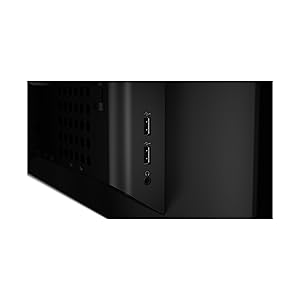
Image: Side view of the monitor showing USB 3.1 ports and audio jack.
Operating the Monitor
Power On/Off
Press the power button, typically located on the bottom right or side of the monitor, to turn it on or off. The power indicator light will illuminate when the monitor is active.
On-Screen Display (OSD) Controls
The monitor features intuitive OSD controls, usually located on the side or bottom bezel. These buttons allow you to navigate through the monitor's settings menu to adjust various display parameters. The Lenovo Artery 2.0 software also provides enhanced customization options to manage and configure the monitor directly from your computer.
Key Features and Settings
- High Refresh Rate (165Hz): For exceptionally smooth motion in fast-paced games. Ensure your graphics card and connection (DisplayPort recommended) support this refresh rate.
- Rapid Response Time (1ms): Minimizes motion blur and ghosting, crucial for competitive gaming.
- NVIDIA G-SYNC Compatible: Synchronizes the monitor's refresh rate with your GPU's frame rate to eliminate screen tearing and stuttering. Activate this feature in your graphics card control panel.
- IPS Panel with QHD Resolution: Delivers vibrant colors, wide 178° viewing angles, and sharp details. The DCI-P3 98% color gamut ensures accurate color reproduction.
- TÜV Rheinland Eye Comfort Certified: Features flicker-free technology and a blue light reduction function to reduce eye strain during prolonged use. Adjust blue light settings via the OSD menu.
- Ergonomic Stand: Adjust the monitor's height, tilt, swivel, and pivot to find your most comfortable viewing position.

Image: Visual comparison of gameplay with and without G-SYNC.
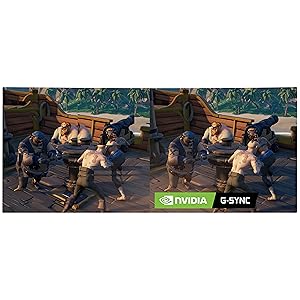
Image: Front view of the monitor on its ergonomic stand.
Maintenance
To ensure the longevity and optimal performance of your Lenovo Legion Y27q-20 monitor, follow these maintenance guidelines:
- Cleaning the Screen: Use a soft, lint-free cloth lightly dampened with water or a specialized screen cleaner. Never spray liquid directly onto the screen.
- Cleaning the Casing: Wipe the monitor casing with a soft, dry cloth. Avoid using abrasive cleaners or solvents.
- Ventilation: Ensure the monitor's ventilation openings are clear and unobstructed to prevent overheating.
- Power Off When Not in Use: Turn off the monitor when not in use for extended periods to save energy and prolong its lifespan.
Troubleshooting
If you encounter issues with your monitor, refer to the following common troubleshooting steps:
- No Image on Screen:
- Check if the power cable is securely connected to both the monitor and the power outlet.
- Verify that the video cable (HDMI or DisplayPort) is firmly connected to both the monitor and your computer's graphics card.
- Ensure the monitor is powered on.
- Select the correct input source using the OSD menu.
- Flickering or Distorted Image:
- Check the video cable for damage or loose connections. Try a different cable if available.
- Update your graphics card drivers.
- Adjust the refresh rate in your computer's display settings.
- Dead Pixels:
- While rare, a small number of dead or stuck pixels may occur. Refer to Lenovo's pixel policy for warranty coverage.
- USB Ports Not Working:
- Ensure the USB-B to USB-A cable is connected from the monitor to your computer.
- Check your computer's device manager for any USB driver issues.
Specifications
| Feature | Specification |
|---|---|
| Model Number | 65EEGAC1US |
| Screen Size | 27 Inches |
| Panel Type | IPS |
| Resolution | QHD Wide 1440p (2560 x 1440) |
| Refresh Rate | 165Hz |
| Response Time | 1ms (MPRT) / 0.1ms (GtG) |
| Brightness | 350 nits |
| Color Gamut | DCI-P3 98% |
| Viewing Angle | 178° (H/V) |
| Adaptive Sync Technology | NVIDIA G-SYNC Compatible, AMD FreeSync |
| Connectivity | 1x HDMI 2.0, 1x DisplayPort 1.4, 4x USB 3.1, 1x Audio Out (3.5mm) |
| Ergonomics | Lift, Tilt, Pivot, Swivel, VESA Mount Compatible |
| Eye Care | TÜV Rheinland Eye Comfort Certified, Flicker-Free, Blue Light Reduction |
| Dimensions (LxWxH) | 11.2 x 24.17 x 23.58 inches |
| Weight | 14.93 pounds |
| Color | Raven Black |
Warranty and Support
Your Lenovo Legion Y27q-20 monitor comes with a standard manufacturer's warranty. For specific warranty terms, duration, and conditions, please refer to the warranty card included in your product packaging or visit the official Lenovo support website. In case of technical issues, product inquiries, or warranty claims, please contact Lenovo customer support through their official channels. Keep your purchase receipt and product serial number (found on the back of the monitor) handy for faster service.
For additional support and resources, including driver downloads and FAQs, please visit the Lenovo Support Website.


