
1. Introduction
The Alacrity Portable 2D QR Barcode Scanner X9DB is a versatile and compact device designed for efficient barcode scanning. It supports 1D and 2D barcodes and offers three connection modes: 2.4G wireless, USB wired, and Bluetooth. This manual provides detailed instructions for setting up, operating, and maintaining your scanner to ensure optimal performance.
2. Package Contents
Please check the package contents upon unboxing to ensure all items are present:
- Alacrity Portable Barcode Scanner (X9DB)
- USB Cable
- Lanyard
- User Manual (this document)

Figure 2.1: Package Contents. The image displays the Alacrity X9DB barcode scanner, a USB charging cable, a lanyard, and the user manual, all neatly arranged next to the product box.
3. Product Features
- 3-in-1 Connectivity: Supports Bluetooth, 2.4G Wireless (via dongle), and USB Wired connections.
- High Precision Scan Engine: Decodes most 1D and 2D codes, even if blurred or incomplete, from paper or screens.
- Wide Compatibility: Works with Windows XP/7/8/10, Mac OS, Linux, iOS, and Android devices.
- LCD Screen: Displays time, battery level, connection mode, barcode data, total stored barcodes, and total scanned barcodes.
- Large Storage Capacity: 16MB memory, capable of storing over 50,000 codes in storage mode.
- Long Battery Life: 650mAh rechargeable battery provides up to 5 hours of continuous work after a 2-hour charge.
- Compact and Lightweight Design: Mini size for portability and ease of use.
- Multiple Configuration Options: Customizable settings including automatic sensing, hiding barcode characters, adding prefix/suffix, and volume adjustment.

Figure 3.1: Scanner Display Details. The image highlights the LCD screen of the scanner, pointing out indicators for time, battery level, connection mode (Bluetooth, 2.4GHz Wireless, Wired), barcode data, total barcodes stored, and total barcodes scanned.

Figure 3.2: Compact Design. This image illustrates the compact size of the MJ-X9 scanner (96mm height, 27mm width) by comparing it to an iPhone 13 mini and an iPhone 13.
4. Setup
4.1. Charging the Scanner
Before first use, fully charge the scanner. Connect the provided USB cable to the scanner's charging port and to a USB power source (e.g., computer, USB wall adapter). The battery indicator on the LCD screen will show charging status. A full charge takes approximately 2 hours and provides up to 5 hours of continuous operation.

Figure 4.1: Battery Life. This image shows the scanner alongside a battery icon, illustrating that a 2-hour charge provides 5 hours of continuous use.
4.2. Connecting the Scanner
The X9DB scanner offers three connection methods:
4.2.1. Bluetooth Connection (HID Mode)
- Turn on the scanner.
- Scan the "Bluetooth HID Pairing Setup Barcode" (%%SpecCodeEA) from your manual or a configuration sheet.
- On your host device (PC, laptop, tablet, smartphone), enable Bluetooth and search for available devices.
- Select "Alacrity X9DB" (or similar name) from the list and pair.
- The scanner's LCD will indicate a successful Bluetooth connection.

Figure 4.2: Wireless Connectivity. The image depicts the scanner wirelessly connecting to various devices like a laptop and smartphone, with a Bluetooth dongle shown as an intermediary.

Figure 4.3: OS Compatibility. This image shows the scanner being used to scan a package, emphasizing its compatibility with Bluetooth, iOS, Android, and Windows operating systems.
4.2.2. 2.4G Wireless Connection
- Plug the 2.4G USB dongle into an available USB port on your computer.
- Turn on the scanner.
- Scan the "Dongle Setup Barcode" (%%SpecCodeA8) or "Compulsory Pair with Dongle Setup Barcode" (%%SpecCode99) from your manual.
- The scanner will automatically connect to the dongle. The LCD will indicate a successful 2.4G wireless connection.
4.2.3. USB Wired Connection
- Connect the scanner to your computer using the provided USB cable.
- The scanner will function as a standard USB HID keyboard device. No drivers are typically required.
- The LCD will indicate a wired connection.
5. Operating Modes
The scanner supports different operating modes to suit various applications:
5.1. Normal Mode (Real-time Upload)
In Normal Mode (scan "Normal Mode" barcode %%SpecCode10), scanned barcodes are immediately transmitted to the connected device. This is ideal for point-of-sale systems or applications requiring instant data input.
5.2. Storage Mode (Inventory Mode)
In Storage Mode (scan "Storage Mode" barcode %%SpecCode11), scanned barcodes are saved to the scanner's internal memory (16MB, over 50,000 codes capacity). This is useful for inventory management or when working out of range of a host device.
- View Total Stored Barcodes: Scan "Total amount of stored barcode" (%%SpecCode17).
- Upload Data: Connect the scanner to your device and scan "Data Upload" (%%SpecCode16) to transfer all stored barcodes.
- Clear Data: After uploading, scan "Clear Data" (%%SpecCode18) to erase all barcodes from the scanner's memory.

Figure 5.1: Large Storage Capacity. This image illustrates the scanner's 16MB storage capacity, capable of holding more than 50,000 barcodes in storage mode, represented by a classic floppy disk icon.
6. Scanning Barcodes
The Alacrity X9DB scanner can decode a wide range of 1D and 2D barcodes. To scan, point the scanner's beam at the barcode and press the trigger button. Ensure the entire barcode is within the scanning area.
- 1D Barcodes: Codabar, Code 11, Code93, MSI, Code 128, UCC/EAN-128, Code 39, EAN-8, EAN-13, UPC-A, ISBN, Industrial 25, Interleaved 25, Standard 25, 2/5 Matrix.
- 2D Barcodes: QR, PDF417, Data Matrix, Aztec code, Maxi Code.
The scanner is designed to read even blurring or incomplete barcodes, and can scan at angles up to 80 degrees.
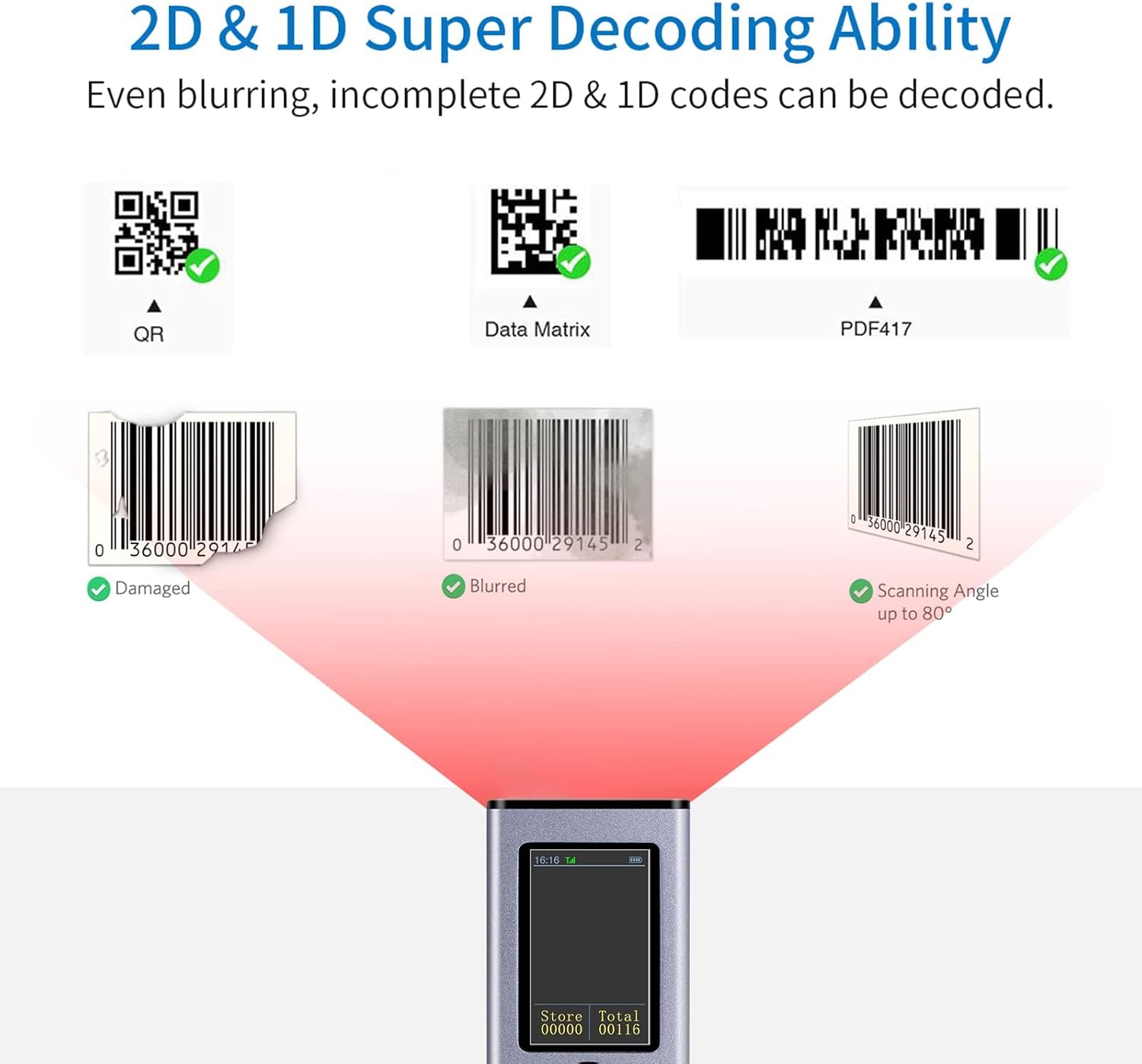
Figure 6.1: Decoding Capability. This image illustrates the scanner's advanced decoding ability, showing it successfully reading QR codes, Data Matrix, PDF417, and even damaged, blurred, or angled 1D barcodes. Example barcode values shown are 0036000291452 and 568754456745.
7. Configuration Options
The scanner offers various customization options by scanning specific configuration barcodes. Refer to your physical user manual for the complete list of configuration barcodes. Some common options include:
- End Character Settings: Add CR (%%SpecCode9C), LF (%%SpecCode9D), CR+LF (%%SpecCode9E), Cancel CR+LF (%%SpecCode9F), Add Tab (%%SpecCodeA2).
- Standby Time Settings: Configure standby after 1 min (%%SpecCode31), 5 min (%%SpecCode33), 10 min (%%SpecCode34), 30 min (%%SpecCode35), Never Standby (%%SpecCode36), Standby fastly (%%SpecCode38).
- Language Settings: English (%%SpecCode40), German (%%SpecCode41), French (%%SpecCode42), Spanish (%%SpecCode43), Italian (%%SpecCode44), Japanese (%%SpecCode46).
- Capital and Lowercase Switch: Transfer to Lower Case (%%SpecCodeA3), Transfer to Capital Case (%%SpecCodeA4), Turn off Switch (%%SpecCodeA5), Capital and Lowercase Switch (%%SpecCodeA6).
- iOS Keyboard Control: Pull up and Hide iOS Keyboard (%%SpecCode1A), Trigger twice to pull up iOS Keyboard (%%SpecCode7B), Trigger twice to disable iOS Keyboard (%%SpecCode7A).
- Sound and Vibration Settings: Turn Off the Sound (%%SpecCode94), Turn On the Sound (%%SpecCode97), Turn Off the Vibration (Option) (%%SpecCode76), Turn On the Vibration (Option) (%%SpecCode77).
- Bluetooth Protocol: Bluetooth HID Mode (%%SpecCodeEA), Bluetooth SPP Mode (%%SpecCodeAB), Bluetooth BLE Mode (%%SpecCodeAC).
- Reset to Defaults: Scan "Reset Configuration to Defaults" (%%SpecCode93) to revert all settings.
- Version Information: Scan "Version Information" (%%SpecCode39) to display firmware version.
8. Maintenance
- Cleaning: Use a soft, dry cloth to clean the scanner's exterior. For the scanning window, use a lint-free cloth lightly dampened with a mild, non-abrasive cleaner. Do not spray cleaners directly onto the device.
- Storage: Store the scanner in a cool, dry place away from direct sunlight and extreme temperatures.
- Battery Care: To prolong battery life, avoid fully discharging the battery frequently. If storing for an extended period, charge the battery to about 50% and recharge every few months.
- Avoid Drops: While durable, avoid dropping the scanner to prevent damage to internal components or the scanning window.
9. Troubleshooting
| Problem | Possible Cause | Solution |
|---|---|---|
| Scanner not turning on. | Low battery. | Charge the scanner for at least 2 hours. |
| Scanner not connecting to device. | Incorrect connection mode selected; Bluetooth not enabled on host; 2.4G dongle not plugged in or paired; out of range. | Ensure correct mode (Bluetooth, 2.4G, Wired) is set. Enable Bluetooth on host device and re-pair. Plug in 2.4G dongle and scan pairing barcode. Ensure scanner is within operating range. |
| Scanner not reading barcodes. | Barcode damaged/poor quality; scanner lens dirty; incorrect barcode type enabled; insufficient lighting. | Try scanning a different, known-good barcode. Clean the scanning window. Ensure the barcode type is supported and enabled in settings. Provide adequate lighting. |
| Scanned data is incorrect or garbled. | Incorrect keyboard layout setting (e.g., US keyboard on a non-US system); prefix/suffix settings. | Check language and keyboard layout settings. Reset to default settings if necessary (%%SpecCode93). |
| Scanner randomly reboots or flickers. | Firmware issue; low battery; hardware malfunction. | Ensure battery is fully charged. Try resetting to factory defaults (%%SpecCode93). If problem persists, contact customer support. |
10. Specifications
| Feature | Detail |
|---|---|
| Model | X9DB |
| Connectivity | Bluetooth, 2.4G Wireless, USB Wired |
| Decode Capability (1D) | Codabar, Code 11, Code93, MSI, Code 128, UCC/EAN-128, Code 39, EAN-8, EAN-13, UPC-A, ISBN, Industrial 25, Interleaved 25, Standard 25, 2/5 Matrix |
| Decode Capability (2D) | QR, PDF417, Data Matrix, Aztec code, Maxi Code |
| Compatible OS | Windows XP/7/8/10, Mac OS, Linux, iOS, Android |
| Storage | 16MB (stores over 50,000 codes) |
| Battery | 650mAh Lithium Polymer (rechargeable) |
| Charging Time | Approx. 2 hours |
| Continuous Working Time | Approx. 5 hours |
| Dimensions | 14.71 x 7.29 x 4.9 cm (approx.) |
| Weight | 132 g (approx.) |
| UPC | 791360185215 |
11. Warranty and Support
Alacrity Technology is committed to providing high-quality products and customer service. For warranty information, technical support, or any inquiries regarding your Alacrity Portable 2D QR Barcode Scanner X9DB, please contact us via email through the platform where you purchased the product. Please provide your model number (X9DB) and a detailed description of your issue for faster assistance.
Established in 2009, Alacrity Technology specializes in barcode scanners and aims to offer reliable solutions.