
Ruckus R300
Ruckus ZoneFlex R300 Dual Band Indoor Access Point
User Manual
Introduction
This manual provides comprehensive instructions for the Ruckus ZoneFlex R300 Dual Band Indoor Access Point (Model 901-R300-US02). Designed for indoor environments, this access point offers robust wireless connectivity using both 2.4GHz and 5GHz frequency bands, enhanced by BeamFlex technology for optimized signal performance.
Key features include:
- Two-stream MIMO 2x2:2, dual-band 2.4GHz and 5GHz operation.
- Concurrent dual-band support with 128 antenna patterns.
- BeamFlex and Transmit beamforming capabilities.
- Support for up to 250 client devices.
- Support for isochronous, multicast IP video streaming.
- Four queues per client station for efficient data handling.

Figure 1: Ruckus ZoneFlex R300 Dual Band Indoor Access Point. This image shows the top-down view of the white, rectangular access point with LED indicators visible on the front edge.
Setup
1. Unpacking and Contents
Before proceeding with installation, ensure all components are present. The standard package typically includes the Ruckus ZoneFlex R300 Access Point unit. Please note that the power supply is sold separately.
2. Physical Installation
The ZoneFlex R300 is designed for flexible indoor deployment. It can be mounted on a wall or ceiling using the integrated mounting features.
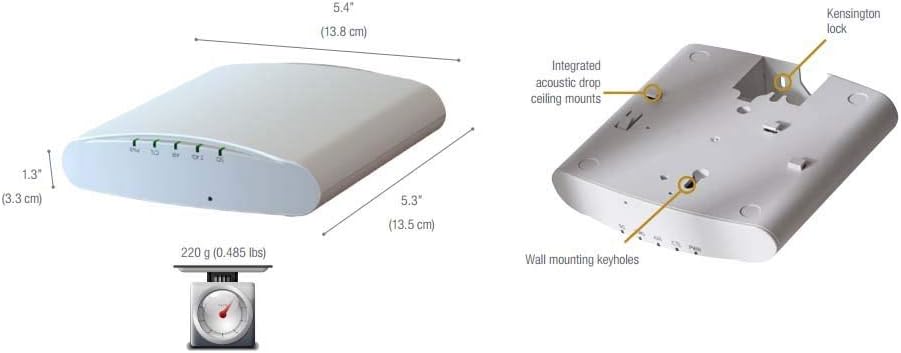
Figure 2: Physical dimensions and mounting options. This diagram illustrates the access point's dimensions (5.4" x 5.3" x 1.3") and highlights the integrated acoustic drop ceiling mounts and wall mounting keyholes on the underside.
The underside of the unit features wall mounting keyholes and integrated acoustic drop ceiling mounts for secure installation.
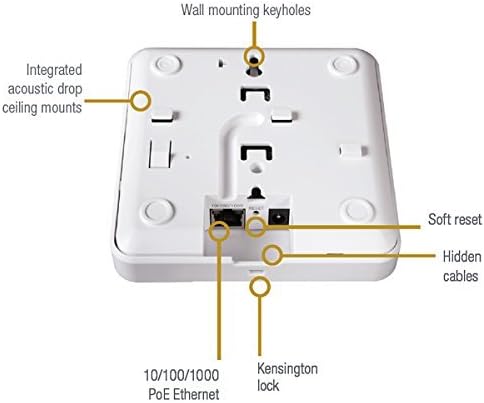
Figure 3: Underside view of the Ruckus R300. This image details the ports and features on the bottom of the access point, including the 10/100/1000 PoE Ethernet port, soft reset button, hidden cable channels, Kensington lock slot, integrated acoustic drop ceiling mounts, and wall mounting keyholes.
3. Power and Network Connection
The Ruckus ZoneFlex R300 can be powered via a separate power supply (12V, 1.0A) or through Power over Ethernet (PoE) via the 10/100/1000 Ethernet port. Connect an Ethernet cable from your network switch or router to the Ethernet port on the access point.
4. Initial Configuration
For standalone operation, the access point can be configured directly. However, for deployments involving multiple access points, a controller (sold separately) is highly recommended. Controller-specific features, such as Smart Mesh networking, are not available when the AP is running a standalone base image.
The default IP address for the access point is 192.168.0.1. The default username is 'super' and the default password is 'sp-ap-admin'. Refer to the Ruckus documentation for detailed configuration steps based on your deployment method (standalone or controller-managed).
Operating Instructions
1. LED Indicators
The front panel of the ZoneFlex R300 features several LED indicators that provide status information:
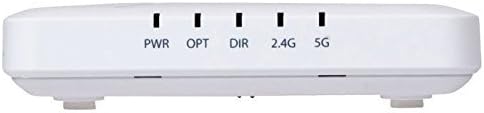
Figure 4: Front view with LED indicators. This image highlights the five LED indicators on the front edge of the access point: PWR (Power), OPT (Optional), DIR (Directional), 2.4G (2.4GHz band activity), and 5G (5GHz band activity).
- PWR (Power): Indicates power status.
- OPT (Optional): Reserved for future use or specific configurations.
- DIR (Directional): Indicates BeamFlex activity.
- 2.4G: Indicates activity on the 2.4GHz wireless band.
- 5G: Indicates activity on the 5GHz wireless band.
Refer to the official Ruckus documentation for detailed LED behavior and troubleshooting guides.
2. Wireless Connectivity
The R300 operates on both 2.4GHz and 5GHz frequency bands, supporting 802.11n wireless communication standards. Clients can connect to either band depending on their capabilities and network configuration. The BeamFlex technology dynamically optimizes antenna patterns to extend range and improve throughput for connected devices.
3. Client Support and Performance
The access point is capable of supporting up to 250 concurrent client connections, making it suitable for various indoor environments. It also supports isochronous and multicast IP video streaming, with four queues per client station to ensure quality of service (QoS) for different traffic types.
Maintenance
1. General Care
Keep the access point in a clean, dry environment. Avoid exposing it to extreme temperatures, humidity, or direct sunlight. Clean the exterior with a soft, dry cloth. Do not use liquid or aerosol cleaners.
2. Firmware Updates
Periodically check the Ruckus support website for firmware updates. Keeping the firmware up-to-date ensures optimal performance, security, and access to new features. Follow the instructions provided by Ruckus for firmware upgrade procedures.
3. Soft Reset
A soft reset button is located on the underside of the unit (refer to Figure 3). This button can be used to restart the device without losing configuration settings. Consult the Ruckus documentation for specific reset procedures, including factory reset options if needed.
Troubleshooting
This section provides solutions to common issues you might encounter with your Ruckus ZoneFlex R300 Access Point.
- No Power / Device Not Turning On:
Ensure the power supply (if used) is correctly connected and functional, or that the Ethernet cable is connected to a PoE-enabled port on your switch. Check the PWR LED indicator (Figure 4) for status.
- No Network Connectivity:
Verify the Ethernet cable connection to the access point and your network. Check the network status on your router or switch. Ensure the access point has obtained a valid IP address or is configured correctly for your network.
- Poor Wireless Performance:
Check for potential sources of interference (e.g., other wireless devices, microwaves). Ensure the access point is optimally placed, away from obstructions. Verify that client devices are connecting to the appropriate 2.4GHz or 5GHz band. Consider adjusting channel settings if interference is suspected.
- Cannot Access Configuration Interface:
Ensure your computer is on the same network segment as the access point. Try accessing the default IP address (192.168.0.1). If using a controller, ensure the access point is properly registered and managed by the controller.
- Multiple Access Points Deployment:
For larger deployments, a Ruckus controller is highly recommended for centralized management and advanced features like Smart Mesh. Issues in multi-AP setups often stem from incorrect controller configuration or AP registration.
If issues persist, consult the detailed Ruckus ZoneFlex R300 documentation or contact Ruckus support for further assistance.
Specifications
| Feature | Detail |
|---|---|
| Model Name | R300 |
| ASIN | B0821VZ9P7 |
| Brand | Ruckus |
| Manufacturer | Ruckus |
| Package Dimensions | 7 x 6.3 x 1.6 inches (17.8 x 16 x 4.1 cm) |
| Item Weight | 11.2 ounces (317.5 grams) |
| Color | White |
| Frequency Band Class | Dual-Band (2.4 GHz, 5 GHz) |
| Wireless Communication Standard | 802.11n |
| Connectivity Technology | Wireless |
| Antenna Type | Internal |
| Special Feature | Access Point Mode |
| Compatible Devices | Laptop (and other Wi-Fi enabled devices) |
| Recommended Uses | Business |
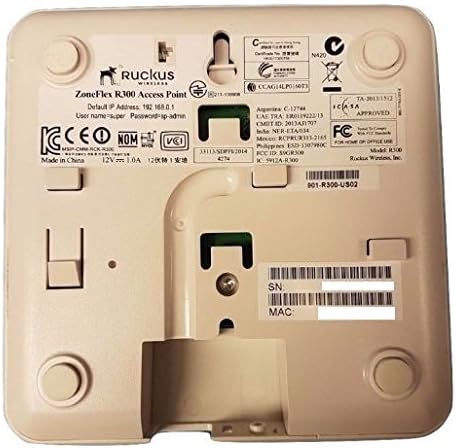
Figure 5: Product label on the underside. This image displays the regulatory and identification labels, including the model number (R300), part number (901-R300-US02), serial number, and MAC address.
Warranty and Support
1. Amazon Renewed Guarantee
This product is part of the Amazon Renewed program. Products sold under Amazon Renewed are professionally inspected and tested to work and look like new. If you are not satisfied with your purchase, renewed products are eligible for replacement or refund under the Amazon Renewed Guarantee. Please refer to the Amazon Renewed terms and conditions for full details regarding the warranty period and claims process.
2. Technical Support
For technical assistance, configuration guidance, or advanced troubleshooting, please refer to the official Ruckus Networks support website. You may also contact the seller, Three Kings Telecom, for support related to your Amazon Renewed purchase.
It is recommended to have your product's model number (R300) and serial number (found on the product label, Figure 5) ready when contacting support.
Related documentsR300


Ask a question about this manual
Ask about setup, troubleshooting, compatibility, parts, safety, or missing instructions. Manuals+ will review the question and use this page’s manual context to help answer it.