
1. Introduction
This manual provides detailed instructions for the installation, operation, and maintenance of your SMONET 5MP 8CH PoE Home Security Camera System. This system is designed to provide reliable surveillance with high-definition video recording and remote monitoring capabilities.
The system includes an 8-channel Network Video Recorder (NVR) with a pre-installed 3TB Hard Disk Drive (HDD) and eight 5MP Power over Ethernet (PoE) IP cameras. The PoE technology simplifies installation by transmitting both power and data through a single Ethernet cable.

Image: Overview of the SMONET 5MP 8CH PoE Home Security Camera System, showing the NVR, eight 5MP cameras, and a smartphone displaying live view.
2. Package Contents
Please verify that all components are present in your package:
- 1 x 8-Channel Network Video Recorder (NVR) with 3TB HDD pre-installed
- 8 x 5MP PoE IP Cameras
- 8 x 60ft Ethernet Cables
- 1 x Power Adapter for NVR
- 1 x USB Mouse
- 1 x HDMI Cable
- 1 x User Manual (this document)
- Mounting Screws and Plugs for Cameras
3. System Setup
3.1 NVR Connection
- Connect Power: Plug the NVR power adapter into the NVR's DC 48V port and then into a power outlet.
- Connect Monitor: Connect a monitor (TV or PC monitor) to the NVR using the provided HDMI cable or a VGA cable (not included).
- Connect Mouse: Plug the USB mouse into one of the NVR's USB ports.
- Network Connection (Optional for Remote View): For remote viewing, connect the NVR's LAN port to your router using an Ethernet cable.
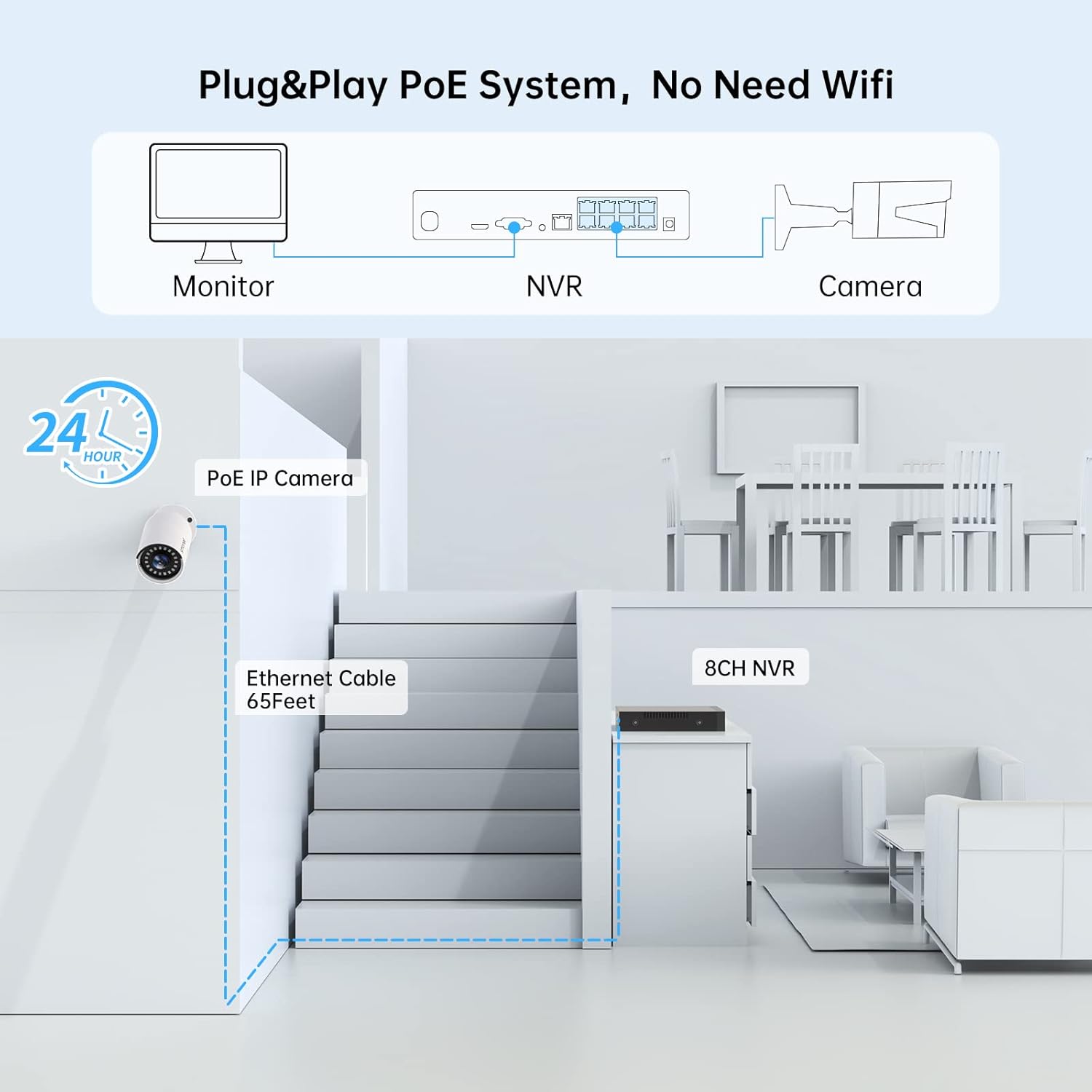
Image: Diagram illustrating the basic plug-and-play PoE system setup, showing the NVR connected to a monitor and a camera via Ethernet.
3.2 Camera Installation
- Select Location: Choose suitable locations for your cameras, considering coverage area and proximity to the NVR. The cameras are IP66 weatherproof for both indoor and outdoor use.
- Mount Cameras: Use the provided screws and plugs to securely mount each camera. Ensure the camera is positioned to capture the desired view.
- Connect Cameras: Connect each PoE IP camera to an available PoE port on the NVR using the provided Ethernet cables. The NVR will automatically power the cameras and establish a video connection.
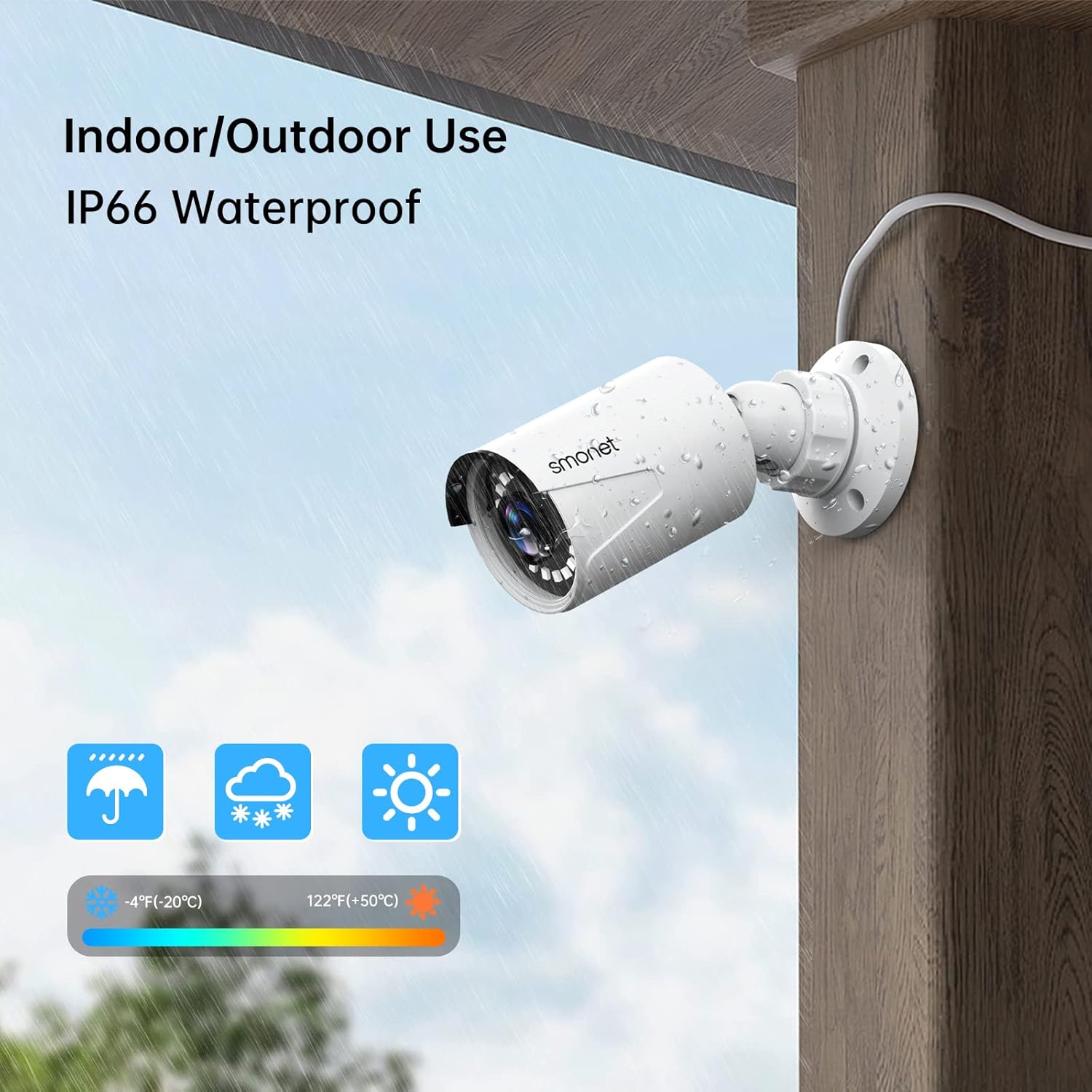
Image: A SMONET camera mounted on an outdoor wall, demonstrating its IP66 weatherproof rating and suitability for various environmental conditions.

Image: Detailed view of the NVR's rear panel showing PoE ports, LAN, audio out, VGA, HDMI, and USB ports, along with a camera diagram.
4. System Operation
4.1 Live View and Recording
Once connected, the NVR will display live video feeds from all connected cameras on the monitor. The system is configured for 24/7 continuous recording to the pre-installed 3TB HDD.
- 5MP Super HD Video: Cameras provide 2560x1920 resolution for clear images.
- Night Vision: Integrated infrared LEDs enable clear night vision up to 100ft.
- Audio Recording: Built-in microphones allow for audio recording alongside video.

Image: Comparison of colorful daytime video and clear night vision, highlighting the built-in microphone for audio recording.
4.2 Remote Monitoring
Access your security system remotely using the free mobile application or PC software.
- Download App: Search for "Eseecloud" on the App Store (iOS) or Google Play Store (Android) and install it.
- Connect NVR to Internet: Ensure your NVR is connected to your home router via an Ethernet cable.
- Add Device: Open the app, register an account, and add your NVR by scanning the QR code or manually entering the device ID.
- PC Software: Contact SMONET support for information on downloading and installing the PC client software.
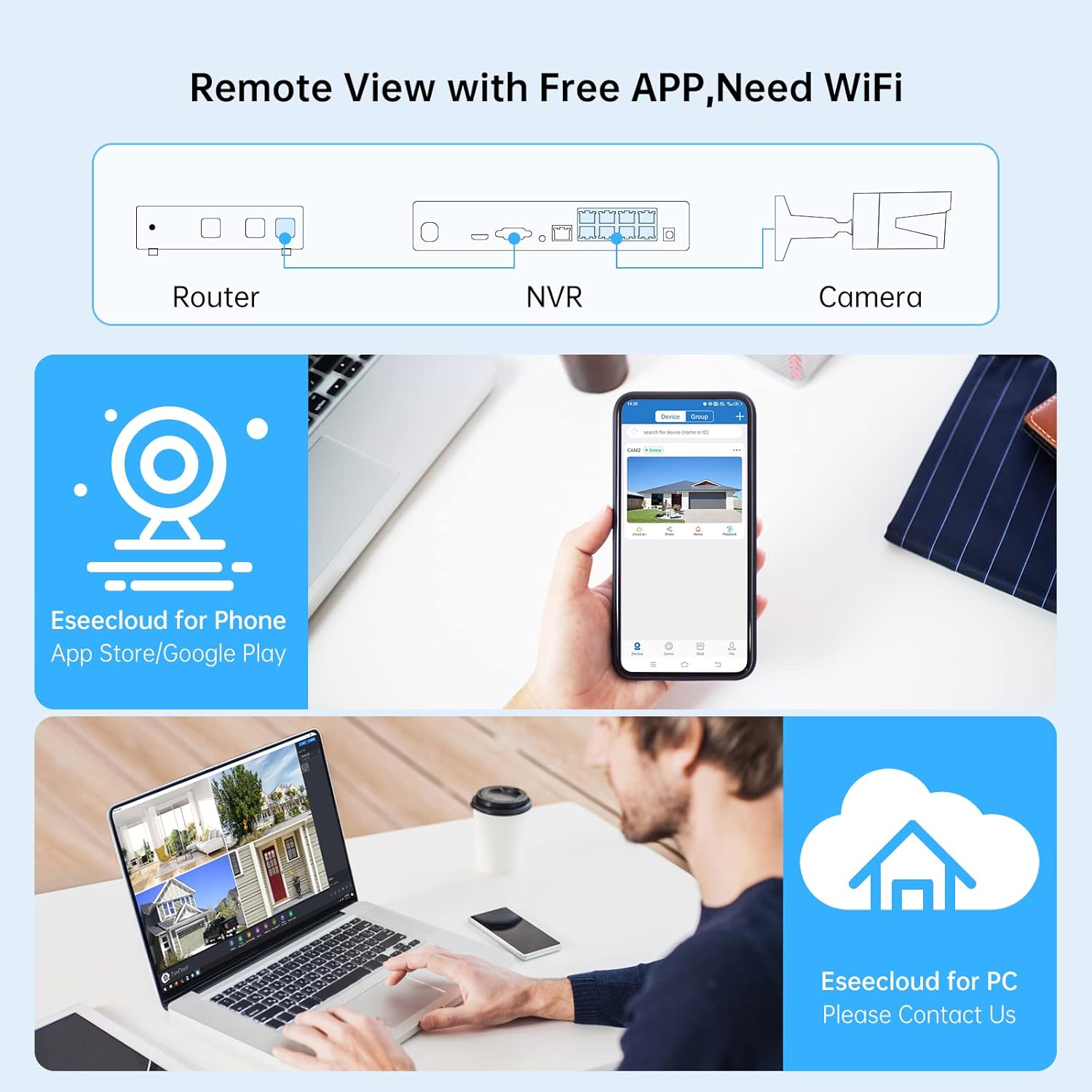
Image: Diagram showing remote viewing capabilities via the Eseecloud app on a smartphone and Eseecloud PC software on a laptop, requiring a WiFi connection for the NVR.
4.3 Motion Detection and Alerts
The system supports AI human detection to minimize false alarms and can send various alerts.
- Motion Record: Configure the system to record only when motion is detected, saving storage space.
- Email Alert: Receive email notifications when motion is detected.
- Push Notification: Get instant alerts on your mobile device via the Eseecloud app.
- Buzzer: The NVR can emit an audible alarm upon detection.

Image: Illustration of AI human detection highlighting a person entering a doorway, with icons for Email Alert, Push Notification, and Buzzer.
5. Maintenance
- Clean Cameras: Periodically clean camera lenses with a soft, damp cloth to ensure clear image quality. Avoid abrasive cleaners.
- Check Cables: Inspect Ethernet cables for any signs of wear or damage, especially for outdoor installations.
- Firmware Updates: Check the SMONET website or contact support for available firmware updates for your NVR and cameras to ensure optimal performance and security.
- Hard Drive Management: The 3TB HDD provides ample storage. The system typically overwrites the oldest footage when full. You can back up important recordings to a USB drive.
6. Troubleshooting
| Problem | Possible Cause | Solution |
|---|---|---|
| No video display on monitor. | NVR not powered, monitor not connected, or incorrect input selected on monitor. | Ensure NVR is powered on. Check HDMI/VGA cable connection. Select correct input source on your monitor. |
| No camera image. | Camera not powered, Ethernet cable loose/damaged, or camera not detected by NVR. | Verify Ethernet cable is securely connected to both camera and NVR PoE port. Try a different PoE port or cable. Restart NVR. |
| Remote viewing not working. | NVR not connected to internet, app not configured correctly, or network issues. | Ensure NVR's LAN port is connected to your router. Check router's internet connection. Verify app settings and device ID. |
| Motion detection too sensitive/not detecting. | Sensitivity settings incorrect, environmental factors. | Adjust motion detection sensitivity in NVR settings. Ensure camera view is clear of obstructions or excessive movement (e.g., tree branches). |
7. Specifications
- Model: SMCA-PNK8853T-JA
- Video Resolution: 5MP (2560x1920)
- NVR Channels: 8-Channel PoE
- Hard Drive: 3TB HDD pre-installed (supports up to 4TB)
- Video Compression: H.264+
- Night Vision: Up to 100ft with 18 IR LEDs
- Weatherproof Rating: IP66 (Cameras)
- Connectivity: Wired (PoE)
- Operating System (NVR): Jiuan
- Power Source: Corded Electric
- Dimensions (NVR): Approximately 31.75 x 30.48 x 30.48 cm
- Weight (System): Approximately 8.48 kg

Image: A comparison table outlining features of PoE, DVR, and Wireless security systems, highlighting the advantages of the PoE system.
8. Warranty and Support
SMONET provides customer support for its products. For technical assistance, warranty claims, or further inquiries, please refer to the contact information provided with your product packaging or visit the official SMONET website.
Manufacturer: SMONET
Place of Business: Shenzhen, Guangdong 518000, CN
For the most up-to-date support resources, please visit the SMONET Store on Amazon.


