
Introduction
The TP-Link Tapo P100 Smart Plug Mini is a compact Wi-Fi enabled smart plug designed to automate and remotely control your home appliances. This manual provides detailed instructions for setting up, operating, and maintaining your Tapo P100 Smart Plug Mini.
What's in the Box
- 2 x Tapo P100 Smart Plugs
- 1 x Quick Installation Guide
Product Overview
The Tapo P100 Smart Plug Mini is a small, white device that plugs directly into a standard electrical outlet. It features a single power button and an LED indicator for status.
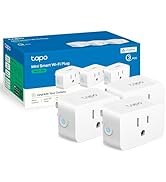
Image: Front view of the TP-Link Tapo P100 Smart Plug Mini.
Setup
Follow these steps to set up your Tapo P100 Smart Plug Mini:
- Plug In: Insert the Tapo P100 Smart Plug Mini into a standard electrical outlet.
- Download the Tapo App: Scan the QR code on the product packaging or search for "Tapo" in your device's app store (App Store for iOS, Google Play Store for Android) and download the app.
- Create a Tapo Account: Open the Tapo app and follow the on-screen instructions to create a new TP-Link ID (Tapo account) or log in if you already have one.
- Add Device: In the Tapo app, tap the "+" icon to add a new device. Select "Smart Plug" from the list.
- Follow In-App Instructions: The app will guide you through connecting the smart plug to your home Wi-Fi network. Ensure your phone's Bluetooth is enabled for easier discovery.
- Verify Connection: Once connected, the LED on the smart plug should turn solid green. You can then test by turning the plug on and off within the app.
Video: This video demonstrates the unboxing and initial setup process for the Tapo P100 Smart Plug Mini, including connecting it to the Tapo app.
Operating Instructions
The Tapo P100 Smart Plug Mini offers various ways to control your connected devices.
Remote Control via Tapo App
Once set up, you can control your smart plug from anywhere using the Tapo app on your smartphone. Simply open the app, select your device, and tap the power icon to turn it on or off.

Image: A user controlling multiple Tapo smart plugs from the Tapo mobile application.
Voice Control with Amazon Alexa
Integrate your Tapo P100 with Amazon Alexa for convenient voice control:
- Open Tapo App: Ensure your Tapo devices are working correctly within the Tapo app.
- Open Alexa App: Launch the Amazon Alexa app on your smartphone.
- Enable Tapo Skill: Tap the three-line menu icon, then select "Skills & Games." Search for "Tapo" and tap on the Tapo skill.
- Enable to Use: Tap "ENABLE TO USE."
- Link Account: Sign in with your TP-Link ID (Tapo account credentials) and tap "Log In," then "Authorize."
- Discover Devices: Tap "DISCOVER DEVICES" to allow Alexa to find your Tapo smart plugs.
Video: This video provides a step-by-step guide on how to link your TP-Link Tapo account with Amazon Alexa for voice control.
Voice Control with Google Assistant
Integrate your Tapo P100 with Google Assistant for convenient voice control:
- Open Tapo App: Ensure your Tapo devices are working correctly within the Tapo app.
- Open Google Assistant App: Launch the Google Assistant app on your smartphone.
- Account Settings: Tap on your profile icon (top right) to access Account Settings.
- Add Device: Go to the "Home" tab, then tap "Add" (+). Select "Set up device" and then "Works with Google."
- Search for Tapo: Search for "Tapo" and select it from the results.
- Link Account: Sign in with your TP-Link ID (Tapo account credentials) and tap "Log In," then "Authorize."
- Assign Rooms (Optional): You can assign each device to a specific room for better organization and voice commands.
Video: This video demonstrates how to link your TP-Link Tapo account with your Google Assistant account for voice control.
Scheduling
Set schedules for your devices to automate their operation. For example, you can schedule a lamp to turn on at 9 PM and off at 11 PM daily.

Image: Screenshot of the Tapo app's scheduling interface, showing options to set on/off times for a device.
Away Mode
Activate Away Mode to randomly turn your devices on and off, simulating occupancy when you are away from home. This feature can enhance home security.

Image: Screenshot of the Tapo app's Away Mode settings, showing options to set a period for random device operation.
Timer
Use the Timer function to set a countdown for your device to turn on or off after a specified duration.
Maintenance
To ensure optimal performance and longevity of your Tapo P100 Smart Plug Mini:
- Keep the device clean and free from dust.
- Avoid exposing the device to excessive moisture or extreme temperatures.
- Do not overload the smart plug beyond its rated capacity (13 Amps).
- Regularly check for firmware updates through the Tapo app to ensure you have the latest features and security enhancements.
Troubleshooting
If you encounter issues with your Tapo P100 Smart Plug Mini, try the following:
- Device Not Connecting:
- Ensure your Wi-Fi network is 2.4 GHz. Tapo devices do not support 5 GHz Wi-Fi.
- Check if the smart plug is within range of your Wi-Fi router.
- Restart your Wi-Fi router and the smart plug.
- Try resetting the smart plug by pressing and holding the power button for about 10 seconds until the LED blinks orange and green.
- Voice Control Issues:
- Verify that your Tapo account is correctly linked to your Alexa or Google Assistant account.
- Ensure your smart plug has been discovered by your voice assistant.
- Use the exact device names you set in the Tapo app or voice assistant app.
- Unexpected Behavior:
- Check your schedules and timers in the Tapo app for any conflicting settings.
- Ensure the device connected to the smart plug is functioning correctly.
Specifications
| Feature | Specification |
|---|---|
| Model Number | Tapo P100 |
| Dimensions | 2.15 x 2.15 x 2.09 inches |
| Item Weight | 12 ounces |
| Amperage | 13 Amps |
| Voltage | 120 Volts |
| Connectivity | Wi-Fi (2.4 GHz only) |
| Smart Home Compatibility | Alexa, Google Assistant |
| Plug Format | Standard |
| Material | Copper |
| GTIN / UPC | 840030700484 |
Warranty
The TP-Link Tapo P100 Smart Plug Mini comes with a 2-year manufacturer warranty. Please retain your proof of purchase for warranty claims.
Support
For further assistance or technical support, please contact TP-Link customer service:
- Phone: (866) 225-8139
- Website: myproducts.tp-link.com/us
- Email: support.USA@tp-link.com


