
1. Introduction
The ID-COOLING FROSTFLOW 120 is an All-In-One (AIO) liquid cooling solution designed for Graphics Processing Units (GPUs). This cooler features a 120mm radiator and is engineered to provide efficient thermal management for compatible VGA cards, ensuring stable performance during demanding operations. This manual provides essential information for the proper installation, operation, and maintenance of your FROSTFLOW 120 liquid cooler.
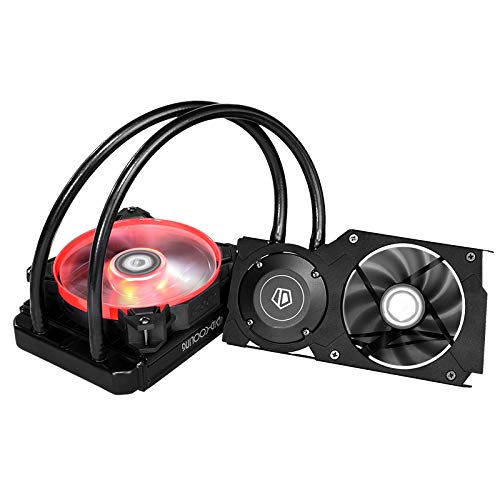
Image 1.1: Overview of the ID-COOLING FROSTFLOW 120 VGA Liquid Cooler components, including the pump/cold plate assembly, radiator, and fan.
2. Compatibility
The FROSTFLOW 120 is designed for a range of NVIDIA and AMD graphics cards. Please verify your GPU's mounting hole dimensions and PCB layout against the cooler's specifications before installation.
Compatible Series:
- NVIDIA GeForce RTX 2070, RTX 2080, RTX 2080Ti Series
- AMD Radeon RX 5700, RX 5700XT Series
- NVIDIA GeForce GTX 1070, GTX 1080 Series
For specific models within these series, it is recommended to consult the ID-COOLING official website or product documentation for detailed compatibility lists and mounting hole patterns.
3. Package Contents
Before proceeding with installation, ensure all components listed below are present and undamaged. If any parts are missing or damaged, contact customer support.
- FROSTFLOW 120 Pump/Cold Plate Assembly with Tubing
- 120mm Radiator
- 120mm Cooling Fan
- Mounting Brackets for various GPU models
- Screws and Fasteners
- Thermal Paste (pre-applied or in a tube)
- VRAM/MOSFET Heatsinks
- User Manual (this document)
4. Setup and Installation
Important: Before beginning installation, power off your computer and disconnect it from the power source. Handle all components with care to avoid damage from static electricity. It is recommended to wear an anti-static wrist strap.
4.1 Preparing Your Graphics Card
- Remove Existing Cooler: Carefully remove the stock cooler from your graphics card. This typically involves unscrewing the mounting screws around the GPU core and disconnecting any fan or RGB cables.
- Clean GPU Die: Gently clean any residual thermal paste from the GPU die using isopropyl alcohol and a lint-free cloth.
- Install VRAM/MOSFET Heatsinks: Apply the provided VRAM and MOSFET heatsinks to the appropriate components on your graphics card's PCB. Ensure good contact and adhesion.
4.2 Mounting the Pump/Cold Plate
- Select Brackets: Choose the correct mounting brackets for your specific GPU model. Refer to the included installation guide for bracket identification.
- Attach Brackets to Pump: Secure the selected brackets to the pump base using the designated screws.
- Apply Thermal Paste: If not pre-applied, apply a small amount of high-quality thermal paste to the center of the GPU die.
- Mount Pump: Carefully align the pump/cold plate assembly with the GPU die and the mounting holes on the PCB. Gently lower the pump onto the GPU.
- Secure Pump: From the back of the VGA card, secure the pump using the spring-loaded screws. Tighten screws in a diagonal pattern until snug, but do not overtighten.

Image 4.1: Close-up view of the ID-COOLING FROSTFLOW 120 pump/cold plate assembly correctly installed on a graphics card, showing the secure mounting.
4.3 Radiator and Fan Installation
- Attach Fan to Radiator: Mount the 120mm cooling fan to the radiator using the provided fan screws. Ensure the fan is oriented to push or pull air in the desired direction (typically pushing air through the radiator and out of the case).
- Mount Radiator: Install the radiator assembly into an available 120mm fan mount in your PC case. Common locations include the rear exhaust, top, or front of the case. Secure with appropriate screws.

Image 4.2: The ID-COOLING FROSTFLOW 120 radiator and fan assembly mounted as a rear exhaust in a PC case, demonstrating proper placement.
4.4 Cable Connections
- Pump Power: Connect the pump's 3-pin power cable to an available 3-pin fan header on your motherboard or a dedicated pump header.
- Fan Power: Connect the 120mm radiator fan's 3-pin power cable to an available 3-pin fan header on your motherboard.
- VRAM Fan Power (if applicable): If your GPU cooler includes a separate fan for VRAM cooling, connect its 3-pin power cable to an appropriate header.
Note: The pump and fan are typically 3-pin and will run at full speed. If PWM control is desired, a separate adapter or fan controller may be required.
5. Operating Instructions
Once installed, the FROSTFLOW 120 operates automatically to cool your GPU. Upon system startup, the pump and fans will begin operating. Monitor your GPU temperatures using system monitoring software to ensure optimal cooling performance.
- Initial Startup: After installation, power on your system and check for any unusual noises or leaks. Verify that the pump and fan are spinning.
- Temperature Monitoring: Use GPU monitoring software (e.g., MSI Afterburner, HWMonitor) to observe GPU core temperatures under idle and load conditions. Typical idle temperatures should be significantly lower than with air cooling, and load temperatures should remain within safe operating limits.
- Fan Control: While the included fans are 3-pin, some motherboards or software may offer voltage-based fan control. Adjust fan curves as desired for a balance of cooling performance and noise levels.
6. Maintenance
Regular maintenance helps ensure the longevity and optimal performance of your FROSTFLOW 120 liquid cooler.
- Dust Cleaning: Periodically clean dust from the radiator fins and fan blades using compressed air or a soft brush. Excessive dust buildup can impede airflow and reduce cooling efficiency.
- Tubing Inspection: Inspect the tubing for any signs of kinks, cracks, or leaks. Ensure connections remain secure.
- Pump Check: Listen for any unusual noises from the pump, which could indicate an issue.
- Thermal Paste: While not frequently required, if you notice a significant increase in GPU temperatures over time, reapplying thermal paste to the GPU die may be beneficial.
7. Troubleshooting
| Problem | Possible Cause | Solution |
|---|---|---|
| High GPU Temperatures |
|
|
| Pump or Fan Not Spinning |
|
|
| Unusual Noises |
|
|
8. Specifications
| Feature | Detail |
|---|---|
| Brand | ID-COOLING |
| Model | FROSTFLOW 120 |
| Cooling Method | Liquid |
| Radiator Size | 120mm |
| Material | Aluminum, Copper |
| Power Connector Type | 3-Pin (for Pump and Fan) |
| Voltage | 12 Volts |
| Wattage | 2.4 watts |
| Noise Level | 26.4 Decibels |
| Maximum Rotational Speed | 1500 RPM |
| Compatible Devices | Desktop (GPU Cooler) |
| Item Weight | 2.91 pounds |
| Package Dimensions | 11.3 x 7.9 x 5.8 inches |
9. Warranty and Support
For warranty information, technical support, or to report missing/damaged parts, please contact ID-COOLING customer service. Refer to the product packaging or the official ID-COOLING website for contact details.
ID-COOLING Official Website: www.idcooling.com