
Introduction
This manual provides detailed instructions for the setup, operation, maintenance, and troubleshooting of your Jedel W380 Wireless and Wired Laser Mouse. The Jedel W380 is a versatile mouse designed for personal computers, offering both wireless and wired connectivity options for flexible use.
Setup
Package Contents
Before you begin, ensure all items are present in the package:
- Jedel W380 Mouse
- USB Receiver (for wireless connection)
- Charging Cable (USB-A to Micro-USB)
- Rechargeable Battery (may be pre-installed)

Image: The Jedel W380 mouse and its accessories, including the USB receiver, charging cable, and a rechargeable battery, displayed alongside its retail packaging.
Wireless Connection Setup
- Insert Battery: Open the battery compartment on the underside of the mouse. Insert the rechargeable battery, ensuring correct polarity. Close the compartment.
- Connect USB Receiver: Plug the USB receiver into an available USB port on your computer.
- Power On Mouse: Locate the power switch on the underside of the mouse and slide it to the 'ON' position.
- Automatic Connection: The mouse should automatically connect to your computer. If it does not, move the mouse to wake it up or try a different USB port.
Wired Connection Setup
- Connect Charging Cable: Plug the Micro-USB end of the charging cable into the port on the front of the mouse.
- Connect to Computer: Plug the USB-A end of the charging cable into an available USB port on your computer.
- Automatic Recognition: The mouse will be recognized as a wired device and should function immediately. The mouse will also charge while connected via cable.
Operating Instructions
The Jedel W380 mouse features standard controls for efficient navigation and interaction with your computer.
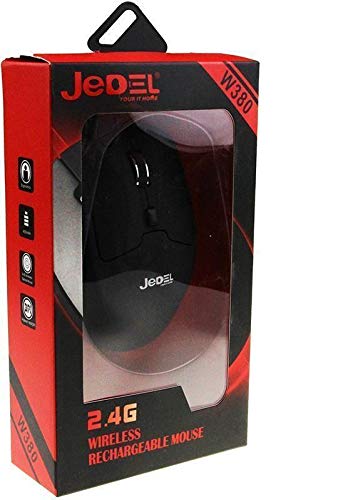
Image: A top-down perspective of the Jedel W380 mouse, highlighting its ergonomic shape, left and right click buttons, scroll wheel, and a small button below the scroll wheel.
Basic Functions
- Left Click: Primary button for selecting items, opening files, and executing commands.
- Right Click: Secondary button for accessing context menus and additional options.
- Scroll Wheel: Roll up or down to scroll through documents and web pages. Press the scroll wheel for middle-click functionality (if supported by software).
- DPI Button: A small button located below the scroll wheel allows you to cycle through different DPI (Dots Per Inch) settings, adjusting the cursor speed and sensitivity. Press this button to change the DPI to suit your preference.
- Side Buttons: Two buttons on the left side of the mouse typically function as 'Forward' and 'Backward' for web browsing or file navigation.
Power Saving Mode
To conserve battery life, the Jedel W380 mouse will enter a sleep mode after a period of inactivity. To wake the mouse, simply move it or click any button.
Maintenance
Cleaning
To maintain optimal performance and hygiene, clean your mouse regularly:
- Disconnect the mouse from your computer (if wired) or turn it off (if wireless).
- Use a soft, lint-free cloth lightly dampened with water or a mild cleaning solution.
- Wipe the surface of the mouse gently. Avoid getting liquid into any openings.
- For the optical sensor on the underside, use a dry cotton swab to carefully remove any dust or debris.
Charging the Battery
The Jedel W380 mouse uses a rechargeable battery. When the battery is low, the mouse's performance may degrade, or an indicator light (if present) may illuminate.
- Connect the Micro-USB end of the charging cable to the mouse's charging port.
- Connect the USB-A end of the cable to a powered USB port on your computer or a USB wall adapter.
- The mouse will charge. An indicator light may show charging status (e.g., red for charging, off or green for fully charged).
- Once fully charged, disconnect the charging cable.
Troubleshooting
If you encounter issues with your Jedel W380 mouse, refer to the following common problems and solutions:
| Problem | Solution |
|---|---|
| Mouse not responding (Wireless) |
|
| Mouse not responding (Wired) |
|
| Cursor movement is erratic or jumpy |
|
| Buttons or scroll wheel not working |
|
Specifications
Below are the technical specifications for the Jedel W380 Wireless and Wired Laser Mouse:
| Feature | Detail |
|---|---|
| Brand | Jedel |
| Model Number | W380 |
| Color | Black |
| Connectivity Technology | USB, Wired and Wireless |
| Movement Detection Technology | Laser |
| Hand Orientation | Ambidextrous (uses both hands) |
| Compatible Devices | Personal Computer |
| Operating Systems | Linux, Windows 7, Windows XP |
| Style | Modern |
| Hardware Platform | PC |
| Batteries Included | No (Refers to disposable batteries; device includes a rechargeable battery) |
| Manufacturer | Jedel |
| Part Number | W380 |
| ASIN | B081TLFLVH |
Warranty and Support
For warranty information and customer support regarding your Jedel W380 mouse, please refer to the documentation provided with your purchase or contact the retailer. Keep your proof of purchase for warranty claims.


