
1. Introduction
The TP-Link Deco E3 AC1200 Whole Home Mesh WiFi System is designed to provide seamless, strong Wi-Fi coverage throughout your entire home. This system eliminates Wi-Fi dead zones by utilizing both a main Deco unit (Deco E4R) and a mesh range extender (Deco M3W) to cover areas up to 2,500 square feet. It operates on both 2.4 GHz and 5 GHz wireless bands, working together to deliver fast and reliable network speeds.
This manual provides comprehensive instructions for setting up, operating, maintaining, and troubleshooting your Deco E3 system to ensure optimal performance and connectivity.
2. Package Contents
Verify that your package contains the following items:
- 1 x Deco E4R Main Unit
- 1 x Deco M3W Mesh Range Extender
- 2 x Power Adapters
- 1 x Ethernet Cable
- 1 x Quick Installation Guide

Image: TP-Link Deco E3 product packaging. The box displays the main Deco unit and the wall-plug extender, along with key features like Wi-Fi dead-zone killer and easy setup via the Deco app.
3. Product Overview
The Deco E3 system consists of two distinct units: the Deco E4R (main unit) and the Deco M3W (mesh range extender). Both units work together to create a unified mesh Wi-Fi network.
3.1 Deco E4R Main Unit
The Deco E4R is the primary unit that connects to your modem. It features:
- LED Indicator: Located on the top, it displays the Deco's status.
- Ethernet Ports: Two Gigabit Ethernet ports for connecting to your modem and wired devices.
- Power Port: For connecting the power adapter.
- Reset Button: Used to reset the Deco unit to factory settings.
3.2 Deco M3W Mesh Range Extender
The Deco M3W is a compact wall-plug unit designed to extend your Wi-Fi coverage. It features:
- LED Indicator: A single LED on the front indicates its connection status.
- AC Plug: Integrated for direct wall outlet connection.

Image: The TP-Link Deco E4R main unit (right, cylindrical) and the Deco M3W mesh range extender (left, rectangular wall-plug design). Both units are white with the TP-Link logo.
4. Setup Guide
Follow these steps to set up your TP-Link Deco E3 Mesh WiFi System:
4.1 Download the Deco App
- Search for "TP-Link Deco" in the App Store (iOS) or Google Play Store (Android).
- Download and install the app on your smartphone or tablet.
4.2 Set Up the Main Deco Unit (Deco E4R)
- Power Off Modem: Disconnect your modem's power.
- Connect Deco: Connect one of the Deco E4R's Ethernet ports to your modem's Ethernet port using the provided Ethernet cable.
- Power On: Power on your modem, then power on the Deco E4R unit. Wait for the Deco's LED to pulse blue.
- Launch App: Open the Deco app and follow the on-screen instructions to create a TP-Link ID and set up your main Deco unit.
4.3 Add the Mesh Range Extender (Deco M3W)
- Placement: Plug the Deco M3W extender into a wall outlet in a central location between your main Deco unit and the area where you need extended Wi-Fi coverage. Ensure it's within range of the main Deco.
- Power On: The extender will power on automatically. Wait for its LED to pulse blue.
- Add in App: Open the Deco app, go to "Add a Deco" and follow the instructions to add the M3W extender to your mesh network.
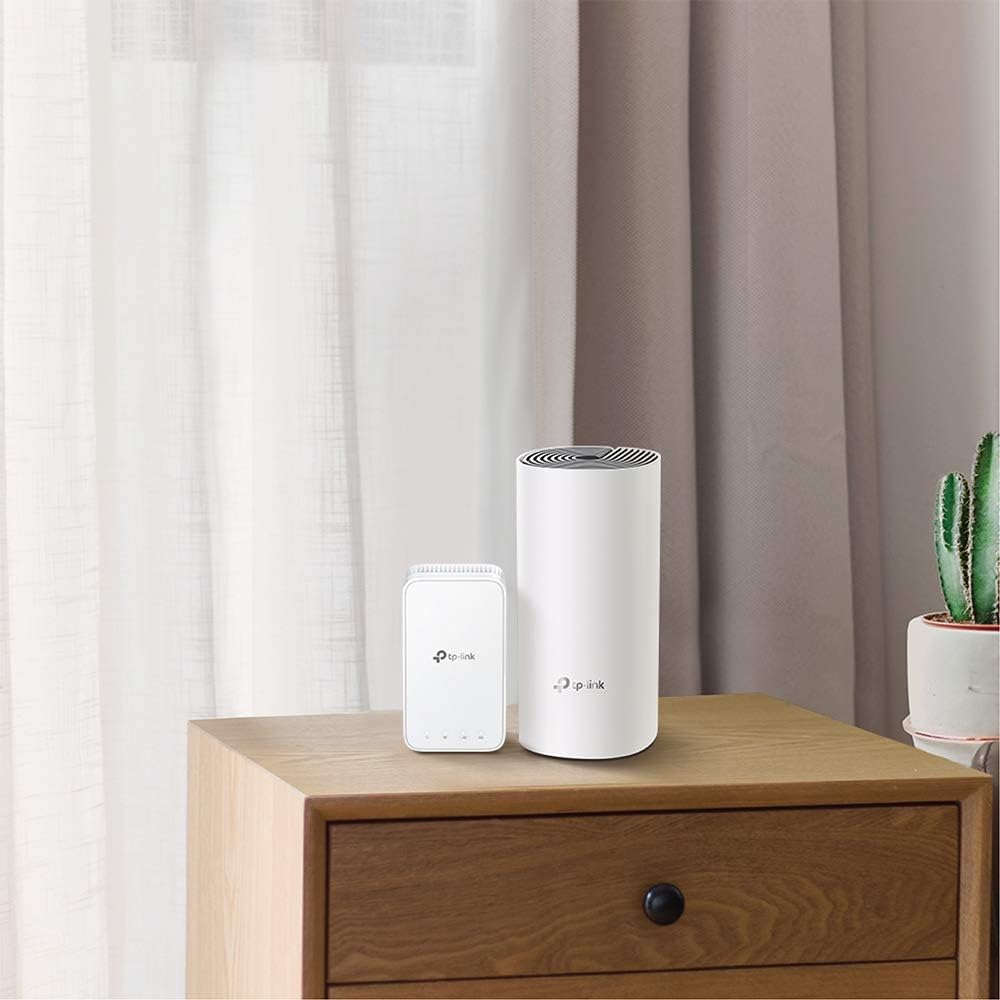
Image: The Deco E4R main unit and Deco M3W extender are shown discreetly placed on furniture in a modern home setting, demonstrating their compact design and ease of integration into living spaces.
5. Operating Instructions
Once your Deco E3 system is set up, you can manage and optimize your network using the TP-Link Deco app.
5.1 Managing Your Network
- Dashboard: View connected devices, network status, and internet speed.
- Wi-Fi Settings: Change your Wi-Fi name (SSID) and password.
- Guest Network: Create a separate network for guests, providing secure access without sharing your main network password.
- Parental Controls: Manage internet access for specific devices or users, set time limits, and block inappropriate content.
- Antivirus: Protect your network from malicious threats (features may vary by model and firmware).
- QoS (Quality of Service): Prioritize devices or applications for optimal performance.
5.2 Seamless Roaming
The Deco E3 system provides seamless roaming, meaning your devices will automatically switch to the Deco unit with the strongest signal as you move around your home. This ensures a continuous and stable connection without manual intervention.

Image: A diagram showing a multi-story house with Deco units strategically placed to provide comprehensive Wi-Fi coverage. Yellow lines represent 2.4 GHz connections, and blue lines represent 5 GHz connections, illustrating how the mesh system extends coverage throughout the home.
6. Maintenance
Regular maintenance helps ensure the longevity and optimal performance of your Deco E3 system.
- Firmware Updates: The Deco app will notify you of available firmware updates. It is recommended to keep your Deco units updated to benefit from the latest features, security enhancements, and performance improvements.
- Cleaning: Gently wipe the exterior of the Deco units with a soft, dry cloth. Do not use liquid cleaners or abrasive materials.
- Optimal Placement: Ensure Deco units are placed in open areas, away from large metal objects, thick walls, and other sources of interference (e.g., microwaves, cordless phones).
- Restarting: If you experience network issues, try restarting your Deco units and modem.
7. Troubleshooting
If you encounter issues with your Deco E3 system, refer to the following common solutions:
7.1 LED Status Indicators
The LED on your Deco units provides important information about their status:
- Solid White: Deco is connected and the network is available.
- Solid Red: Deco is connected but the network is unavailable.
- Red Blinking: Deco is disconnected.
- Pulsing Blue: Deco is ready for setup or is being set up.

Image: A close-up of the Deco M3W mesh extender plugged into a wall outlet, highlighting its LED indicator. The image provides a guide for interpreting the LED colors: White Solid (Connected and network available), Red Solid (Connected but network unavailable), and Red Blinking (Disconnected).
7.2 No Internet Connection
- Check if your modem is working correctly.
- Ensure the Ethernet cable between the main Deco and modem is securely connected.
- Restart your modem and the main Deco unit.
7.3 Weak Wi-Fi Signal or Dead Zones
- Relocate the Deco M3W extender to a more central position between the main Deco and the weak signal area.
- Ensure there are no major obstructions (e.g., thick concrete walls, large metal appliances) blocking the signal path.
- Check for sources of interference and move Deco units away from them.
7.4 Deco Unit Not Powering On
- Verify that the power adapter is securely connected to the Deco unit and the power outlet.
- Try a different power outlet.
- Ensure you are using the original power adapter provided with the unit.
8. Specifications
| Feature | Detail |
|---|---|
| Brand | TP-Link |
| Model Name | Deco E3(2-Pack) |
| Wireless Type | 2.4 GHz Radio Frequency, 5 GHz Radio Frequency |
| Frequency Band Class | Dual-Band |
| Wireless Communication Standard | 2.4 GHz Radio Frequency, 5 GHz Radio Frequency |
| Connectivity Technology | Wi-Fi |
| Antenna Type | Internal |
| Operating System | RouterOS |
| Item Weight | 2.8 pounds |
| Product Dimensions (LxWxH) | 5 x 2 x 3 inches |
| Color | White |
| Voltage | 100 Volts |
| Recommended Uses For Product | Home |
| Included Components | WiFi System |
9. Warranty Information
TP-Link products typically come with a limited warranty. For detailed warranty terms and conditions specific to your region and product, please refer to the official TP-Link website or the warranty card included with your product. Keep your purchase receipt for warranty claims.
10. Support
For further assistance, technical support, or to access the latest firmware and FAQs, please visit the official TP-Link support website:
You can also contact TP-Link customer service through the contact information provided on their website or within the Deco app.


