
UHPPOTE HBK-A02W
Contents
UHPPOTE WiFi Door Access Control Keypad User Manual
Model: HBK-A02W | Brand: UHPPOTE
Introduction
This manual provides detailed instructions for the installation, operation, and maintenance of your UHPPOTE WiFi Door Access Control Keypad. This device combines a keypad, proximity card reader, and WiFi connectivity to offer secure and convenient access control, manageable via the Tuya Smart App.
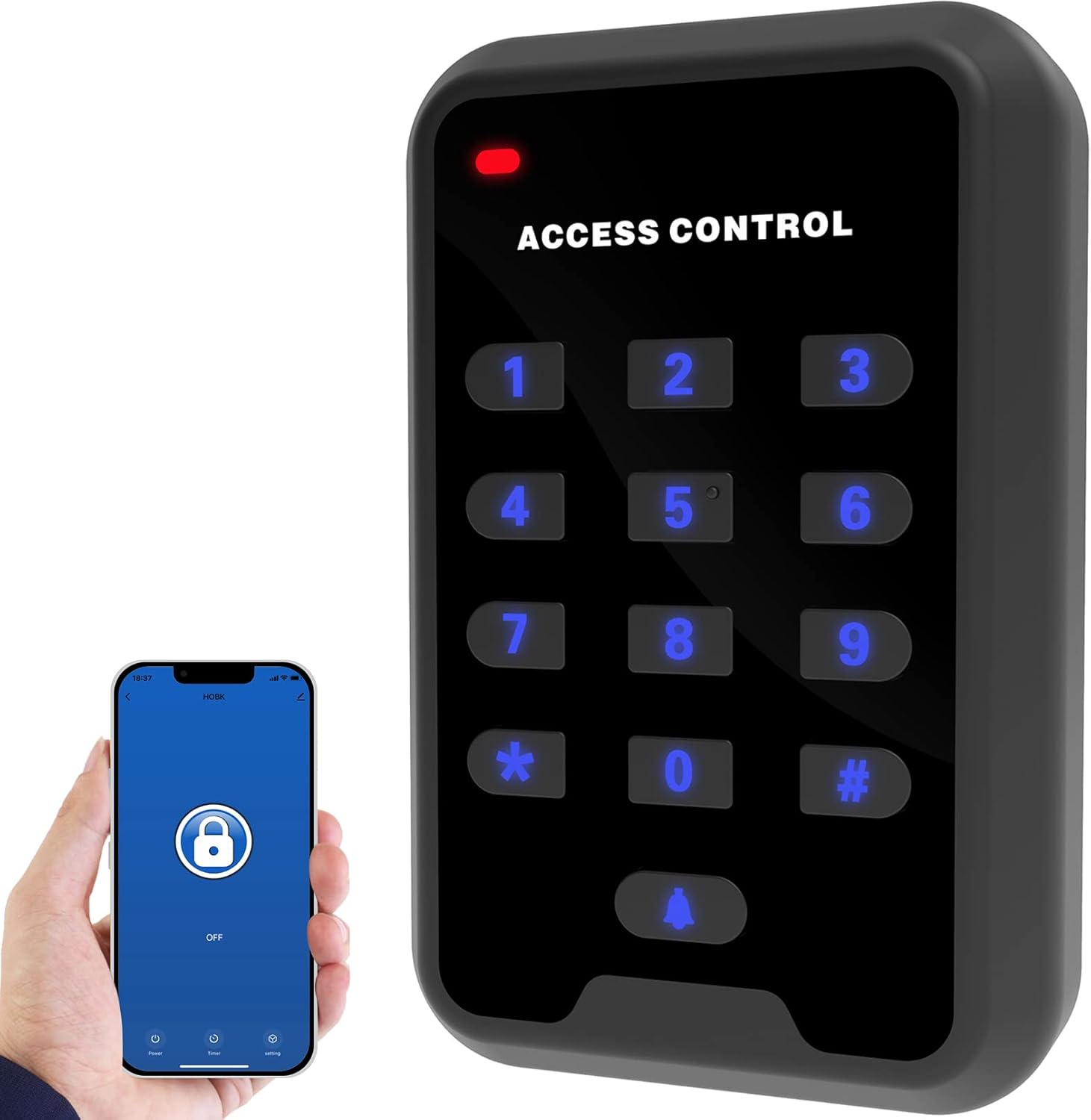
Figure 1: UHPPOTE WiFi Door Access Control Keypad with Tuya Smart App integration.
Setup and Installation
1. Physical Installation
The access control keypad is designed for wall mounting near the door it will control. Ensure the mounting surface is stable and allows for proper wiring access.

Figure 2: Example of keypad installation on a wall, demonstrating proximity card access.
2. Wiring Diagram
Proper wiring is crucial for the functionality and safety of the access control system. Refer to the diagram below for connections to a 12VDC power supply, electric lock, exit button, and bell.

Figure 3: Special Power Supply Diagram for the access control keypad.
The keypad features a multi-pin connector for easy wiring. The back cover of the keypad includes a color code legend for the wires:

Figure 4: Internal view of the keypad with wire color legend.
| Wire Color | Function |
|---|---|
| Red | +12VDC Power Input |
| Black | GND (Ground) |
| Yellow | OPEN (Normally Open for Lock) |
| Green | PUSH (Exit Button Input) |
| Blue | NO (Normally Open for Lock) |
| White | COM (Common for Lock) |
| Brown | NC (Normally Closed for Lock) |
| Pink | BELL (Doorbell Output) |
3. Tuya Smart App Setup
The keypad requires a 2.4GHz Wi-Fi connection for app control. It is not compatible with 5GHz Wi-Fi networks.

Figure 5: The keypad requires a 2.4GHz Wi-Fi network.
- Download the Tuya Smart App: Search for "Tuya Smart" in the Apple App Store (for iOS) or Google Play Store (for Android) and download the application.
- Register/Log In: Open the app and register for a new account or log in if you already have one.
- Add Device: Follow the in-app instructions to add your new access control keypad. This typically involves putting the keypad into pairing mode (refer to the keypad's specific pairing instructions, usually by holding a button or entering a sequence) and connecting it to your 2.4GHz Wi-Fi network through the app.

Figure 6: Download the Tuya Smart App.
Operating Instructions
1. Keypad Operation
To gain access using the keypad, enter your pre-programmed access code followed by the '#' key. The keypad will indicate successful entry (e.g., green light, beep) and unlock the door.
2. Proximity Card Operation
To gain access using a proximity card, simply present your registered card to the card reader area on the keypad. The keypad will verify the card and unlock the door upon successful authentication.
3. Tuya Smart App Control
The Tuya Smart App allows for remote control and advanced management of your access control keypad.
- Remote Unlock: Unlock the door remotely from anywhere using the app, provided the keypad is connected to Wi-Fi.
- User Management: Add, delete, or modify access codes and proximity cards for different users directly from the app.
- Access Logs: View a history of access events, including who entered and when.
- Smart Scenes: Create automated scenarios (smart scenes) to trigger actions based on specific conditions. For example, you can set the door to unlock at a specific time or trigger other smart devices when the door is accessed.

Figure 7: Creating Smart Scenes in the Tuya Smart App.
Maintenance
- Cleaning: Wipe the keypad surface with a soft, dry cloth. Avoid using abrasive cleaners or solvents that could damage the finish or electronic components.
- Power Supply: Ensure a stable 12VDC power supply is maintained. This device does not use internal batteries.
- Wiring Inspection: Periodically check all wiring connections to ensure they are secure and free from damage.
Troubleshooting
| Problem | Possible Cause | Solution |
|---|---|---|
| Keypad not responding | No power; loose wiring. | Check power supply connection; ensure all wires are securely connected. |
| Door not unlocking via keypad/card | Incorrect code/card; lock malfunction; wiring issue. | Verify access code/card is correctly programmed; check lock mechanism; inspect lock wiring. |
| App cannot connect to keypad | Incorrect Wi-Fi (5GHz); weak Wi-Fi signal; keypad not in pairing mode. | Ensure you are using a 2.4GHz Wi-Fi network; move keypad closer to router; re-enter pairing mode and try connecting again. |
| Remote unlock not working | No internet connection on phone or keypad; app error. | Check phone's internet connection; verify keypad's Wi-Fi status in app; restart app. |
Specifications
| Feature | Detail |
|---|---|
| Manufacturer | UHPPOTE |
| Part Number | HBK-A02W |
| Product Dimensions | 11 x 7.1 x 2.3 cm |
| Item Weight | 200 g |
| Power Source | DC |
| Voltage | 12 Volts |
| Material | Plastic |
| Colour | Black |
| Display Type | LED |
| Wi-Fi Compatibility | 2.4GHz only |
| App Compatibility | Tuya Smart App (iOS/Android) |
Warranty and Support
Specific warranty information for the UHPPOTE WiFi Door Access Control Keypad (Model HBK-A02W) was not provided in the product details. Please refer to the manufacturer's official website or contact UHPPOTE customer support directly for detailed warranty terms and technical assistance.
You can visit the UHPPOTE store on Amazon for more information: UHPPOTE Amazon Store
Documents and downloads
Ask a question about this manual
Ask about setup, troubleshooting, compatibility, parts, safety, or missing instructions. Manuals+ will review the question and use this page’s manual context to help answer it.