
Cauldryn DHB1
Cauldryn Digital Heating Base Instruction Manual
Model: DHB1
Brand: Cauldryn
Introduction
The Cauldryn Digital Heating Base is designed as a convenient replacement or spare heating element for Cauldryn Mug models that originally featured an LCD display screen. This powerful heating element integrates seamlessly with your existing Smart Mug system, offering robust heating capabilities for various liquids.
It is capable of reaching temperatures up to 212 degrees Fahrenheit, making it suitable for brewing coffee, heating soup, or boiling water. The integrated LCD display provides clear, large digital numbers for easy temperature monitoring. All four control buttons replicate the functionality and placement of your original Cauldryn Mug's heating feature, ensuring a familiar user experience without the need to learn new controls.
Upon connection to the mug and power, the heating element will connect to the Cauldryn App via Bluetooth, allowing for remote temperature control and access to preset temperature options for various beverages and food items.
Setup
1. Attaching the Heating Base
Align the Cauldryn Digital Heating Base with the bottom of your compatible Cauldryn Mug. Gently twist the heating base clockwise until it is securely fastened and a spill-proof seal is achieved. Ensure the connection is firm to prevent leaks and ensure proper electrical contact.
2. Powering On
Connect the power cable to the heating base and plug it into a suitable power outlet. The LCD display should illuminate, indicating that the device is receiving power.
3. App Connection (Bluetooth)
Ensure Bluetooth is enabled on your mobile device. Open the Cauldryn App. The app will automatically detect and connect to the new heating element once it is powered on and attached to the mug. You can then control the temperature and access additional features directly from the app.
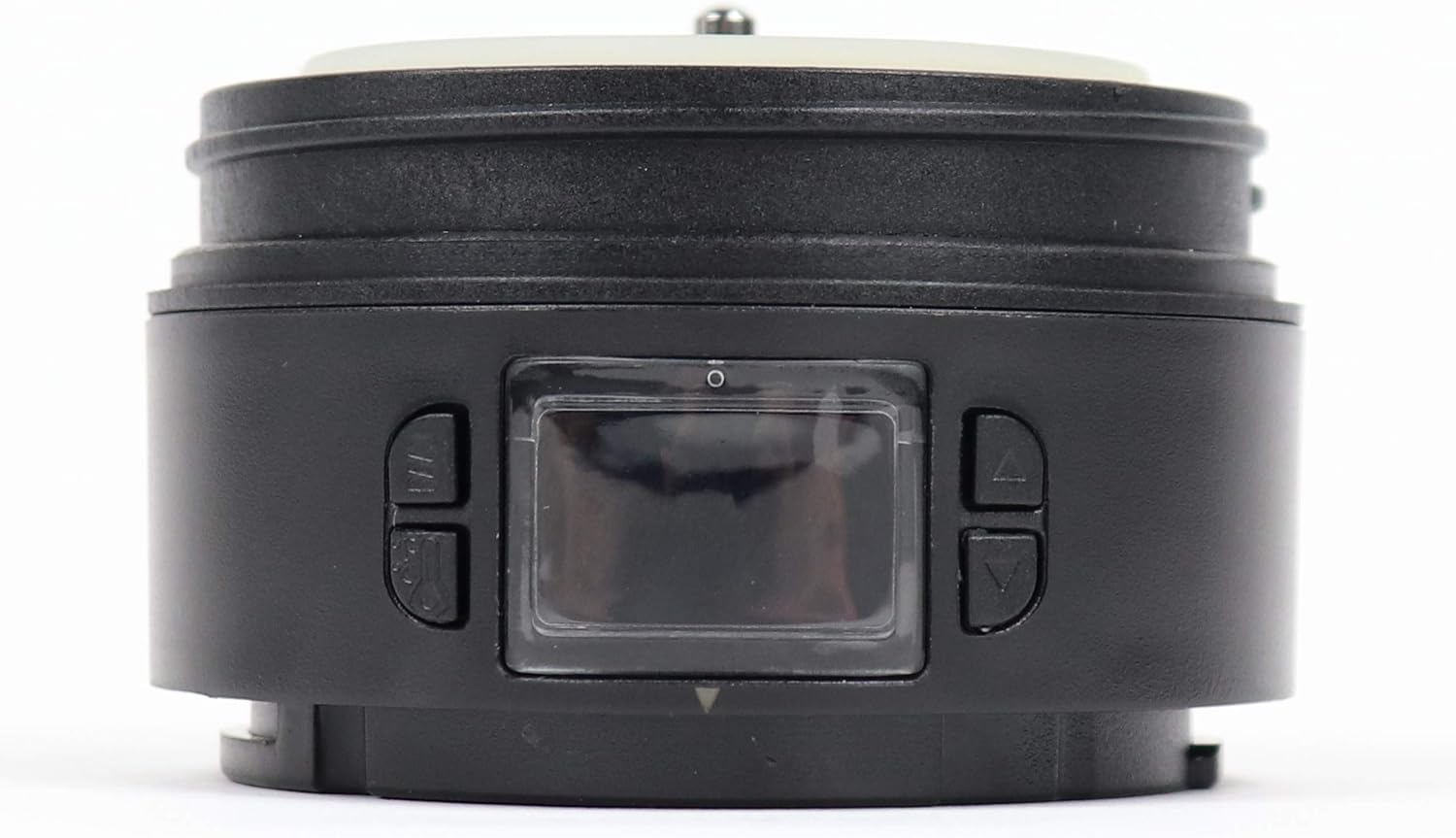
Image: The Cauldryn Digital Heating Base, showing its LCD display and the four control buttons. The base is black with a clear display window and a light-colored top rim where it connects to the mug.
Operation
Manual Temperature Control
The heating element features four buttons for direct control, mirroring the layout of your original Cauldryn Mug:
- Left Top Button: Controls the power saving mode. Press to toggle this feature on or off.
- Left Bottom Button: Toggles the temperature unit between Fahrenheit (°F) and Celsius (°C).
- Right Top Button: Increases the target temperature.
- Right Bottom Button: Decreases the target temperature.
The LCD display will show the current temperature of the liquid inside the mug. Use the up and down arrows to set your desired temperature. The heating element will then work to reach and maintain this temperature.
App Control (Bluetooth)
For enhanced control and convenience, utilize the Cauldryn App:
- Temperature Adjustment: Precisely set the temperature of your beverage using a slider or numerical input within the app.
- Preset Temperatures: The app's home screen offers quick access to preset temperatures optimized for various uses, including:
- Green Tea
- Black Tea
- Brewing Coffee
- Boiling Water (up to 212°F / 100°C)
- Cooking Freeze-Dried Food
- Monitoring: View the current temperature and heating status remotely.
Maintenance and Care
Proper maintenance ensures the longevity and optimal performance of your Cauldryn Digital Heating Base.
- Cleaning: Disconnect the heating base from power and allow it to cool completely before cleaning. Wipe the exterior of the heating base with a damp cloth. Do not submerge the heating base in water or any other liquid, as this can damage the electronic components.
- Storage: Store the heating base in a cool, dry place when not in use. Ensure it is detached from the mug and unplugged.
- Handling: Handle the heating base with care. Avoid dropping it or subjecting it to strong impacts, as this can damage the internal components or the LCD display.
Troubleshooting
If you encounter issues with your Cauldryn Digital Heating Base, refer to the following common solutions:
| Problem | Possible Cause / Solution |
|---|---|
| Heating base not powering on. |
|
| Liquid not heating. |
|
| App not connecting to the heating base. |
|
| LCD display is blank or unreadable. |
|
Specifications
| Feature | Detail |
|---|---|
| Brand | Cauldryn |
| Model Number | DHB1 |
| ASIN | B081NR2K33 |
| UPC | 859866007100 |
| Color | Black |
| Material | Plastic |
| Item Dimensions (LxWxH) | 3 x 3 x 1.75 inches |
| Item Package Dimensions (LxWxH) | 3 x 3 x 2 inches |
| Package Weight | 0.14 Kilograms |
| Manufacturer | Cauldryn |
| Date First Available | November 18, 2019 |
Warranty and Support
Specific warranty details for the Cauldryn Digital Heating Base are not provided in this manual. For information regarding warranty coverage, product support, or to contact customer service, please visit the official Cauldryn website or refer to the documentation included with your original Cauldryn Mug purchase.
You may also find helpful resources and frequently asked questions on the Cauldryn Store on Amazon.
Related documentsDHB1

Ask a question about this manual
Ask about setup, troubleshooting, compatibility, parts, safety, or missing instructions. Manuals+ will review the question and use this page’s manual context to help answer it.