
GOWIN K6
GOWIN 10.1 Inch Android 10.0 Tablet Instruction Manual
Model: K6
1. Product Overview
The GOWIN 10.1 Inch Android 10.0 Tablet is a high-performance device designed for versatile use, featuring a quad-core processor, 4GB RAM, and 64GB internal storage, expandable up to 128GB. It supports dual SIM cards for cellular connectivity and includes a detachable keyboard and wireless mouse for enhanced productivity.

Image: GOWIN 10.1 Inch Android Tablet with its accessories, including a detachable keyboard, wireless mouse, and stylus.
2. What's in the Box
Verify that all items are present in the package:
- GOWIN 10.1 Inch Android Tablet
- Bluetooth Keyboard
- Wireless Mouse
- Tablet Case
- AC Charger
- User Manual
- USB Cable
- OTG Cable

Image: All components included in the GOWIN tablet package, laid out for inspection.
3. Device Layout and Ports
Familiarize yourself with the tablet's physical features and connection points.
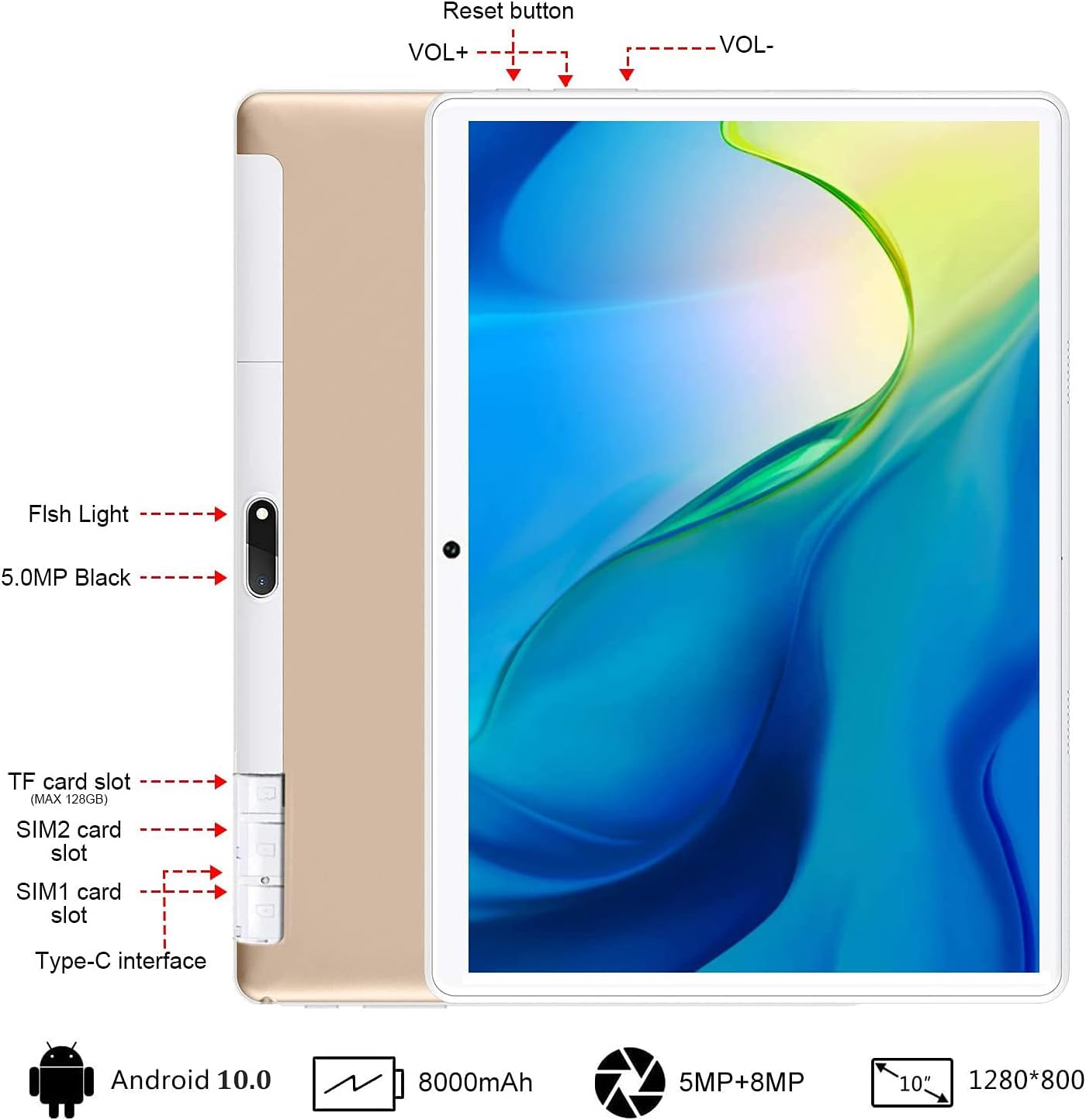
Image: Rear view of the GOWIN tablet, highlighting the TF card slot, SIM card slots, Type-C interface, reset button, volume controls, and camera.
- TF Card Slot: For expandable storage (up to 128GB).
- SIM1/SIM2 Card Slots: For dual 4G cellular connectivity.
- Type-C Interface: For charging and data transfer.
- VOL+ / VOL-: Volume up and down buttons.
- Reset Button: To restart the device if unresponsive.
- Cameras: 5MP front-facing and 8MP rear-facing cameras.
4. Setup
4.1 Initial Charging
Before first use, fully charge the tablet using the provided AC charger and USB cable. The 8000mAh battery provides extended usage time.

Image: The GOWIN tablet screen showing a full battery indicator, emphasizing its 8000mAh capacity.
4.2 Inserting SIM and SD Cards
Carefully insert your SIM cards and/or a microSD card into the designated slots as shown in the device layout section. Ensure the tablet is powered off before inserting or removing cards.
4.3 Connecting Keyboard and Mouse
The included keyboard and mouse connect via Bluetooth. Refer to their individual instructions for pairing. Once paired, they provide a laptop-like experience.

Image: A user's hands typing on the detachable Bluetooth keyboard connected to the GOWIN tablet, with the wireless mouse nearby.
4.4 Attaching Tablet Case
The tablet case provides protection and can be folded into a stand for multiple viewing angles.

Image: The GOWIN tablet positioned in its protective case, illustrating how the case can be folded to create various viewing angles.
5. Operating Instructions
5.1 Power On/Off
- To Power On: Press and hold the Power button until the screen lights up.
- To Power Off: Press and hold the Power button, then select "Power off" from the options.
5.2 Basic Navigation (Android 10.0)
The tablet runs on Android 10.0, offering an intuitive user interface. Swipe gestures and on-screen buttons are used for navigation. Access Google Play Store to download applications like YouTube and Netflix.
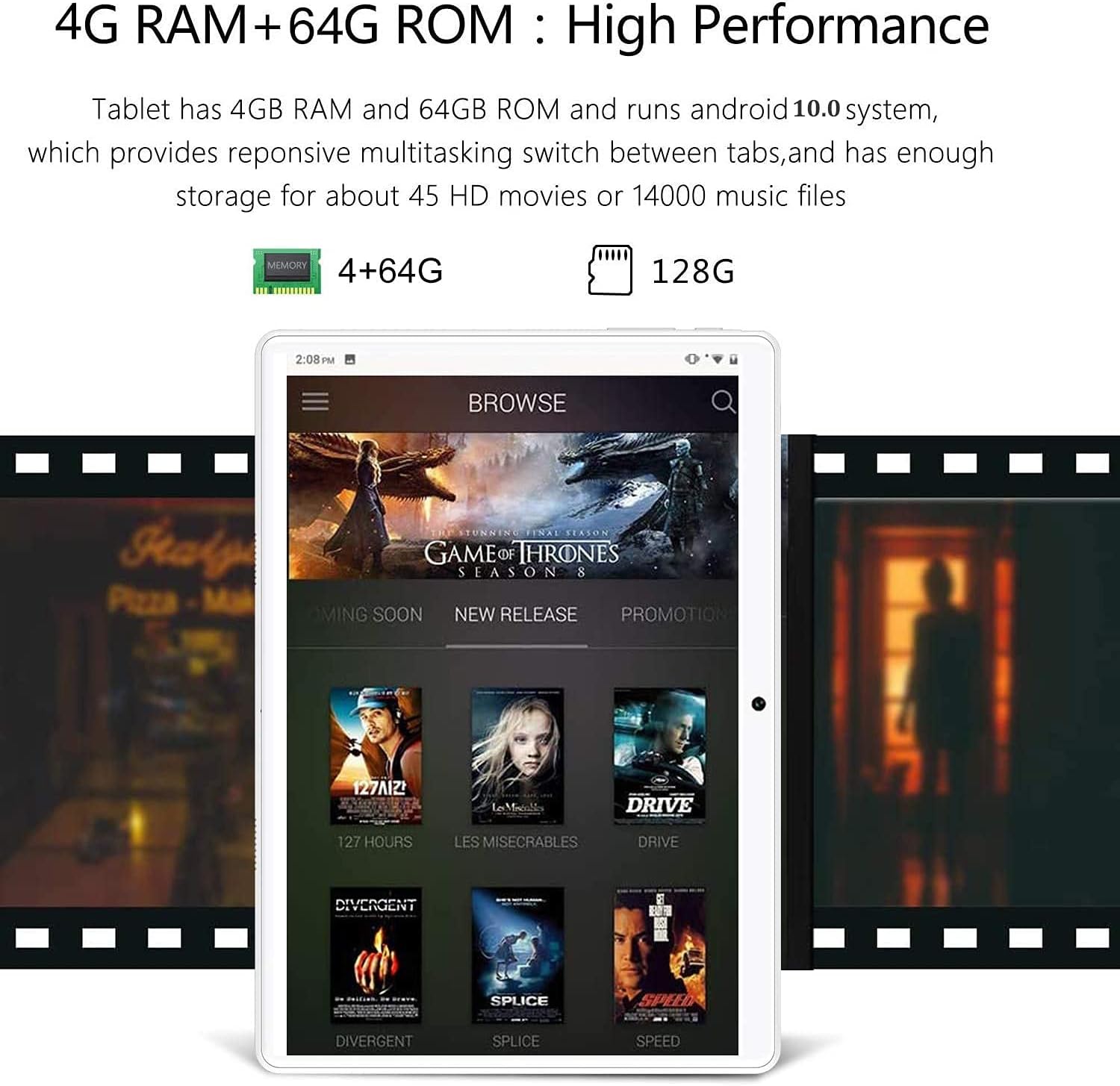
Image: The GOWIN tablet's display showing the Android 10.0 interface with various media applications, demonstrating its high performance and storage capacity.
5.3 Connectivity
- Wi-Fi: Go to Settings > Network & internet > Wi-Fi to connect to available networks.
- Bluetooth: Go to Settings > Connected devices > Bluetooth to pair with Bluetooth accessories.
- Cellular Data: If SIM cards are inserted, enable mobile data in Settings > Network & internet > Mobile network.
5.4 Camera Usage
The tablet is equipped with a 5MP front camera and an 8MP rear camera for photos and videos. Open the Camera app from the home screen or app drawer.

Image: The GOWIN tablet screen showcasing a vibrant image, illustrating the quality of its 8MP rear camera.
6. Maintenance
- Cleaning: Use a soft, lint-free cloth to clean the screen and body. Avoid abrasive cleaners or solvents.
- Battery Care: To prolong battery life, avoid extreme temperatures and do not let the battery fully drain frequently.
- Software Updates: Periodically check for system updates in Settings > System > System update to ensure optimal performance and security.
7. Troubleshooting
- Device is Slow/Apps Crashing: Close unused applications, clear cache, or restart the tablet. Ensure sufficient storage space is available.
- Screen Unresponsive: Perform a soft reset by pressing and holding the power button until the device restarts. If unresponsive, use the reset button (refer to Section 3).
- Cannot Connect to Wi-Fi/Bluetooth: Ensure Wi-Fi/Bluetooth is enabled. Restart the tablet and the router/Bluetooth device.
- Battery Drains Quickly: Reduce screen brightness, disable unused features (Wi-Fi, Bluetooth, GPS), and close background apps.
For further assistance, please contact customer service through Amazon. We aim to provide a satisfactory answer within 24 hours.
8. Specifications
| Feature | Specification |
|---|---|
| Brand | GOWIN |
| Model Name | Touch (K6) |
| Operating System | Android 10 |
| Screen Size | 10.1 Inches |
| Screen Resolution | 1280 x 800 pixels (IPS) |
| Processor | 1.5 GHz Quad-Core (MediaTek) |
| RAM | 4 GB |
| Internal Storage | 64 GB |
| Expandable Storage | Up to 128 GB (microSD) |
| Rear Camera | 8 MP |
| Front Camera | 5 MP |
| Battery Capacity | 8000 mAh |
| Connectivity | Dual 4G Cellular, Wi-Fi, Bluetooth |
| Item Weight | 1.2 pounds |
| Color | Gold |
9. Warranty and Support
GOWIN provides a one-month free replacement policy and 365 days of free repair service for non-human damage. For any questions or support needs, please contact our customer service team via Amazon. We are committed to providing a satisfactory resolution within 24 hours.
For more information about DUODUOGO products, visit the official brand store: DUODUOGO Store on Amazon.
Ask a question about this manual
Ask about setup, troubleshooting, compatibility, parts, safety, or missing instructions. Manuals+ will review the question and use this page’s manual context to help answer it.