
Introduction
The EPEVER TRIRON N series MPPT Solar Charge Controller is a modular-designed product engineered for efficient solar energy management. It incorporates an advanced Maximum Power Point Tracking (MPPT) control algorithm, ensuring high tracking efficiency exceeding 99.5% and a maximum charge conversion efficiency of up to 98%. This controller is versatile and suitable for various applications, including communication base stations, household solar systems, street lighting systems, and field monitoring.
Product Features
- Advanced MPPT Technology: Minimizes MPPT loss rate and time, with tracking efficiency above 99.5% and charge conversion efficiency up to 98%.
- Modular Design: The main unit (Power Module) can be integrated with different display and interface modules to meet diverse functional requirements.
- Integrated Display: Features an LCD and LED indicators to display operating data and system status.
- Communication Interfaces: Includes master and slave RS485 communication modules for reading load or inverter operating data.
- USB Output: Double USB ports provide 5V Max. 2.2A DC power for charging electronic devices.
- User-Friendly Operation: Intuitive buttons for comfortable and convenient control.
- Temperature Sensor (RTS): External battery temperature sensor cable for accurate temperature compensation.
- PC Communication: RS-485 port allows PC monitoring via a USB connection.

Image: Overview of the EPEVER MPPT Solar Charge Controller highlighting its LCD display, USB ports, RS485 interface, RTS interface, PV terminals, Battery terminals, and Load terminals.

Image: Diagram illustrating the modular design of the controller and various compatible interface modules (DB1, DS2, DS1, RCM, RCS, USB1).
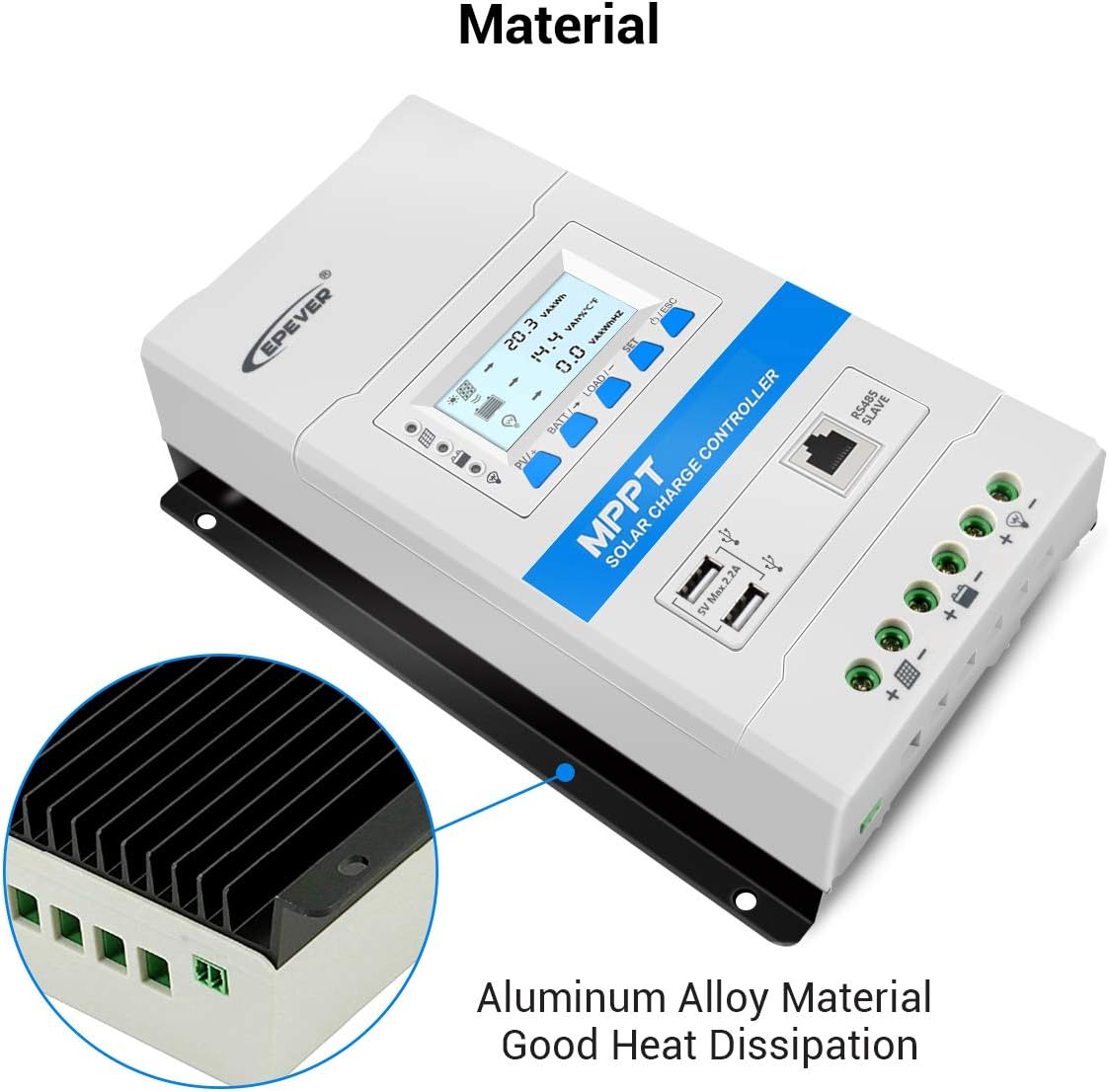
Image: Close-up view of the controller's aluminum alloy heat sink, designed for efficient heat dissipation.
Setup and Installation
Proper installation is crucial for the safe and efficient operation of your EPEVER MPPT Solar Charge Controller. Always ensure all power sources are disconnected before making any connections.
Wiring Sequence
- Connect the Battery: Always connect the battery to the controller first. Ensure correct polarity.
- Connect the Solar Panel: After the battery is connected, connect the solar panel array to the controller.
- Connect the Load: Finally, connect the DC load to the controller.
Disconnection Sequence: To disconnect the system, reverse the order: first disconnect the solar panel, then the load, and finally the battery.
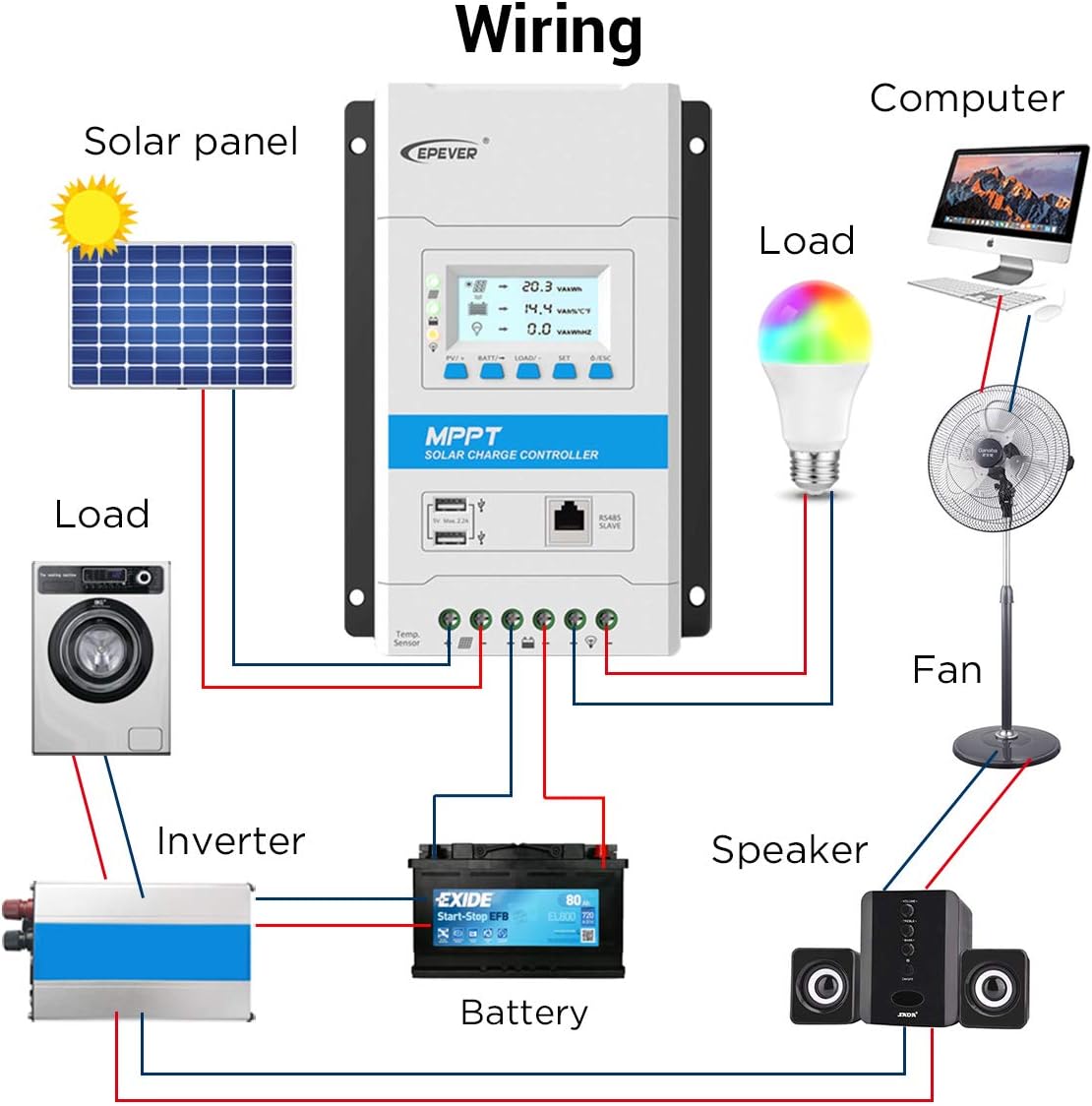
Image: Detailed wiring diagram showing connections from the solar panel to the controller, controller to the battery, and controller to various DC loads like a computer, fan, and washing machine via an inverter.
Changing Modules
The TRIRON N series features a modular design allowing for interchangeable display and interface modules. To change a module:
- Carefully pry off the cover of the controller using a screwdriver.
- Gently remove the existing module.
- Insert the new module into the designated slot until it clicks into place.
- Replace the cover.
Refer to the video below for a visual guide on changing modules (approx. 0:47 mark).
Battery Type and Capacity Setting
It is essential to correctly set the battery type and capacity for optimal charging and battery health. This can be done via the controller's LCD display or the MT50 remote meter.
- Press the SET button to enter the setting interface.
- Press the BATT button and hold for 5 seconds to enter the battery type interface.
- Use the PV+/LOAD- buttons to select the desired battery type (e.g., Sealed, GEL, FLD, LiFePO4, Li(NiCoMn)O2, or User-defined).
- Press the SET button to confirm the battery type.
- Navigate to the battery capacity setting and adjust using the PV+/LOAD- buttons, then confirm with SET.
Refer to the video below for a visual guide on setting battery parameters (approx. 2:03 mark).
Temperature Unit Setting
You can switch between Celsius and Fahrenheit for temperature display.
- Access the setting interface.
- Navigate to the temperature unit setting.
- Use the appropriate buttons to toggle between °C and °F.
- Confirm your selection.
Refer to the video below for a visual guide on setting the temperature unit (approx. 2:20 mark).
Operating Instructions
The controller offers various operating modes and monitoring capabilities.
LCD Display Navigation
The LCD display provides real-time data. Use the buttons to navigate through different screens:
- PV browsing interface: Press the button to set data, press and hold for 5s to set the LCD cycle time.
- BATT browsing interface: Press the button to move the cursor, press and hold for 5s to set battery type, capacity, and temperature.
- LOAD browsing interface: Press the button to set data, press and hold for 5s to set load working mode.
- SET interface: Press the button to switch to browsing interface, press and hold for 5s to enter parameter setting.
- O/ESC: Press the button to turn ON/OFF the inverter (with RCS module), press and hold for 5s to exit the setting interface.
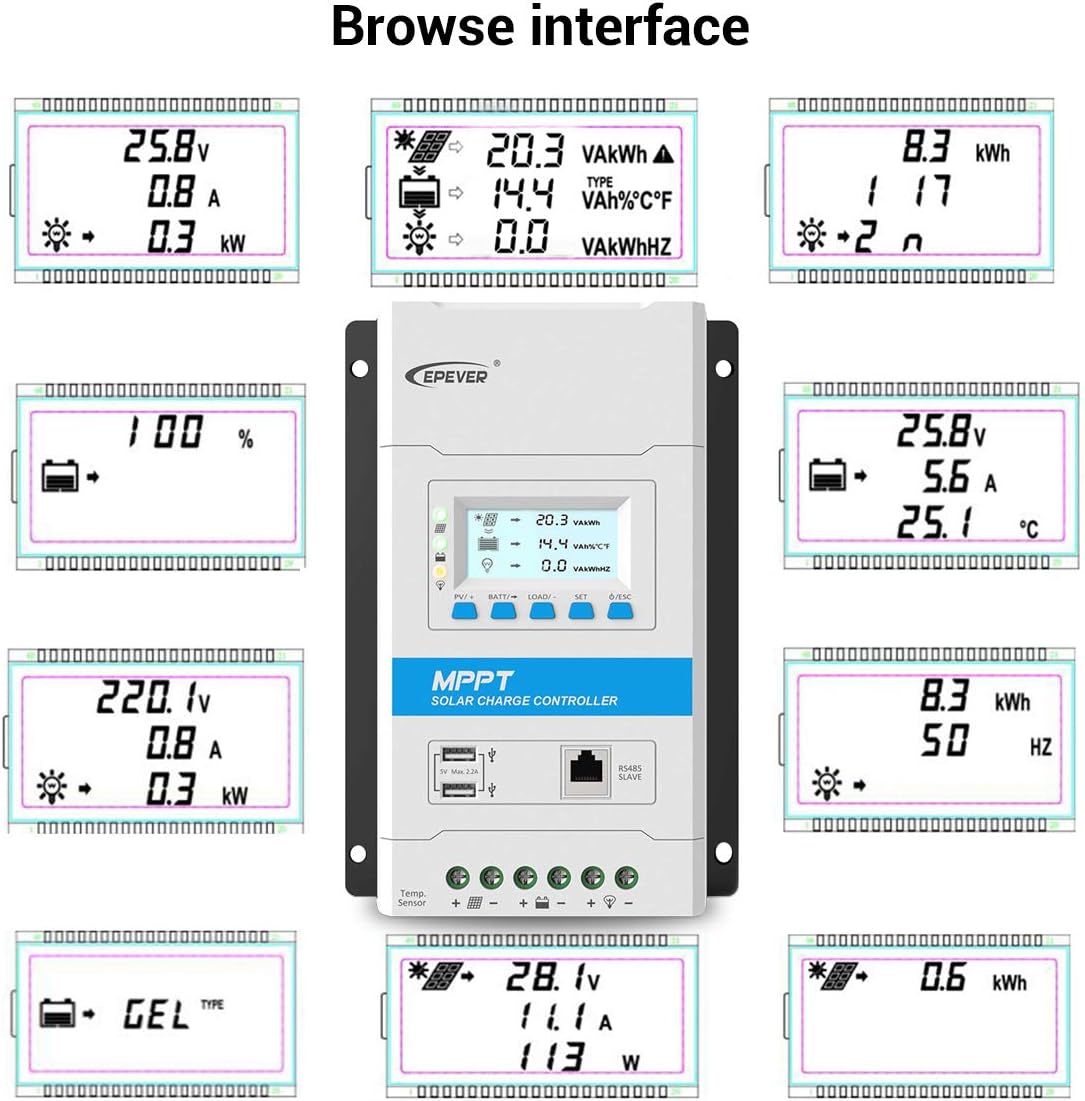
Image: Multiple views of the controller's LCD display, illustrating different data screens such as PV voltage, battery voltage, load current, power, and energy statistics.
Load Working Modes
The controller supports various load working modes, including manual control, light ON/OFF, light ON + timer, and time control. These settings can be adjusted via the controller's interface or the MT50 remote meter.
- Manual Control Mode (Default): Press the load button to turn the load ON; press it again to turn the load OFF.
- Light ON/OFF: Load turns ON at dusk and OFF at dawn.
- Light ON + Timer: Load turns ON at dusk and stays ON for a set duration.
- Time Control: Load operates according to predefined ON/OFF times.
Refer to the video below for a visual guide on setting load working modes (approx. 1:50 mark).
MT50 Remote Meter Operation
The MT50 remote meter provides a comprehensive interface for monitoring and configuring the controller. It displays various operating data and fault information. The buttons allow for easy navigation and parameter adjustments.
- Monitoring: View real-time system data.
- Device Info: Access detailed information about the controller.
- Test Operation: Perform system tests.
- Control Para.: Adjust control parameters.
- Load Set: Configure load working modes.
- Device Para.: Set device-specific parameters.
- Factory Reset: Restore default settings.
Refer to the video below for a visual guide on using the MT50 remote meter (approx. 2:33 mark).
Maintenance
Regular maintenance ensures the longevity and optimal performance of your solar charge controller.
- Inspect Connections: Periodically check all wiring connections for tightness and corrosion. Loose connections can cause overheating and damage.
- Clean the Controller: Keep the controller clean and free from dust and debris. Ensure the heat sink is not obstructed to allow for proper heat dissipation.
- Monitor Performance: Regularly check the LCD display or MT50 remote meter for normal operating parameters and any error indicators.
- Battery Temperature Sensor (RTS): Ensure the RTS cable is securely connected and undamaged. If the temperature sensor is short-circuited or damaged, the controller will default to charging or discharging at 25 °C.
- Firmware Updates: Check the manufacturer's website for any available firmware updates to ensure your controller has the latest features and bug fixes.
Troubleshooting
If you encounter issues with your EPEVER MPPT Solar Charge Controller, consider the following troubleshooting steps:
- No Power/Display: Verify battery connections and voltage. Ensure the battery is adequately charged. Check for blown fuses in the battery circuit.
- No Charging from Solar Panel: Check solar panel connections and ensure they are receiving sufficient sunlight. Verify solar panel voltage and current. Ensure the controller's PV input voltage is within its operating range.
- Load Not Working: Check load connections and ensure the load is not exceeding the controller's rated current. Verify the load working mode settings (e.g., manual ON/OFF, timer). Check for short circuits or open circuits in the load wiring.
- Incorrect Readings: Ensure the battery type and capacity settings are correct. Check the temperature sensor connection if temperature readings are inaccurate.
- Error Codes: Consult the controller's manual (if available) or the MT50 remote meter for specific error code meanings and recommended actions.
- Persistent Issues: If problems persist after basic troubleshooting, contact EPEVER customer support for further assistance.
Specifications
Key technical specifications for the EPEVER 30A MPPT Solar Charge Controller (TRIRON 3210N model):
| Item | Specification (TRIRON 3210N) |
|---|---|
| System Nominal Voltage | 12V/24VDC Auto |
| Rated Charge Current | 30A |
| Rated Discharge Current | 30A |
| Battery Voltage Range | 8-32V |
| Max. PV Open Circuit Voltage | 100V |
| MPP Voltage Range | (Battery voltage +2V) ~ 72V |
| Max. PV Input Power | 390W/12V, 780W/24V |
| Self-consumption | ≤14mA(12V); ≤15mA(24V) |
| Discharge Circuit Voltage Drop | ≤0.18V |
| Temperature Compensate Coefficient | -3mV/°C/2V (Default) |
| Grounding | Common negative |
| RS485 Interface | 5VDC/100mA |
| USB Interface | 5VDC/2A (Total) |
| Relay Interface | 30VDC/1A |
| Backlight Time | Default 60S (Range 0-999S or the backlight is ON all the time) |
| Storage Temperature Range | -20°C ~ +70°C |
| Relative Humidity | ≤95%, N.C. |
| Enclosure | IP30 |
| Mounting Hole Size | Φ5mm |
| Terminal (Recommended Cable) | 8AWG (10mm²) |
Note: When a Lithium battery is used, the system voltage cannot be identified automatically. Minimum operating environment temperature is -20°C. When the battery is used, the temperature compensate is 0 and cannot be changed.
Accessories and Connectivity
The EPEVER TRIRON N series controller supports various accessories for enhanced monitoring and control.
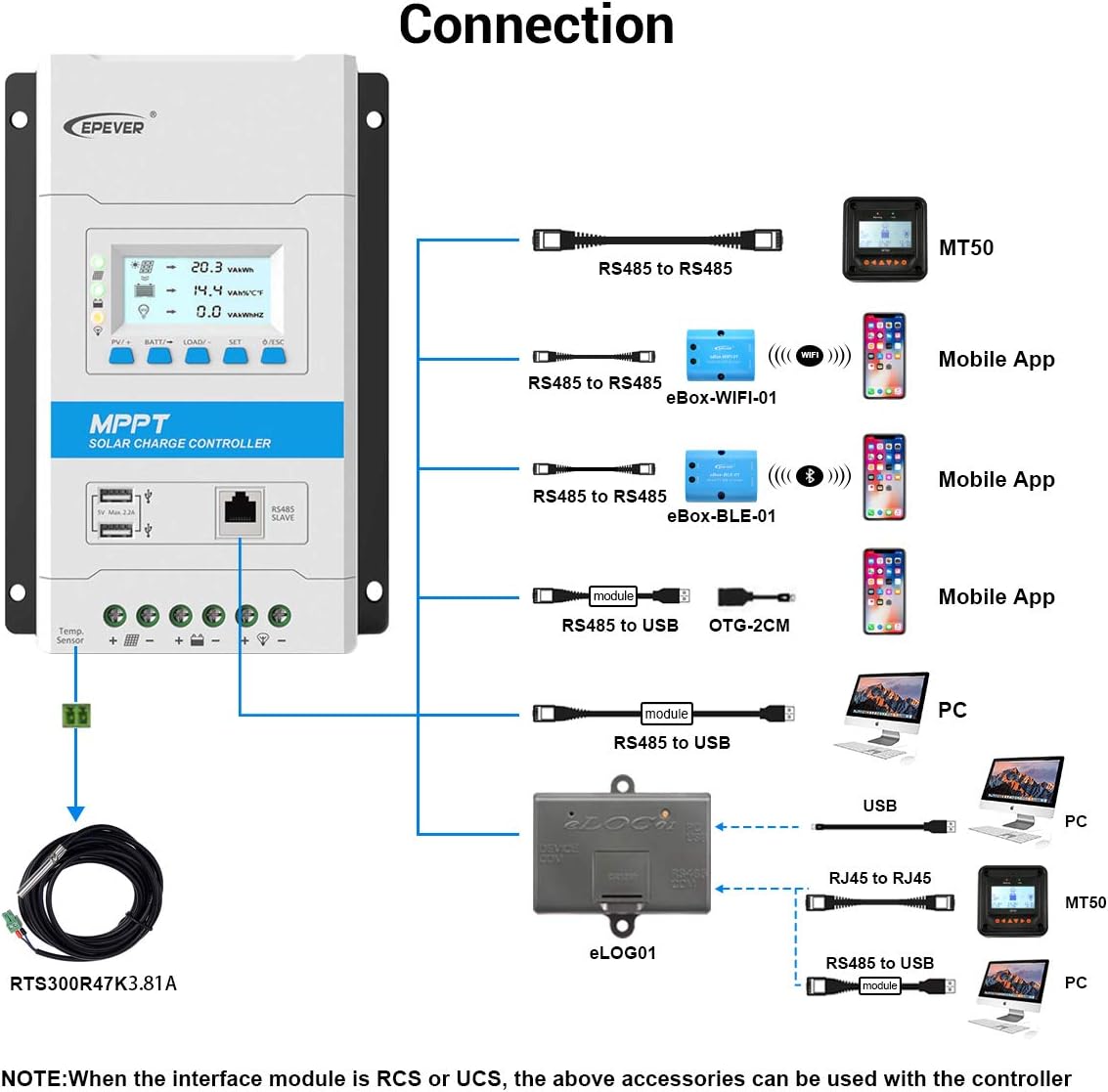
Image: Connection diagram illustrating how the controller interfaces with accessories like the MT50 remote meter, mobile app (via eBox-WiFi-01 or eBox-BLE-01), and PC (via RS485 to USB cable or eLOG01).
- Remote Temperature Sensor (RTS300R47K3.81A): Acquires battery temperature for accurate temperature compensation of control parameters. Standard cable length is 3m.
- USB to RS485 Cable (CC-USB-RS485-150U): Used to monitor the controller via PC software (Solar Station PC software). Length is 1.5m.
- OTG Cable (OTG-12CM): Connects the controller to a mobile communication cable for real-time monitoring and parameter modification via a mobile APP.
- Remote Meter (MT50): Displays operating data and fault information. Easy-to-operate with a numeric display.
- WiFi Serial Adapter (eBox-WiFi-01): Enables mobile APP monitoring and parameter adjustment via WiFi signals.
- RS485 to Bluetooth Adapter (eBox-BLE-01): Enables mobile APP monitoring and parameter adjustment via Bluetooth signals.
- Logger (eLOG01): Records real-time operating status data of the controller for later analysis.
Official Product Video Guide
Video: A comprehensive guide to the EPEVER TRIRON-N Series MPPT Solar Charge Controller, including unboxing, detailed product features, instructions on how to change modules, installation steps, and how to configure settings like battery type and load working modes using the controller's interface and the MT50 remote meter.
Warranty and Support
EPEVER products are designed for reliability and performance. For warranty information, please refer to the documentation included with your product or visit the official EPEVER website. For technical support, troubleshooting assistance, or inquiries about replacement parts, please contact EPEVER customer service. Keep your purchase receipt and product model number handy when contacting support.


