
1. Introduction and Overview
The Philips BDP1502 is a compact Blu-Ray Disc/DVD player designed to deliver high-quality video and audio playback. This player supports Full HD 1080p Blu-ray Disc playback and upscales standard DVD video to near-HD 1080p via HDMI, enhancing your viewing experience. It features DTS2.0 Digital Out and Dolby Audio for immersive sound, along with Bonus View with Picture-in-Picture functionality. A front-panel USB port allows for convenient playback of media from compatible USB devices.

Figure 1.1: Front view of the Philips BDP1502 Blu-Ray Disc/DVD Player, showcasing its compact design and front-panel controls.
2. Setup
Follow these steps to set up your Philips BDP1502 Blu-Ray Disc/DVD Player:
- Placement: Place the player on a stable, flat surface near your television. Ensure adequate ventilation around the unit.
- Connect to TV: Connect one end of an HDMI cable (not included) to the HDMI OUT port on the back of the Blu-Ray player and the other end to an available HDMI IN port on your television. Note the HDMI input number on your TV.
- Power Connection: Plug the power cord into the AC IN socket on the back of the player, then plug the other end into a wall outlet.
- Remote Control: Insert two AAA batteries (not included) into the remote control. Ensure correct polarity.
- Initial Power On: Turn on your television and select the correct HDMI input. Press the POWER button on the player or remote control to turn on the unit. Follow any on-screen prompts for initial setup, such as language selection.
3. Operating Instructions
3.1. Disc Playback
- Open Disc Tray: Press the OPEN/CLOSE button on the front panel or the remote control to open the disc tray.
- Insert Disc: Carefully place a Blu-Ray Disc or DVD onto the disc tray with the label side facing up.
- Close Disc Tray: Press the OPEN/CLOSE button again to close the tray. The player will automatically begin reading the disc.
- Playback Controls: Use the PLAY, PAUSE, STOP, SKIP, and FAST FORWARD/REWIND buttons on the remote control to manage playback.
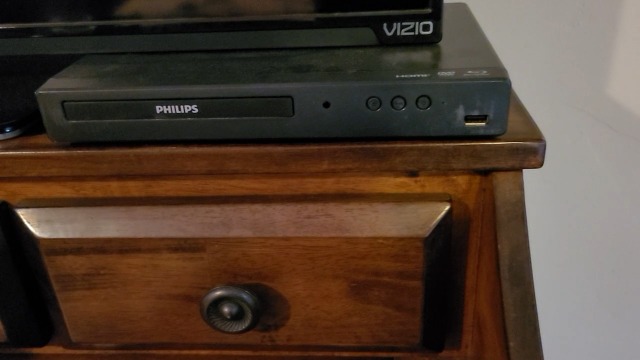
Figure 3.1: The Philips BDP1502 player with its disc tray extended, ready for disc insertion.
3.2. USB Media Playback
The player features a front-panel USB port for playing compatible media files from a USB flash drive.
- Insert USB Device: Plug your USB flash drive into the USB port on the front of the player.
- Select USB Input: The player should automatically detect the USB device and display a menu. If not, use the remote control to navigate to the USB input.
- Browse and Play: Use the navigation buttons on the remote to browse your files and select the desired media (e.g., photos, music, videos) for playback.
3.3. Remote Control Functions
The compact remote control provides full functionality for the player. Key buttons include:
- POWER: Turns the player on or off.
- TOP MENU/POP MENU: Accesses disc menus.
- HOME: Returns to the main menu.
- OK/Navigation Arrows: Confirms selections and navigates menus.
- INFO: Displays disc information.
- SUBTITLE/AUDIO: Selects subtitle and audio tracks.
- Colored Buttons (RED, GREEN, YELLOW, BLUE): Used for specific functions within disc menus or interactive content.

Figure 3.2: The compact remote control for the Philips BDP1502 Blu-Ray Disc/DVD Player, showing various control buttons.
4. Maintenance
Proper maintenance ensures the longevity and optimal performance of your player.
- Cleaning the Player: Wipe the exterior of the player with a soft, dry cloth. Do not use liquid or aerosol cleaners. Ensure ventilation slots are free from dust.
- Disc Care: Handle discs by their edges. Keep discs clean and free from scratches. Store discs in their cases when not in use.
- Software Updates: Periodically check the official Philips support website for available firmware updates. Updates are typically installed via a USB stick. Follow the instructions provided on the Philips support page carefully.
5. Troubleshooting
If you encounter issues with your player, refer to the following common problems and solutions:
| Problem | Possible Cause / Solution |
|---|---|
| No Power | Ensure the power cord is securely plugged into both the player and a working wall outlet. |
| No Picture on TV | Verify the HDMI cable is correctly connected. Ensure your TV is set to the correct HDMI input. Try a different HDMI cable or TV input. |
| No Sound | Check the audio settings on your TV and the player. Ensure the HDMI cable is functioning correctly. |
| "No Disc" Message | Ensure the disc is inserted correctly with the label side up. Clean the disc if it appears dirty or scratched. Try a different disc. |
| Disc Tray Does Not Open/Close | Press the OPEN/CLOSE button firmly. If stuck, gently try to assist the tray. Do not force it. If the issue persists, contact support. |
| Player Gets Hot During Use | Ensure adequate ventilation around the player. Do not block any vents. This is normal for electronic devices during operation, but excessive heat may indicate an issue. |
| Movie Stops or Pauses Randomly | Check the disc for scratches or smudges. Ensure the player's firmware is up to date. Try restarting the player and the movie. |
| Remote Control Unresponsive | Check and replace batteries. Ensure there are no obstructions between the remote and the player's IR sensor. |
6. Specifications
- Brand: Philips
- Model Name: BDP1502
- Dimensions (W x D x H): Approximately 12 x 8 x 2 inches
- Item Weight: Approximately 2.53 pounds (1.15 Kilograms)
- Media Type: Blu-Ray Disc, DVD
- Video Resolution: Up to 1920x1080 (Full HD 1080p)
- Video Upscaling: DVD video upscaling to 1080p via HDMI
- Connectivity: HDMI Out, USB Port (front)
- Audio Output: DTS2.0 Digital Out, Dolby Audio
- Special Features: Blu Ray Support, Bonus View with Picture-in-Picture
7. Warranty and Support
This Philips BDP1502 player is a Certified Renewed product, inspected to OEM specifications and factory initialized. While specific warranty details for renewed products may vary, please refer to your purchase documentation for information regarding any applicable warranty coverage.
For further assistance, technical support, or to check for the latest firmware updates, please visit the official Philips support website. Ensure you have your model number (BDP1502) ready when contacting support.


