
TiVo C00305
TiVo LUX Remote C00305 User Manual
For TiVo Edge and TiVo Bolt Series DVRs
1. Product Overview
The TiVo LUX Remote (Model C00305) is a voice-controlled remote designed for seamless interaction with your TiVo Edge and TiVo Bolt series DVRs, including TiVo Mini VOX. It features a backlit keypad for visibility in low-light conditions and supports both IR and RF signals for flexible placement of your TiVo device.
Key Features:
- Voice Control: Use voice commands to search for content across live TV, recordings, and streaming apps.
- Backlit Keypad: Keys illuminate for easy navigation in the dark.
- Universal Control: Manage power, input, volume, and mute functions for your TV and/or audio receiver.
- IR/RF Signal: Operates via both Infrared (IR) and Radio Frequency (RF) for line-of-sight or in-cabinet use.
- OnePass Integration: Easily line up every available episode of a series.
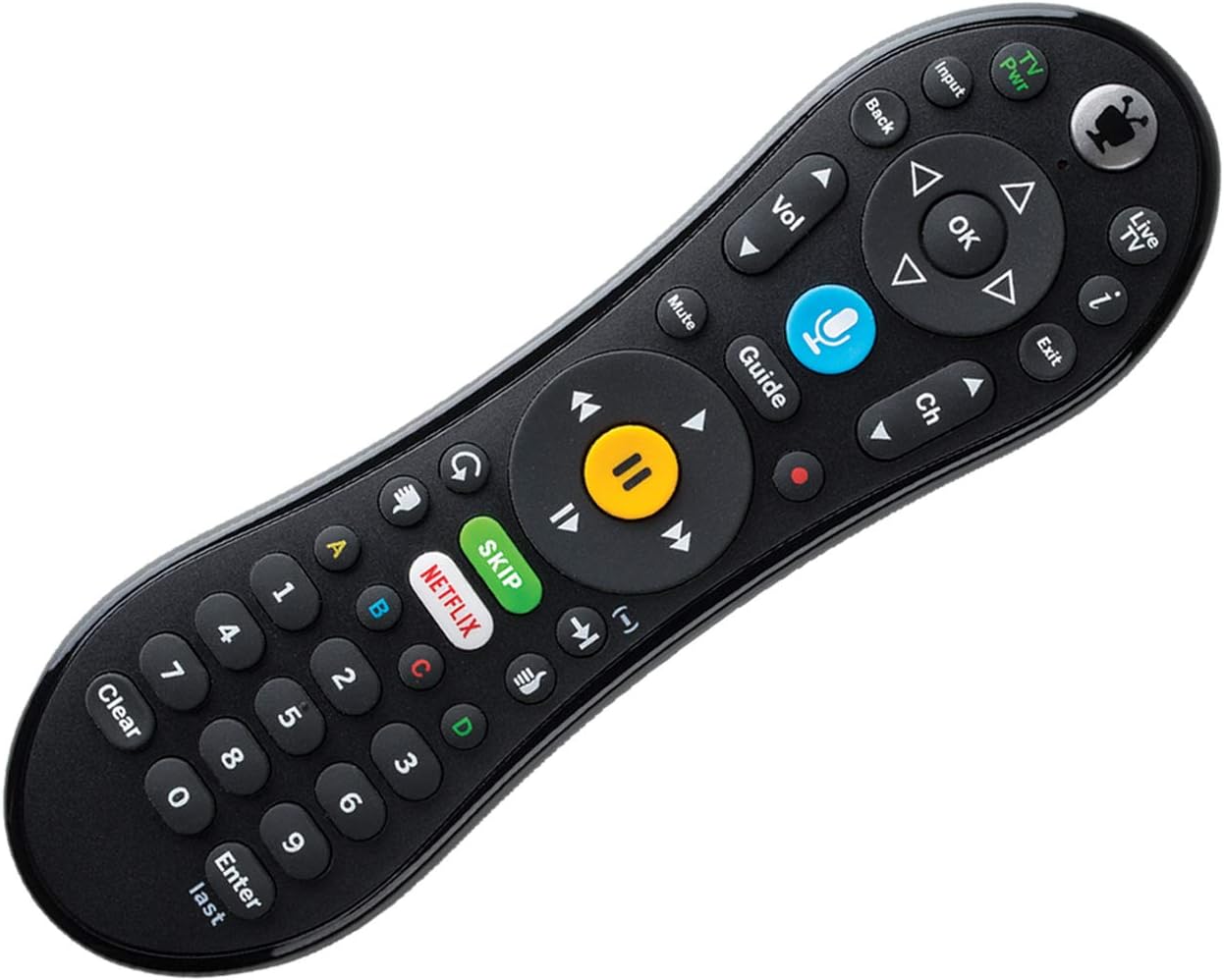
Figure 1: Front view of the TiVo LUX Remote, highlighting the button layout.
2. Setup Instructions
2.1. Battery Installation
The TiVo LUX Remote requires two (2) AA batteries (not included). To install:
- Locate the battery compartment on the back of the remote.
- Slide the battery cover off.
- Insert two AA batteries, ensuring correct polarity (+ and -).
- Replace the battery cover.
2.2. Initial Pairing with TiVo Device
The TiVo LUX Remote typically pairs automatically with your TiVo device. If it does not, or if you are pairing a new remote, follow these steps:
- Ensure your TiVo device is powered on.
- Insert the USB dongle (if applicable) into an available USB port on your TiVo device.
- Press any button on the remote. The light at the top of the TiVo button should blink.
- The remote should automatically attempt to pair. Once successfully paired, the light will blink rapidly and then turn off.
Video 1: Instructions on how to pair your TiVo remote with the USB dongle.
3. Operating the TiVo LUX Remote
3.1. Basic Navigation
- Directional Pad (Arrows): Navigate menus and guides.
- OK Button: Select an item or confirm an action.
- Back Button: Return to the previous screen.
- TiVo Button: Access the TiVo Central menu.
- Live TV Button: Switch to live television.
- Guide Button: Open the program guide.
3.2. Media Playback Controls
- Play/Pause: Start or pause playback.
- Fast Forward/Rewind: Control playback speed.
- Skip Button: Instantly skip commercial breaks (where available).
- Record Button: Initiate recording of a program.
3.3. Voice Control
The TiVo LUX Remote features a built-in microphone for voice commands:
- Press and hold the Voice (Microphone) button.
- Speak your command clearly into the microphone at the top of the remote.
- Release the Voice button when finished speaking.
Examples of voice commands include: "Find [Movie Title]", "Go to Netflix", "Change to Channel 7", "Record this show".

Figure 2: The TiVo LUX Remote's backlit keypad feature, enhancing visibility in low-light environments.
4. Maintenance
4.1. Battery Replacement
Replace batteries when the remote's performance degrades or the backlight becomes dim. Refer to Section 2.1 for battery installation instructions. Always use fresh AA batteries.
4.2. Cleaning
To clean your remote, gently wipe it with a soft, dry cloth. Avoid using liquid cleaners or abrasive materials, as these can damage the remote's surface or internal components.
5. Troubleshooting
5.1. Remote Not Responding
- Check Batteries: Ensure batteries are correctly installed and have sufficient charge. Replace if necessary.
- Line of Sight (IR Mode): If using IR mode, ensure there are no obstructions between the remote and your TiVo device.
- Re-pair Remote: If the remote is blinking red at the top of the TiVo button, it may be in IR mode and needs to be re-paired for RF and voice functionality.
5.2. Re-pairing Your TiVo LUX Remote
If your remote is not functioning correctly or you need to re-establish an RF connection for voice control, follow these steps:
- Press and hold the TiVo button and the TV Power button simultaneously until the red light at the top of the remote illuminates.
- Quickly press the Thumbs Down button three times, then press Enter.
- The light at the top of the remote will blink slowly, then increase in speed as it attempts to re-pair.
- Once successfully re-paired, the light will blink rapidly and then turn off.
Video 2: Detailed guide on how to re-pair your TiVo Vox Remote (applicable to TiVo LUX Remote).
5.3. Compatibility Issues
This remote is compatible with TiVo EDGE series and TiVo BOLT series DVRs, plus TiVo Mini VOX. Full RF functionality, including voice control, may require TiVo Experience 4 user interface. Older TiVo Experience versions (e.g., TiVo Experience 3 or Classic) may only support IR mode.
6. Specifications
| Feature | Detail |
|---|---|
| Brand | TiVo |
| Model Number | C00305 |
| Compatible Devices | TiVo Bolt, TiVo Edge, TiVo Mini VOX |
| Connectivity Technology | Infrared (IR), Radio Frequency (RF) |
| Special Features | Backlit, Voice Search |
| Color | Black |
| Item Weight | 8.8 ounces |
| Product Dimensions | 8.25 x 3.25 x 1.75 inches |
| Batteries Required | 2 AA batteries (not included) |
7. Warranty Information
Please refer to the warranty documentation included with your TiVo LUX Remote or visit the official TiVo website for detailed warranty terms and conditions. Keep your proof of purchase for warranty claims.
8. Customer Support
For further assistance, technical support, or to purchase replacement parts, please visit the official TiVo support website or contact TiVo customer service directly. Contact information can typically be found on the TiVo website or in your product packaging.
Related documentsC00305


Ask a question about this manual
Ask about setup, troubleshooting, compatibility, parts, safety, or missing instructions. Manuals+ will review the question and use this page’s manual context to help answer it.