Introduction
This manual provides detailed instructions for the setup, operation, maintenance, and troubleshooting of your Rapoo NX1820 Wired Spill-Resistant Keyboard and Mouse Set. Please read this manual thoroughly before using the product to ensure optimal performance and longevity.
Product Overview
The Rapoo NX1820 is a classic wired keyboard and optical mouse set designed for office use. It features a spill-resistant keyboard and an ergonomic mouse with a 1600 DPI optical sensor. The set connects via USB and is compatible with various operating systems.

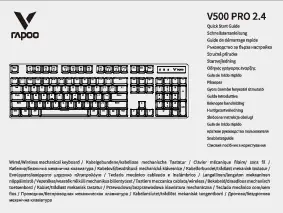
Figure 1: Rapoo NX1820 Wired Keyboard and Mouse Set. This image displays the full keyboard and mouse, highlighting their compact and functional design.
Setup Instructions
The Rapoo NX1820 set is designed for easy Plug & Play installation, requiring no additional drivers or software.
- Connect the Keyboard: Locate an available USB port on your computer. Insert the USB connector of the keyboard into the USB port.
- Connect the Mouse: Insert the USB connector of the mouse into another available USB port on your computer.
- System Recognition: Your operating system (Windows, Mac OS, etc.) will automatically detect and install the necessary drivers. This process may take a few moments.
- Ready for Use: Once the installation is complete, the keyboard and mouse are ready for immediate use.

Figure 2: Side view of the Rapoo NX1820 keyboard. This image shows the ergonomic profile and keycap design of the keyboard.
Operating Instructions
Keyboard Operation
- Layout: The keyboard features a German QWERTZ layout with 104 membrane keys.
- Typing: Press keys firmly but gently for optimal response.
- Function Keys: Utilize the F1-F12 function keys for various system shortcuts, often in combination with the 'Fn' key if present (though not explicitly mentioned for this model, it's a common keyboard feature).
Mouse Operation
- Movement: Move the mouse across a flat surface to control the cursor on your screen. The 1600 DPI optical sensor provides precise tracking.
- Buttons: The mouse has three buttons: left-click, right-click, and a 2D scroll wheel.
- Scroll Wheel: Use the scroll wheel to navigate through documents and web pages vertically. The scroll wheel also functions as a middle-click button.

Figure 3: Top view of the Rapoo NX1820 mouse. This image highlights the ergonomic shape, left and right click buttons, and the scroll wheel.
Maintenance
Proper maintenance ensures the longevity and optimal performance of your Rapoo NX1820 set.
- Spill Resistance: The keyboard is designed to be spill-resistant. In case of accidental liquid spills, gently wipe the liquid off the surface immediately. Do not immerse the keyboard in water.
- Cleaning: Use a soft, dry cloth to clean the surfaces of the keyboard and mouse. For stubborn dirt, a slightly damp cloth with mild soap can be used, ensuring no liquid enters the internal components.
- Storage: Store the set in a clean, dry environment away from extreme temperatures and direct sunlight when not in use for extended periods.
Troubleshooting
If you encounter issues with your Rapoo NX1820 set, please refer to the following common troubleshooting steps:
- Device Not Recognized:
- Ensure both the keyboard and mouse USB cables are securely plugged into your computer's USB ports.
- Try connecting the devices to different USB ports on your computer.
- Restart your computer.
- Mouse Cursor Not Moving:
- Check if the mouse's optical sensor on the bottom is clean and free from obstructions.
- Ensure the mouse is on a suitable surface (not highly reflective or transparent).
- Verify the USB connection as described above.
- Keys Not Responding:
- Check the USB connection.
- Ensure no debris is lodged under the keys.
- Test the keyboard on another computer if possible to rule out a system-specific issue.
Specifications
| Brand | Rapoo |
| Model Name | NX1820 |
| Model Number | 19192 |
| Color | Black |
| Connectivity Technology | Wired (USB) |
| Keyboard Layout | German QWERTZ |
| Number of Keyboard Keys | 104 |
| Mouse Sensor | Optical |
| Mouse DPI | 1600 DPI |
| Number of Mouse Buttons | 3 (Left, Right, Scroll Wheel) |
| Cable Length | 1.5 m |
| Compatible Operating Systems | Windows 10, Windows 8, Windows Vista, Mac OS, Mac OS X 10.2 Jaguar |
| Special Features | Spill-resistant keyboard, Ergonomic mouse design |
| Keyboard Dimensions (L x W x H) | 392 x 130 x 29 mm |
| Keyboard Weight | 430 g |
| Mouse Dimensions (L x W x H) | 115 x 65 x 38 mm |
Warranty and Support
For warranty information and technical support, please refer to the official Rapoo website or contact your local retailer. Keep your proof of purchase for warranty claims.
For further assistance, visit: www.rapoo.com