
Introduction
Thank you for choosing the GENBOLT GB209H 2.4/5GHz Dual-Band Wi-Fi Outdoor Security Camera. This manual provides essential information for the proper installation, operation, and maintenance of your security camera. Please read these instructions carefully before use and retain them for future reference.
The GB209H camera is designed for outdoor surveillance, offering advanced features such as AI human detection, smart color night vision, two-way audio communication, and flexible storage options including microSD card and cloud services. Its dual-band Wi-Fi connectivity ensures stable and reliable performance.
Package Contents
Before installation, please verify that all items listed below are included in your package:
- GENBOLT GB209H Security Camera
- Power Adapter (DC 12V/1A)
- Network Cable
- Waterproof Cap
- Mounting Screws and Hex Key
- User Manual

Image: Contents of the GENBOLT GB209H security camera package, including the camera, power adapter, network cable, waterproof cap, screws, and user manual.
Product Overview
Familiarize yourself with the components of your GENBOLT GB209H camera:

Image: Diagram showing the various parts of the GENBOLT GB209H camera, including the 2.4/5GHz Wi-Fi antennas, bracket, metal aluminum case, white LEDs, 2MP HD lens, infrared LEDs, motion sensor, external SD card slot, speaker, reset button, LAN/PoE port, and power port.
- Dual Antennas: For enhanced 2.4GHz and 5GHz Wi-Fi signal reception.
- 2MP HD Lens: Captures clear 1080p video.
- Infrared & White LEDs: Provide night vision and smart color night vision capabilities.
- Motion Sensor: Detects movement for alerts and recording.
- External SD Card Slot: Supports up to 128GB MicroSD card for local storage.
- Speaker & Microphone: Enables two-way audio communication.
- LAN/PoE Port: For wired network connection and Power over Ethernet (PoE) functionality.
- Reset Button: Used to restore factory settings.
Setup
1. Powering the Camera
Connect the camera to the provided DC 12V/1A power adapter. Alternatively, if using a PoE switch or NVR, connect a standard Ethernet cable to the LAN/PoE port. The camera supports IEEE802.3af PoE for simplified wiring.
2. Network Connection
The GB209H supports both 2.4GHz and 5GHz Wi-Fi. For initial setup, it is recommended to connect the camera to your router via the Ethernet cable. Once connected, you can configure Wi-Fi settings through the mobile application.

Image: Illustration showing the coverage difference between 5GHz Wi-Fi for high-speed, strong network connection and 2.4GHz Wi-Fi for longer-range transmission.
3. Mobile Application Installation
Download the official GENBOLT mobile application from your device's app store (iOS or Android). Follow the in-app instructions to add your camera to your account. Detailed instructions and the app can be found on the GENBOLT website: www.genbolt.com.
4. MicroSD Card Installation
The camera supports up to a 128GB MicroSD card for local video storage. To install, carefully open the external SD card slot cover, insert the MicroSD card with the contacts facing down, and close the cover securely to maintain IP66 weather resistance.
Image: Close-up view of the external SD card slot on the GENBOLT GB209H camera, demonstrating how to easily insert a MicroSD card without disassembling the camera.
Operating Instructions
1. Live View and Recording
Access live video streams through the GENBOLT app. You can manually initiate recordings or configure automatic recording based on motion detection. The camera records in 1080p high definition.
2. AI Human Detection
The camera utilizes AI human detection technology to accurately identify human shapes, significantly reducing false alarms triggered by animals, vehicles, or environmental factors like snow and rain. When a human is detected, the camera can automatically track their movement within the surveillance area.

Image: A person carrying wood is highlighted by a yellow box, demonstrating the AI human detection feature. A dog is also visible in the foreground, illustrating how the system differentiates between humans and other moving objects, reducing false alarms from snow, rain, insects, fog, or car lights.
3. Smart Color Night Vision
The camera features smart color night vision. In low-light conditions, it can automatically switch to color mode when motion is detected, providing clearer and more detailed nighttime footage. The three high-brightness LEDs can be programmed to activate based on a schedule or motion trigger.

Image: A split image comparing day vision (left, full color) and night vision (right, black and white infrared) with a 'Smart Mode' option checked, indicating the camera's ability to switch between modes for optimal clarity.
4. Two-Way Audio & Deterrence
With a built-in microphone and speaker, the camera supports two-way audio, allowing you to communicate with visitors or deter intruders remotely via the app. You can also customize siren sounds (e.g., dog barking) to activate upon motion detection, providing an active deterrent.
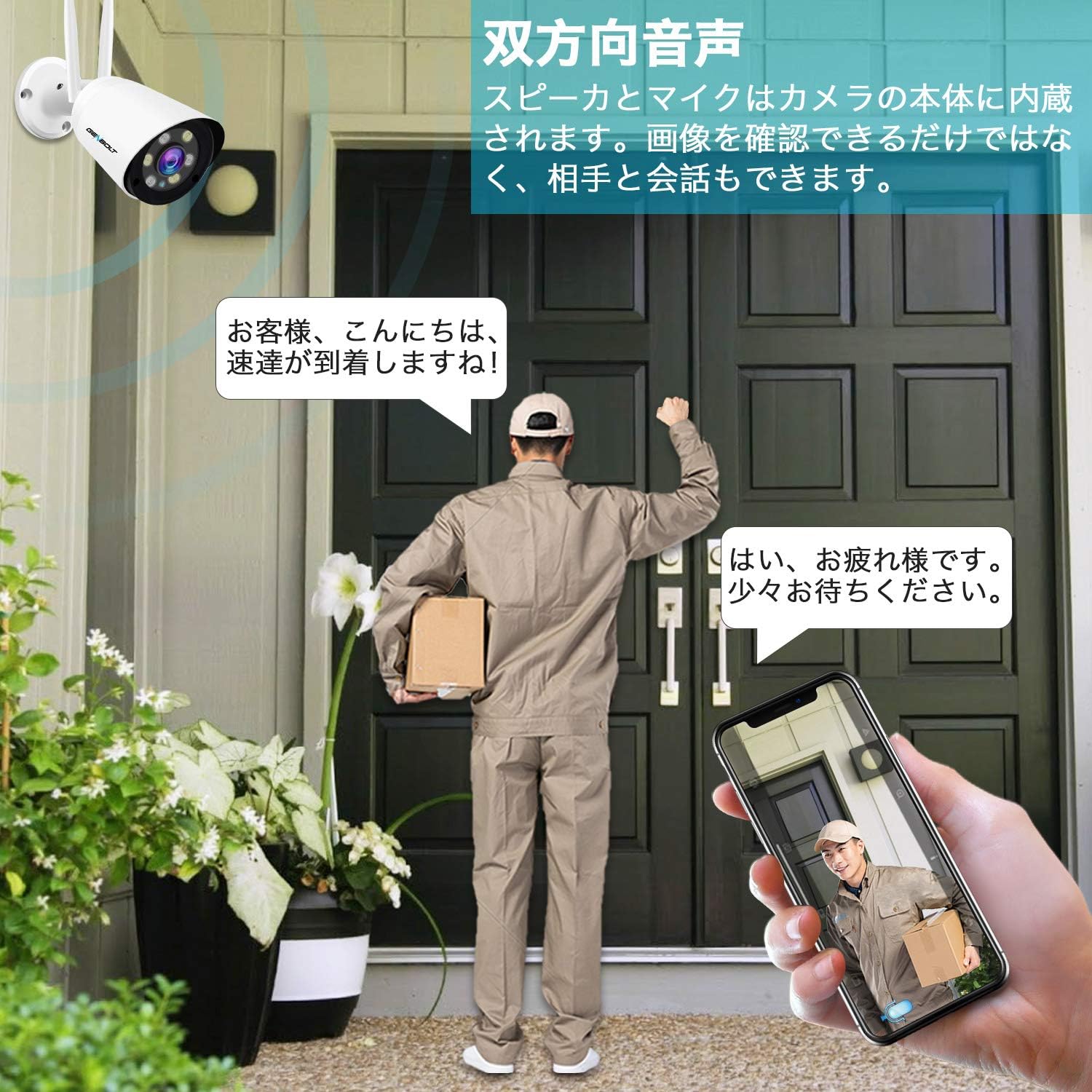
Image: An illustration depicting a security camera shining a bright light on an intruder at night, with a speech bubble saying "Stop, who is it?" and text indicating that siren alarms prevent crime. This demonstrates the active light and sound deterrence feature.
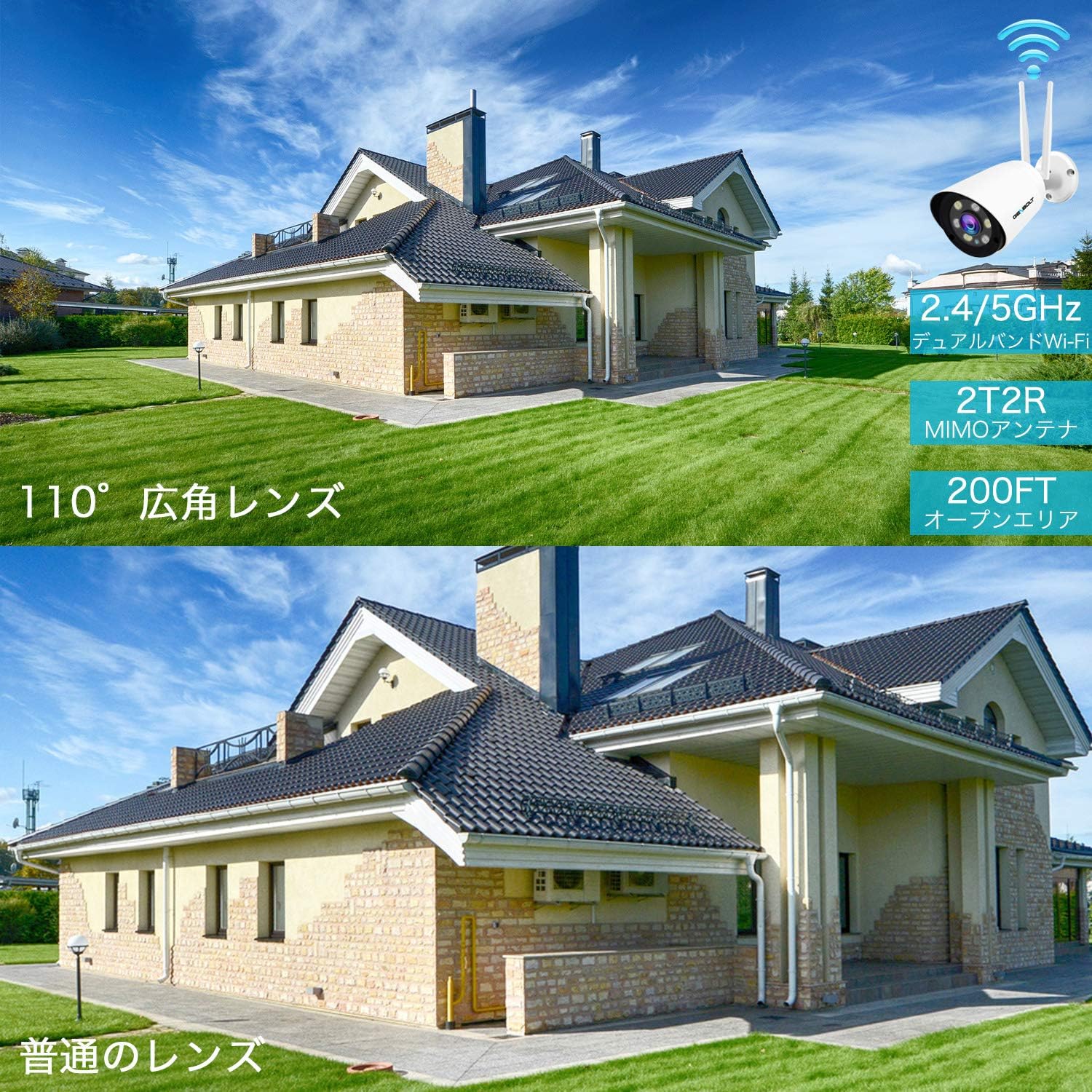
Image: A delivery person stands at a door while a user communicates via a smartphone app, showcasing the two-way audio feature of the camera. The phone screen displays the live camera feed.
5. Cloud Storage and Playback
In addition to local MicroSD card storage, the camera offers cloud storage with a 7-day free trial. Cloud storage provides unlimited capacity, data security, and allows you to view recordings even if the camera goes offline. Playback of recorded events is easily accessible through the mobile app.

Image: An icon representing cloud storage with text "Cloud Storage 7-day free trial" next to a smartphone displaying a list of recorded video events with playback options, illustrating the cloud storage and easy app playback features.
6. Customizable Detection Zones and Schedules
You can define specific detection zones within the camera's field of view to focus on critical areas and minimize unnecessary alerts. Alarm schedules can also be set via the app to activate or deactivate alerts during specific times or days.

Image: An overhead view of a house and driveway with a security camera icon, showing a blue shaded area representing a customizable detection zone. This illustrates how users can define specific areas for motion detection.

Image: A smartphone screen displaying advanced alarm settings, showing a weekly schedule grid where users can set specific times for motion detection and recording to be active or inactive, allowing for customized surveillance.
Features
- AI Human Detection: Advanced algorithms detect human shapes, reducing false alarms from other moving objects.
- Smart Tracking: Automatically follows human movement within the surveillance area.
- 1080P High Resolution: Captures clear and detailed video footage.
- 110° Ultra-Wide Angle: Provides extensive coverage, equivalent to multiple standard cameras.
- Smart Color Night Vision: Automatically switches to color mode in darkness upon motion detection using high-brightness LEDs.
- Sound & Light Deterrence: Activates bright LEDs and customizable siren alarms (e.g., dog barking) to deter intruders.
- Two-Way Audio: Built-in microphone and speaker for real-time communication.
- Dual-Band Wi-Fi (2.4/5GHz): Supports both frequency bands for flexible and stable wireless connectivity.
- PoE (Power over Ethernet) Support: Simplifies installation by delivering power and data through a single Ethernet cable.
- MicroSD Card Storage: Supports up to 128GB for local recording with intelligent compression and overwrite function.
- Cloud Storage: Offers a 7-day free trial with unlimited capacity and secure data backup.
- IP66 Weatherproof: Durable design for outdoor use in various weather conditions.
- Multi-User Sharing: Allows multiple users to access and monitor the camera feed.
Maintenance
- Regular Cleaning: Periodically clean the camera lens and housing with a soft, damp cloth to ensure clear image quality. Avoid abrasive cleaners.
- Firmware Updates: Check the GENBOLT website or app for available firmware updates to ensure optimal performance and security.
- Network Stability: Ensure your Wi-Fi network is stable and has sufficient bandwidth for continuous video streaming and recording.
- SD Card Management: If using a MicroSD card, regularly check its status via the app. The camera supports an overwrite function, but periodic review of important footage is recommended.
- Power Connection: Verify that the power connection is secure and free from damage.
Troubleshooting
- Camera Offline: Check power supply and network connection. Ensure Wi-Fi signal strength is adequate. Try restarting the camera and your router.
- Poor Image Quality: Clean the camera lens. Ensure there are no obstructions in the field of view. Check network bandwidth.
- False Alarms: Adjust AI human detection sensitivity settings in the app. Define specific detection zones to exclude irrelevant areas.
- No Audio: Verify microphone and speaker settings in the app. Ensure there are no physical obstructions.
- SD Card Not Recording: Check if the MicroSD card is properly inserted and formatted. Ensure it is not full (if overwrite is disabled).
- Cannot Connect to 5GHz Wi-Fi: Ensure your router supports 5GHz and the camera is within range. Some older routers may have compatibility issues.
Specifications
| Model Name | GB209H |
| Brand | GENBOLT |
| Effective Video Resolution | 1080 pixels |
| Field of View | 110 degrees |
| Night Vision Range | 30 meters |
| Connectivity Technology | Wireless (2.4GHz/5GHz Wi-Fi), Wired (LAN/PoE) |
| Water Resistance | IP66 |
| Power | DC 12V, 3W (PoE supported) |
| MicroSD Card Support | Up to 128GB |
| Product Dimensions (LxWxH) | 18 x 6 x 6 cm |
| Product Weight | 650 g |
Warranty and Support
GENBOLT provides comprehensive support for its products:
- Warranty Period: The surveillance camera comes with a 2-year service warranty.
- Product Replacement: Within 1 year, if an individual product is found to be defective, a replacement will be promptly provided.
- Money-Back Guarantee: A 30-day money-back guarantee is offered.
- Technical Support: Lifetime technical support is available.
- Contact: For any issues or further assistance, please feel free to contact GENBOLT support.
For detailed instructions and application downloads, please visit the official GENBOLT website: www.genbolt.com.
Video Demonstration
Watch this video for a quick overview of the camera's key features, including night vision, alarm functions, motion detection, and dual-band Wi-Fi capabilities.
Video: A short preview demonstrating the GENBOLT GB209H camera's night vision, active alarm, motion detection, and dual-band Wi-Fi features.


