
1. Introduction
The Portronics Freedom 4 is a versatile desktop device designed to simplify your daily routine. It integrates a wireless mobile charger, a USB charging port, a digital alarm clock, and an LED lamp into a single compact unit. This manual provides detailed instructions for setting up, operating, and maintaining your Freedom 4 device.

Image: The Portronics Freedom 4 in white, displaying the time and wirelessly charging a smartphone.
2. Package Contents
Please verify that all items are present in the package:
- 1 x Portronics Freedom 4 Desktop Wireless Mobile Charger
- 1 x QC Adapter (for Fast Charging)
- 1 x USB Type-C Cable
- 1 x User Manual (this document)
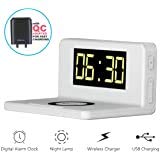
Image: The Portronics Freedom 4 unit, highlighting its core functionalities: digital alarm clock, night lamp, wireless charger, and USB charging.
3. Product Features
- Wireless Charging: Supports Qi-enabled devices with 5W/7.5W/10W output.
- USB Charging: Provides a 5V/1A (Max) USB output for wired charging.
- Digital Alarm Clock: Large LED display with 12/24-hour modes and easy alarm setting.
- LED Lamp: Integrated night lamp with 3 adjustable brightness levels.
- Fast Charging: Includes a QC adapter for optimized fast charging performance.
- Compact Design: Space-saving design suitable for desktops and nightstands.

Image: An illustration detailing the various features and benefits of the Freedom 4 device.
4. Setup Instructions
- Connect Power: Plug the provided USB Type-C cable into the Type-C input port on the back of the Freedom 4. Connect the other end of the cable to the QC adapter, then plug the adapter into a power outlet. The LED display will light up.
- Set Time:
- Press the M (Multi-Function Button) to enter time setting mode. The hour digits will flash.
- Use the + or - buttons to adjust the hour.
- Press M again to set the minutes. The minute digits will flash.
- Use the + or - buttons to adjust the minutes.
- Press M a third time to confirm the time setting.
- 12/24 Hour Mode: While in time display mode, press and hold the M button to switch between 12-hour and 24-hour display formats.
5. Operating Instructions
5.1 Wireless Charging
The Freedom 4 supports wireless charging for all Qi-enabled smartphones.
- Ensure the Freedom 4 is connected to power.
- Place your Qi-enabled smartphone directly onto the wireless charging pad located on the base of the device.
- Ensure the phone is centered on the charging pad for optimal charging efficiency. The phone's screen should indicate that charging has begun.
Note: For best results, remove any thick phone cases or metallic objects from your phone before placing it on the charging pad.
5.2 USB Charging
A USB-A output port is available on the side of the Freedom 4 for wired charging of devices.
- Connect a standard USB charging cable (not included) to the USB output port on the Freedom 4.
- Connect the other end of the cable to your device.
- Charging will begin automatically.
5.3 Alarm Clock
The Freedom 4 features a digital alarm clock.
- Set Alarm:
- From time display mode, press the M button twice to enter alarm setting mode. The alarm hour digits will flash.
- Use the + or - buttons to adjust the alarm hour.
- Press M again to set the alarm minutes. The alarm minute digits will flash.
- Use the + or - buttons to adjust the alarm minutes.
- Press M a third time to confirm the alarm setting. The alarm icon will appear on the display.
- Turn Alarm On/Off: While in time display mode, press the + button to toggle the alarm on or off. The alarm icon will appear/disappear accordingly.
- Snooze/Stop Alarm: When the alarm sounds, tap the top of the Freedom 4 to snooze for 5 minutes. To stop the alarm, press any button on the side.
5.4 LED Lamp
The integrated LED lamp provides ambient lighting.
- Turn On/Off: Press the Light Button (usually located on the side) to turn the LED lamp on or off.
- Adjust Brightness: With the lamp on, press the Light Button repeatedly to cycle through the 3 brightness levels.
6. Specifications
| Feature | Specification |
|---|---|
| Model Name | Freedom 4 |
| Input (Type-C) | DC 5V/2A, 9V/1.67A |
| Wireless Output | 5W/7.5W/10W |
| USB Output | 5V/1A (Max) |
| Wireless Charging Distance | Up to 8mm |
| Charging Efficiency | 73% |
| Time System | 12/24 Hours |
| Night Lamp Brightness | 3 Levels |
| Material | ABS Plastic |
| Product Dimensions (LxWxH) | 14 x 10 x 7.5 cm (approx.) |
| Item Weight | 147 g |

Image: The Portronics Freedom 4 with its physical dimensions and weight indicated.
7. Troubleshooting
- Device not powering on:
- Ensure the Type-C cable is securely connected to both the Freedom 4 and the QC adapter.
- Verify that the QC adapter is properly plugged into a working power outlet.
- Wireless charging not working:
- Confirm your smartphone is Qi-enabled.
- Ensure the phone is centered on the wireless charging pad.
- Remove any thick phone cases, metallic attachments, or credit cards from the back of your phone.
- Check if the device is receiving adequate power from the QC adapter.
- Slow wireless charging or phone heating:
- Ensure you are using the provided QC adapter for fast charging.
- Avoid placing foreign objects between the phone and the charging pad.
- High temperatures can reduce charging efficiency. Ensure the device is in a well-ventilated area.
- Clock resets after power outage:
- The Freedom 4 does not have an internal battery backup for the clock. The time will need to be reset after a power interruption.
- Alarm not sounding:
- Ensure the alarm is set and the alarm icon is visible on the display.
- Check the alarm volume settings if applicable (this model does not specify volume control, so assume fixed).
8. Maintenance
- Keep the device clean by wiping it with a soft, dry cloth.
- Avoid using abrasive cleaners or solvents.
- Do not expose the device to extreme temperatures, humidity, or direct sunlight.
- Do not attempt to disassemble or repair the device yourself. This will void the warranty.
9. Warranty and Support
The Portronics Freedom 4 comes with a standard manufacturer's warranty. For specific warranty terms and conditions, please refer to the warranty card included in your package or visit the official Portronics website.
For technical support or customer service, please contact Portronics at:
- Email: help@portronics.com
- Phone: +91 9555-245-245


