Onida 43FIF

Onida 43FIF 108 cm (43 inches) Full HD Smart IPS LED Fire TV User Manual

Model: 43FIF

1. Product Overview

The Onida 43FIF is a 108 cm (43 inches) Full HD Smart IPS LED Fire TV designed to provide an integrated smart television experience. It features a vibrant IPS panel, built-in Fire TV OS, and voice control capabilities with Alexa. This manual provides essential information for setting up, operating, and maintaining your television.

Onida 43FIF Smart Fire TV with a colorful chameleon displayed on screen

Image: Front view of the Onida 43FIF Smart Fire TV, showcasing its display quality with a vibrant image of a chameleon.

Video: A brief product overview of the Onida Fire TV, highlighting its key features and design.

2. Setup

2.1 Unpacking and Initial Inspection

Carefully remove all components from the packaging. Inspect the television and accessories for any signs of damage. Retain the packaging for future transport or service needs.

2.2 Stand Installation (Tabletop)

If using the tabletop stand, attach the stand feet to the bottom of the television using the provided screws. Ensure the stand is securely fastened before placing the TV on a stable, flat surface.

2.3 Wall Mount Installation

For wall mounting, use the included wall mount bracket. Follow the instructions provided with the wall mount kit for proper and secure installation. Professional installation is recommended for wall mounting.

2.4 Power Connection

Connect the power cable to the TV's power input and then to a suitable electrical outlet. Ensure the power supply matches the TV's requirements.

2.5 Initial Power-On and Remote Pairing

Upon first power-on, the TV will guide you through the initial setup process. This includes language selection and remote pairing. If the remote does not pair automatically, press and hold the Home button on the remote for 15 seconds to initiate pairing.

3. Operating Instructions

3.1 Fire TV OS Navigation

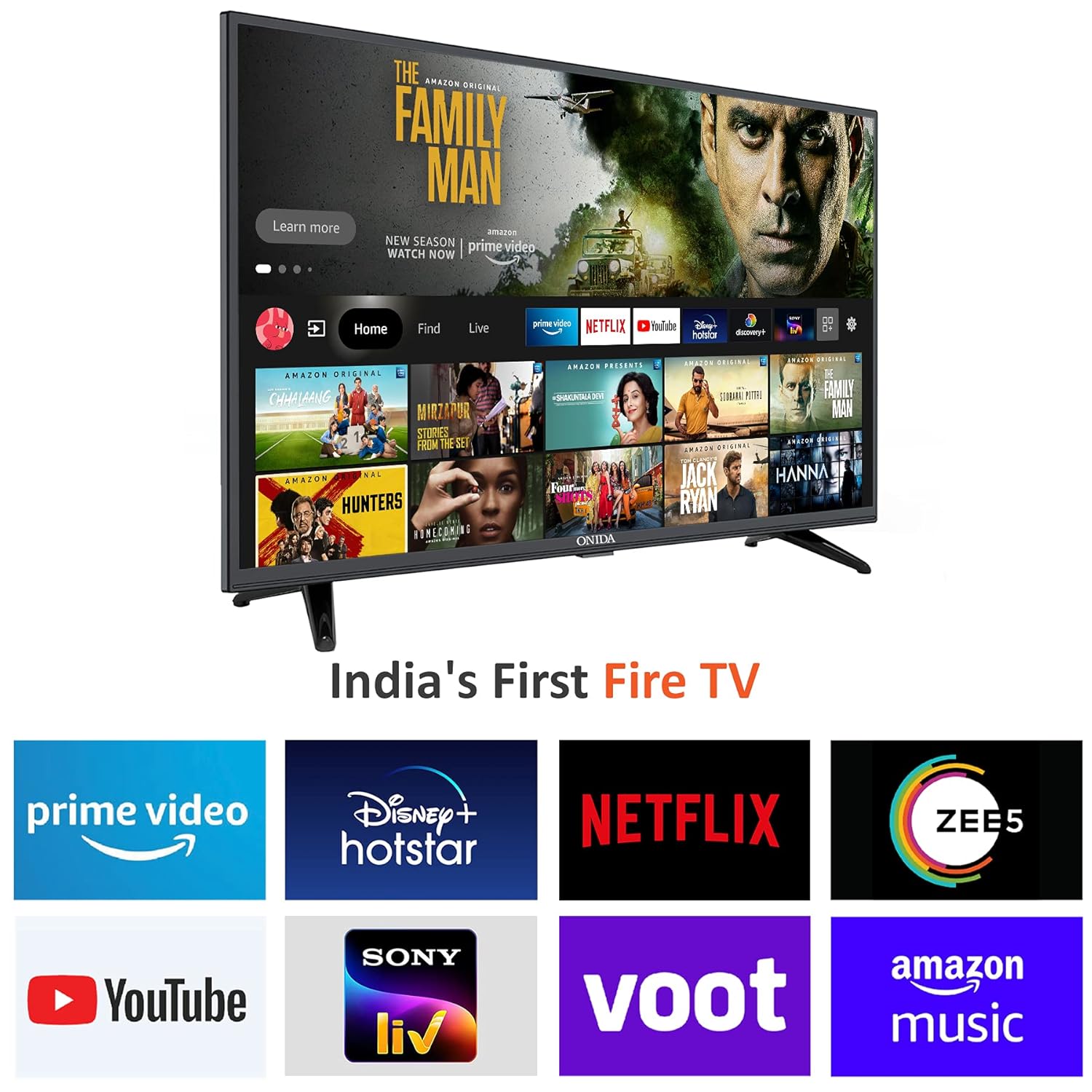
The Onida 43FIF operates on the Fire TV OS, providing a user-friendly interface for accessing streaming content and applications. The home screen displays recommended content, recently used apps, and various input options.

Onida 43FIF Smart Fire TV displaying the Fire TV OS home screen with various streaming app logos

Image: The Fire TV OS home screen on the Onida TV, showing popular streaming applications like Prime Video, Netflix, and YouTube.

Onida 43FIF Smart Fire TV displaying the Fire TV OS home screen with feature highlights like voice search and display mirroring

Image: The Fire TV OS interface on the Onida TV, highlighting features such as Live TV Tab, Voice Search with Alexa, Data Monitoring, Parental Control, Fire TV mobile app connectivity, Reminders & Timers, and Display Mirroring.

Video: An overview of the Fire TV OS interface on the Onida TV, demonstrating navigation and app access.

3.2 Voice Control with Alexa

The included Voice Remote with Alexa allows for convenient voice commands. Press and hold the microphone button on the remote to activate Alexa and speak your command. You can use voice commands to:

  • Switch inputs (e.g., "Switch to HDMI 2")
  • Search for movies or TV shows (e.g., "Find Stranger Things on Netflix")
  • Open applications (e.g., "Open YouTube")
  • Control playback (e.g., "Play", "Pause", "Rewind")
Onida Fire TV remote control with Alexa voice button highlighted

Image: The Onida Fire TV remote control, showing the microphone button for Alexa voice commands.

Video: A demonstration of the voice control features using the Alexa Voice Remote on the Onida Fire TV.

3.3 Input Selection

To switch between different input sources (HDMI, USB, Antenna, Composite), navigate to the 'Inputs' section on the Fire TV home screen or use voice commands with Alexa.

3.4 Gaming Mode

The TV features a dedicated Game Mode. When a gaming console is connected, activating this mode can optimize picture settings and reduce input lag for a more responsive gaming experience.

4. Connectivity

The Onida 43FIF offers various connectivity options:

5. Audio Features

Experience clear and immersive sound with the following audio features:

6. Specifications

Diagram showing the dimensions of the Onida 43FIF Smart Fire TV

Image: Technical drawing illustrating the physical dimensions of the Onida 43FIF TV.

FeatureDetail
BrandOnida
Model43FIF
Screen Size108 cm (43 Inches)
Display TechnologyIPS LED
ResolutionFull HD (1920x1080)
Refresh Rate60 Hz
Operating SystemFireOS
RAM Memory1 GB
Storage Capacity8 GB
HDMI Ports3
USB Ports1
ConnectivityHDMI, USB, Wi-Fi (Dual-band), Bluetooth
Audio Output16 Watts
Audio TechnologyDolby Digital Plus, DTS TruSurround
Viewing Angle178 Degrees
Product Dimensions (LxWxH)97.3 x 23.8 x 62 cm
Item Weight8.2 kg
Power SourceAC
Remote ControlVoice Remote with Alexa (IR, Bluetooth)
Mounting TypeWall Mount & Table Mount

7. What's in the Box

The following items are included with your Onida 43FIF Fire TV:

8. Maintenance

8.1 Cleaning the Screen

To clean the screen, gently wipe it with a soft, lint-free cloth. For stubborn marks, slightly dampen the cloth with water or a screen-cleaning solution specifically designed for electronics. Avoid using harsh chemicals or abrasive materials.

8.2 Cleaning the TV Body

Wipe the TV's body and stand with a soft, dry cloth. Do not use liquid cleaners directly on the TV.

8.3 Software Updates

Ensure your TV is connected to the internet to receive automatic software updates. These updates provide new features, performance improvements, and security enhancements. You can check for updates manually in the TV's settings menu.

9. Troubleshooting

9.1 No Signal Detected

If you see a "No Signal Detected" message, verify that the connected device (e.g., set-top box, gaming console) is powered on and properly connected to the correct HDMI port. Use the remote to cycle through input sources or use the voice command "Switch to HDMI [number]" to select the correct input.

9.2 Remote Not Responding

Check the batteries in the remote control and replace them if necessary. If the remote is still unresponsive, try re-pairing it by pressing and holding the Home button for 15 seconds.

9.3 Slow Performance or App Crashes

If the TV's interface feels slow or apps crash, try restarting the TV by unplugging it from the power outlet for a few minutes and then plugging it back in. Ensure your internet connection is stable and sufficient for streaming. Clearing app caches or reinstalling problematic apps may also help.

9.4 Picture or Sound Issues

For picture or sound quality issues, check the source device and its connections. Adjust the TV's picture and sound settings in the menu. If using external audio equipment, ensure it is correctly connected and configured.

10. Warranty and Support

The Onida 43FIF Fire TV comes with a 1-year warranty from the date of purchase. For any product defects, damage, or features not matching the description, the product is eligible for replacement within 10 days of delivery.

For installation, wall mounting, or demo requests, please contact Onida support directly:

When contacting support, please provide the product's model name (43FIF) and seller's details from your invoice.

Related Documents - 43FIF

Preview ONIDA UHD Smart TV User Guide - Specifications, Setup, and Troubleshooting
Comprehensive user guide for ONIDA UHD Smart TVs, covering specifications, attention notes, warranty terms, troubleshooting tips, and e-waste recycling information.
Preview ONIDA F080 User Guide - Comprehensive Manual
Detailed user guide for the ONIDA F080 mobile phone, covering setup, features, operations, safety, and maintenance. Learn how to use your ONIDA F080 effectively.
Preview Onida HD, FHD, UHD TV Instruction Manual
Instruction manual for Onida HD, FHD, and UHD televisions, covering installation, operation, troubleshooting, and external information. Includes safety guidelines and warranty details.
Preview Onida Semi-Automatic Washing Machine User Manual - Operation, Installation, and Maintenance
Comprehensive user manual for Onida semi-automatic washing machines, covering installation, safety precautions, operating instructions, technical specifications, troubleshooting, maintenance, and warranty details.
Preview ONIDA Android TV Instruction Manual: Setup, Operation, and Troubleshooting
Comprehensive instruction manual for ONIDA Android TVs, covering initial setup, remote control functions, connectivity options, smart features, troubleshooting, and warranty information.
Preview ONIDA Air Conditioner User Manual: Installation, Operation, and Maintenance Guide
Comprehensive user manual for ONIDA Air Conditioners (Inverter and Fixed Speed models). Provides detailed guidance on installation, operation, maintenance, troubleshooting, and Wi-Fi connectivity for optimal performance and safety.