
1. Introduction
This manual provides instructions for the proper setup, operation, and maintenance of your Lazmin 1600X USB Digital Microscope. Please read this manual thoroughly before using the device to ensure optimal performance and longevity.

Image 1.1: Lazmin 1600X USB Digital Microscope showcasing its ability to magnify various objects like hair, PCB, fabric, and paper currency.
2. Package Contents
Verify that all items are present in your package:
- 1 x Lazmin USB Digital Microscope
- 1 x Adjustable Stand/Bracket
- 1 x User Manual (this document)
- 1 x Calibration Ruler
3. Setup
3.1 System Requirements
- Operating System: Windows Vista, 7, 8, 10 (32-bit or 64-bit)
- Processor: Pentium 700 MHz or higher
- RAM: 128MB or more
- Hard Disk Space: 20MB free space
- Graphics Card: DirectX compatible VGA card
- Interface: USB 2.0 or USB 1.1 port
3.2 Software Installation
The microscope requires a driver and viewing software. The recommended software is AMCAP, typically provided on a mini-CD with the product or available for download from the manufacturer's support website. Follow these steps:
- Insert the provided mini-CD into your computer's CD-ROM drive.
- Locate and run the installer for the AMCAP software and drivers.
- Follow the on-screen prompts to complete the installation.
- Restart your computer if prompted.
3.3 Hardware Connection
- Assemble the adjustable stand. Secure the microscope into the bracket on the stand.
- Connect the USB cable from the microscope to an available USB 2.0 or USB 1.1 port on your computer. The microscope is powered via the USB port (5V DC).
- Once connected, your computer should detect the device. If the software was installed correctly, it should be ready for use.

Image 3.1: The Lazmin USB Digital Microscope showing its USB connector and the integrated 8-LED light source.

Image 3.2: The microscope securely mounted on its adjustable stand, connected via USB cable.
4. Operating Instructions
4.1 Launching the Software
Open the AMCAP software (or your chosen compatible viewing software) from your desktop shortcut or Start Menu. The live feed from the microscope should appear in the software window.
4.2 Adjusting Focus and Magnification
The microscope features a manual focus wheel. Rotate this wheel to achieve a clear image of your specimen. The focus range is from 3mm to 40mm. The microscope offers up to 1600X magnification.
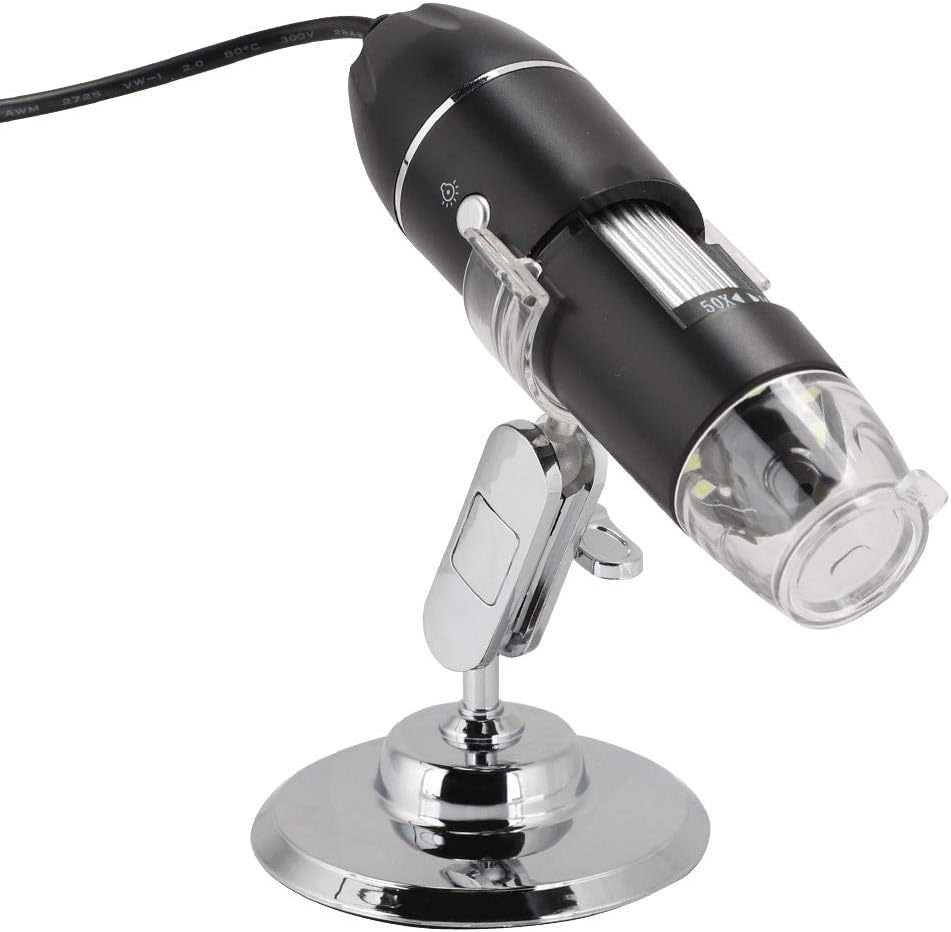
Image 4.1: Side view of the microscope highlighting the focus adjustment wheel.
4.3 Adjusting LED Illumination
The microscope is equipped with 8 built-in white LED lights to illuminate your specimen. You can adjust the brightness of these LEDs using the control on the microscope cable or within the software interface to achieve optimal lighting conditions.
4.4 Capturing Images and Videos
The microscope supports both still image capture (JPEG format) and dynamic video recording (AVI format). You can initiate these functions either through the software interface or by pressing the hardware snapshot button on the microscope itself.
- Image Capture Resolution: 1600x1200 (2MP), 1280x960 (1.3MP), 800x600, 640x480
- Video Capture Resolution: 1600x1200 (2MP), 1280x960 (1.3MP), 800x600, 640x480
- Frame Rate: Maximum 30 frames per second under 600 lux brightness
- Flash Control: 50Hz / 60Hz option available in software
Captured images and videos can be saved to your computer and shared as needed.
5. Maintenance
To ensure the longevity and performance of your microscope, follow these maintenance guidelines:
- Cleaning the Lens: Use a soft, lint-free cloth specifically designed for optical lenses to gently wipe the microscope lens. Avoid using abrasive materials or harsh chemicals.
- Cleaning the Body: Wipe the microscope body with a dry or slightly damp soft cloth. Do not allow water or cleaning solutions to enter the device.
- Storage: Store the microscope in a clean, dry environment away from direct sunlight, extreme temperatures, and excessive dust.
- Handling: Handle the microscope with care to avoid dropping or impacting it, which could damage internal components.
6. Troubleshooting
If you encounter issues with your Lazmin USB Digital Microscope, refer to the following common problems and solutions:
- No Image Displayed:
- Ensure the USB cable is securely connected to both the microscope and the computer.
- Verify that the AMCAP software (or equivalent) is running and the correct device is selected.
- Check your computer's Device Manager to confirm the microscope is recognized without errors. Reinstall drivers if necessary.
- Image is Blurry:
- Adjust the manual focus wheel on the microscope until the image is clear.
- Ensure the microscope lens is clean and free from dust or smudges.
- Adjust the distance between the microscope lens and the specimen.
- LED Lights Not Working:
- Check the USB connection; the LEDs are powered via USB.
- Adjust the brightness control on the cable or within the software.
- Software Not Detecting Microscope:
- Ensure drivers are correctly installed. Try reinstalling the software and drivers.
- Try connecting the microscope to a different USB port on your computer.
- Verify your computer meets the minimum system requirements.
7. Specifications
| Item Type | USB Microscope |
| Controller | High Speed DSP |
| Lens | Macro Lens |
| Focus Range | Manual Focus from 3mm to 40mm |
| Snapshot | Software & Hardware Button |
| Video Capture Resolution | 1600x1200 (2MP), 1280x960 (1.3MP), 800x600, 640x480 |
| Image Capture Resolution | 1600x1200 (2MP), 1280x960 (1.3MP), 800x600, 640x480 |
| Frame Rate | Max 30fps under 600lux brightness |
| Flash Control | 50Hz / 60Hz option |
| Video Format | AVI |
| Snapshot Format | JPEG |
| Light Source | 8 LED White Light |
| Power Supply | USB Port (5V DC) |
| Software | AMCAP (Driver) |
| PC Interface | USB 2.0 & USB 1.1 |
| Magnification Maximum | 1600x |
| Voltage | 5 Volts |
| Real Angle of View | 45 Degrees |
| Objective Lens Description | Achromatic |
8. Customer Support
For any questions, technical assistance, or support regarding your Lazmin 1600X USB Digital Microscope, please contact our customer service team. We are committed to providing a satisfactory resolution to your inquiries within 24 hours.
Please refer to your purchase documentation or the manufacturer's website for specific contact information.