
Introduction
The Tile Slim is a thin, Bluetooth-enabled item finder designed to help you locate your personal belongings. It connects to your smartphone or tablet via the Tile app, allowing you to ring your Tile Slim when it's nearby or view its last known location on a map. Its slim profile makes it ideal for wallets, passports, and other flat items.
Setup Guide
To begin using your Tile Slim, follow these steps:
- Download the Tile App: Search for "Tile" in your device's app store (App Store for iOS, Google Play Store for Android) and install the application.
- Create an Account: Open the Tile app and follow the on-screen prompts to create a new account or log in if you already have one.
- Add Your Tile Slim:
- In the Tile app, tap the "+" icon to add a new Tile.
- Select "Slim" from the list of Tile models.
- Firmly press the "tile" logo on the front of your Tile Slim until you hear a tune. This activates the Tile.
- Place the Tile Slim near your phone to complete the pairing process. The app will confirm when your Tile is activated.
- Assign a Category: Choose a category for your Tile Slim (e.g., "Wallet," "Laptop," "Passport") within the app to help you identify it easily.
Operating Instructions
The Tile Slim offers several functions to help you keep track of your items.
- Finding Your Item:
Open the Tile app on your smartphone or tablet.
Select the Tile Slim you wish to find from your list of Tiles.
Tap the "Find" button. Your Tile Slim will begin to ring, allowing you to locate it by sound. The app will also display a signal strength indicator to guide you.
To stop the ringing, tap "Done" in the app or press the "tile" logo on the Tile Slim once.

Image Description: A white Tile Slim device is shown next to a smartphone displaying the Tile app. The app screen shows a map of New York City with a location pin and a "Find" button, indicating the device's tracking capabilities.
- Finding Your Phone:
If your phone is within Bluetooth range of your Tile Slim, you can use the Tile Slim to make your phone ring.
Double-press the "tile" logo on your Tile Slim. Your phone will ring, even if it's on silent mode.
To stop the ringing, unlock your phone or open the Tile app.

Image Description: A person's hands are shown holding a black smartphone with a white Tile Slim attached to its back. This demonstrates how the Tile Slim can be used to locate a misplaced phone.
- Viewing Last Known Location:
If your Tile Slim is out of Bluetooth range, the Tile app will display its last known location on a map. This is the last place your Tile and phone were connected.
The Tile Network can also help. If another Tile user passes within Bluetooth range of your Tile Slim, its location will be anonymously updated in your app.
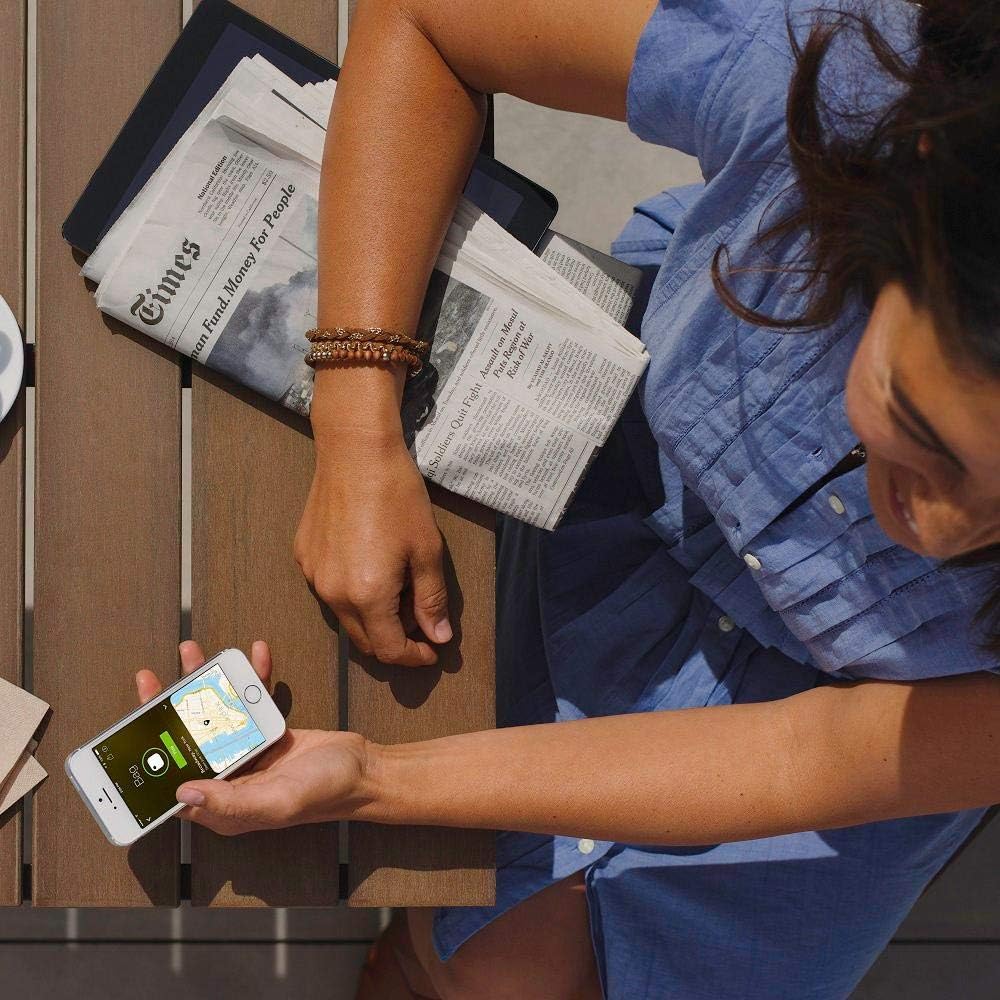
Image Description: A person is seated at a wooden table, holding a smartphone that displays the Tile app with a map. A white Tile Slim device rests on the table next to the phone, illustrating the app's ability to show the Tile's location.
Placement and Usage Tips
The Tile Slim's design is optimized for discreet placement in various items.
- Wallets: Its credit card-like shape allows it to fit seamlessly into wallet card slots.

Image Description: A white Tile Slim device is partially visible, tucked into a brown leather wallet, demonstrating its slim design and suitability for wallet placement.

Image Description: A hand is shown inserting a white Tile Slim into a card slot of an open wallet, which also contains several credit cards. This highlights the ease of integrating the Tile Slim into everyday items.
- Passport Holders: Slide it into a passport holder for travel security.

Image Description: A white Tile Slim is placed inside a green passport holder, next to a passport. This illustrates its use for tracking important travel documents.
- Laptops/Tablets: Adhesives (sold separately) can be used to attach it to flat surfaces of larger electronics.

Image Description: A white Tile Slim device and a black smartphone are resting on a wooden surface, suggesting how the Tile can be used in conjunction with a mobile device.
Maintenance
The Tile Slim contains a non-replaceable battery designed to last for approximately one year. When the battery is depleted, the device cannot be recharged or have its battery replaced. You will need to replace the entire Tile Slim unit.
Troubleshooting
- Tile Not Ringing/Connecting:
- Ensure your phone's Bluetooth is enabled.
- Make sure the Tile app is running in the background.
- Bring your Tile Slim closer to your phone.
- If the Tile has been previously activated by another user, it may need to be unactivated from their account before you can activate it.
- Phone Not Ringing from Tile Slim:
- Ensure your phone is within Bluetooth range of the Tile Slim.
- Verify that the Tile app is open or running in the background on your phone.
- Check your phone's volume settings.
Product Specifications
| Feature | Detail |
|---|---|
| Model Number | B08159HYMZ |
| Brand | Tile |
| Dimensions | 54mm (L) x 54mm (W) x 2.4mm (Th) |
| Weight | 2.08 ounces |
| Connectivity | Bluetooth |
| Compatible Devices | Devices with Bluetooth capabilities (smartphones, tablets, laptops) |
| Battery Type | Non-replaceable, designed for approximately 1 year of use. |
| First Available Date | November 13, 2019 |
Warranty and Support
The Tile Slim comes with a 1-year limited warranty. For detailed warranty information and product support, please refer to the official Tile website or contact Tile customer service.