
Anlapus 6972804072740
Anlapus H.265+ 1080P 8CH 2TB 4-in-1 DVR Digital Video Recorder
User Manual
1. Introduction
This manual provides detailed instructions for the installation, operation, and maintenance of your Anlapus H.265+ 1080P 8-Channel 2TB 4-in-1 Digital Video Recorder (DVR). This DVR is designed to provide reliable and high-quality surveillance recording, supporting various camera types including TVI, CVI, AHD, and 960H. With its advanced H.265+ video compression, 2TB pre-installed hard drive, and versatile recording modes, it offers an efficient solution for your security needs.
Please read this manual thoroughly before using the product to ensure proper setup and optimal performance. Keep this manual for future reference.
2. Safety Information
- Power Supply: Use only the specified power adapter. Incorrect voltage may damage the device and void the warranty.
- Ventilation: Ensure proper ventilation. Do not block any ventilation openings. Avoid placing the DVR in enclosed spaces.
- Environment: Do not expose the DVR to water, moisture, or extreme temperatures. Keep it away from direct sunlight, heat sources, and strong magnetic fields.
- Handling: Handle the DVR with care. Avoid dropping or subjecting it to strong vibrations.
- Cleaning: Disconnect power before cleaning. Use a dry, soft cloth. Do not use liquid or aerosol cleaners.
- Servicing: Do not attempt to service this product yourself. Refer all servicing to qualified service personnel.
3. Package Contents
Verify that all items listed below are included in your package:
- Anlapus 8-Channel DVR Unit
- 2TB Hard Disk Drive (pre-installed)
- Power Adapter
- USB Mouse
- User Manual

Image: Contents of the Anlapus DVR package, showing the main DVR unit, a USB mouse, power adapter, the 2TB hard disk drive, and the instruction manual.
4. Product Overview
Familiarize yourself with the components and interfaces of your Anlapus DVR.
4.1 Front Panel
- Power Indicator: Illuminates when the DVR is powered on.
- LAN Indicator: Shows network activity.
- HDD Indicator: Indicates hard drive activity.
- USB Port: For connecting the USB mouse or a USB flash drive for backup.
4.2 Rear Panel
- Video In (BNC): 8 channels for connecting analog cameras (TVI/CVI/AHD/960H).
- Audio In (RCA): For connecting audio input devices.
- Audio Out (RCA): For connecting audio output devices.
- VGA Port: For connecting a VGA monitor.
- HDMI Port: For connecting an HDMI monitor or TV.
- Network (RJ45) Port: For connecting to your local area network (LAN) for remote viewing.
- USB 2.0 Ports: Additional USB ports for peripherals.
- DC 12V Power Input: For connecting the power adapter.

Image: Top and rear views of the Anlapus DVR, highlighting the front panel indicators and USB port, and the comprehensive rear panel connections including video inputs, audio ports, VGA, HDMI, network, and power input.

Image: A close-up view of the DVR's rear panel, clearly labeling the 8 BNC video inputs, RCA audio in/out, VGA, HDMI, network port, USB ports, and DC 12V power input.
5. Setup
Follow these steps to set up your Anlapus DVR system.
- Connect Cameras: Connect your TVI/CVI/AHD/960H cameras to the BNC video input ports on the rear of the DVR. The DVR supports up to 8 cameras.
- Connect Monitor: Connect a monitor or TV to the DVR using either the HDMI or VGA port. HDMI is recommended for 1080P resolution.
- Connect Mouse: Plug the included USB mouse into one of the USB ports on the DVR.
- Connect Network (Optional): For remote viewing and email alerts, connect an Ethernet cable from the DVR's Network port to your router.
- Connect Power: Connect the power adapter to the DC 12V input on the DVR, then plug the adapter into a power outlet. The DVR will power on automatically.

Image: A simplified diagram illustrating the connection of the DVR to a router and a camera, demonstrating the basic setup for network access and video input.

Image: A detailed connection diagram showing how to connect cameras to the DVR and provide power to both the cameras and the DVR unit.

Image: A diagram illustrating how to connect the DVR to an HD TV using an HDMI cable and to a PC monitor using a VGA cable for video output.
6. Operating
6.1 Recording Modes
The DVR supports three primary recording modes, which can be customized for each camera:
- Continuous Recording: Records video constantly, 24/7.
- Scheduled Recording: Records video during specific times set by the user.
- Motion Detection Recording: Records only when motion is detected, saving hard drive space.
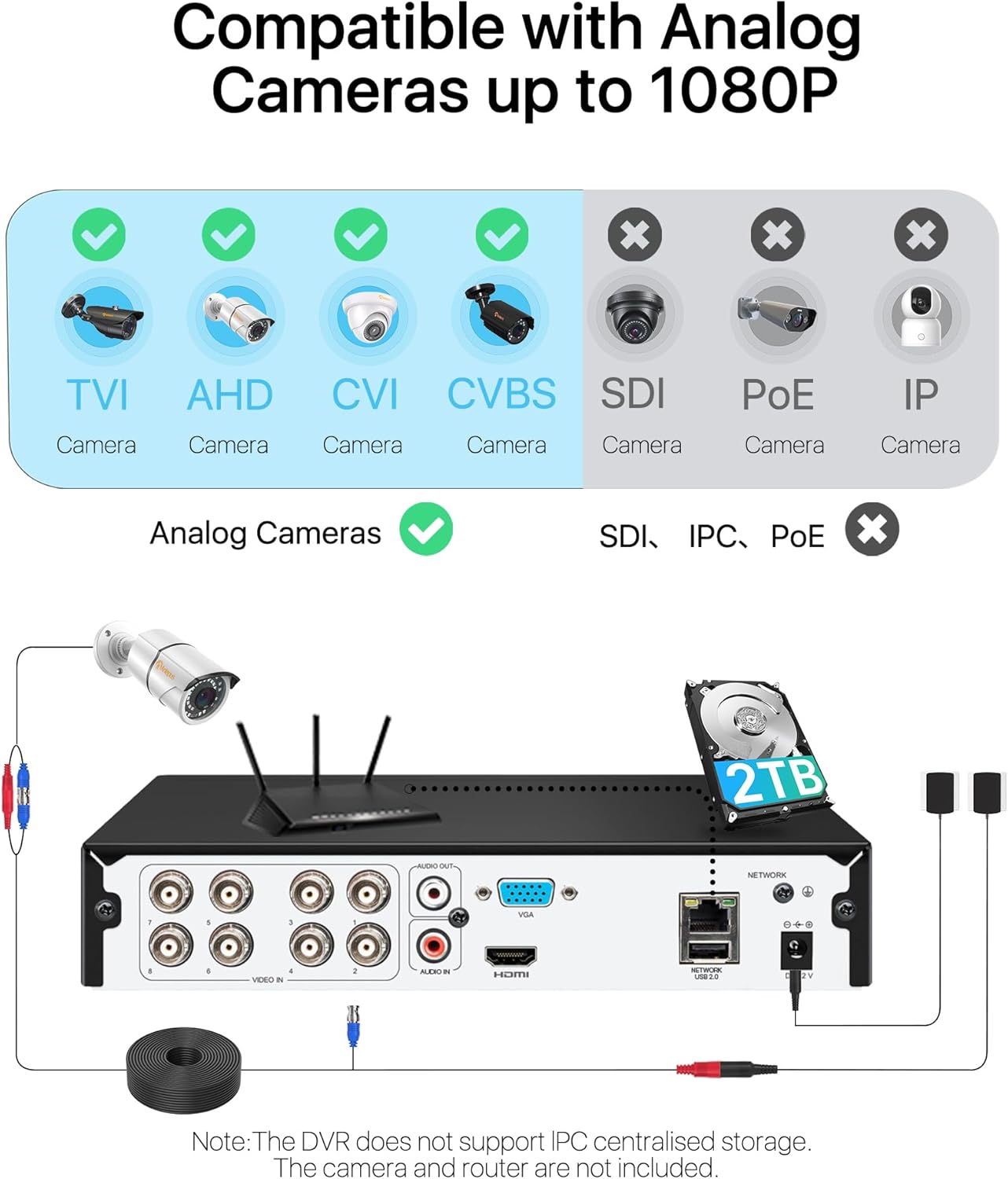
Image: A visual representation of the three recording modes supported by the DVR: Motion Detection Recording, Scheduled Recording, and Continuous Recording, with connections to HDMI and VGA outputs.
6.2 Motion Detection & Alerts
Configure motion detection zones and sensitivity. When motion is detected, the system can trigger various alerts:
- Email Alert: Sends an email notification with snapshots.
- App Notification: Sends a push notification to your mobile device.
- Buzzer: Activates an audible alarm from the DVR.
- Recording: Initiates video recording.
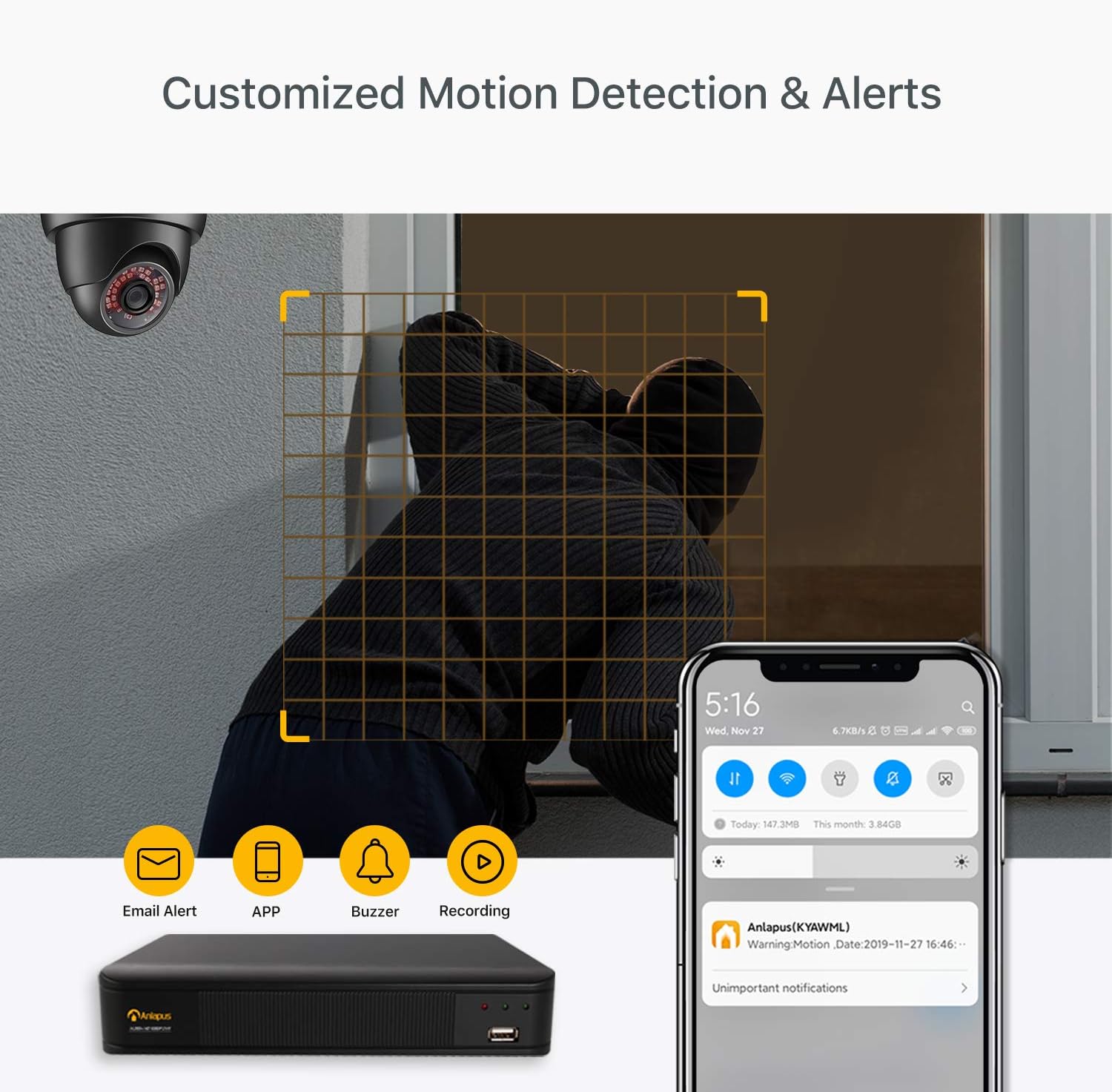
Image: A scene depicting motion detection in action, with a smartphone displaying an alert notification, and icons representing email alerts, app notifications, buzzer, and recording options.
6.3 Remote Viewing via Mobile App
Access live video feeds and recorded footage from anywhere using the free mobile application.
- Download Free App: Search for the Anlapus app on the App Store (iOS) or Google Play Store (Android) and install it on your smartphone.
- Add Device: Follow the in-app instructions to add your DVR by scanning the QR code or manually entering the device ID.
- View Cameras: Once connected, you can view live streams, play back recordings, and receive push notifications.

Image: A three-step visual guide showing simple connection of the DVR, downloading the free mobile app from app stores, and viewing camera feeds on a smartphone.
6.4 Video Compression and Quality
The DVR utilizes H.265+ video compression technology, which significantly reduces file sizes while maintaining 1080P/2.0MP video quality. This allows for longer recording times and faster remote viewing compared to older compression standards like H.264.
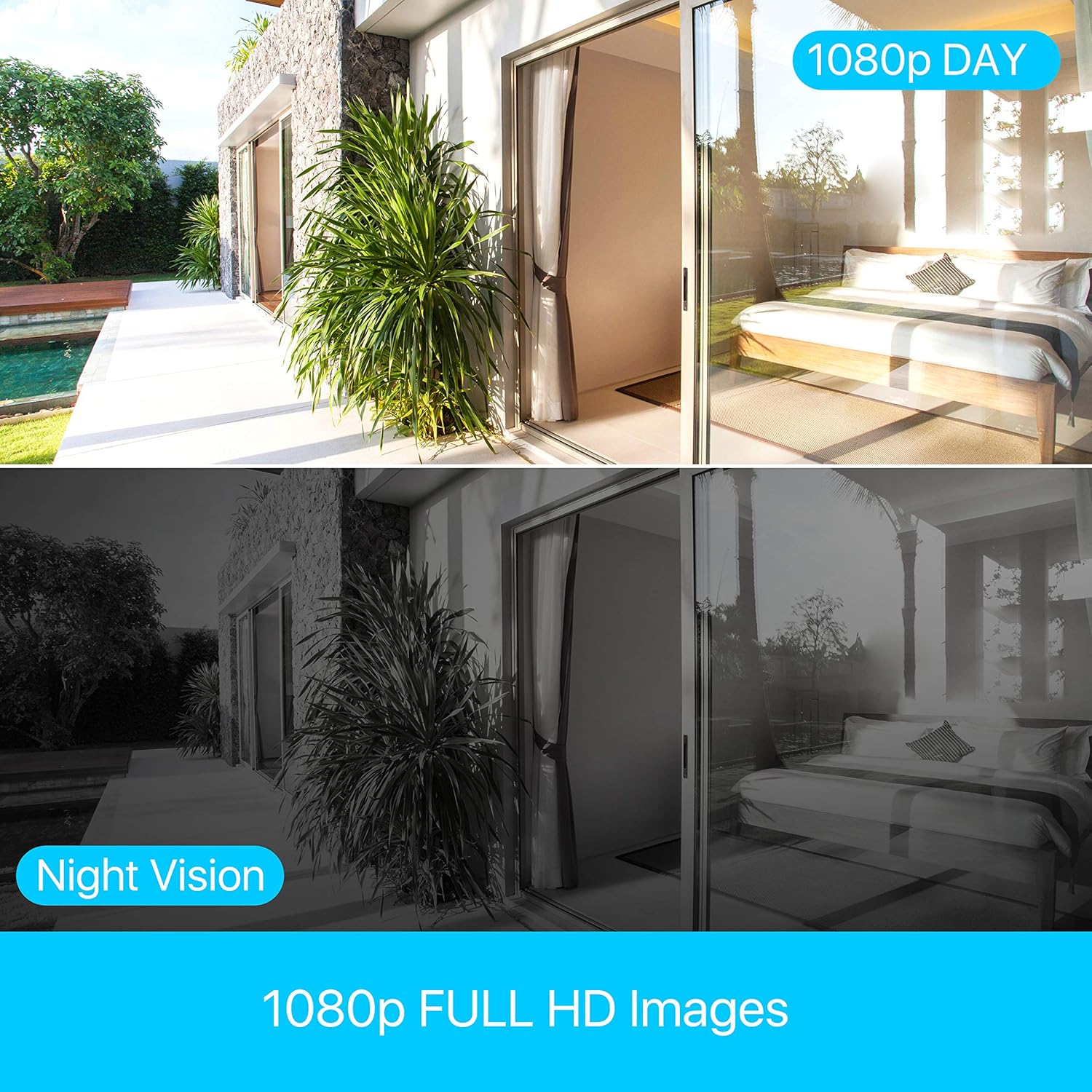
Image: A bar chart comparing H.264 and H.265+ compression, showing H.265+ allows for up to 4 times longer recording duration (e.g., 45 days vs. 11 days), along with icons for smaller file sizes, longer record times, and faster remote viewing.
The system provides clear 1080p Full HD images, with effective day and night vision capabilities to ensure continuous monitoring.
Image: A split image demonstrating the clarity of 1080p Full HD images during the day and the effectiveness of night vision, showing a consistent view of an outdoor and indoor scene.
7. Maintenance
- Regular Cleaning: Keep the DVR unit clean and free from dust. Use a soft, dry cloth for cleaning. Do not use harsh chemicals or abrasive materials.
- Ventilation: Ensure that the ventilation holes are not obstructed to prevent overheating.
- Hard Drive Management: The 2TB hard drive is pre-installed. The DVR will automatically overwrite the oldest footage when the hard drive is full. Regularly back up important footage to an external USB drive if needed.
- Firmware Updates: Check the Anlapus official website periodically for firmware updates to ensure optimal performance and access to new features.
8. Troubleshooting
This section addresses common issues you might encounter with your Anlapus DVR.
- No Video Output:
- Check all cable connections (HDMI/VGA, power).
- Ensure the monitor is powered on and set to the correct input source.
- Try a different monitor or cable.
- No Camera Display:
- Verify camera power supply.
- Check BNC cable connections between camera and DVR.
- Ensure the camera type (TVI/CVI/AHD/960H) is compatible and automatically detected by the DVR.
- If a camera previously worked and now shows "device already exists" or similar error, try restarting the DVR and checking the camera's physical connection.
- No Remote Viewing:
- Ensure the DVR is connected to your router via Ethernet cable.
- Check your router's internet connection.
- Verify network settings on the DVR (DHCP enabled or static IP configured correctly).
- Ensure the mobile app is updated to the latest version.
- No Recording:
- Check if the hard drive is properly installed and recognized by the DVR.
- Verify recording schedules and motion detection settings.
- Ensure there is sufficient hard drive space.
9. Specifications
| Feature | Specification |
|---|---|
| Brand | Anlapus |
| Model Number | 6972804072740 |
| Video Compression | H.265+ |
| Video Resolution | 1080P / 2.0MP |
| Channels | 8-Channel |
| Hard Drive Capacity | 2TB (pre-installed) |
| Compatible Camera Types | TVI, CVI, AHD, 960H |
| Video Input | BNC |
| Audio Input | RCA |
| Video Output | VGA, HDMI |
| USB Ports | 2 |
| Network Connectivity | RJ45 Ethernet |
| Power Supply | 12 Volts |
| Dimensions (Package) | 42.6 x 27.6 x 9.6 cm |
| Weight (Package) | 1.77 kilograms |
| Manufacturer | Ansjer Electrionics Co.,Ltd |
| Country of Origin | China |
10. Warranty and Support
Anlapus is committed to providing excellent customer service and support for its products.
- 30-Day Free Return: Enjoy a 30-day free return policy for your peace of mind.
- Lifetime Technical Support: Benefit from lifetime technical support for any issues or questions you may have regarding your DVR system.
- Hassle-Free Warranty: The product comes with a straightforward warranty to cover manufacturing defects.
For further assistance, please refer to the contact information provided on the Anlapus official website or the product packaging.
Related documents6972804072740


Ask a question about this manual
Ask about setup, troubleshooting, compatibility, parts, safety, or missing instructions. Manuals+ will review the question and use this page’s manual context to help answer it.