
1. Introduction
This manual provides detailed instructions for setting up and operating your Rapoo 8000M Multi-Mode Wireless Keyboard and Mouse Combo. This combo offers versatile connectivity options, including Bluetooth 3.0, Bluetooth 4.0, and 2.4 GHz wireless, allowing seamless switching between multiple devices.
The Rapoo 8000M is designed for productivity and convenience, featuring a compact, spill-resistant keyboard and a silent, high-performance optical mouse.
2. Package Contents
Please verify that all items are present in your package:
- Wireless Keyboard
- Wireless Mouse
- USB Receiver (for 2.4 GHz connection)
- 2 AA Alkaline Batteries (pre-installed)
- Quick Start Guide

Image: Rapoo 8000M Multi-Mode Wireless Keyboard and Mouse Combo, showcasing both the keyboard and mouse in white.
3. Setup Instructions
3.1. Battery Installation
The Rapoo 8000M combo comes with pre-installed batteries. If replacement is needed:
- Locate the battery compartment on the underside of the keyboard and mouse.
- Open the compartment cover.
- Insert 2 AA alkaline batteries into the keyboard and 1 AA alkaline battery into the mouse, ensuring correct polarity (+/-).
- Close the compartment cover securely.
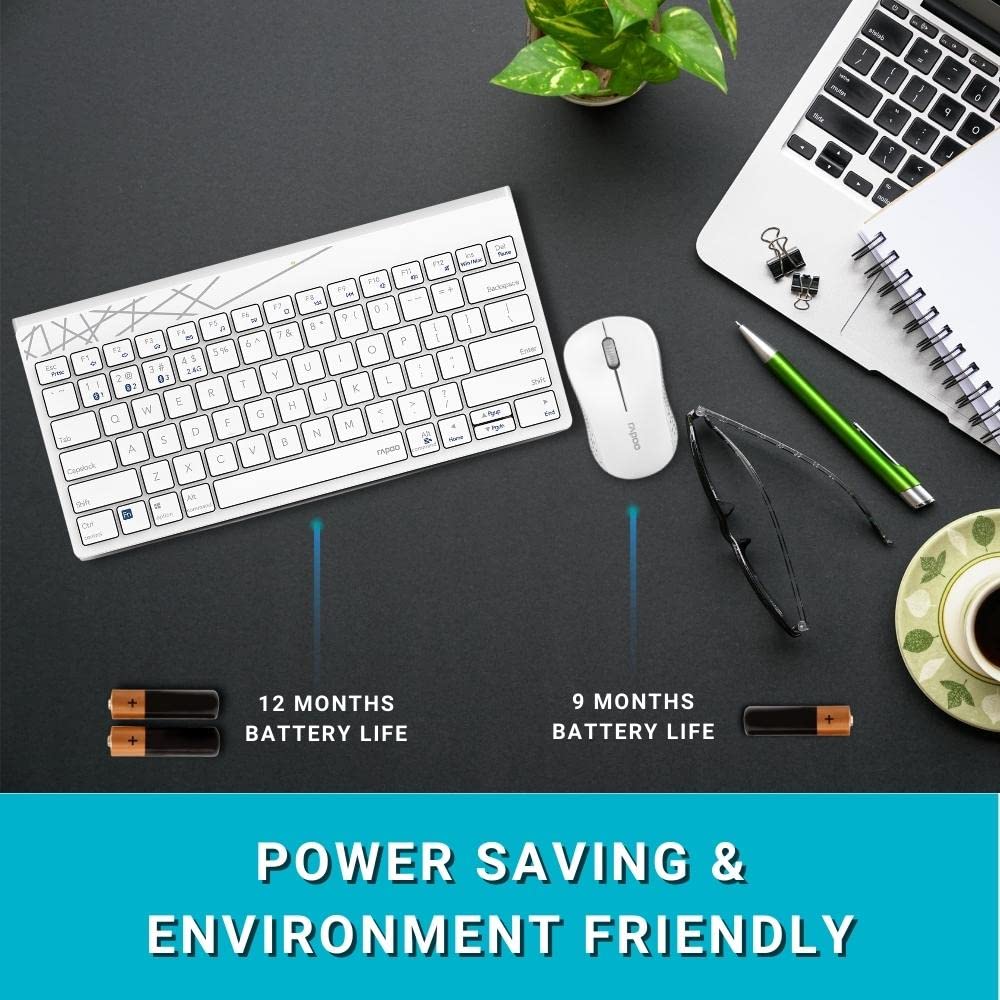
Image: Illustration of the Rapoo 8000M keyboard and mouse, highlighting their extended battery life.
3.2. 2.4 GHz Wireless Connection
For 2.4 GHz wireless connectivity:
- Remove the USB receiver from its storage slot, typically found in the mouse battery compartment.
- Plug the USB receiver into an available USB port on your computer.
- The keyboard and mouse should automatically connect. If not, ensure the devices are powered on and within range.
3.3. Bluetooth Connection
The Rapoo 8000M supports Bluetooth 3.0 and 4.0. You can pair up to three Bluetooth devices.
- Keyboard Pairing:
Press and hold the Fn + 1, Fn + 2, or Fn + 3 key combination for 3 seconds to select a Bluetooth channel. The indicator light will flash slowly. - On your device (computer, tablet, smartphone), enable Bluetooth and search for new devices.
- Select "Rapoo 8000M Keyboard" from the list of available devices. Follow any on-screen prompts to complete pairing.
- Mouse Pairing:
Press the Bluetooth button on the underside of the mouse to switch to a Bluetooth channel (indicated by a slow flash). - On your device, search for new Bluetooth devices and select "Rapoo 8000M Mouse". Follow any on-screen prompts.

Image: The Rapoo 8000M keyboard and mouse connected to a desktop, laptop, and tablet, demonstrating multi-device connectivity.
4. Operating Instructions
4.1. Switching Between Devices
To switch between connected devices:
- Keyboard: Press Fn + 1, Fn + 2, Fn + 3 to switch to the corresponding Bluetooth device, or Fn + 4 for the 2.4 GHz connection.
- Mouse: Press the Bluetooth button on the underside of the mouse to cycle through the paired Bluetooth devices and the 2.4 GHz connection.
4.2. Multimedia Hotkeys
The keyboard features multimedia hotkeys for quick access to various functions. These keys are typically located on the F-row and can be activated by pressing them directly or in combination with the Fn key, depending on your keyboard's default mode.
- F1-F12: Functions may include media player control (play/pause, next/previous track), volume adjustment, mute, homepage, and more. Refer to the keycap legends for specific functions.
4.3. Mouse DPI
The mouse operates at 1300 DPI, providing accurate and smooth cursor control on various surfaces.
5. Maintenance
5.1. Cleaning
The keyboard features a spill-resistant design, offering protection against accidental liquid spills. However, it is recommended to clean the keyboard and mouse regularly to maintain performance and hygiene.
- Use a soft, damp cloth to wipe the surfaces.
- Avoid using harsh chemicals or abrasive materials.
- For spills, immediately disconnect the device, wipe dry, and allow it to air dry completely before reuse.

Image: Close-up of the Rapoo 8000M keyboard with water splashing on it, illustrating its spill-resistant design.
5.2. Battery Life
With Rapoo's energy-saving technology and power switch, the keyboard and mouse can achieve a battery life of up to 9 months. To conserve battery:
- Turn off the devices using their respective power switches when not in use for extended periods.
- Replace batteries when performance degrades.

Image: The Rapoo 8000M mouse, highlighting its silent click design for a quiet working environment.
6. Troubleshooting
If you encounter issues with your Rapoo 8000M combo, refer to the following common problems and solutions:
- No Connection / Device Not Detected:
- Ensure batteries are correctly installed and charged.
- For 2.4 GHz, ensure the USB receiver is securely plugged into a working USB port.
- For Bluetooth, ensure Bluetooth is enabled on your device and the keyboard/mouse are in pairing mode or selected channel.
- Try re-pairing the devices (refer to Section 3.3).
- Try a different USB port for the receiver. - Keys Not Responding / Mouse Not Tracking:
- Check battery levels and replace if necessary.
- Ensure the device is connected to the correct channel (2.4 GHz or Bluetooth 1/2/3).
- Clean the optical sensor of the mouse if tracking is erratic.
- Ensure no physical obstructions are blocking the keys or mouse movement. - Intermittent Connection:
- Move the devices closer to the receiver or Bluetooth-enabled device.
- Avoid using the devices near strong interference sources (e.g., Wi-Fi routers, other wireless devices).
- Ensure your computer's Bluetooth drivers are up to date.
7. Specifications
| Feature | Description |
|---|---|
| Brand | Rapoo |
| Model | 8000M |
| Connectivity Technology | Bluetooth 3.0, Bluetooth 4.0, 2.4 GHz Wireless |
| Compatible Devices | Personal Computer (Windows OS), Tablets, Smartphones |
| Mouse DPI | 1300 DPI Optical |
| Special Features | Multi-Mode, Multi-Device Switching, Multimedia Hotkeys, Spill-Resistant Keyboard, Silent Mouse Design |
| Battery Life | Up to 9 months |
| Power Source | Battery Powered (2 AA for keyboard, 1 AA for mouse) |
| Product Dimensions | 36.4 x 14.8 x 3.4 cm (Keyboard); 350 g (Total Item Weight) |

Image: The Rapoo 8000M keyboard and mouse, illustrating their compact dimensions for productivity.
8. Warranty and Support
The Rapoo 8000M Multi-Mode Wireless Keyboard and Mouse Combo is covered by a 3-year warranty from the date of purchase. This warranty covers manufacturing defects and ensures reliable operation under normal use.
For warranty claims, technical support, or further assistance, please contact Rapoo customer service through their official website or the retailer where the product was purchased. Keep your proof of purchase for warranty validation.
For more information, visit the official Rapoo Store on Amazon.


