
1. Introduction
Thank you for choosing the Hyperkin Admiral Premium BT Controller for N64. This wireless controller is designed to enhance your gaming experience on the Nintendo 64 console, as well as PC, Mac, and Android devices via Bluetooth. It features an ergonomic design, a high-performance analog joystick, and dual Z buttons. This manual provides detailed instructions for setup, operation, maintenance, and troubleshooting to ensure optimal performance.

Figure 1: Hyperkin Admiral Premium BT Controller and Wireless Dongle.
2. Setup
2.1 Package Contents
- Hyperkin Admiral Premium BT Controller
- Wireless Dongle for N64
- Micro USB Charging Cable
- Instruction Manual
2.2 Connecting to Nintendo 64
- Insert the wireless dongle into a controller port on your Nintendo 64 console.
- Ensure the N64 console is powered off before inserting the dongle.
- Power on your N64 console. The dongle's LED indicator should begin blinking.
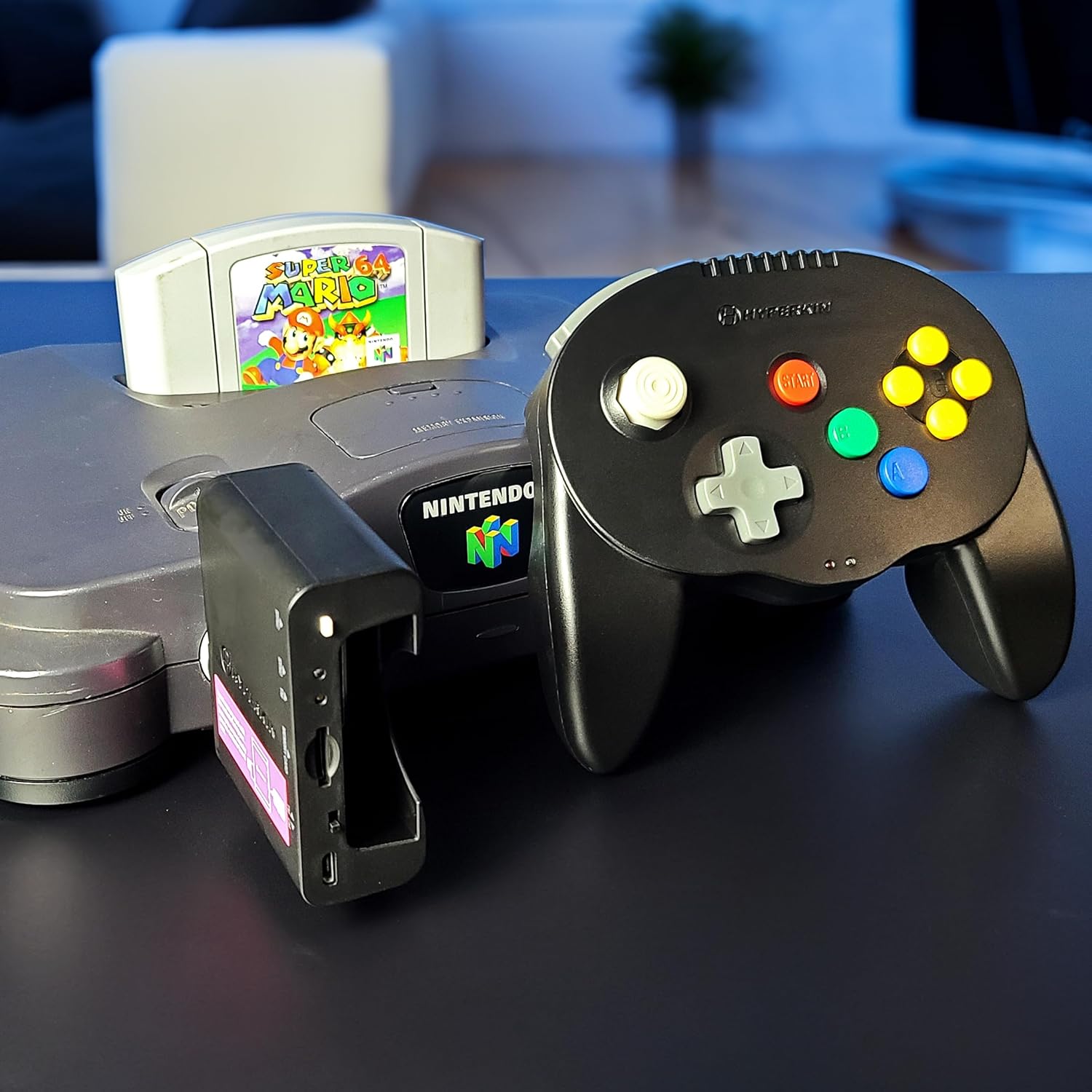
Figure 2: Wireless dongle inserted into the Nintendo 64 console.
2.3 Charging the Controller
Connect the micro USB charging cable to the controller's charging port and to a USB power source. The controller has a built-in lithium-ion battery that provides approximately 6 hours of gameplay on a full charge.
2.4 Syncing the Controller
- With the N64 console powered on and the dongle inserted, press and hold the SYNC button on the wireless dongle until its LED blinks rapidly.
- On the controller, press and hold the SYNC button (located on the top edge) for approximately 5 seconds until its LED blinks rapidly.
- Both LEDs will turn solid blue once successfully paired.
2.5 Memory Card Management
The wireless dongle features a slot for original N64 game memory cards, third-party game memory cards, and a micro SD card slot for backing up or transferring save data.
- Insert a compatible memory card into the designated slot on the dongle.
- To transfer data, ensure the dongle is in 'Transfer Mode' (TM) using the TM/CM switch.
- Insert a micro SD card (not included) into the micro SD card slot on the dongle.
- Press the SYNC button on the dongle to initiate data transfer between the memory card and the micro SD card.

Figure 3: Wireless dongle showing memory card and micro SD card slots.
2.6 Pairing with PC, Mac, and Android
The controller can also be paired directly via Bluetooth with PC, Mac, and Android devices without the N64 dongle.
- Ensure the controller is charged.
- On your device, enable Bluetooth and search for new devices.
- Press and hold the SYNC button on the controller for 5 seconds until its LED blinks rapidly.
- Select "Hyperkin Admiral" from the list of available Bluetooth devices on your PC, Mac, or Android device to pair.
3. Operating Instructions
3.1 Controller Layout
The Hyperkin Admiral controller features a modern ergonomic design with familiar N64 button placements, including a responsive analog joystick, dual Z buttons, and C buttons.

Figure 4: Controller layout with dual Z buttons and upgraded joystick.
3.2 Mode Switching (Dongle)
The wireless dongle has a switch to toggle between two modes:
- CM (Controller Mode): Allows the controller to be used for gameplay on the N64 console.
- TM (Transfer Mode): Enables data transfer functionality for memory cards and micro SD cards.
3.3 Gameplay
Once synced, the controller functions as a standard N64 controller. The dual Z buttons provide flexibility for games that utilize the original N64 controller's single Z button. The analog stick is designed for precise control in 3D environments.
4. Maintenance
4.1 Battery Charging
Recharge the controller using the provided micro USB cable when the battery is low. A full charge provides approximately 6 hours of gameplay.
4.2 Cleaning
Wipe the controller and dongle with a soft, dry cloth. Avoid using harsh chemicals or abrasive materials.
4.3 Storage
Store the controller and dongle in a cool, dry place away from direct sunlight and extreme temperatures when not in use.
5. Troubleshooting
- Controller not syncing: Ensure both the dongle and controller are in sync mode (rapidly blinking LEDs) and within range. Repeat the syncing process.
- Joystick drift: If the joystick exhibits unintended movement, try recalibrating it if your connected device (PC/Mac/Android) offers this option. For N64, ensure the controller is properly synced and try restarting the console.
- Memory card issues: Ensure the memory card is fully inserted into the dongle. Verify the dongle is in 'Transfer Mode' (TM) for data operations. Some memory cards may require specific formatting or file naming conventions for backups.
- No rumble feedback: The controller itself does not have built-in rumble. Rumble Pak functionality is supported via the dongle, which will cause the console to vibrate.
- No Transfer Pak support: The dongle does not support the N64 Transfer Pak accessory.
- Bluetooth pairing PIN on Windows 10: If prompted for a PIN, try common codes like '0000' or '1234'. If these do not work, try adding the device as a 'Personal Area Network device' by right-clicking the Bluetooth icon in the system tray.
Video 1: Detailed review and setup guide for the Hyperkin Admiral Controller, including syncing and memory card features.
6. Specifications
| ASIN | B0813C8SGD |
| Item Model Number | M07389-BK |
| Manufacturer | Hyperkin |
| Product Dimensions | 9.25 x 7.25 x 2.5 inches |
| Item Weight | 12.8 ounces |
| Connectivity | Bluetooth (Wireless) |
| Battery Life | Approx. 6 hours |
| Compatibility | N64, PC, Mac, Android |
7. Warranty and Support
For warranty information and technical support, please visit the official Hyperkin website or contact their customer service department. Keep your purchase receipt for warranty claims.
Hyperkin Customer Service: Please refer to the contact information provided on the Hyperkin official website or product packaging.

