
1. Product Overview
The Dell Pro 15 Essential Laptop is engineered for business productivity, featuring a durable chassis, an expansive 15.6-inch Full HD display, and a numeric keypad. It is powered by Intel Core processors and runs on Windows 11 Pro, designed to support demanding workloads and provide a reliable computing experience.
This laptop is built to withstand daily use, having passed MIL-STD-810H testing for durability. It incorporates Dell ComfortView technology to reduce eye strain and adaptive thermals to maintain efficient operation whether on a desk or lap.
Key Features:
- 15.6-inch Non-Touch FHD Display (1920x1080)
- Intel Core i7 Processor (13th Generation i7-1355U)
- 16GB DDR5 RAM
- 512GB SSD Storage
- Windows 11 Pro Operating System
- USB-C Connectivity
- Anti-Glare Coating and Numeric Keypad
- MIL-STD-810H Tested Durability
What's in the Box:
- Dell Pro 15 Essential Laptop
- Power Adapter
- Documentation

Figure 1.1: Angled view of the Dell Pro 15 Essential Laptop with its screen active.
2. Setup Guide
Follow these steps to set up your Dell Pro 15 Essential Laptop for the first time.
2.1 Unpacking and Initial Inspection
- Carefully remove the laptop and all accessories from the packaging.
- Inspect the laptop for any signs of physical damage. If damage is found, contact your vendor immediately.
- Ensure all components listed in the "What's in the Box" section are present.
2.2 Connecting the Power Adapter
- Connect the power adapter cable to the power port on the laptop. The power port is typically located on the side of the laptop.
- Plug the power adapter into a wall outlet. The battery charge indicator light will illuminate, indicating that the laptop is receiving power and the battery is charging.
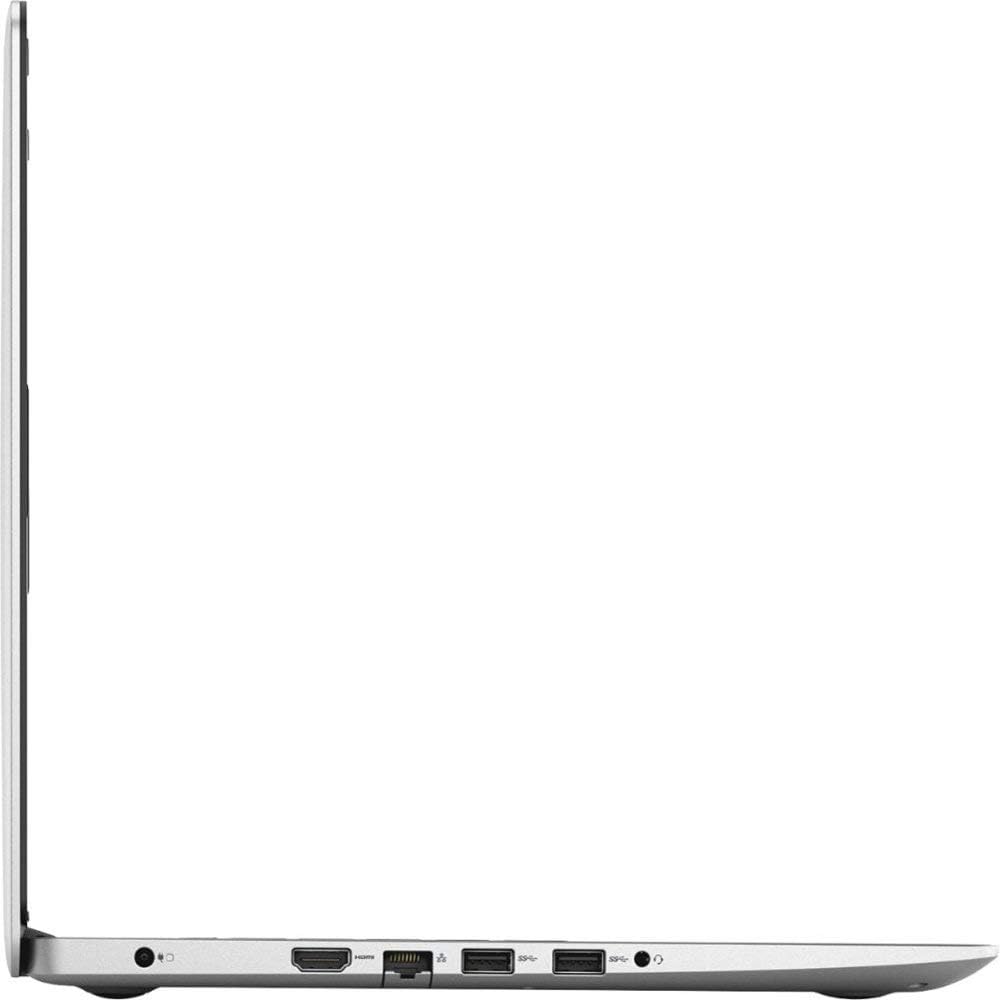
Figure 2.1: Right side of the laptop, showing the power input and USB ports.
2.3 Initial Boot and Windows Setup
- Open the laptop lid and press the power button, usually located on the top-right of the keyboard deck.
- The laptop will power on and guide you through the Windows 11 Pro setup process. Follow the on-screen instructions to configure your language, region, network connection, and user account.
- It is recommended to connect to a Wi-Fi network during setup to download essential updates.

Figure 2.2: Front view of the laptop displaying the Windows operating system.
3. Operating Your Laptop
This section provides basic instructions for operating your Dell Pro 15 Essential Laptop.
3.1 Power On/Off and Sleep Mode
- Power On: Press the power button.
- Shut Down: Click the Windows Start button, then select Power > Shut down.
- Restart: Click the Windows Start button, then select Power > Restart.
- Sleep Mode: Close the laptop lid or click the Windows Start button, then select Power > Sleep.
3.2 Using the Keyboard and Touchpad
Your laptop features a full-size keyboard with a numeric keypad and a precision touchpad.
- Keyboard: Use for typing and executing commands. Function keys (F1-F12) often have secondary functions (e.g., volume, brightness) accessible by pressing the Fn key simultaneously.
- Touchpad: Functions as a mouse. Tap to click, use two fingers to scroll, and pinch to zoom. Refer to Windows settings for advanced touchpad gestures.

Figure 3.1: Keyboard and touchpad layout of the laptop.
3.3 Connecting External Devices
The laptop provides various ports for connecting peripherals:
- USB Ports: Connect USB devices such as external hard drives, mice, or keyboards. The laptop includes USB 2.0, USB 3.2 Gen 1, and USB-C ports.
- HDMI Port: Connect an external monitor or projector using an HDMI cable.
- SD Card Reader: Insert an SDXC card for data transfer.
- Audio Jack: Connect headphones or external speakers.

Figure 3.2: Left side of the laptop, illustrating the available ports.
4. Maintenance
Proper maintenance ensures the longevity and optimal performance of your laptop.
4.1 Cleaning Your Laptop
- Screen: Use a soft, lint-free cloth lightly dampened with water or a screen cleaner. Avoid harsh chemicals.
- Keyboard and Chassis: Use a soft cloth. For dust in crevices, use compressed air.
- Always power off and unplug the laptop before cleaning.
4.2 Battery Care
- Avoid extreme temperatures.
- Do not leave the laptop plugged in constantly at 100% charge for extended periods.
- For long-term storage, charge the battery to about 50-60%.
4.3 Software Updates and Data Backup
- Regularly check for and install Windows updates to ensure security and performance.
- Keep your drivers updated, especially for graphics and network adapters.
- Periodically back up important data to an external drive or cloud storage to prevent data loss.
5. Troubleshooting
This section addresses common issues you might encounter with your laptop.
5.1 Power Issues
- Laptop does not turn on: Ensure the power adapter is securely connected to both the laptop and a working wall outlet. Check if the power adapter's indicator light is on. Try a different outlet.
- Battery not charging: Verify the power adapter connection. Check for any damage to the adapter or cable. Ensure the battery drivers are up to date in Device Manager.
5.2 Display Problems
- Blank screen: Connect an external monitor to check if the display output works. If it does, the laptop screen might be faulty. If not, try restarting the laptop.
- Flickering screen: Update your graphics drivers. Adjust the display refresh rate in Windows settings.
5.3 Connectivity Issues (Wi-Fi/Bluetooth)
- No Wi-Fi connection: Ensure Wi-Fi is enabled in Windows settings. Restart your router and modem. Update your wireless adapter drivers.
- Bluetooth device not connecting: Ensure Bluetooth is enabled on both the laptop and the device. Remove and re-pair the device. Update Bluetooth drivers.
For more complex issues, refer to the Dell support website or contact customer service.
6. Technical Specifications
| Feature | Specification |
|---|---|
| Brand | Dell |
| Model Name | Pro 15 Essential |
| Model Number | 0WR3Y |
| Screen Size | 15.6 Inches |
| Display Type | LCD, Non-Touch FHD |
| Resolution | 1920 x 1080 Pixels |
| Refresh Rate | 60 Hz |
| Maximum Display Brightness | 250 Nit |
| CPU Model | Intel Core i7-1355U |
| Processor Speed | 1.7 GHz (up to 5 GHz Max) |
| Processor Count | 10 |
| RAM Memory Installed Size | 16 GB DDR5 |
| Hard Disk Size | 512 GB SSD |
| Operating System | Windows 11 Pro |
| Graphics Coprocessor | Intel UHD Graphics (Integrated) |
| Connectivity Technology | Bluetooth, HDMI, USB, Wi-Fi |
| Total USB Ports | 4 (USB 2.0, USB 3.2 Gen 1, USB-C) |
| HDMI Ports | 1 |
| Special Features | Anti Glare Coating, Memory Card Slot, Numeric Keypad, Webcam |
| Battery Cell Type | Lithium Ion (3-cell, 50 Watt Hours) |
| Item Weight | 4.19 Pounds |
| Dimensions (L x W x Thickness) | 14.11"L x 0.75"W x 9.27"Th |
7. Warranty Information
Your Dell Pro 15 Essential Laptop comes with a limited manufacturer's warranty of 12 months from the date of purchase.
This warranty covers defects in materials and workmanship under normal use. It does not cover damage caused by accidents, misuse, unauthorized repairs, or external causes such as power fluctuations.
For detailed terms and conditions of your warranty, please refer to the documentation included with your product or visit the official Dell support website.
8. Customer Support
For technical assistance, driver downloads, or further information regarding your Dell Pro 15 Essential Laptop, please visit the official Dell support website:
You can also find contact information for Dell customer service in your region on the support website.


