
1. Introduction
Thank you for purchasing the OREI DVD-Z9H Region Free HDMI DVD Player. This manual provides essential information for the proper setup, operation, and maintenance of your new device. Please read these instructions thoroughly before use and retain them for future reference.
The OREI DVD-Z9H is designed to play DVDs from any region (0-6) and supports both PAL and NTSC formats, with built-in conversion. It offers 1080p upscaling for enhanced video quality and includes a USB input for media playback.
2. Safety Information
- Power Supply: Ensure the player is connected to a power source within the specified voltage range (100-240V).
- Ventilation: Do not block ventilation openings. Allow adequate space around the player for proper airflow.
- Moisture: Keep the player away from water or excessive moisture. Do not operate with wet hands.
- Cleaning: Use a soft, dry cloth for cleaning. Avoid liquid or aerosol cleaners.
- Servicing: Do not attempt to service the player yourself. Refer all servicing to qualified personnel.
- Laser Safety: This product utilizes a laser. Do not open the player casing as it may expose you to invisible laser radiation.
3. Package Contents
Verify that all items are present in the package:
- 1 x OREI DVD-Z9H HDMI DVD Player
- 1 x Remote Control (batteries not included)
- 1 x AV Cable (RCA)
- 1 x Instruction Manual (this document)
Note: An HDMI cable is not included and must be purchased separately for HDMI connectivity.
4. Product Overview
4.1. Front Panel
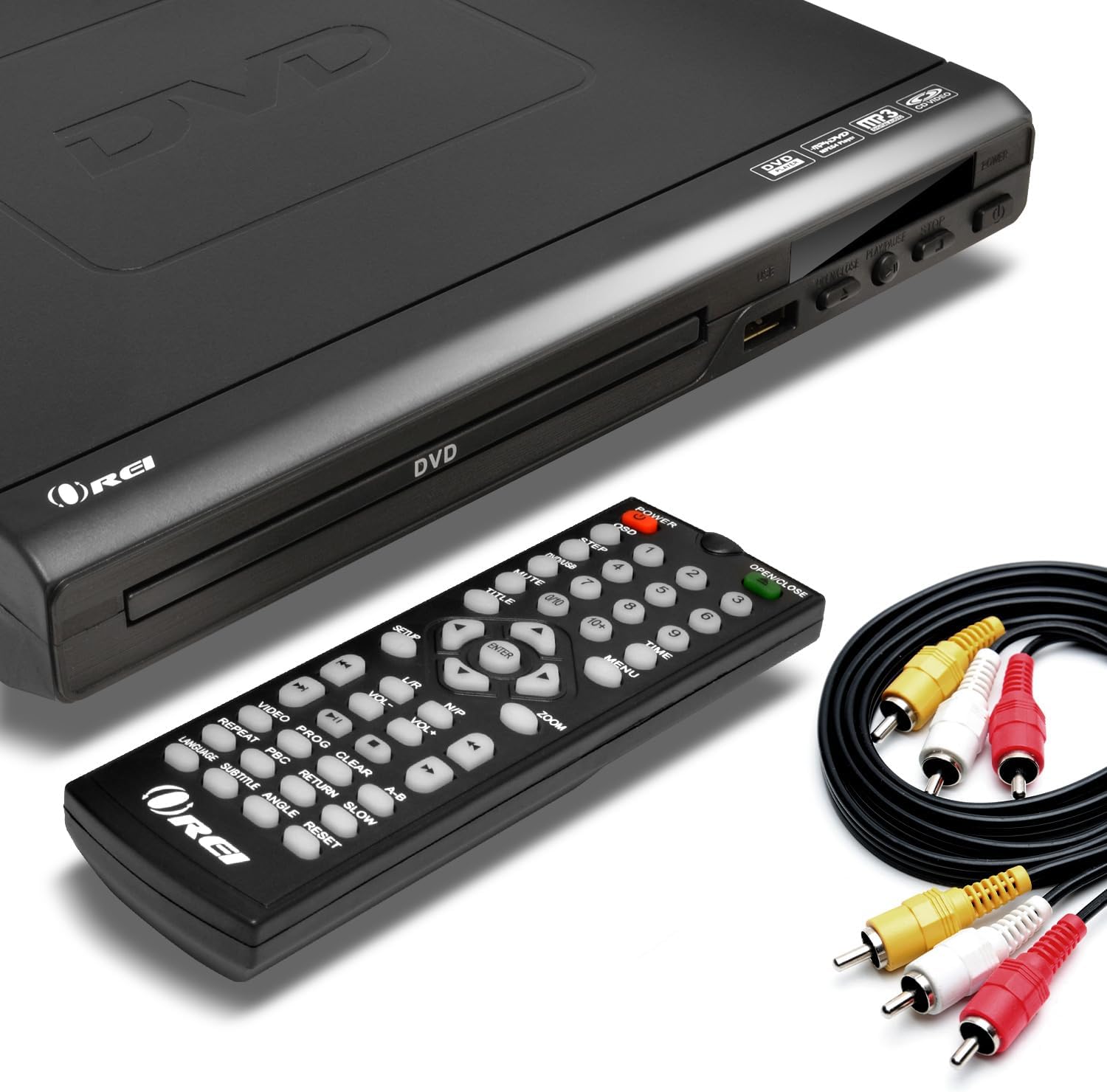
Image: The OREI DVD-Z9H DVD player, its remote control, and included AV cables. The player features a disc tray, power button, and USB port on the front.
- Disc Tray: Insert DVDs or CDs here.
- USB Port: Connect a USB flash drive for media playback.
- Power Button: Turns the player on or off.
- Play/Pause, Stop, Open/Close Buttons: Basic control functions.
4.2. Rear Panel

Image: The rear panel of the OREI DVD-Z9H DVD player, displaying the HDMI output, composite video/audio (RCA) outputs, coaxial audio output, and power input. Labels indicate model number DVD-Z9H and power specifications.
- HDMI Output: Connects to a TV or display for high-definition video and audio.
- Composite Video/Audio Output (RCA x3): Connects to older TVs using red, white, and yellow RCA cables.
- Coaxial Audio Output: For digital audio connection to a compatible receiver.
- Power Input: Connect the power cord here.
4.3. Remote Control

Image: The OREI DVD-Z9H DVD player with its remote control positioned above it. The remote features numerous buttons for playback, menu navigation, volume, and special functions.
The remote control provides full functionality for the DVD player. Insert two AAA batteries (not included) into the remote before use. Key functions include:
- Power: On/Off.
- Open/Close: Opens and closes the disc tray.
- Numeric Buttons (0-9): For direct track selection.
- Navigation (Up/Down/Left/Right, Enter): For menu navigation.
- Play, Pause, Stop, Fast Forward, Rewind: Playback controls.
- Volume +/-: Adjusts audio output level.
- Setup: Accesses the system settings menu.
- Subtitle, Audio, Angle: Controls for DVD features.
- Zoom: Adjusts screen zoom level.
5. Setup
5.1. Connecting to a Television
Choose one of the following connection methods:
- HDMI Connection (Recommended for HD):
- Connect one end of an HDMI cable (not included) to the HDMI OUT port on the back of the DVD player.
- Connect the other end of the HDMI cable to an HDMI IN port on your television.
- Select the corresponding HDMI input on your TV using its remote control.

Image: A diagram illustrating how to connect the OREI DVD-Z9H DVD player to a TV using an HDMI cable and how to connect a USB flash drive to the player.
- Composite Video/Audio Connection (Standard Definition):
- Connect the yellow plug of the supplied AV cable to the VIDEO OUT port on the DVD player.
- Connect the red and white plugs of the AV cable to the AUDIO OUT (R/L) ports on the DVD player.
- Connect the other ends of the AV cable to the corresponding VIDEO IN and AUDIO IN ports on your television.
- Select the corresponding AV input on your TV.
5.2. Power Connection
- Plug the power cord into the power input on the rear of the DVD player.
- Plug the other end of the power cord into a standard electrical outlet.
5.3. Initial Setup
After connecting and powering on the player, you may need to configure basic settings:
- Press the SETUP button on the remote control.
- Navigate through the menu to set preferences such as:
- Language: Select your preferred menu and audio language.
- TV System: Choose between NTSC or PAL based on your region (the player has built-in conversion).
- Aspect Ratio: Select 16:9 for widescreen TVs or 4:3 for standard TVs.
- Video Quality: Adjust brightness, contrast, etc.
- Press SETUP again to exit the menu.
6. Operating Instructions
6.1. Playing a DVD/CD
- Press the POWER button to turn on the player.
- Press the OPEN/CLOSE button to open the disc tray.
- Place a DVD or CD onto the disc tray with the label side facing up.
- Press the OPEN/CLOSE button again to close the tray.
- The player will automatically begin playback or display the disc menu.
- Use the remote control's navigation and playback buttons (PLAY, PAUSE, STOP, FF, REW) to control playback.

Image: The OREI DVD-Z9H DVD player and its remote control in front of a television displaying a movie scene, illustrating the player's ability to play DVDs from any region.
6.2. USB Media Playback
The player supports playback of video, picture, and music files from a USB flash drive.
- Insert a USB 2.0 flash drive (up to 16GB) into the USB port on the front of the player.
- The player should automatically detect the USB drive and display a menu for file selection. If not, press the USB button on the remote (if available) or navigate to the USB input source.
- Use the navigation buttons to browse files and press ENTER to select and play.
Supported Formats: DVD, AVI, CD, CD-R/RW, DVD-R/RW, DVD+R/RW, Vc1, MPEG1, MPEG-2, MP3.
Note: The HDMI DVD player can only support USB 2.0 Flash drives up to 16 GB and plays video files up to 720p via USB. Blu-ray discs are not supported.

Image: The OREI DVD-Z9H DVD player positioned below a TV displaying a high-definition image. Icons represent various supported media formats including DVD, AVI, CD, CD-R/RW, DVD-R/RW, VCI, MPEG1, MPEG-2, and MP3, highlighting its 1080p upscaling capability.
7. Maintenance
7.1. Cleaning the Player
- Unplug the player from the power outlet before cleaning.
- Use a soft, dry, lint-free cloth to wipe the exterior of the player.
- Do not use liquid cleaners, abrasive pads, or chemical solvents, as these can damage the finish.
7.2. Disc Care
- Handle discs by their edges to avoid fingerprints on the playing surface.
- Keep discs clean and free from scratches. Wipe discs gently from the center outwards with a soft, dry cloth if cleaning is necessary.
- Store discs in their cases when not in use.
8. Troubleshooting
If you encounter issues with your OREI DVD-Z9H player, refer to the following common problems and solutions:
| Problem | Possible Cause | Solution |
|---|---|---|
| No power | Power cord not connected; Power outlet not active | Ensure power cord is securely plugged into player and outlet; Test outlet with another device. |
| No picture on TV | Incorrect TV input selected; Loose video cable connection | Select the correct HDMI or AV input on your TV; Check that HDMI or AV cables are securely connected. |
| No sound | TV/player volume too low; Loose audio cable connection; Incorrect audio settings | Increase volume on TV and player; Check audio cable connections; Verify audio settings in the player's setup menu. |
| Disc not playing / "No Disc" error | Disc inserted incorrectly; Disc is dirty or scratched; Unsupported disc format | Insert disc with label side up; Clean disc with a soft cloth; Ensure disc is a supported format (not Blu-ray). |
| Remote control not working | Batteries are dead or inserted incorrectly; Obstruction between remote and player | Replace batteries with new ones, ensuring correct polarity; Remove any objects blocking the remote's signal path to the player's sensor. |
| USB playback issues | Unsupported USB drive size/type; Unsupported file format; Video resolution too high | Use a USB 2.0 flash drive up to 16GB; Ensure files are in supported formats (e.g., AVI, MPEG); Video resolution should not exceed 720p. |
9. Specifications
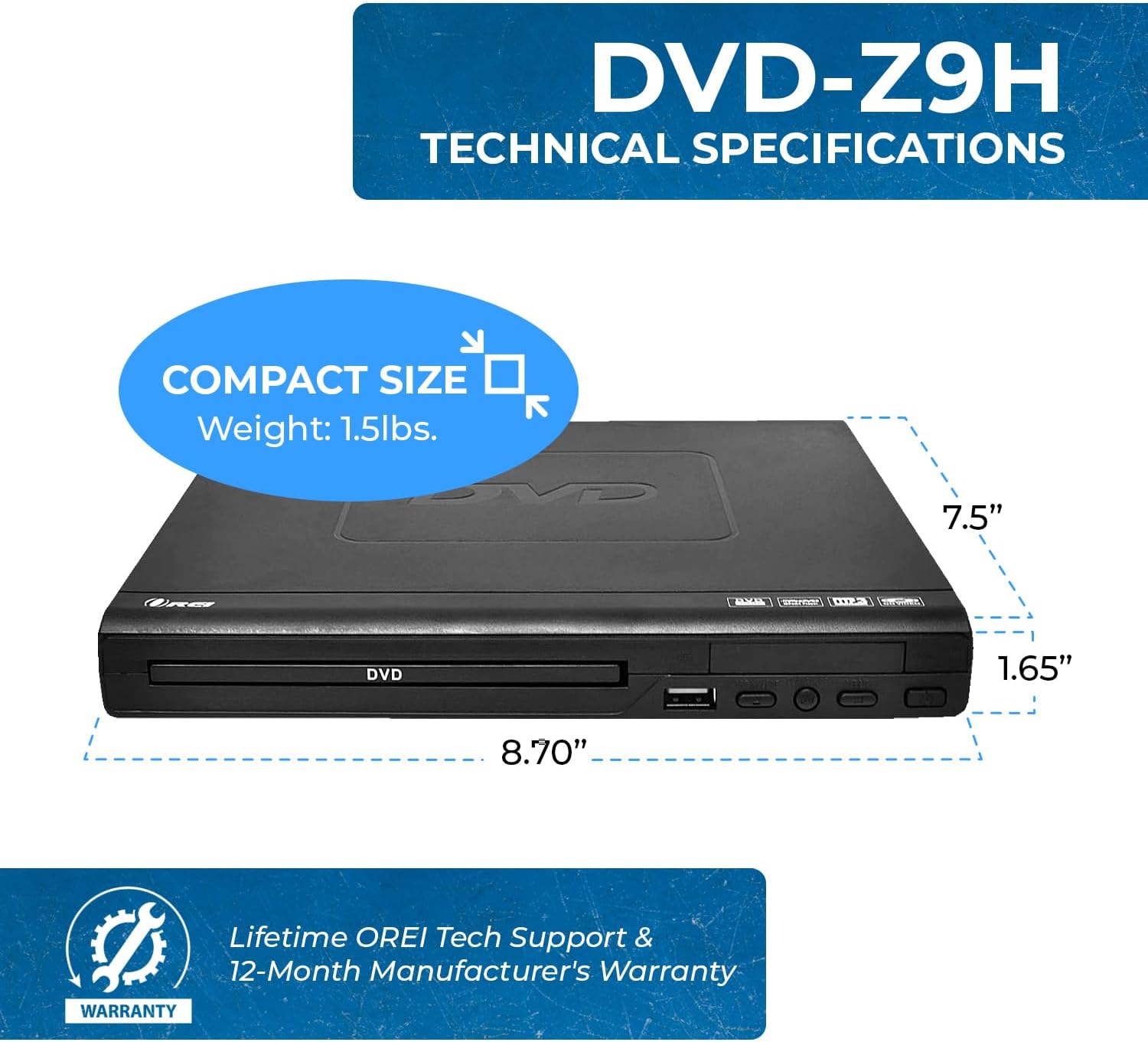
Image: The OREI DVD-Z9H DVD player shown with its compact dimensions: 8.70 inches (length), 7.5 inches (width), and 1.65 inches (height), and a weight of 1.5 lbs.
- Model: DVD-Z9H
- Dimensions (L x W x H): Approximately 8.70 x 7.5 x 1.65 inches (22.1 x 19.05 x 4.19 cm)
- Weight: Approximately 1.5 lbs (0.68 kg)
- Media Type: CD, DVD (Does not support Blu-ray discs)
- Supported Formats: DVD, AVI, CD, CD-R/RW, DVD-R/RW, DVD+R/RW, Vc1, MPEG1, MPEG-2, MP3
- Resolution: 1080p (upscaling)
- Connectivity: HDMI, RCA (Composite Video/Audio), Coaxial Audio, USB 2.0
- USB Support: Up to 16GB USB 2.0 flash drives, video files up to 720p
- Voltage: Worldwide Dual Voltage (100-240V)
- Special Features: Region Free (0-6), Built-in PAL/NTSC Converter
10. Warranty and Support
The OREI DVD-Z9H comes with a 1-year manufacturer's warranty from the date of purchase. OREI also offers a 30-day money-back guarantee.
For technical support, warranty claims, or any product-related inquiries, please contact OREI customer service. Refer to the contact information provided with your purchase or visit the official OREI website for assistance.