
RCA RTRU6528-CA
RCA 65-inch 4K UHD Roku Smart Flat Screen LED TV
Model: RTRU6528-CA | Brand: RCA
1. Product Overview
The RCA 65-inch 4K UHD Roku Smart Flat Screen LED TV offers an intuitive and immersive entertainment experience. With 4K Ultra HD resolution, it delivers incredible clarity and vibrant colors. The integrated Roku TV platform provides seamless access to a vast library of streaming channels, live TV, and connected devices through a user-friendly interface.
Key Features:
- ENDLESS ENTERTAINMENT: Roku TV provides access to over 500,000+ movies and TV episodes across thousands of free or paid channels, including the 4K Spotlight Channel for easy discovery of 4K content.
- UHD RESOLUTION: Experience rich picture quality with High Definition resolution, offering excellent detail, color, and contrast.
- WIRELESS CONNECTIVITY: Fast and easy access to your favorite content via dual-band Wi-Fi connection.
- VOICE CONTROL: Utilize voice search through the remote or the free Roku mobile app to find content, launch channels, or switch inputs. Compatible with Amazon Alexa or Google Assistant.
- INNOVATIVE TECHNOLOGY: Features include fast search across top channels, unbiased results ranked by price, and the free Roku mobile app for remote control, voice search, and private listening.

Figure 1: Front view of the RCA 65-inch 4K UHD Roku Smart Flat Screen LED TV, showcasing its sleek design.
2. Initial Setup
Setting up your RCA Roku TV is straightforward. Follow these steps to get your TV ready for use:
- Unpack the TV: Carefully remove the TV and all accessories from the packaging.
- Attach the Stands (if not wall-mounting): Securely attach the included quad-pedestal stands to the bottom of the TV using the provided screws. Ensure they are firmly in place.
- Connect Power: Plug the power cord into the TV's power input and then into a wall outlet.
- Insert Remote Batteries: Open the battery compartment on the back of the Roku remote and insert the included batteries, observing polarity.
- Initial Power On: Press the power button on the remote to turn on the TV.
- Follow On-Screen Setup: The TV will guide you through the initial setup process, including language selection, network connection (Wi-Fi), and Roku account activation. An active internet connection is required for full Roku functionality.
- Connect External Devices: Use the HDMI inputs (HDMI 1, HDMI 2, HDMI 3) to connect devices such as cable boxes, gaming consoles, or Blu-ray players. The TV also features USB and VGA connectivity.

Figure 2: Rear view of the TV showing HDMI, USB, and other input ports for connecting external devices.
3. Operating Your RCA Roku TV
Your RCA Roku TV is designed for ease of use, providing a centralized hub for all your entertainment.
Roku Home Screen:
The Roku Home screen is your main navigation point. It displays all your installed streaming channels, connected inputs (like HDMI devices), and options for Live TV, Featured Free content, and Settings.

Figure 3: The intuitive Roku TV home screen, providing quick access to streaming services and inputs.
Streaming Channels:
- Accessing Channels: Navigate through the Home screen using the directional pad on your remote to select and launch desired streaming apps (e.g., Netflix, Hulu, Prime Video).
- Adding Channels: Visit the "Streaming Store" from the Home screen to browse and add new channels.
- 4K Spotlight Channel: Discover available 4K content across various services through this dedicated channel.
Voice Control:
Use the voice search feature on your Roku remote or the Roku mobile app to quickly find movies, shows, or switch between inputs. Simply press the microphone button and speak your command.
Connecting Devices:
The TV supports multiple HDMI inputs for various devices. Select the appropriate HDMI input from the Home screen to view content from your connected equipment.
4. Care and Maintenance
Proper care will ensure the longevity and optimal performance of your RCA Roku TV.
- Cleaning the Screen: Gently wipe the screen with a soft, dry microfiber cloth. For stubborn smudges, lightly dampen the cloth with water or a screen-specific cleaning solution (never spray directly onto the screen).
- Cleaning the Body: Use a soft, dry cloth to wipe the TV's frame and stand. Avoid abrasive cleaners or solvents.
- Ventilation: Ensure adequate airflow around the TV. Do not block ventilation openings.
- Power Off When Not in Use: Turn off the TV when not in use to conserve energy and extend its lifespan.
- Avoid Direct Sunlight: Do not expose the TV to direct sunlight or extreme temperatures.
5. Troubleshooting
If you encounter issues with your RCA Roku TV, refer to the following common problems and solutions:
| Problem | Possible Cause / Solution |
|---|---|
| No Power / TV Not Turning On |
|
| No Picture / Black Screen |
|
| Poor Picture Quality (Dark/Washed Out) |
|
| No Sound / Low Sound |
|
| Lines Across the Screen |
|
| Wi-Fi Connectivity Issues |
|
6. Technical Specifications
| Feature | Detail |
|---|---|
| Brand | RCA |
| Model Number | RTRU6528-CA |
| Screen Size | 65 Inches (166 cm diagonal) |
| Display Technology | LED |
| Resolution | 4K UHD (2160p) |
| Refresh Rate | 60 Hz |
| Aspect Ratio | 16:9 |
| Color | Black |
| Item Weight | 60 Pounds |
| Product Dimensions (D x W x H) | 8"D x 64"W x 39"H (64 x 8 x 39 inches) |
| Voltage | 110 Volts |
| Connectivity Technology | VGA, Wi-Fi, USB, HDMI |
| Special Feature | Flat Screen |
| Speaker Type | Built-In |
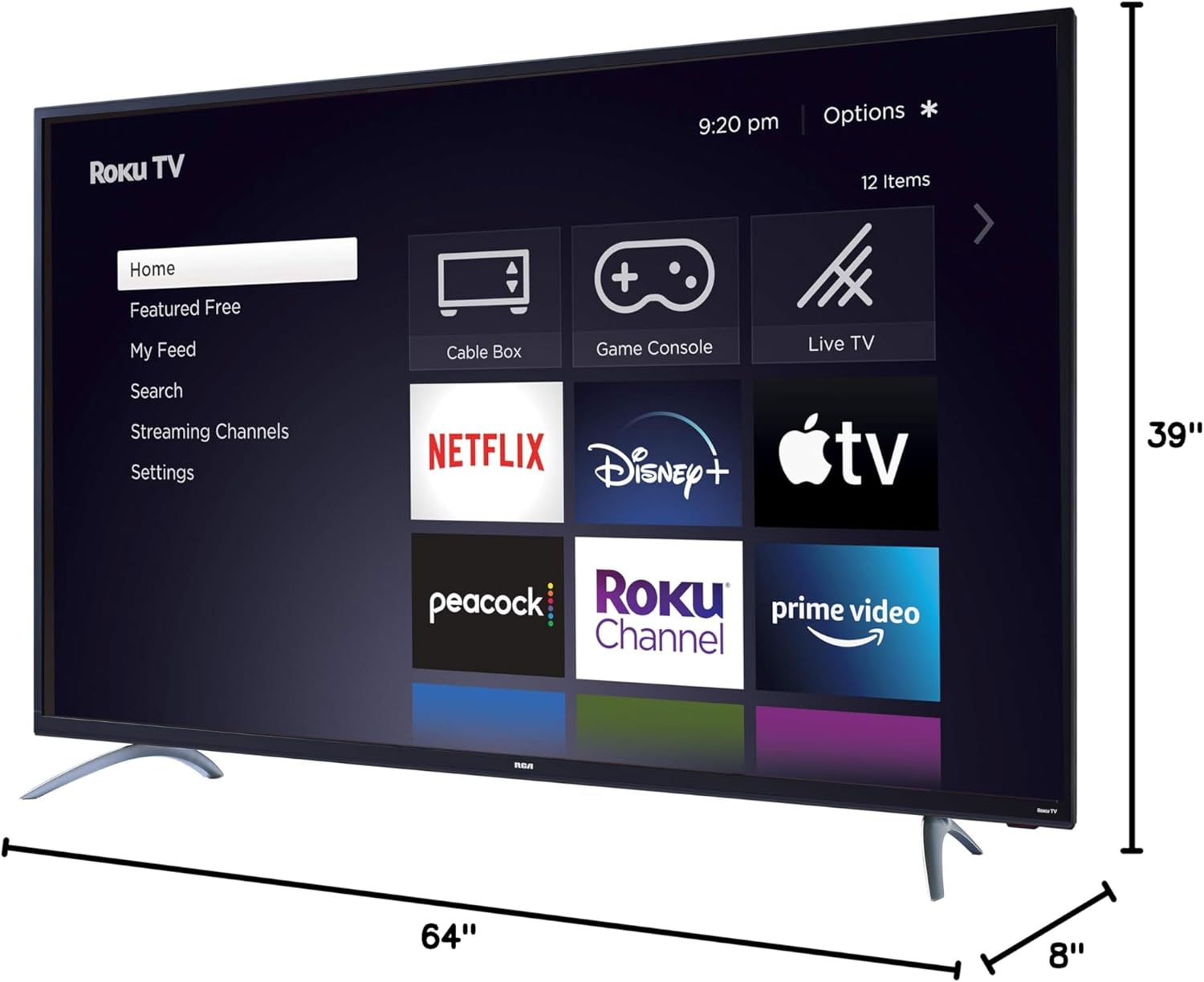
Figure 4: Detailed dimensions of the 65-inch RCA Roku TV.
7. What's in the Box
The following items are included with your RCA 65-inch 4K UHD Roku Smart Flat Screen LED TV:
- TV (RCA 65-inch 4K UHD Roku Smart Flat Screen LED TV)
- Roku Remote
- Power Cord
- Quad-Pedestal Stands (2)
- Screws for Stands
- Quick Start Guide (this manual)
8. Warranty and Support
Your RCA 65-inch 4K UHD Roku Smart Flat Screen LED TV was first available on November 4, 2019. For specific warranty details and customer support, please refer to the documentation included with your product or visit the official RCA website. RCA is committed to providing reliable products and support.
For customer support inquiries, you may also refer to the RCA Store on Amazon or the general Amazon customer support options.
Ask a question about this manual
Ask about setup, troubleshooting, compatibility, parts, safety, or missing instructions. Manuals+ will review the question and use this page’s manual context to help answer it.