Introduction
This manual provides essential information for setting up, operating, maintaining, and troubleshooting your Dell Inspiron 15 7000 laptop. Please read this guide thoroughly to ensure optimal performance and longevity of your device.
What's in the Box
Verify that all items are present in your product packaging:
- Dell Inspiron 15 7000 Laptop
- AC Adapter
- Battery (integrated)
- Documentation
Setup
1. Connect the Power Adapter
Connect the AC adapter to the power connector on your laptop and then to a power outlet. The battery charges automatically.
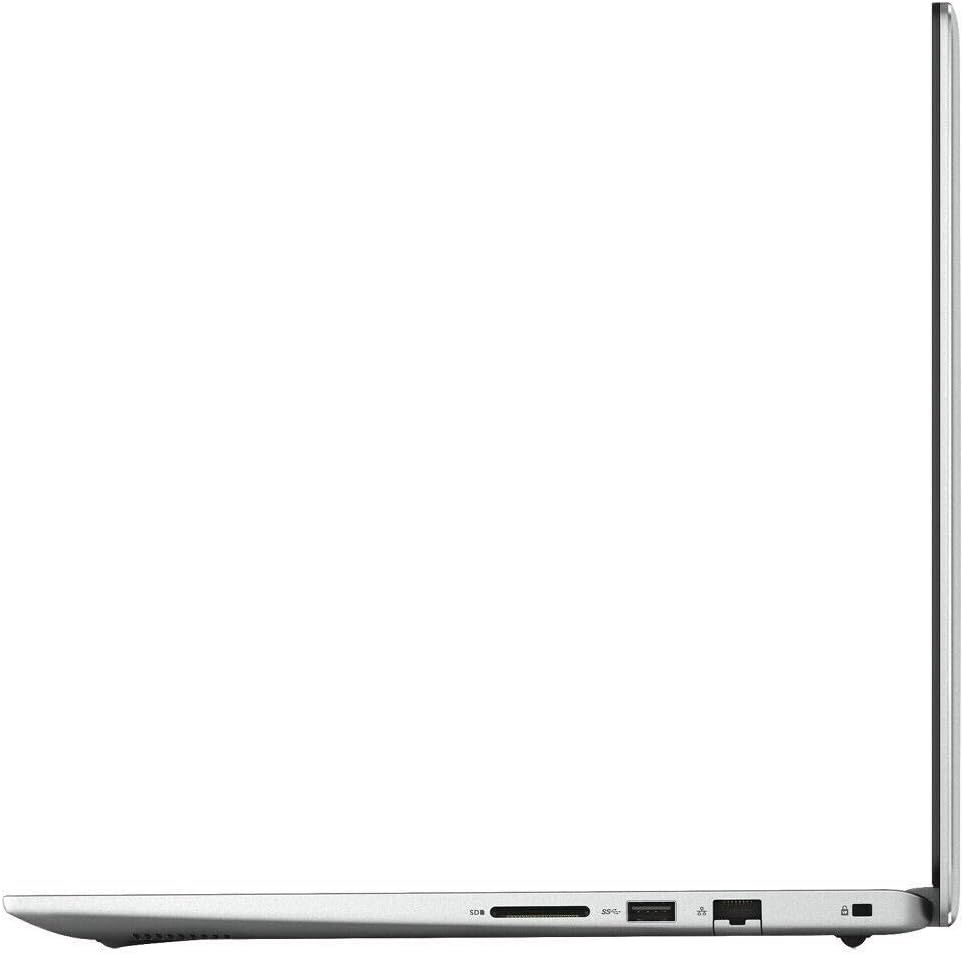
Image: Left side of the laptop with power port and other connections.
2. Power On
Open the laptop lid and press the power button located on the top-right of the keyboard deck. The laptop will start.

Image: Front view of the laptop, illustrating the display and keyboard area.
3. Initial Windows Setup
Follow the on-screen instructions to complete the Windows 10 setup, including language, region, network connection, and user account creation.
Operating Your Laptop
Power Management
- Power On: Press the power button.
- Sleep Mode: Close the lid or select 'Sleep' from the Start menu.
- Shut Down: Select 'Shut down' from the Start menu.
Keyboard and Touchpad
The laptop features a full-size keyboard with a backlit function for low-light conditions. The touchpad supports multi-touch gestures for navigation.
- Backlight Control: Use the Fn + F10 keys to toggle or adjust keyboard backlight brightness.
- Touchpad Gestures: Refer to Windows settings for customizable multi-touch gestures.
Connecting to Wi-Fi
Click the Wi-Fi icon in the taskbar, select your desired network, and enter the password if prompted.
Using Ports
Your laptop is equipped with various ports for connecting external devices:
- USB Ports: For connecting USB devices like external drives, mice, or keyboards.
- HDMI Port: For connecting to external displays or TVs.
- SD Card Reader: For reading data from SD memory cards.

Image: Right side of the laptop with SD card reader and USB port.
Maintenance
Cleaning Your Laptop
- Screen: Use a soft, lint-free cloth lightly dampened with water or a screen cleaner. Do not spray liquid directly onto the screen.
- Keyboard and Chassis: Use a soft cloth. For stubborn dirt, a slightly damp cloth is acceptable. Avoid excessive moisture.
Battery Care
- Avoid extreme temperatures.
- Do not fully discharge the battery frequently.
- For long-term storage, charge the battery to about 50-60%.
Software Updates
Regularly update your operating system and drivers to ensure optimal performance and security.
- Windows Updates: Go to Settings > Update & Security > Windows Update.
- Dell Drivers: Visit the official Dell support website and enter your service tag to find the latest drivers for your model.
Troubleshooting
This section addresses common issues you might encounter.
Laptop Does Not Power On
- Ensure the AC adapter is securely connected to both the laptop and a working power outlet.
- Check if the power outlet is functional by plugging in another device.
- Try a different power adapter if available.
Screen Issues (No Display, Flickering)
- Restart the laptop.
- Connect an external monitor to the HDMI port to check if the issue is with the laptop's display or the graphics output.
- Ensure display drivers are up to date.
Wi-Fi Connectivity Problems
- Ensure Wi-Fi is enabled in Windows settings.
- Restart your router and modem.
- Update your wireless network adapter drivers.
- Forget the network and reconnect.
Slow Performance
- Close unnecessary applications running in the background.
- Check for malware or viruses.
- Ensure Windows and drivers are updated.
- Consider freeing up disk space.
Specifications
| Feature | Description |
|---|---|
| Processor | 8th Generation Intel Core i5-8265U (up to 3.9 GHz) |
| Display | 15.6-inch Full HD (1920 x 1080) Anti-glare LED Backlight Non-touch Narrow Border IPS Display |
| Memory (RAM) | 8GB DDR4 2666MHz |
| Storage | 512GB M.2 PCIe NVMe Solid State Drive (SSD) |
| Graphics | Intel UHD 620 Graphics (Integrated) |
| Operating System | Windows 10 |
| Wireless Connectivity | Wifi AC, Bluetooth |
| Keyboard | Backlit Keyboard |
| Ports | USB, HDMI, SD Card Reader, USB-C (specific configuration may vary) |
| Weight | Approximately 12 pounds (actual weight may vary) |
| Dimensions | Approximately 19 x 13 x 3 inches (package dimensions) |
Warranty and Support
Dell Support
For technical assistance, driver downloads, and further product information, visit the official Dell Support website. You will typically need your laptop's Service Tag, which can be found on a label on the bottom of the laptop or in the system BIOS.
Official Dell Support Website: www.dell.com/support
Amazon Renewed Guarantee
As an Amazon Renewed product, your laptop is backed by the Amazon Renewed Guarantee. If you are not satisfied with your purchase, renewed products are eligible for replacement or refund within 90 days of receipt under this guarantee. Refer to the Amazon Renewed program details for full terms and conditions.


