
Sharper Image B07ZWNKV12
Sharper Image 12X Zoom Digital Camera Binoculars User Manual
Brand: Sharper Image | Model: B07ZWNKV12
1. Introduction
Welcome to the user manual for your Sharper Image 12X Zoom Digital Camera Binoculars. This manual provides essential information for the proper setup, operation, maintenance, and troubleshooting of your device. Please read this manual thoroughly before using the binoculars to ensure optimal performance and longevity.
2. Product Overview
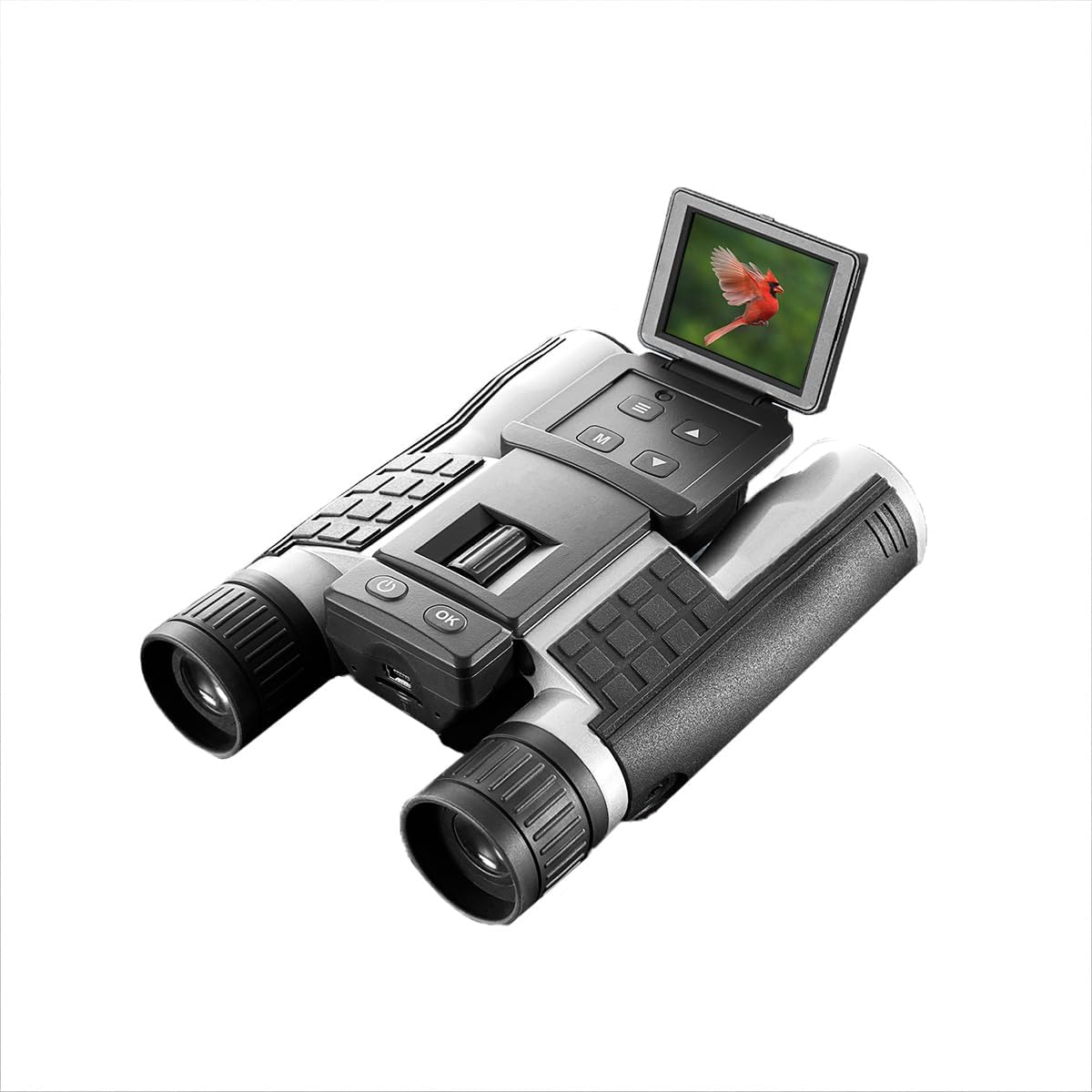
The Sharper Image 12X Zoom Digital Camera Binoculars combine powerful optical magnification with digital imaging capabilities, allowing you to observe distant subjects and capture high-quality photos and videos. Key features include:
- 12X Magnification: Observe subjects with 12 times optical zoom, providing a clear view of distant objects.
- HD Camera: Capture 1080p videos and high-resolution photos.
- 2-inch Color LCD Display: For easy viewing, playback, and settings adjustment.
- Expandable Storage: Includes a 4GB Micro SD card and supports up to 32GB.
- Rechargeable Battery: Convenient USB charging with a low battery indicator.
- Wide Field of View: 96 meters at 100 meters distance.


3. Setup
3.1. Charging the Battery
Before first use, fully charge the internal rechargeable battery. Connect the binoculars to a USB power source (e.g., computer USB port or USB wall adapter) using the provided USB cable. The low battery indicator will show charging status and turn off when fully charged.
3.2. Inserting the Micro SD Card
The binoculars come with a 4GB Micro SD card. To insert it, locate the Micro SD card slot, typically on the underside or side of the device (refer to Product Overview images). Gently push the card into the slot until it clicks into place. Ensure the card is inserted correctly to avoid damage. The device supports Micro SD cards up to 32GB.
3.3. Powering On/Off
Press and hold the power button (usually marked with a ⏻ symbol) for a few seconds to turn the device on or off. The LCD display will illuminate upon power-on.
4. Operating Instructions
4.1. Using the Binoculars
Look through the eyepieces to observe distant objects. Adjust the focus wheel, usually located between the eyepieces, until the image appears clear and sharp. The 12X magnification provides a detailed view of your surroundings.
4.2. Capturing Photos
- Ensure the device is powered on and in camera mode (if applicable, check the display for an icon indicating camera mode).
- Frame your desired shot using the LCD display.
- Press the dedicated photo capture button (often marked with a camera icon or "OK") to take a high-resolution photo.
- The photo will be saved to the inserted Micro SD card.
4.3. Recording Videos
- Switch the device to video recording mode (look for a video camera icon on the display or a mode button).
- Press the record button (often marked with a red dot or "REC") to start recording 1080p video.
- Press the record button again to stop recording.
- Videos will be saved to the Micro SD card.
4.4. Using the LCD Display
The 2-inch color LCD display allows you to view live footage, review captured photos and videos, and navigate through the device's settings. Use the navigation buttons (up, down, left, right, OK/Menu) to interact with the display interface.
This video demonstrates the key features and usage of the Sharper Image 12X Zoom Digital Camera Binoculars, including viewing through the lenses, capturing images, and interacting with the device's controls.
5. Maintenance
5.1. Cleaning
To clean the binoculars, use a soft, dry cloth. For lenses, use a lens cleaning cloth and solution specifically designed for optical surfaces. Avoid using abrasive cleaners or solvents, as they may damage the device. Keep the lens caps on when not in use to protect the lenses from dust and scratches.
5.2. Battery Care
To prolong battery life, avoid fully discharging the battery frequently. Recharge the battery regularly, even if the device is not in constant use. Store the device in a cool, dry place when not in use for extended periods.
5.3. Storage
Store the binoculars in their protective case or a soft pouch to prevent damage from impacts or dust. Avoid exposing the device to extreme temperatures, high humidity, or direct sunlight for prolonged periods.
6. Troubleshooting
If you encounter issues with your Sharper Image 12X Zoom Digital Camera Binoculars, please refer to the following common problems and solutions:
| Problem | Possible Cause | Solution |
|---|---|---|
| Device does not power on. | Low or depleted battery. | Charge the battery fully using the provided USB cable. |
| Cannot capture photos/videos. | No Micro SD card inserted or card is full/corrupted. | Ensure a Micro SD card is properly inserted. Check available storage space or try a different card. Format the card if necessary (this will erase all data). |
| Images/Videos are blurry or unclear. | Improper focus adjustment; dirty lenses; insufficient lighting. | Adjust the focus wheel. Clean the lenses with a suitable lens cleaning cloth. Ensure adequate lighting for your subject. |
| Battery drains quickly. | Frequent use of LCD display; old battery; continuous recording. | Reduce LCD display usage. Ensure the battery is fully charged before use. If the issue persists, contact customer support. |
7. Specifications
| Feature | Detail |
|---|---|
| Brand | Sharper Image |
| Magnification Maximum | 12 x |
| Field of View | 96m at 100m distance |
| Video Resolution | 1080p HD |
| Display | 2'' Color LCD |
| Storage | Includes 4GB Micro SD card, supports up to 32GB |
| Power Source | Rechargeable battery with USB charging |
| Special Feature | Lightweight, Portable |
| Manufacturer | Camelot SI, LLC |
| ASIN | B07ZWNKV12 |
8. Warranty and Support
For warranty information, please refer to the documentation included with your product packaging or visit the official Sharper Image website. If you require technical assistance or have questions not covered in this manual, please contact Sharper Image customer support. Contact details can typically be found on the product packaging or the brand's official website.
You can visit the Sharper Image Store for more information: Sharper Image Store
Related documentsB07ZWNKV12


Ask a question about this manual
Ask about setup, troubleshooting, compatibility, parts, safety, or missing instructions. Manuals+ will review the question and use this page’s manual context to help answer it.