
Introduction
The Motospeed CK95 is a full-sized mechanical keyboard designed for performance and durability. It features Outemu Brown mechanical switches, blue LED backlighting, and a robust design suitable for various computing tasks and gaming.
Key Features:
- Full-sized 104-key layout
- Outemu Brown mechanical switches
- Blue LED backlighting with multiple modes
- Anti-ghosting for all keys
- Durable construction with 50 million key-press lifespan
- Plug and Play USB 2.0 connectivity
Setup Guide
1. Unpacking
Carefully remove the keyboard and any accessories from the packaging. Ensure the following items are present:
- Motospeed CK95 Mechanical Keyboard
- Keycap Remover Tool
- User Manual (this document)
2. Connecting the Keyboard
The Motospeed CK95 keyboard uses a standard USB 2.0 connection for power and data transfer. It is a Plug and Play device, requiring no additional driver installation for basic functionality.
- Locate an available USB port on your computer (PC, Mac, Linux) or compatible gaming console (PS4, Xbox).
- Insert the USB connector from the keyboard into the USB port.
- The keyboard will be automatically detected by your operating system. The blue LED backlighting will illuminate, indicating the keyboard is powered on and ready for use.

Image: Top-down view of the Motospeed CK95 Mechanical Keyboard, showcasing its full 104-key layout and active blue LED backlighting.
Operating Instructions
Basic Key Functions
The Motospeed CK95 features a standard 104-key layout. All keys function as labeled for typing and general computer use.
LED Backlighting Control
The keyboard is equipped with blue LED backlighting, offering various lighting modes and intensity levels. Use the Function (Fn) key in combination with specific keys to control the lighting effects.
- Fn + INS (Insert): Cycle through different LED lighting modes. The keyboard supports 8 distinct lighting patterns.
- Fn + DEL (Delete): Adjust the brightness of the LED backlighting. There are 4 intensity levels available.
- Fn + HOME (Home): Change the direction or speed of certain dynamic lighting effects.
- Fn + END (End): Customize specific lighting zones or patterns (functionality may vary by mode).
- Fn + PGUP (Page Up) / PGDN (Page Down): Adjust the speed of dynamic lighting effects.
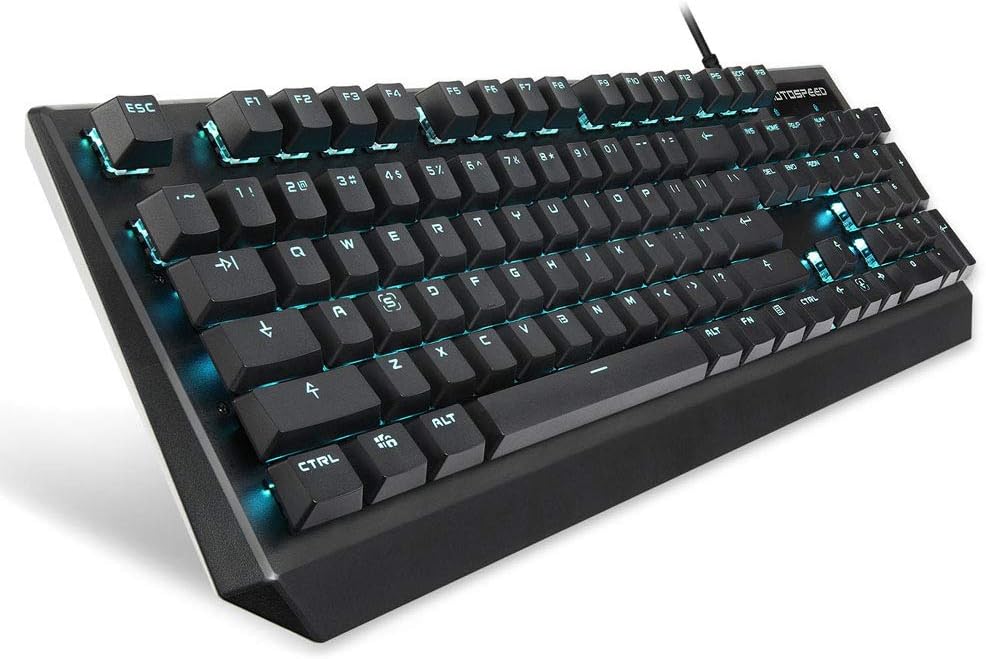
Image: Angled view of the Motospeed CK95 Mechanical Keyboard, highlighting the blue LED backlighting on the keys.
Multimedia and Shortcut Keys
The F1-F12 keys, when combined with the Fn key, provide access to various multimedia controls and system shortcuts:
- Fn + F1: My Computer
- Fn + F2: Search
- Fn + F3: Calculator
- Fn + F4: Media Player
- Fn + F5: Previous Track
- Fn + F6: Next Track
- Fn + F7: Play/Pause
- Fn + F8: Stop
- Fn + F9: Mute
- Fn + F10: Volume Down
- Fn + F11: Volume Up
- Fn + F12: Lock Keyboard
- Fn + Win Key: Lock/Unlock Windows Key (prevents accidental presses during gaming).
Maintenance
Cleaning the Keyboard
Regular cleaning helps maintain the performance and appearance of your keyboard.
- General Cleaning: Use a soft, lint-free cloth slightly dampened with water or a mild cleaning solution to wipe down the keycaps and keyboard surface. Avoid excessive moisture.
- Dust Removal: Use compressed air to remove dust and debris from between the keycaps.
Keycap Removal and Cleaning
For deeper cleaning or to replace keycaps, use the provided keycap remover tool.
- Gently attach the keycap remover tool to the sides of the keycap you wish to remove.
- Pull upwards firmly but carefully until the keycap detaches from the switch stem.
- Clean the keycap with a mild soap solution and allow it to dry completely before reattaching.
- To reattach, align the keycap with the switch stem and press down until it clicks into place.

Image: Close-up view of the Outemu Brown mechanical switches, showing the mechanism beneath the removed keycaps.
Troubleshooting
If you encounter issues with your Motospeed CK95 keyboard, please refer to the following common solutions:
- Keyboard Not Responding:
- Ensure the USB cable is securely connected to both the keyboard and the computer.
- Try connecting the keyboard to a different USB port.
- Restart your computer.
- Test the keyboard on another computer to determine if the issue is with the keyboard or the computer's port/drivers.
- Keys Not Registering or Double-Typing:
- This can sometimes be caused by dust or debris under the keycap. Refer to the "Maintenance" section for cleaning instructions.
- If the issue persists after cleaning, it may indicate a switch malfunction. Contact customer support if the product is under warranty.
- LED Backlighting Not Working or Incorrect:
- Ensure the keyboard is properly connected and powered.
- Use the Fn + INS and Fn + DEL combinations to cycle through modes and adjust brightness.
- If specific keys' LEDs are not working, it might be a hardware issue.
- Windows Key Locked:
- Press Fn + Win Key to toggle the Windows key lock feature.
Specifications
| Feature | Detail |
|---|---|
| Brand | MOTOSPEED |
| Model | CK95 |
| Keyboard Type | Mechanical |
| Switch Type | Outemu Brown |
| LED Backlighting | Blue LED |
| Number of Keys | 104 |
| Connection | Wired USB 2.0 |
| Key Lifespan | 50 million clicks |
| Response Time | 3ms |
| Anti-Ghosting | All keys |
| Cable Length | 1.65m |
| Product Dimensions | 43.70 x 12.80 x 3.40 cm (17.2 x 5.04 x 1.34 inches) |
| Product Weight | 0.800 kg (1.76 lbs) |
| Compatible Operating Systems | Windows, macOS, Linux |
| Compatible Devices | PC, PS4, Xbox |

Image: Side profile view of the Motospeed CK95 Mechanical Keyboard, illustrating its ergonomic design and keycap height.
Warranty and Support
Warranty Information
The Motospeed CK95 Mechanical Keyboard comes with a 1-year manufacturer's warranty against defects in materials and workmanship from the date of purchase. This warranty does not cover damage caused by misuse, accident, modification, or unauthorized repair.
Customer Support
For technical assistance, warranty claims, or further inquiries, please contact your retailer or the official Motospeed customer support channels. Refer to the product packaging or the official Motospeed website for contact details.
When contacting support, please have your product model (CK95) and proof of purchase readily available.


