
1. Introduction
This manual provides detailed instructions for the Zopsc Portable MP4 Player. This device is designed for portable media playback, supporting music, video, radio, recording, and e-book functions. It features a 1.8-inch color display and supports up to a 32GB memory card for expanded storage.
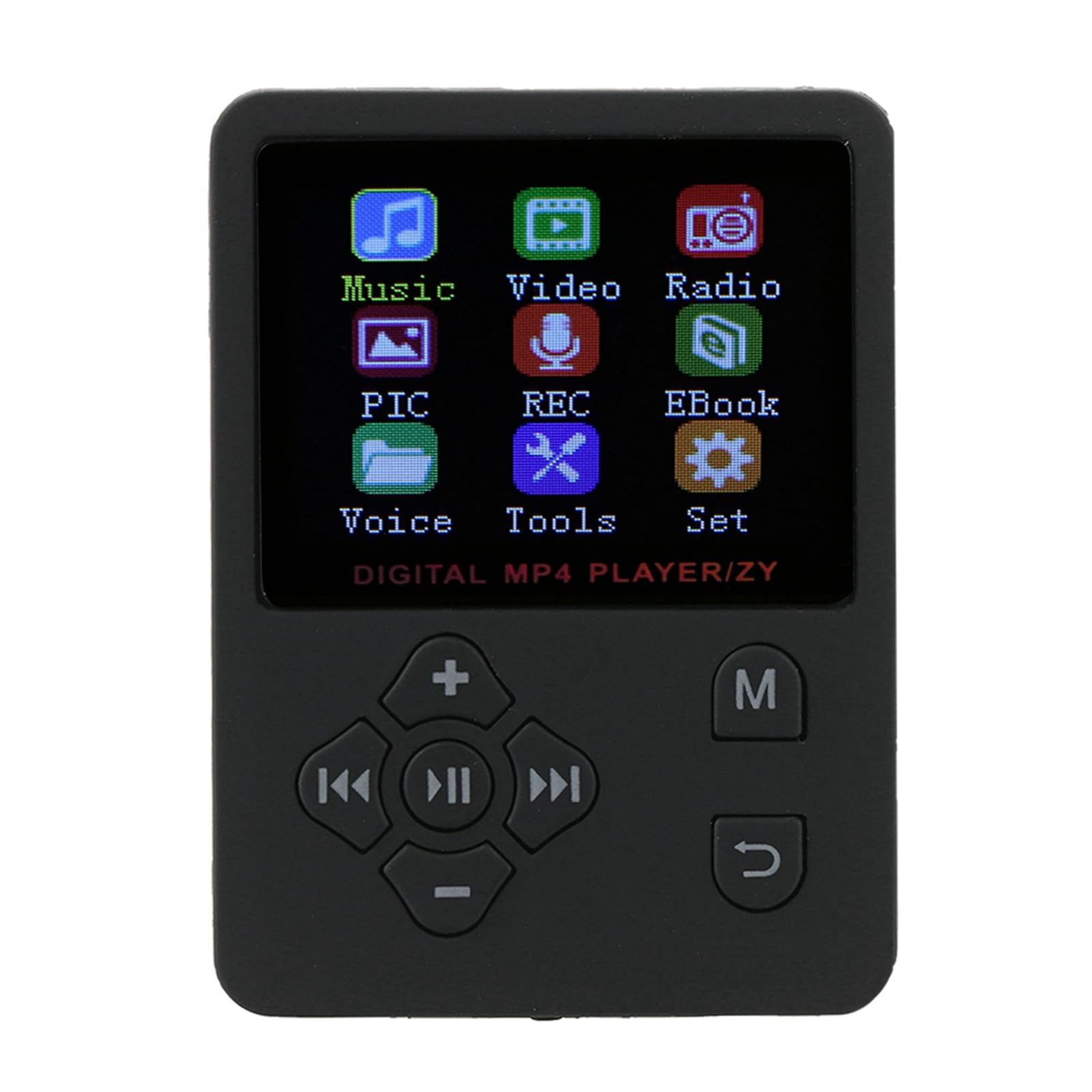
Image 1.1: Front view of the Zopsc Portable MP4 Player showing its menu interface.
2. What's in the Box
Verify that all items are present in the package:
- Zopsc Portable MP4 Player
- Earphone
- Charging Cable

Image 2.1: The MP4 player, earphones, and charging cable included in the package.
3. Product Overview
The Zopsc Portable MP4 Player is designed for ease of use and versatility. Key features include:
- Display: 1.8-inch LCD color screen.
- Storage: No internal memory; supports up to 32GB Micro SD card (not included).
- Battery: Built-in 180mAh polymer lithium battery, providing 6-8 hours of continuous playback.
- Connectivity: USB for charging and data transfer.
- Audio Formats: Supports MP3 and other audio formats.
- Video Formats: Supports AMV video format.
- Functions: Music playback, video playback, FM radio, voice recording, e-book reader, stopwatch.
- Language: Default English, with support for 13 switchable languages.

Image 3.1: The MP4 player's main menu, illustrating its various functions.
4. Setup
4.1 Charging the Device
Before first use, fully charge the MP4 player. Connect the provided USB charging cable to the player's USB port and to a power source (e.g., computer USB port or a USB wall adapter). The battery indicator on the screen will show charging status.

Image 4.1: Connecting the charging cable to the MP4 player.
4.2 Inserting a Micro SD Card
The player requires a Micro SD card for storing media files. Locate the card slot on the side of the device. Gently insert the Micro SD card into the slot until it clicks into place. Ensure the card is inserted in the correct orientation.

Image 4.2: Illustration of inserting a Micro SD card for 'Plug & Play' functionality.
4.3 Connecting Headphones
Plug the 3.5mm jack of your headphones into the headphone port located on the bottom of the player.

Image 4.3: The MP4 player with connected headphones.
5. Operating Instructions
5.1 Power On/Off
To power on, press and hold the power button (usually located on the side or top) until the screen lights up. To power off, press and hold the power button again until the device shuts down.
5.2 Navigating the Menu
Use the directional buttons (up, down, left, right) to navigate through menu options. The 'MENU' button typically returns to the previous screen or main menu. The central button is usually for selection or play/pause.

Image 5.1: The MP4 player showcasing its multiple play modes and features.
5.3 Music Playback
- From the main menu, select 'Music'.
- Browse your music files stored on the Micro SD card.
- Select a song to begin playback.
- Use the 'VOL' buttons to adjust volume.
- Use the left/right arrow buttons to skip tracks.
- The central button acts as play/pause.
5.4 Video Playback
The player supports AMV video format. Ensure your video files are converted to this format for proper playback.
- From the main menu, select 'Video'.
- Browse your video files.
- Select a video to play.
5.5 FM Radio
Connect your headphones as they act as the antenna for the FM radio.
- From the main menu, select 'Radio'.
- Use the menu options to scan for stations or manually tune.
5.6 Voice Recording
The player includes a built-in microphone for voice recording.
- From the main menu, select 'REC' (Recording).
- Follow the on-screen prompts to start, pause, and save recordings.

Image 5.2: The MP4 player displaying its recording function.
5.7 E-book Reader
The player supports reading text files.
- From the main menu, select 'EBook'.
- Browse and select your text files.
5.8 Stopwatch Function
Access the stopwatch feature from the 'Tools' menu.
- From the main menu, select 'Tools'.
- Select 'Stopwatch' and follow the on-screen instructions to start, stop, and reset.
5.9 Language Settings
The device supports 13 languages. To change the language:
- From the main menu, select 'Set' (Settings).
- Navigate to 'Language' and choose your preferred language.
6. Maintenance
6.1 Cleaning
Wipe the device with a soft, dry cloth. Avoid using liquid cleaners or solvents, as they may damage the screen or casing.
6.2 Battery Care
To prolong battery life, avoid fully discharging the battery frequently. Charge the device regularly, especially if it will not be used for an extended period.

Image 6.1: The MP4 player displaying its battery charging status.
6.3 Storage
Store the player in a cool, dry place away from direct sunlight and extreme temperatures.
7. Troubleshooting
| Problem | Possible Cause | Solution |
|---|---|---|
| Device does not power on | Low battery; device frozen | Charge the device for at least 30 minutes. If frozen, press and hold the power button for 10-15 seconds to force a restart. |
| Cannot play music/video | No Micro SD card; unsupported file format; corrupted files | Ensure a Micro SD card is inserted. Verify files are in supported formats (e.g., MP3 for audio, AMV for video). Try re-transferring files. |
| No sound from headphones | Headphones not properly connected; volume too low; faulty headphones | Ensure headphones are fully plugged in. Increase volume. Test with another pair of headphones. |
| Radio not working | Headphones not connected (acting as antenna) | Connect headphones to enable FM radio functionality. |
8. Specifications
- Brand: Zopsc
- Model Number: Zopsca1iypo4gz8-01
- Color: Black
- Screen Size: 1.8 Inches
- Display Technology: LCD
- Memory Storage: Supports up to 32GB Micro SD Card (not included)
- Connectivity: USB
- Supported Audio Formats: MP3, etc.
- Supported Video Formats: AMV
- Battery: 180mAh Polymer Lithium
- Battery Life: Approximately 6-8 hours of continuous playback
- Item Weight: 0.07 Kilograms
- Item Dimensions (D x W x H): 0.3" x 2" x 2.8"
9. Official Product Videos
9.1 Portable MP3 Music Player Overview
Video 9.1: A brief overview of the portable MP3 music player, highlighting its suitability for active lifestyles and premium audio experience.
9.2 Portable MP3 Music Player Features
Video 9.2: Demonstrates key features of the portable MP3 music player, including its 1.8-inch LCD screen and lossless audio capabilities.
10. Warranty and Support
This product is covered by a standard return policy, allowing for refunds or replacements within 30 days of purchase. For technical support or warranty claims, please contact the manufacturer, Zopsc, through your retailer or their official support channels. Please retain your proof of purchase for warranty validation.