
1. Introduction
Thank you for choosing the Garza Smart Wall Plug. This device allows you to control your electrical appliances remotely, monitor energy consumption, and integrate with smart home ecosystems like Alexa and Google Home. This manual provides essential information for safe installation, setup, and operation.
2. Safety Information
Please read all safety instructions before installing and operating the device. Failure to follow these instructions may result in electric shock, fire, or damage to the device.
- Electrical Safety: Ensure the power supply is disconnected before installation or maintenance. This device is designed for indoor use only.
- Load Capacity: Do not exceed the maximum load capacity of 3680W (16A). Overloading can cause overheating and fire hazards.
- Water and Moisture: Keep the device away from water, high humidity, and wet environments.
- Children: Keep out of reach of children.
- Compatibility: Only connect to a 2.4 GHz Wi-Fi network. It is not compatible with 5 GHz networks.
- Damage: Do not operate the device if it is damaged. Contact customer support for assistance.
3. Package Contents
Verify that all items are present in your package:
- Garza Smart Wall Plug (Model 401268)
- Instruction Manual (this document)

Image: The retail packaging for the Garza Smart Wall Plug, illustrating its features and compatibility with voice assistants.
4. Product Overview
The Garza Smart Wall Plug is designed for seamless integration into your home. It features a single electrical socket and a manual control button.
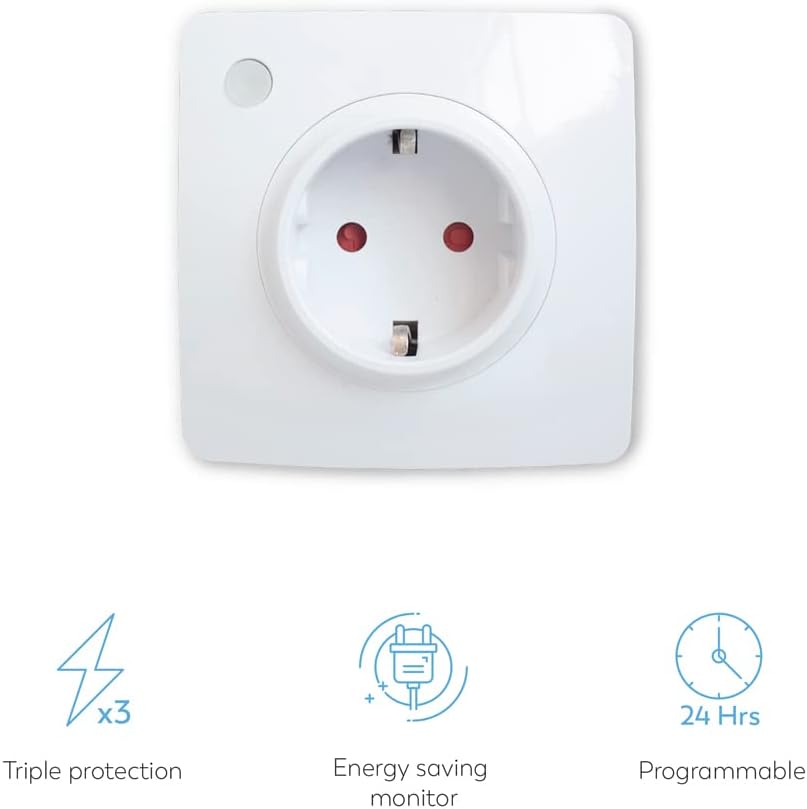
Image: A close-up view of the Garza Smart Wall Plug, showing the electrical socket and the small circular manual control button.

Image: An angled perspective of the Garza Smart Wall Plug, highlighting its compact and minimalist design.
5. Setup
5.1 App Installation
- Download the Garza Smart app from the App Store (iOS) or Google Play Store (Android). Alternatively, the plug is compatible with Tuya Smart and Smart Life apps.
- Register or log in to your account within the app.
5.2 Device Pairing
- Plug the Garza Smart Wall Plug into a standard electrical outlet.
- Open the Garza Smart app.
- Tap the "+" icon (or similar) to add a new device.
- Select "Electrical Outlet" or "Smart Plug" from the device list.
- Follow the on-screen instructions to put the device into pairing mode. This usually involves pressing and holding the manual control button on the plug until an indicator light flashes rapidly.
- Enter your 2.4 GHz Wi-Fi network name and password when prompted. The device is not compatible with 5 GHz Wi-Fi networks.
- Wait for the app to detect and connect to the smart plug. Once connected, you can rename the device for easier identification.

Image: The Garza Smart Wall Plug positioned next to a smartphone displaying the Garza Smart app interface, showing the power control screen.
6. Operating Instructions
6.1 Manual Control
Press the physical button on the smart plug to manually turn the connected appliance on or off.
6.2 App Control
Once paired, you can control the smart plug using the Garza Smart app:
- On/Off: Tap the power icon in the app to toggle the connected appliance on or off.
- Timer: Set a countdown timer for the plug to turn off automatically after a specified duration.
- Scheduling: Create daily or weekly schedules for the plug to turn on or off at specific times.
- Energy Monitoring: View real-time and historical energy consumption data (daily, monthly, yearly) for the connected appliance. This feature helps in monitoring and saving energy.
- Automations and Scenes: Create custom rules to automate the plug's behavior based on conditions like time, weather, or the status of other smart devices.
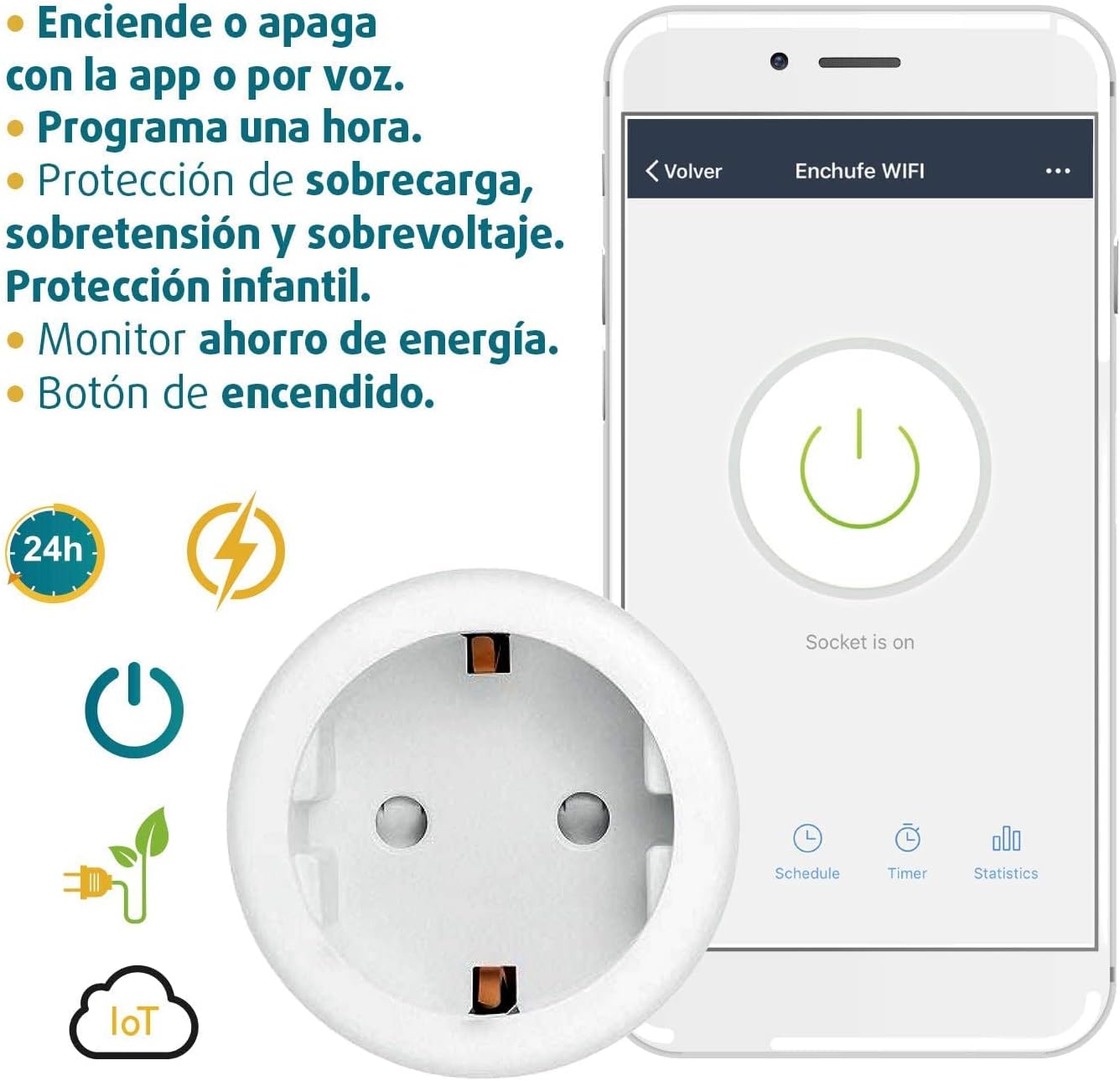
Image: An infographic showing the Garza Smart Wall Plug alongside icons representing its key features: 24-hour programming, power button, energy saving monitor, and IoT compatibility.
6.3 Voice Control
The Garza Smart Wall Plug is compatible with Amazon Alexa and Google Assistant. To enable voice control:
- Link your Garza Smart account to your Alexa or Google Home app.
- Discover new devices.
- Use voice commands such as:
- "Alexa, turn on [device name]"
- "Hey Google, turn off [device name]"
- "Alexa, set [device name] to turn off in 30 minutes"
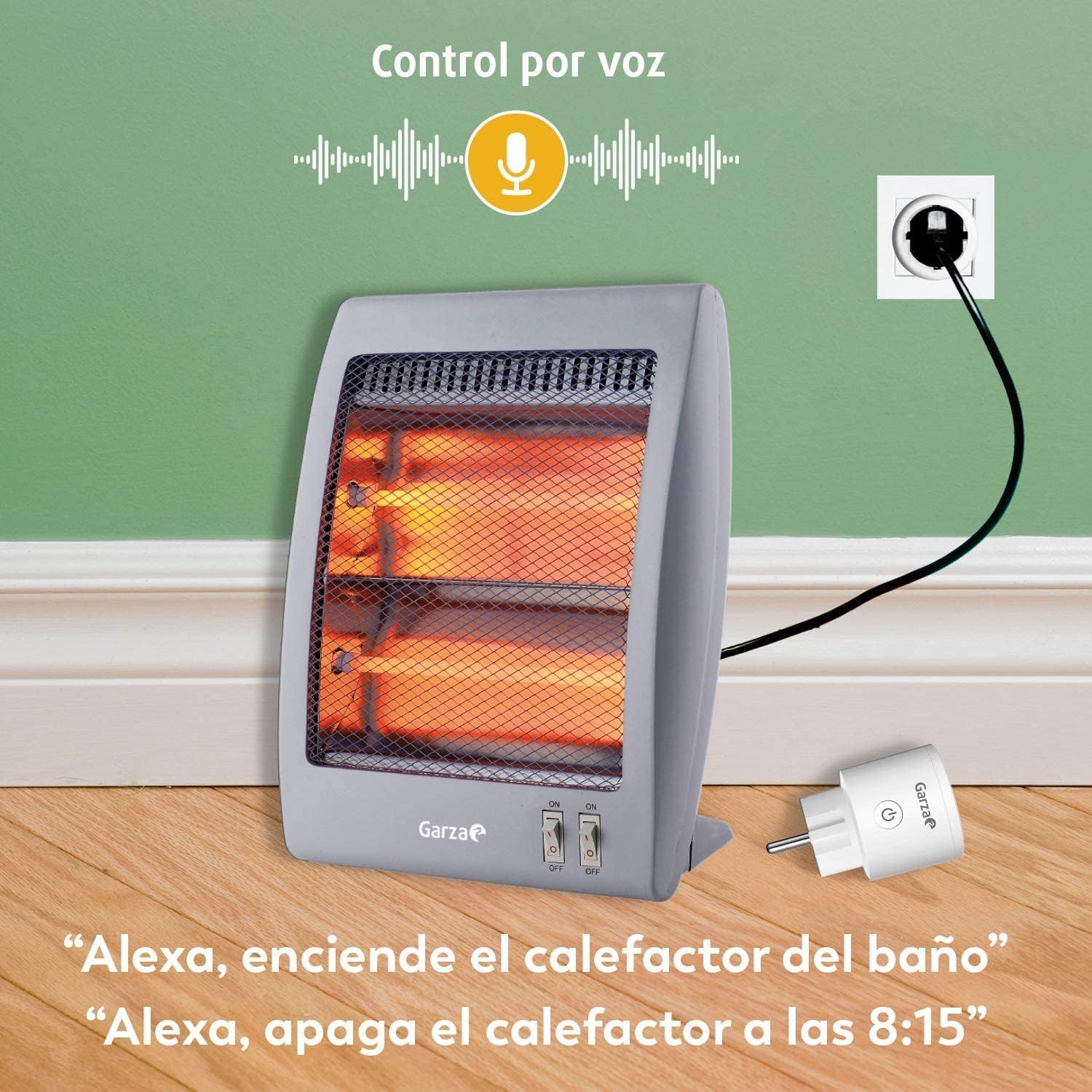
Image: An illustration demonstrating voice control, with the smart plug connected to a heater and a smartphone displaying example voice commands for Alexa.
7. Maintenance
To ensure optimal performance and longevity of your Garza Smart Wall Plug:
- Cleaning: Disconnect the plug from the power outlet before cleaning. Use a soft, dry cloth to wipe the surface. Do not use liquid or aerosol cleaners.
- Environment: Avoid exposing the device to extreme temperatures, direct sunlight, or dusty environments.
- Firmware Updates: Regularly check the Garza Smart app for available firmware updates to ensure your device has the latest features and security enhancements.
8. Troubleshooting
If you encounter issues with your Garza Smart Wall Plug, refer to the following common solutions:
- Device Not Connecting to Wi-Fi:
- Ensure your Wi-Fi network is 2.4 GHz. The plug does not support 5 GHz networks.
- Check if your Wi-Fi signal is strong enough at the plug's location.
- Restart your Wi-Fi router.
- Reset the smart plug (usually by holding the button for 5-10 seconds until the indicator light flashes rapidly) and attempt pairing again.
- Appliance Not Responding:
- Verify the smart plug is powered on and connected to Wi-Fi.
- Ensure the connected appliance is properly plugged into the smart plug and is functional.
- Check if the appliance's power switch is in the 'on' position.
- Voice Control Issues:
- Confirm that your Garza Smart account is correctly linked to Alexa or Google Home.
- Ensure the device name in the Garza Smart app matches the name used in your voice assistant app.
- Try re-discovering devices in your Alexa or Google Home app.
- Energy Monitoring Inaccurate:
- Ensure the connected appliance is within the specified power limits (max 3680W).
- If issues persist, contact Garza customer support.
9. Specifications
| Feature | Specification |
|---|---|
| Brand | Garza |
| Model Number | 401268 |
| Color | White |
| Material | Plastic |
| Max Power Supported | 3680 W |
| Max Amperage Supported | 16 A |
| Wi-Fi Compatibility | 2.4 GHz (not compatible with 5 GHz) |
| Voice Control | Alexa, Google Assistant |
| App Compatibility | Garza Smart, Tuya Smart, Smart Life |
| Operating Mode | ON-OFF |
| Dimensions (L x W x H) | 8 x 8 x 8 centimeters (approximate) |
| Protection | Overload, Overvoltage, Overcurrent |
10. Warranty and Support
Garza products typically come with a manufacturer's warranty. Please refer to the warranty card included with your purchase or visit the official Garza website for detailed warranty terms and conditions.
For technical support, troubleshooting assistance, or further inquiries, please visit the Garza Smart Home website or contact their customer service department. Contact information can usually be found on the product packaging or the official website.