
1. Introduction
Thank you for choosing the Garza Smart WiFi 360 Degree Smart Outdoor Security Camera. This manual provides essential information for the proper installation, operation, and maintenance of your new security camera. Please read this manual thoroughly before using the product to ensure optimal performance and safety. This camera is designed to provide comprehensive outdoor surveillance with its 1080P HD resolution, 360-degree rotation, and advanced features like night vision and motion detection.
2. Package Contents
Verify that all items listed below are present and in good condition upon opening the package.
- 1 x Garza Smart WiFi 360 Degree Smart Outdoor Security Camera
- 1 x USB Power Cable
- 1 x Mounting Screws Set
- 1 x User Manual (in Spanish, Portuguese, and English)
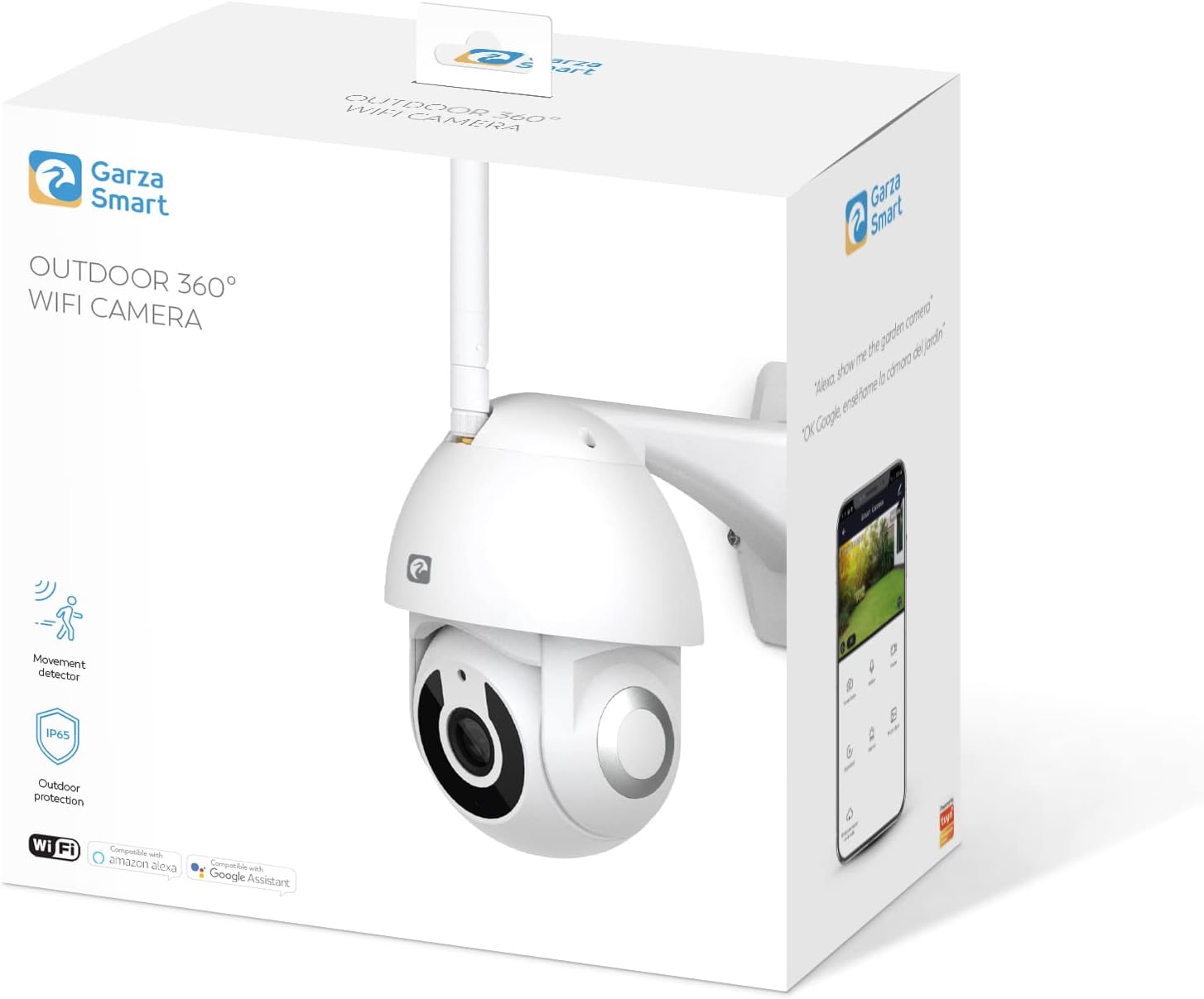
Image: The product packaging, showing the camera and its key features on the box.
3. Product Features
The Garza Smart WiFi Outdoor Security Camera is equipped with a range of features to enhance your home security:
- 1080P HD Video: Captures clear and detailed high-definition video.
- 360-Degree Rotation: Offers full horizontal 360-degree and vertical 155-degree rotation for comprehensive area coverage.
- 4x Digital Zoom: Allows for closer inspection of details within the video feed.
- IP65 Weatherproof Rating: Designed to withstand outdoor conditions, including water, moisture, and adverse weather.
- Advanced Night Vision: Infrared technology provides clear detection in low-light conditions up to 10 meters.
- PIR Motion Detection: Sends instant notifications to your device upon detecting movement, with adjustable sensitivity and scheduling.
- Two-Way Audio: Built-in microphone and speaker enable real-time communication through the camera.
- MicroSD Card Storage: Supports local storage of recordings on a MicroSD card (up to 64GB, not included).
- 2.4GHz WiFi Connectivity: Connects to your home WiFi network for remote access and control. (Note: 5GHz networks are not supported).
- Voice and App Control: Compatible with Garza Smart, Tuya Smart, and Smart Life apps, and integrates with Amazon Alexa and Google Assistant for convenient control.
- USB Powered: Easy power connection via USB cable.

Image: Visual representation of key features including 4x zoom, 1080p HD resolution, and motion detection capability.
4. Setup and Installation
Follow these steps to set up and install your Garza Smart Outdoor Security Camera.
4.1 Choosing an Installation Location
Select a location that provides the desired viewing angle and is within range of your 2.4GHz WiFi network. Ensure the camera is positioned to cover critical areas while being protected from direct tampering. The IP65 rating allows for outdoor placement.

Image: The Garza camera securely mounted on an outdoor wall, demonstrating typical installation.
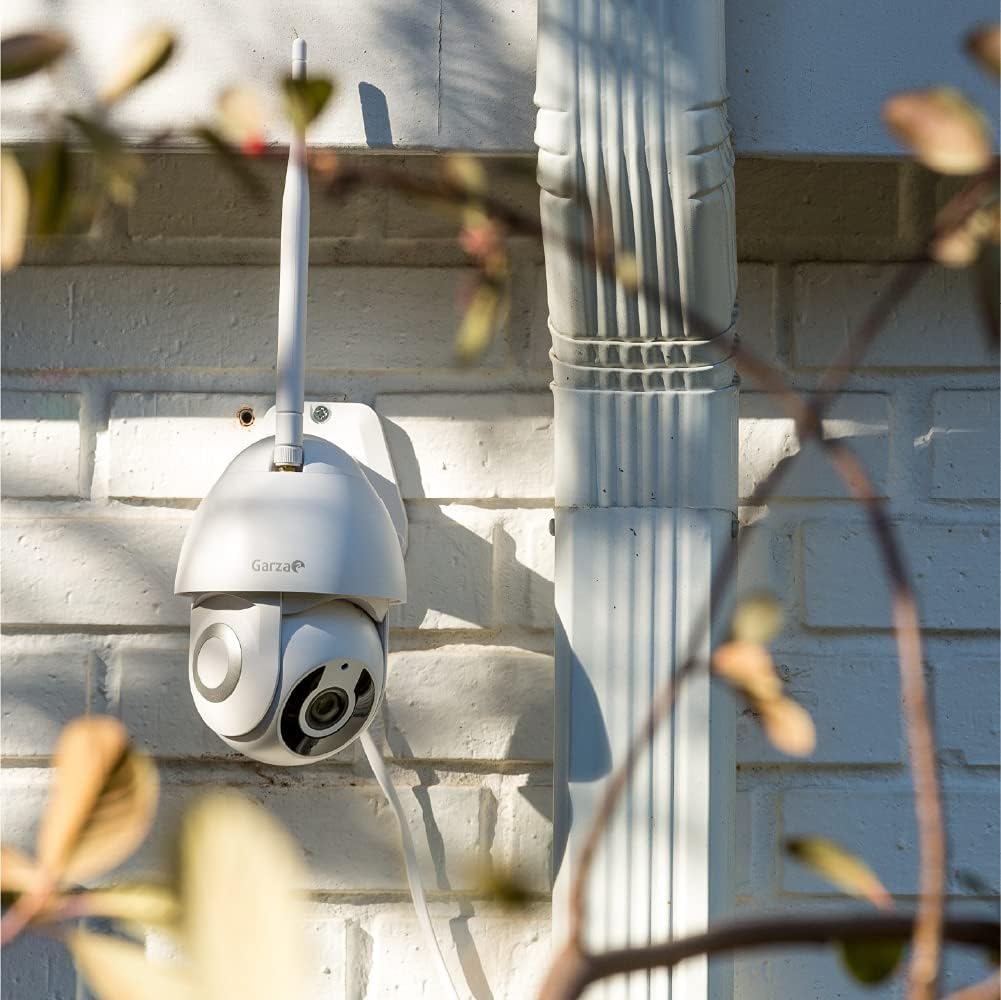
Image: Another view of the camera mounted outdoors, showing its discreet integration with the building's exterior.
4.2 Physical Installation
- Attach the mounting bracket to the desired surface (wall or ceiling) using the provided screws.
- Securely attach the camera to the mounting bracket.
- Connect the USB power cable to the camera and a suitable power source.
4.3 App Download and Pairing
- Download the Garza Smart, Tuya Smart, or Smart Life app from the Google Play Store (for Android) or Apple App Store (for iOS).
- Register or log in to your account within the app.
- Follow the in-app instructions to add your new camera. This typically involves selecting "Add Device," choosing the camera category, and following the prompts to connect the camera to your 2.4GHz WiFi network.
- Ensure your mobile device is connected to the same 2.4GHz WiFi network during the pairing process.

Image: The Garza Smart camera alongside a smartphone showing the live view and control options within the Garza Smart app.
5. Operating Instructions
Once your camera is set up, you can control and monitor it using the Garza Smart, Tuya Smart, or Smart Life app.
5.1 Live View and Pan/Tilt/Zoom (PTZ)
- Open the app and select your camera from the device list to access the live video feed.
- Use the on-screen controls to rotate the camera horizontally (360 degrees) and vertically (155 degrees) to adjust the viewing angle.
- Pinch to zoom in or out on the live feed (up to 4x digital zoom).
5.2 Motion Detection and Alerts
- Navigate to the camera settings within the app.
- Enable motion detection and adjust sensitivity levels as needed.
- Set up motion detection schedules to activate alerts only during specific times.
- Receive instant push notifications on your mobile device when motion is detected.
5.3 Two-Way Audio
- From the live view screen, tap the microphone icon to speak through the camera's speaker.
- Tap the speaker icon to listen to audio from the camera's microphone.
5.4 Recording and Playback
- To record video, ensure a MicroSD card (not included) is inserted into the camera's slot (access by turning the camera viewfinder up).
- Recordings can be viewed and managed within the app's playback section.
- You can also take screenshots or manually record video directly from the live view.
5.5 Night Vision
The camera automatically switches to night vision mode in low-light conditions, utilizing infrared technology to provide clear black-and-white images up to 10 meters.
6. Maintenance
Regular maintenance ensures the longevity and optimal performance of your security camera.
- Cleaning: Gently wipe the camera lens and body with a soft, damp cloth. Avoid using harsh chemicals or abrasive materials that could damage the surface or lens.
- Firmware Updates: Periodically check the Garza Smart app for available firmware updates. Keeping the firmware updated ensures you have the latest features and security enhancements.
- Power Supply: Ensure the USB power cable and adapter are in good condition and free from damage.
- MicroSD Card: If using a MicroSD card, periodically check its status and consider formatting it through the app to maintain optimal recording performance.
7. Troubleshooting
If you encounter issues with your camera, refer to the following common solutions:
| Problem | Possible Cause | Solution |
|---|---|---|
| Camera offline/Cannot connect to WiFi | Incorrect WiFi password; Camera too far from router; Only 5GHz WiFi available; Router issues. | Ensure correct 2.4GHz WiFi password. Move camera closer to router. Verify your router supports 2.4GHz. Restart router and camera. Re-pair the camera with the app. |
| Motion detection not working | Sensitivity too low; Schedule not set correctly; Obstructions in view. | Increase motion detection sensitivity in the app. Check and adjust motion detection schedules. Ensure clear line of sight for the camera. |
| Poor video quality | Insufficient bandwidth; Dirty lens; Low light conditions. | Ensure stable and strong WiFi signal. Clean the camera lens. Night vision automatically adjusts in low light. |
| Two-way audio not functioning | Microphone/speaker muted in app; App permissions. | Check if microphone/speaker icons are muted in the app. Verify app has microphone permissions on your device. |
| MicroSD card not recording | Card full or corrupted; Incorrect format; Card not inserted properly. | Check card status in app. Format the MicroSD card via the app. Reinsert the card correctly. Ensure card is up to 64GB. |
8. Specifications
Detailed technical specifications for the Garza Smart WiFi 360 Degree Smart Outdoor Security Camera:
- Model Number: 401270
- Indoor/Outdoor Usage: Outdoor
- Connectivity Protocol: Wi-Fi (2.4GHz only)
- Video Capture Resolution: 1080P HD (Effective video resolution: 1080 Pixels)
- Viewing Angle: 360 Degrees (Horizontal), 155 Degrees (Vertical)
- Night Vision Range: Up to 10 Meters
- Power Source: Corded Electric (USB Powered)
- Material: Metal
- IP Rating: IP65 (Waterproof)
- Compatible Devices: Tablet, Smartphone
- Controller Type: Amazon Alexa, Google Assistant, Garza Smart App, Tuya Smart App, Smart Life App
- Item Dimensions (L x W x H): 10 x 8 x 16 cm
- Item Weight: 770 Grams
- Wattage: 3 watts
- MicroSD Slot: Up to 64GB (card not included)
9. Warranty and Support
For warranty information and customer support, please refer to the documentation included in your product packaging or visit the official Garza website. If you encounter any issues not covered in this manual, please contact Garza customer service for assistance.
Contact Information: Please refer to the contact details provided in your product's original user manual or on the Garza official website.
