
Cooler Master MS-110-KKMF1-DE
Cooler Master MS110 RGB Gaming Keyboard & Mouse Combo
User Manual
Introduction
Welcome to the user manual for your new Cooler Master MS110 RGB Gaming Keyboard & Mouse Combo. This manual provides detailed instructions on setting up, operating, maintaining, and troubleshooting your device. Please read this manual carefully before using the product to ensure optimal performance and longevity.
Product Overview
The Cooler Master MS110 combo is engineered for gamers seeking a responsive and customizable experience. It combines a keyboard with exclusive Mem-chanical linear switches and a gaming mouse with an optical sensor and adjustable DPI, all featuring vibrant RGB lighting.
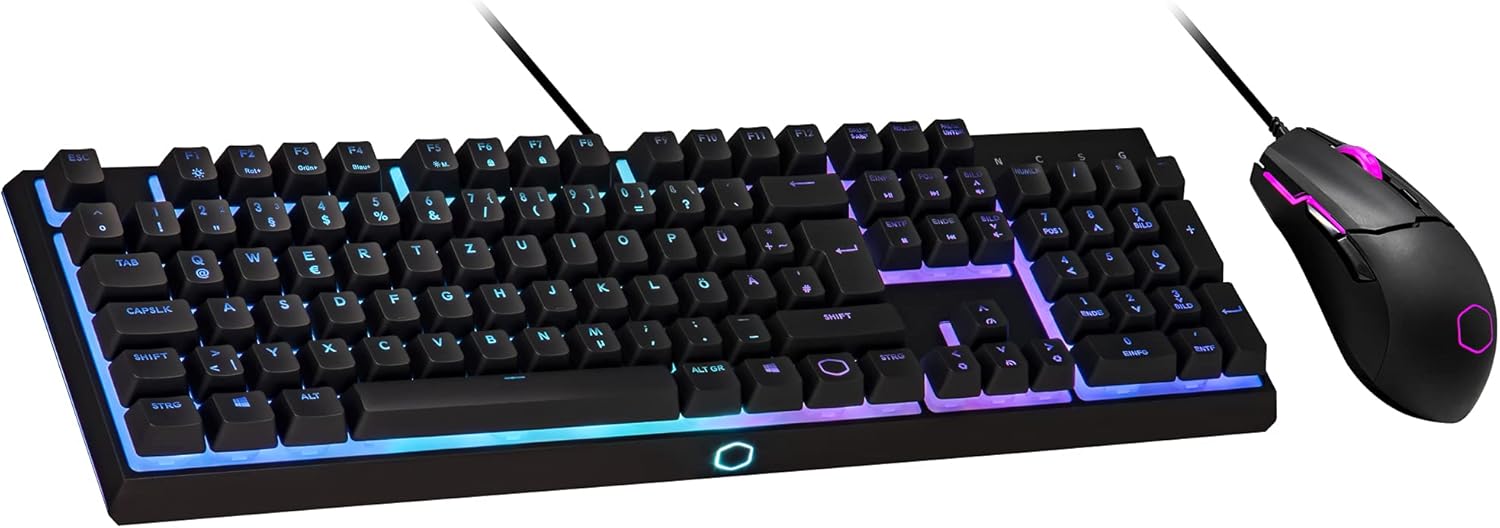
Figure 1: Cooler Master MS110 RGB Gaming Keyboard and Mouse Combo.
Features
- Superb RGB Backlighting: The keyboard features 6-zone RGB lighting for stunning light effects, easily adjustable via Cooler Master / FN buttons (7 modes). The mouse has 3 customizable RGB zones without software.
- Exclusive Hybrid Keyboard: Mem-chanical switches offer high responsiveness compared to membrane switches for competitive gaming, providing good tactile feedback coupled with an audible click.
- On-the-Fly Controls & Anti-Ghosting: Easily control RGB lighting, Windows key lock, and multimedia commands via FN keys. 26-key anti-ghosting ensures a precise and fluid experience during intense gameplay.
- Ergonomic MS110 Mouse: Ambidextrous shape optimized for right-handed users. Features a Pixart 5050 Gaming Optical Sensor for combat precision and 4 preset DPI settings: 400, 800, 1600, 3200. A new innovative coating provides enhanced durability and comfort.
- Durable Design: The sleek design with floating keys gives the set an elegant, timeless look, while its robust construction ensures durability for long-term use.
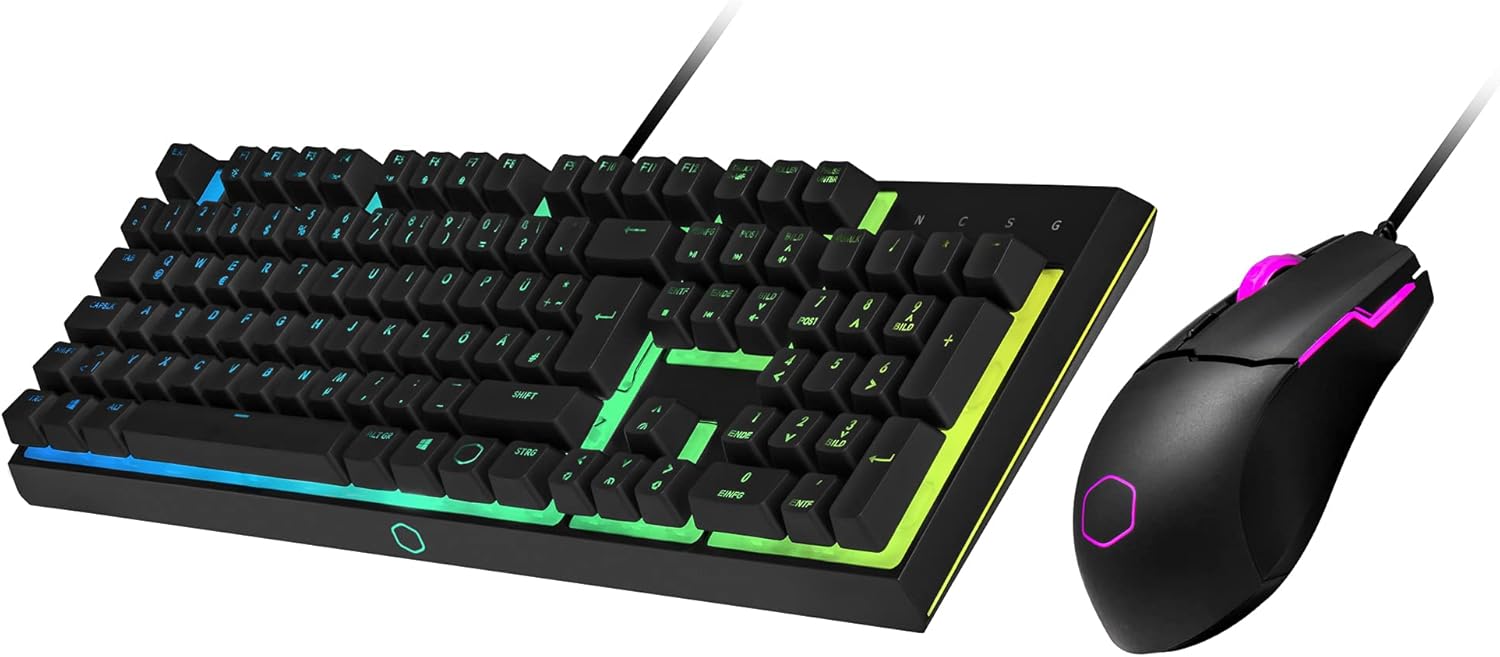
Figure 2: Angled view of the MS110 combo showcasing RGB lighting.

Figure 3: Top-down view of the MS110 keyboard and mouse, highlighting the layout.

Figure 4: Side profile of the MS110 keyboard, showing the keycap height and floating design.
Setup
- Unpack: Carefully remove the keyboard and mouse from their packaging.
- Connect Keyboard: Plug the USB connector of the keyboard into an available USB port on your computer.
- Connect Mouse: Plug the USB connector of the mouse into another available USB port on your computer.
- Driver Installation: Your operating system (Windows 10, Mac OS) should automatically detect and install the necessary drivers. No additional software installation is required for basic functionality and RGB control.
- Placement: Place the keyboard and mouse on a stable, flat surface for optimal use.
Operating Instructions
Keyboard Controls
- RGB Lighting Control: Use the FN key in combination with specific function keys (e.g., FN + F1-F7) to cycle through 7 different lighting modes and adjust brightness or speed. Refer to the keyboard's keycap legends for specific combinations.
- Windows Key Lock: Press FN + Windows key to disable/enable the Windows key, preventing accidental presses during gaming.
- Multimedia Controls: Use FN key combinations (e.g., FN + F8-F12) for media playback control (play/pause, stop, next/previous track, volume up/down/mute).
- Anti-Ghosting: The keyboard supports 26-key anti-ghosting, meaning multiple key presses will be registered accurately, which is crucial for complex gaming commands.
Mouse Controls
- DPI Adjustment: Use the dedicated DPI button on the mouse to cycle through the four preset DPI levels: 400, 800, 1600, and 3200. The current DPI setting may be indicated by a change in the mouse's RGB lighting color.
- RGB Lighting: The mouse features 3 customizable RGB zones. These are typically controlled automatically or through the DPI button cycling.
Maintenance
- Cleaning: Use a soft, dry cloth to wipe down the keyboard and mouse. For stubborn dirt, slightly dampen the cloth with water or a mild cleaning solution. Avoid harsh chemicals.
- Keycap Cleaning: For deeper cleaning, keycaps can be carefully removed using a keycap puller (not included) to clean underneath. Ensure the keyboard is unplugged before doing so.
- Cable Management: Avoid sharp bends or excessive pulling on the USB cables to prevent damage.
- Storage: When not in use for extended periods, store the combo in a clean, dry environment away from direct sunlight.
Troubleshooting
| Problem | Possible Cause | Solution |
|---|---|---|
| Keyboard/Mouse not responding | Loose USB connection, faulty USB port, driver issue. | Ensure USB cables are securely plugged in. Try a different USB port. Restart your computer. |
| RGB lighting not working | Lighting mode off, brightness too low, software conflict. | Press FN + lighting control keys to adjust mode/brightness. Ensure no conflicting software is running. |
| Mouse tracking issues | Dirty sensor, unsuitable surface, incorrect DPI setting. | Clean the optical sensor. Use a clean, uniform mouse pad. Adjust DPI settings. |
| Keys not registering (ghosting) | Too many keys pressed simultaneously (beyond 26-key anti-ghosting limit), hardware issue. | Ensure you are not pressing an excessive number of keys. If problem persists, contact support. |
If you encounter issues not listed here or if the suggested solutions do not resolve your problem, please contact Cooler Master customer support for further assistance.
Specifications
| Feature | Detail |
|---|---|
| Brand | Cooler Master |
| Model Number | MS-110-KKMF1-DE |
| Color | Black |
| Connectivity Technology | USB |
| Compatible Devices | Personal Computer |
| Operating System | Mac OS, Windows 10 |
| Keyboard Description | Gaming |
| Keyboard Backlight | RGB (6 zones) |
| Mouse Sensor Technology | Optical (Pixart 5050) |
| Mouse DPI Settings | 400, 800, 1600, 3200 |
| Special Features | Ergonomic, Anti-Ghosting (26 keys), On-the-fly controls |
Warranty and Support
Cooler Master products come with a limited warranty. Please refer to the warranty card included with your product or visit the official Cooler Master website for detailed warranty terms and conditions specific to your region. For technical support, driver downloads, or frequently asked questions, please visit the Cooler Master support page:
Always ensure you have your product model number (MS-110-KKMF1-DE) and proof of purchase ready when contacting support.
Ask a question about this manual
Ask about setup, troubleshooting, compatibility, parts, safety, or missing instructions. Manuals+ will review the question and use this page’s manual context to help answer it.